SkatterBencher #101: Core Ultra 7 270K Plus Overclocked to 5800 MHz
Today we undervolt and overclock the Intel Core Ultra 7 270K Plus processor up to 5800 MHz using custom loop water cooling.
We do this by exploring several of the Arrow Lake overclocking tools which I previously covered on this website. In this guide, I break down the Core Ultra 7 270K Plus tuning process into four unique overclocking strategies for beginner and advanced overclockers.
- First, we enable Intel 200S Boost and ASUS MCE.
- Second, we undervolt the CPU P- and E-cores.
- Third, we overclock the CPU P- and E-cores.
- And, lastly, we optimize the data fabric and memory subsystem.
But before we jump into overclocking, let us quickly review our system, the benchmarks, and the stock performance.
Intel Core Ultra 7 270K Plus: Introduction
The Intel Core Ultra 7 270K Plus is part of Intel’s Core Ultra 200S Refresh product line The Arrow Lake Refresh desktop processors for enthusiasts were introduced on March 11, 2026.
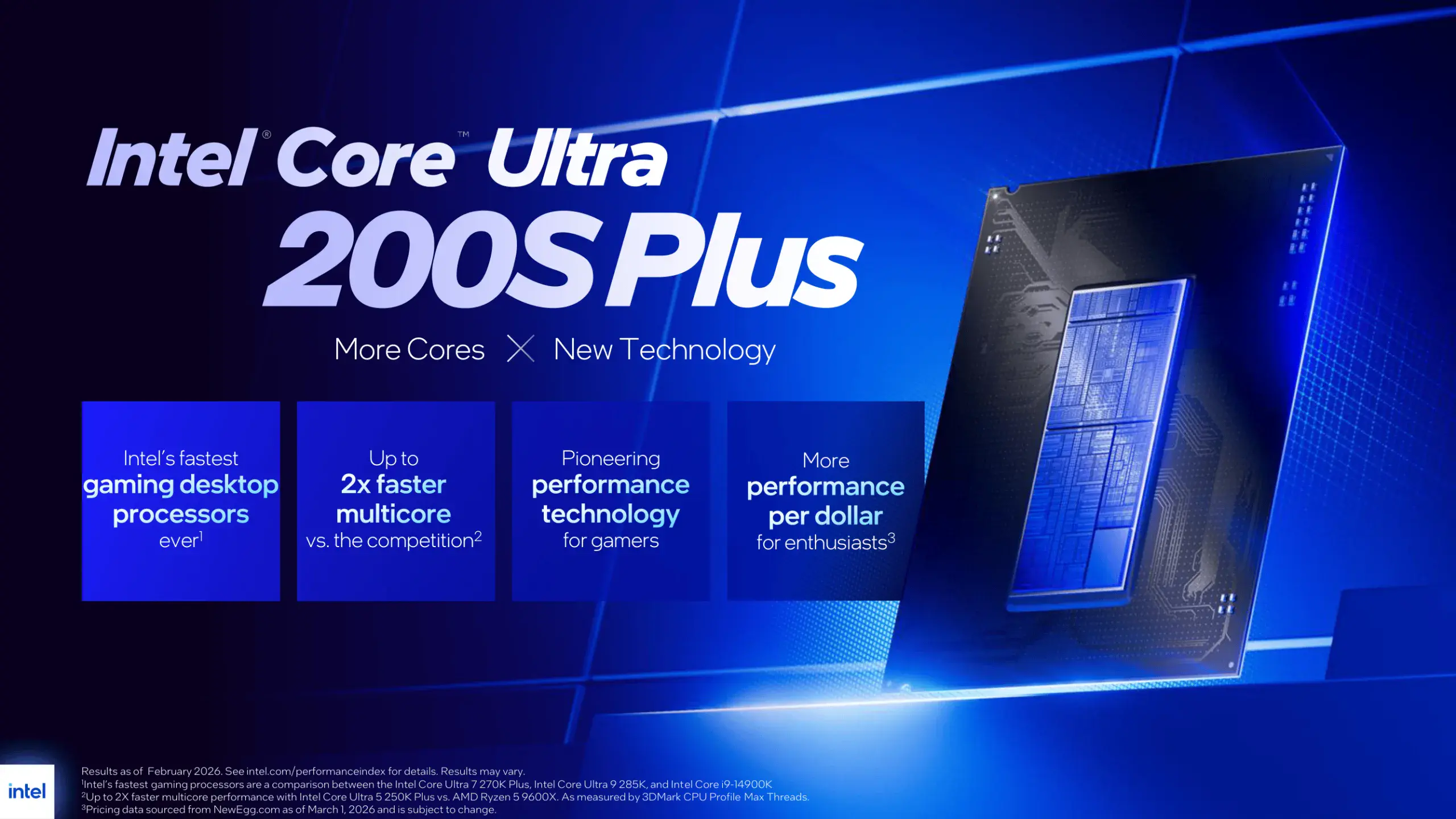
The Core Ultra 7 270K Plus slots in between the Core Ultra 9 285K, which we overclocked in SkatterBencher #84, and the Core Ultra 7 265K, which we overclocked in SkatterBencher #87. It features 8 P-cores and 16 E-cores which can boost to 5.5 and 4.7 GHz respectively. The maximum turbo power is 250W.
Platform Overview
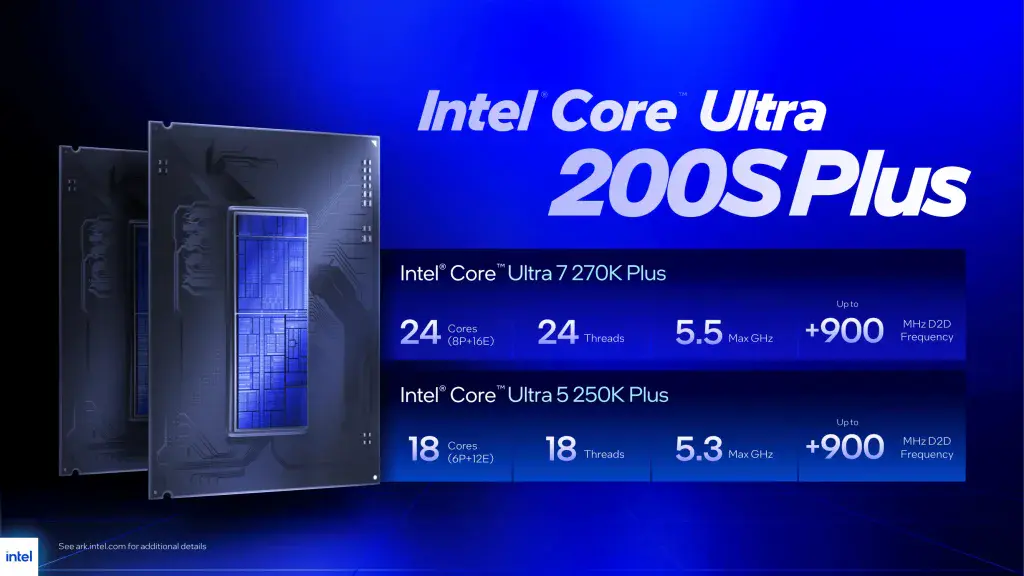
The system we’re overclocking today consists of the following hardware.
| Item | SKU | Price (USD) |
|---|---|---|
| CPU | Intel Core Ultra 7 270K Plus | 299 |
| Motherboard | ASUS ROG Maximus Z890 Hero | 400 |
| CPU Cooling | Bitspower Summit Prime Core 2x EK-Quantum Surface S360 | |
| Memory | Corsair Vengeance RGB 48GB DDR5-8000 CUDIMM | |
| Power Supply | XPG Fusion 1600W Titanium | 580 |
| Graphics Card | GALAX RTX 4090 | 1600 |
| Storage | Corsair MP700 Elite 2TB PCIe 5.0 NVME | 75 |
| Chassis | Open Benchtable V2 | 200 |
| Telemetry | BENCHLAB | 200 |
| Monitor | ASUS VS228 |
Benchmarks, Games & Tools
We use Windows 11 and the following benchmark applications and games to measure performance and ensure system stability.
| Benchmark | Link |
|---|---|
| Pyprime 2.0 | https://github.com/mbntr/PYPrime-2.x |
| 7-Zip 25.01 | https://www.7-zip.org/ |
| IndigoBench 4.4.15 | https://www.indigorenderer.com/indigobench |
| Geekbench 6 | https://www.geekbench.com/ |
| Geekbench AI | https://www.geekbench.com/ai/ |
| Cinebench 2026.1 | https://www.maxon.net/en/cinebench/ |
| CPU-Z | https://www.cpuid.com/softwares/cpu-z.html |
| V-Ray 6 | https://www.chaosgroup.com/vray/benchmark |
| Corona 10 Benchmark | https://corona-renderer.com/benchmark |
| AI-Benchmark | https://ai-benchmark.com/ |
| LocalScore 14B | https://www.localscore.ai/ |
| Y-Cruncher 5B | http://www.numberworld.org/y-cruncher/ |
| PugetBench 2.0.6B (Resolve) | https://www.pugetsystems.com/pugetbench/creators/ |
| 3DMark CPU Profile | https://www.3dmark.com/ |
| OCCT | https://www.ocbase.com/ |
| AIDA64 | https://www.aida64.com/ |
| Game | Link |
|---|---|
| Counter Strike 2 | https://store.steampowered.com/app/730/CounterStrike_2/ |
| Returnal | https://store.steampowered.com/app/1649240/Returnal/ |
| Shadow of the Tomb Raider | https://store.steampowered.com/app/750920/Shadow_of_the_Tomb_Raider_Definitive_Edition/ |
| Monster Hunter Wilds | https://www.monsterhunter.com/wilds/en-us/benchmark/ |
| Age of Mythology Retold | https://store.steampowered.com/app/1934680/Age_of_Mythology_Retold/ |
| Forza Motorsport | https://store.steampowered.com/app/2440510/Forza_Motorsport/ |
| Homeworld 3 | https://store.steampowered.com/app/1840080/Homeworld_3/ |
I use the following tools to check and log system telemetry, adjust clock frequencies, and launch benchmarks.
Intel Core Ultra 7 270K Plus: Stock Performance
Before starting overclocking, we must check the system performance at default settings.
In the past, there was some confusion about what constitutes default settings for Intel processors. For Arrow Lake, Intel spent extra resources clarifying to industry and media partners what constitutes default settings.
Intel Arrow Lake Default Settings
Intel defines three power profiles for the Arrow Lake processors: baseline, performance, and extreme.
- The Baseline profile is provided for systems or motherboards with inadequate power delivery requirements to meet the performance profile. You can typically find it referenced as “Intel Default Baseline Profile.”
- The Performance profile is recommended by Intel as the default profile for most systems. In particular, high-end motherboards or gaming systems. You can typically find it referenced as “Intel Default Performance Profile.”
- The Extreme profile is provided as guidance to system designers or motherboards that intend to support overclocking. This profile is not validated by Intel and, when used, may void warranty terms.
The default settings must be in place on the first boot, after a BIOS update, or when a new CPU is installed. When users change the default settings, there should be a BIOS warning informing the users that the settings deviate from the Intel default settings.
For the purpose of this guide, we follow Intel’s direction and rely on the Performance profile for the default settings.
Intel Core Ultra 7 270K Plus Performance Profile
The Intel Default Performance Profile configuration parameters for Arrow Lake CPUs are as follows:
| Parameter | Configuration |
|---|---|
| CEP (Current Excursion Protection) | Enable |
| TVB (Thermal Velocity Boost) | Enable |
| TVB Voltage Optimizations | Enable |
| DLVR Bypass | Disable |
| ICCMax Unlimited | Disable |
| TjMax Offset | 0 |
| Turbo Ratio Limit Override | No changes |
| C-states | Enable |
| Enhanced C-states (C1E) | Enable |
| AC Load Line | AC Load Line is within verified design specs |
| DC Load Line | DC Load Line = AC Load Line |
The Intel Default Performance Profile Turbo Boost 2.0 parameters for the Core Ultra 7 270K Plus are as follows:
| Parameter | Baseline | Performance | Extreme |
|---|---|---|---|
| ICCMax | 287 A | 347 A | N/A |
| ICCMax_App | 210 A | 245 A | N/A |
| Power Limit 1 (PL1) | 125 W | 125 W | N/A |
| Power Limit 2 (PL2) | 177 W | 250 W | N/A |
| Power Limit 4 (PL4) | 329 W | 425 W | N/A |
The Turbo Ratio Limit parameters for the Core Ultra 7 270K Plus are as follows:
| Paramater | Ratio |
|---|---|
| Up to 2 active P-cores | 55X |
| Up to 8 active P-cores | 54X |
| Up to 16 active E-cores | 47X |
| Ring | 40X |
| NGU | 26X |
| D2D | 30X |
Benchmark Results
Here is the benchmark performance at stock:
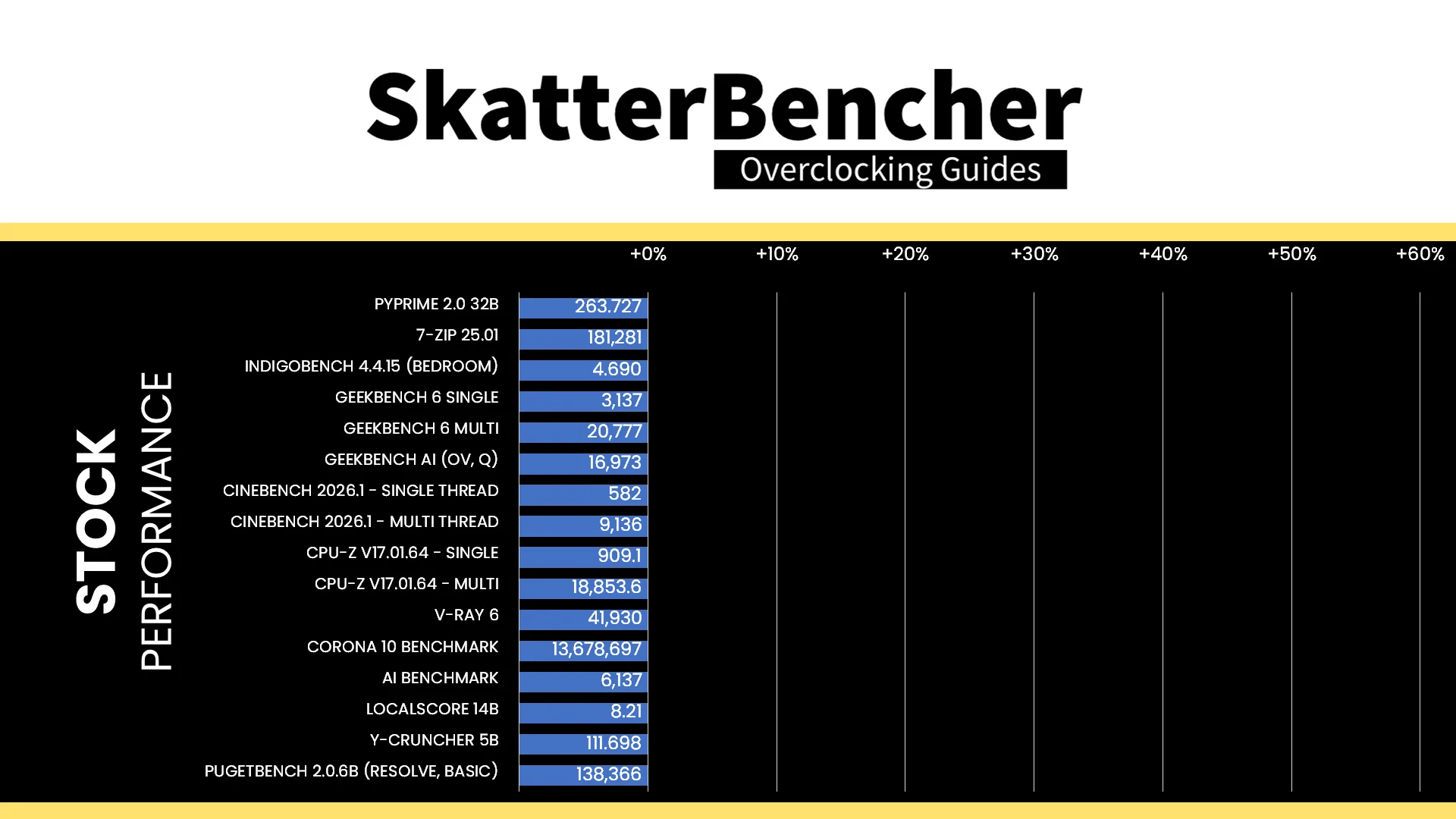
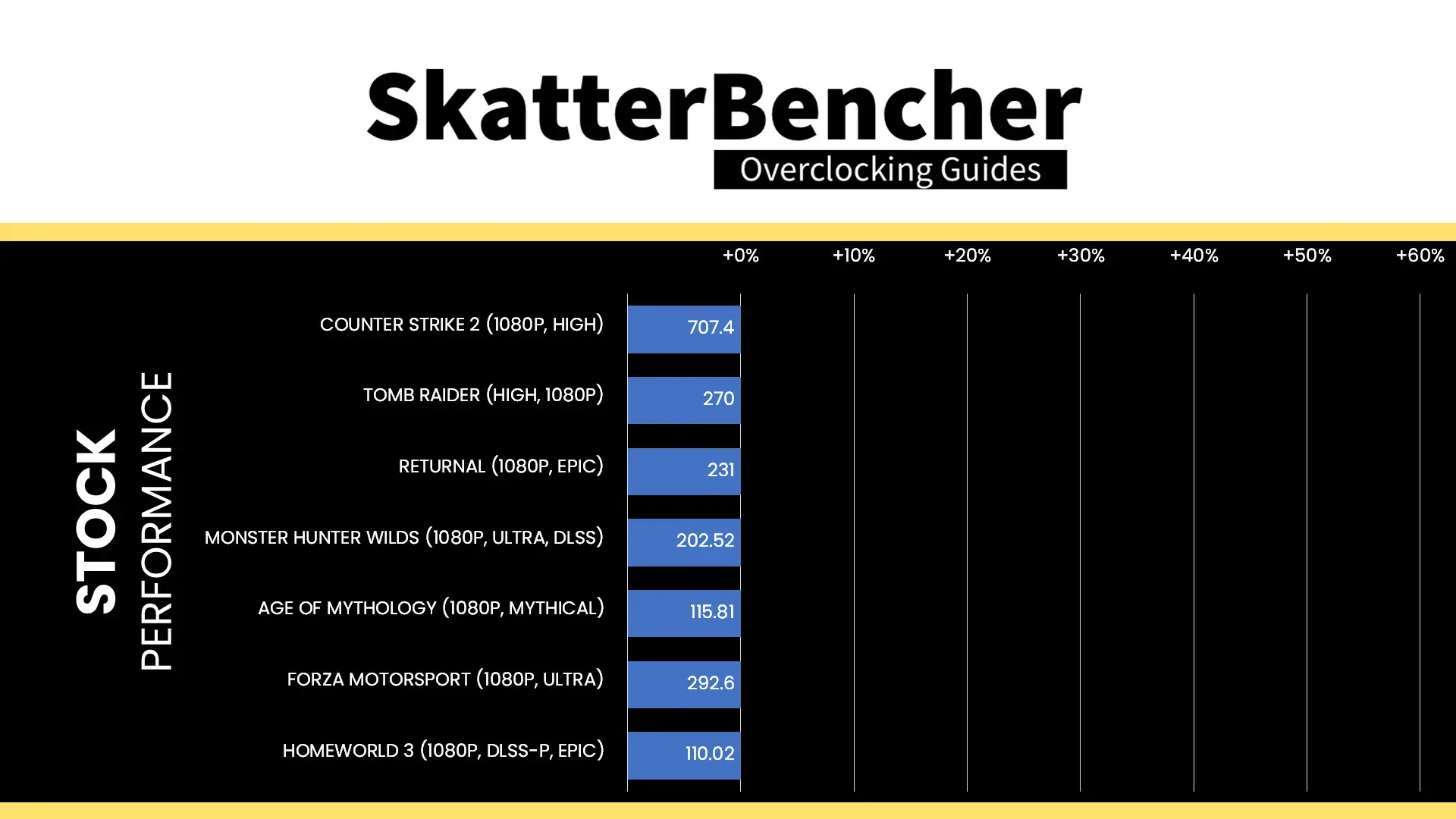
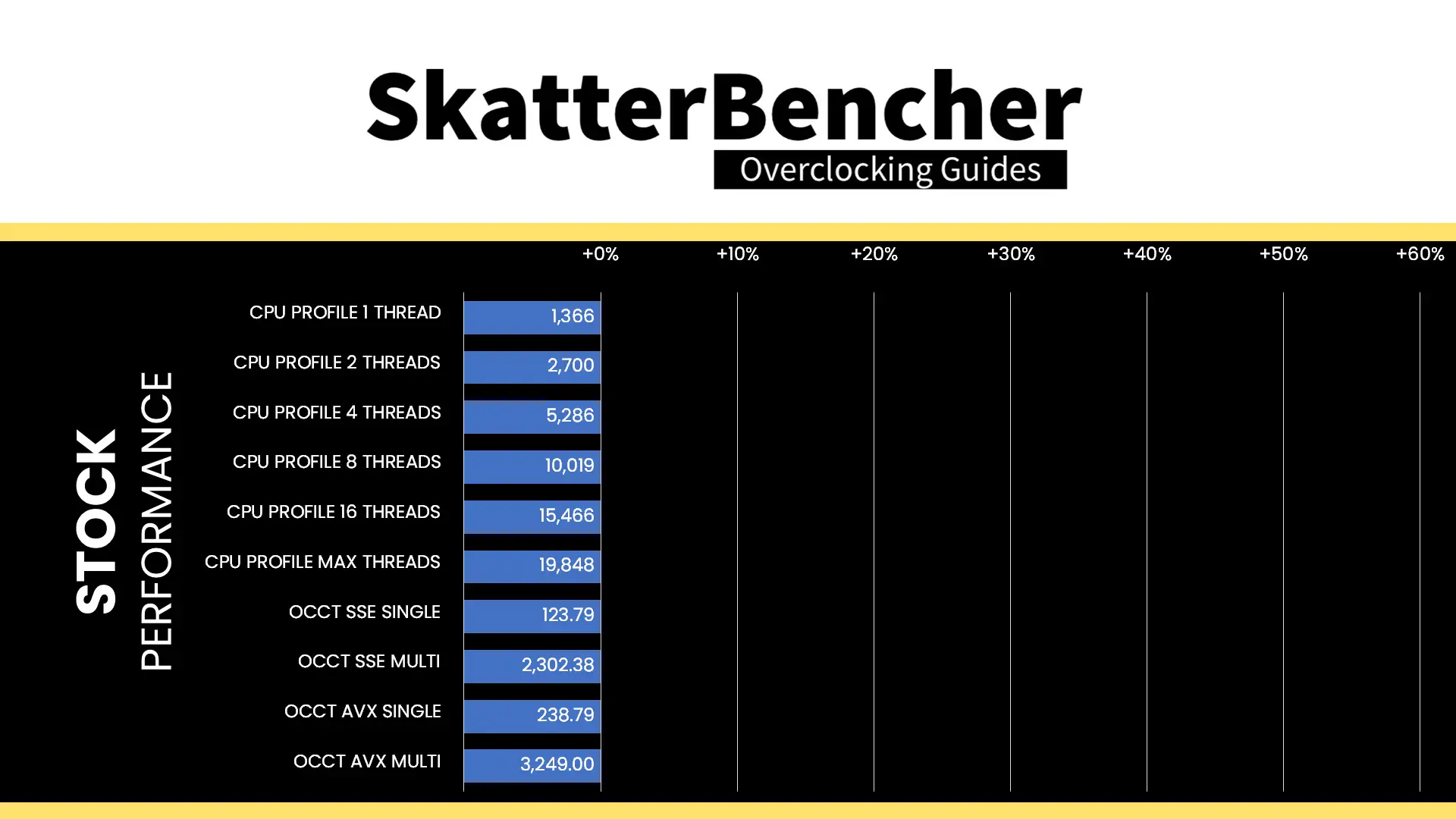
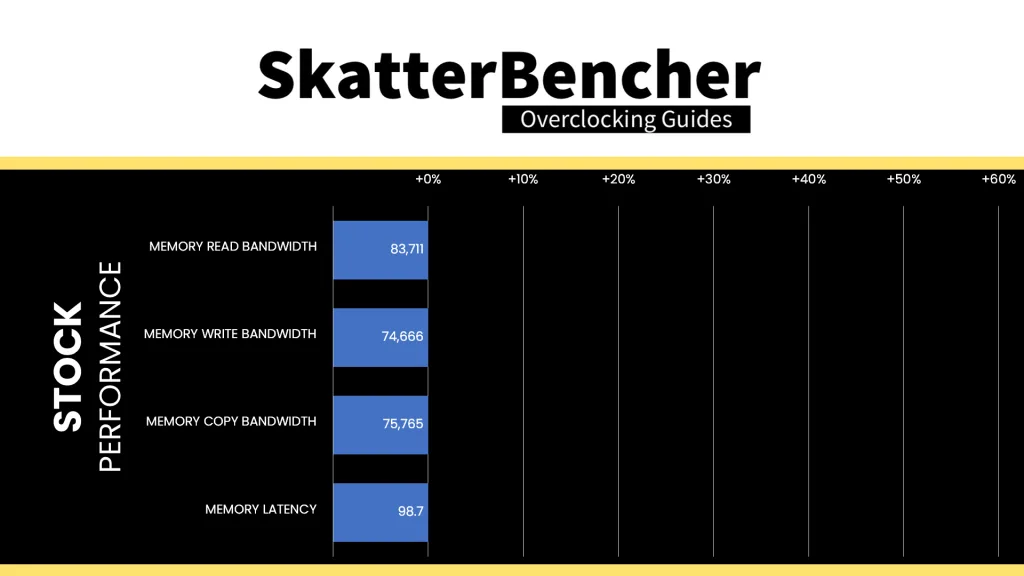
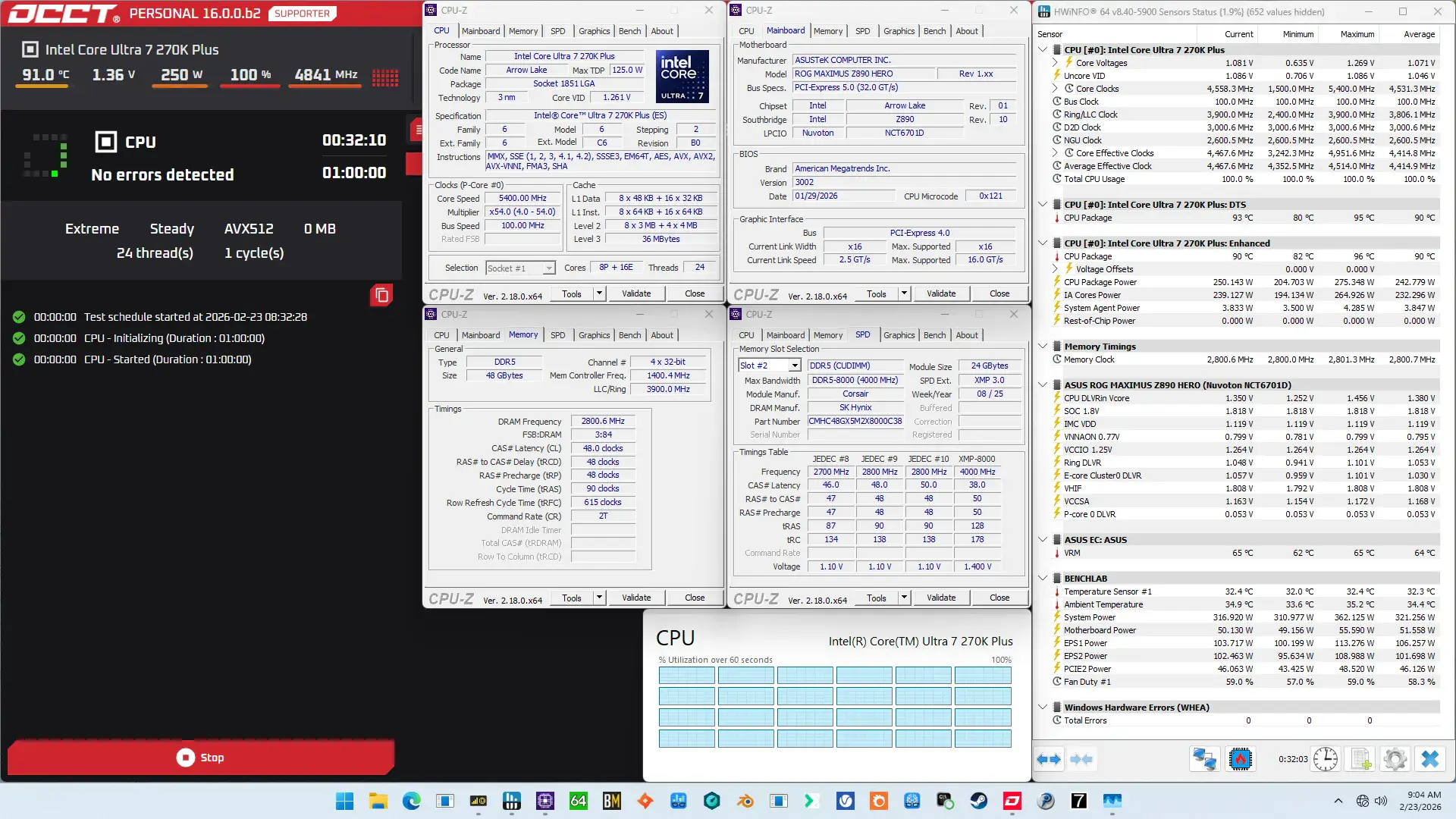
When running the OCCT CPU AVX-512 Stability Test, the average CPU P-core effective clock is 4833 MHz with 1.111 volts, and the average CPU E-core effective clock is 4205 MHz with 1.051 volts. The average CPU temperature is 90.0 degrees Celsius. The average CPU package power is 242.8 watts.
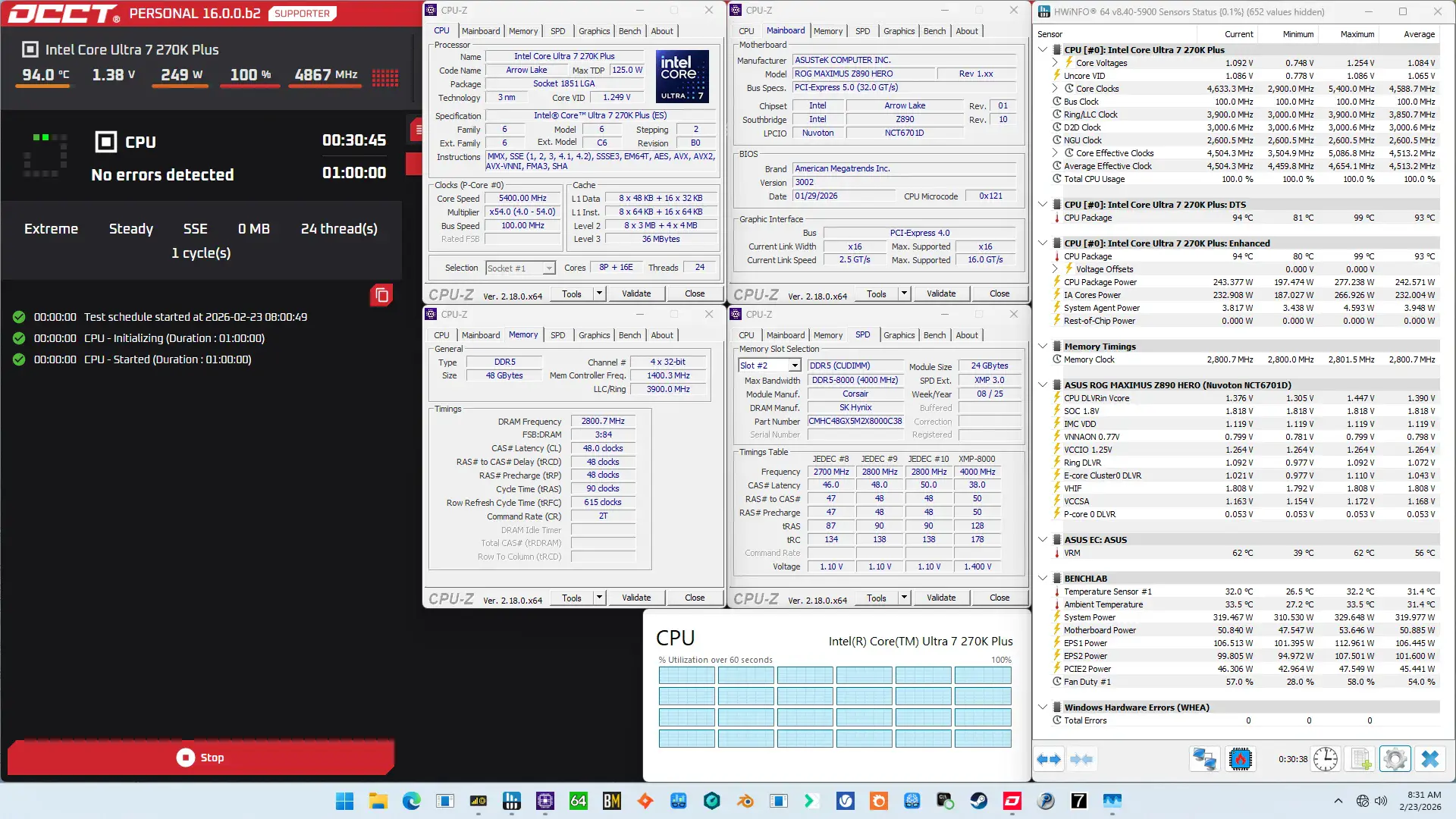
When running the OCCT CPU SSE Stability Test, the average CPU P-core effective clock is 4901 MHz with 1.123 volts, and the average CPU E-core effective clock is 4318 MHz with 1.064 volts. The average CPU temperature is 93.0 degrees Celsius. The average CPU package power is 242.6 watts.
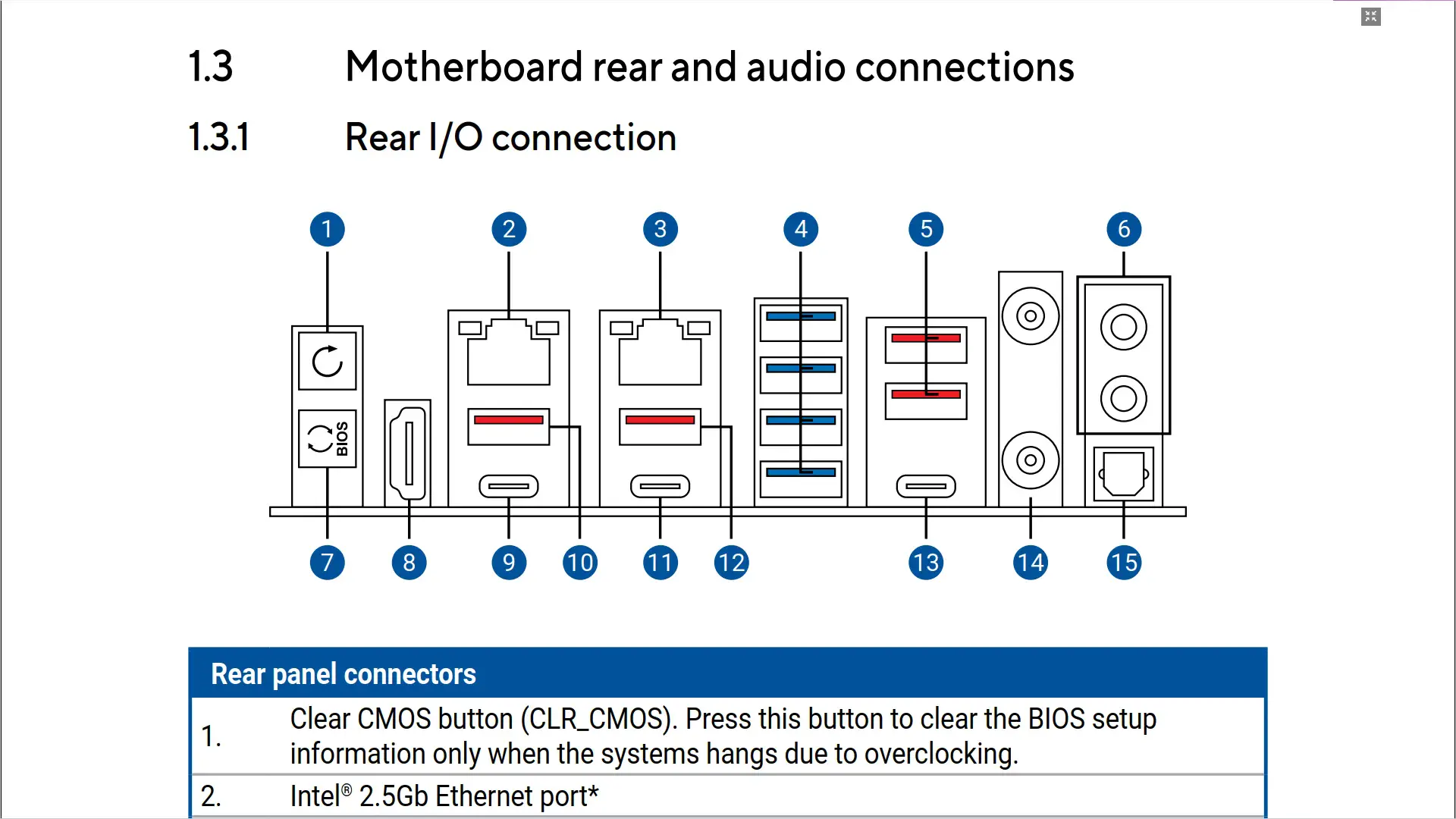
Of course, we can increase the performance by unlocking power limits and overclocking the processor. However, before we get going, make sure to locate the CMOS Clear button. Pressing the Clear CMOS button will reset all your BIOS settings to default, which is helpful if you want to start your BIOS configuration from scratch.
OC Strategy #1: 200S Boost + MCE
In our first overclocking strategy, we simply take advantage of enabling Intel 200S Boost and optimizing Intel Turbo Boost 2.0 power limits.
Intel 200S Boost
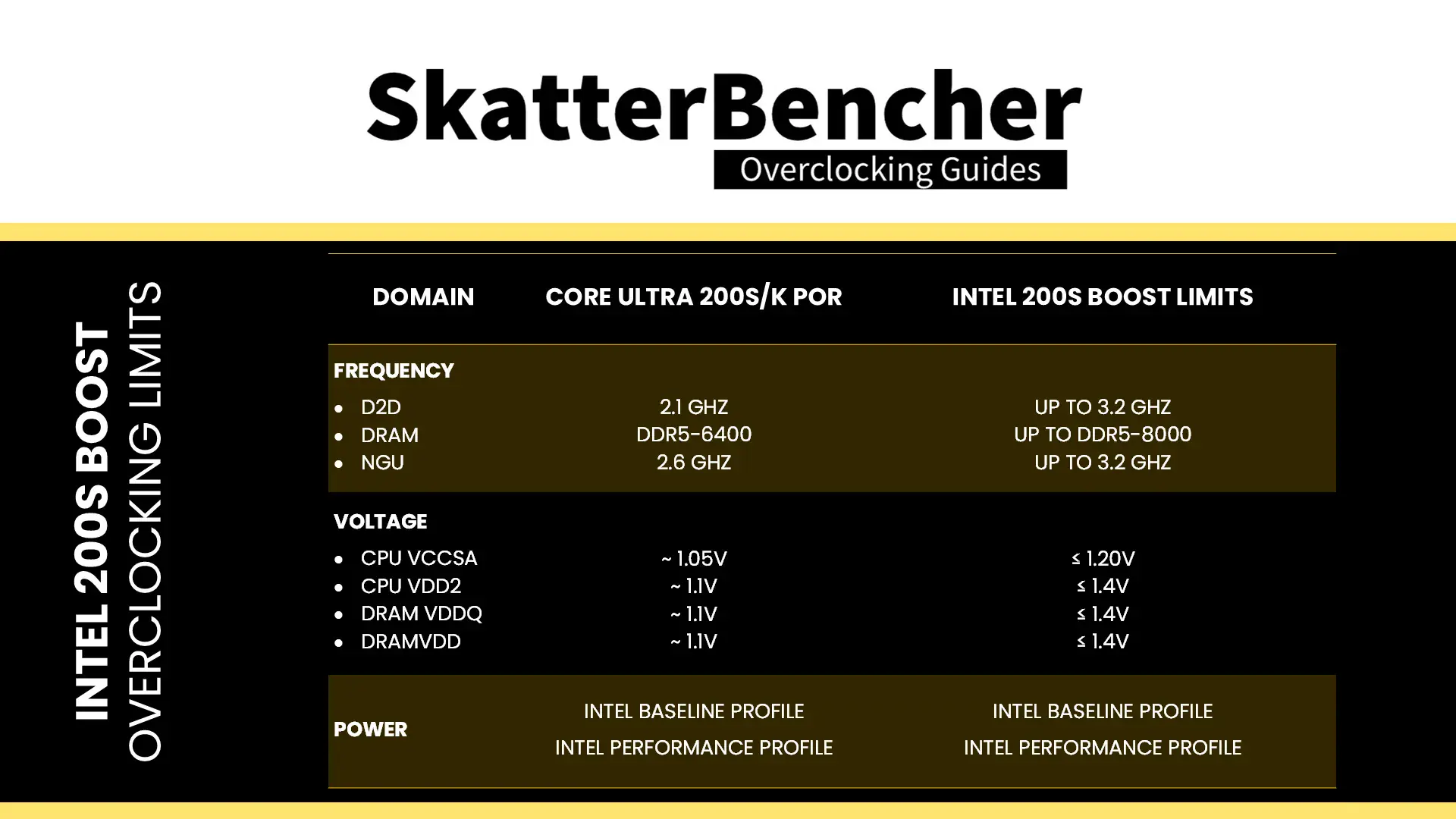
Intel 200S Boost is an Intel overclocking technology that enables NGU, D2D, and memory overclocking on Arrow Lake K-SKU processors without voiding warranty.

The 200S Boost program specifically enables for the creation of a motherboard BIOS option or profile that loads an OEM/ODM-tested set of “up to” values geared towards increasing performance on their platform. The “up to” values include restrictions on the voltage and frequency for the DRAM, D2D, and NGU.
Practically, 200S Boost is an easy way to enable XMP 3.0 without voiding the warranty because, yes, enabling XMP still technically voids warranty.
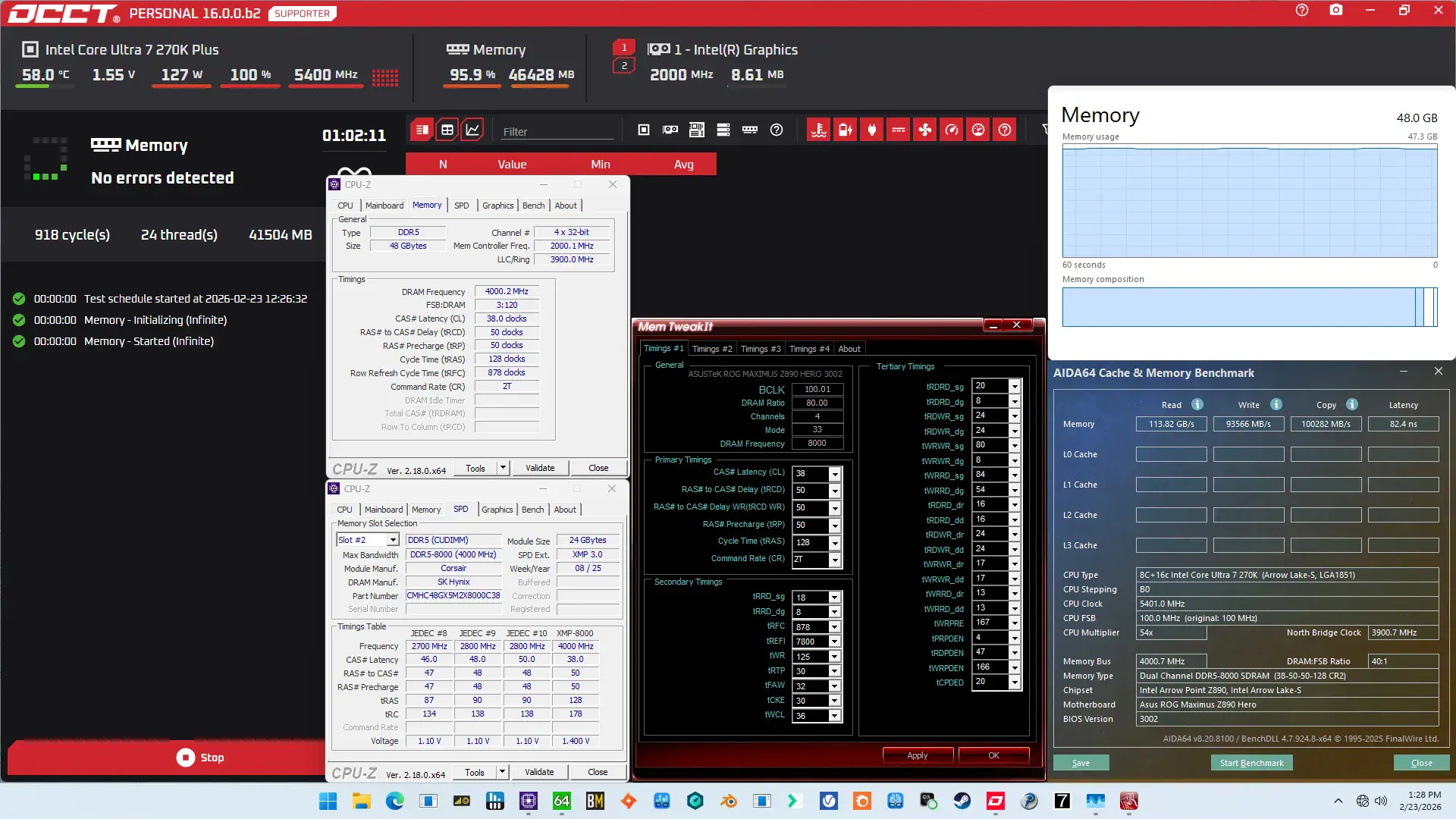
In addition to enabling XMP, 200S Boost also sets the NGU and D2D ratio to 32X as well as increase the VccSA voltage to 1.2V.
Intel Turbo Boost 2.0 Power Limits
Intel Turbo Boost 2.0 Technology allows the processor cores to run faster than the base operating frequency if the processor is operating below rated power, temperature, and current specification limits. The ultimate advantage is opportunistic performance improvements in both multi-threaded and single-threaded workloads.
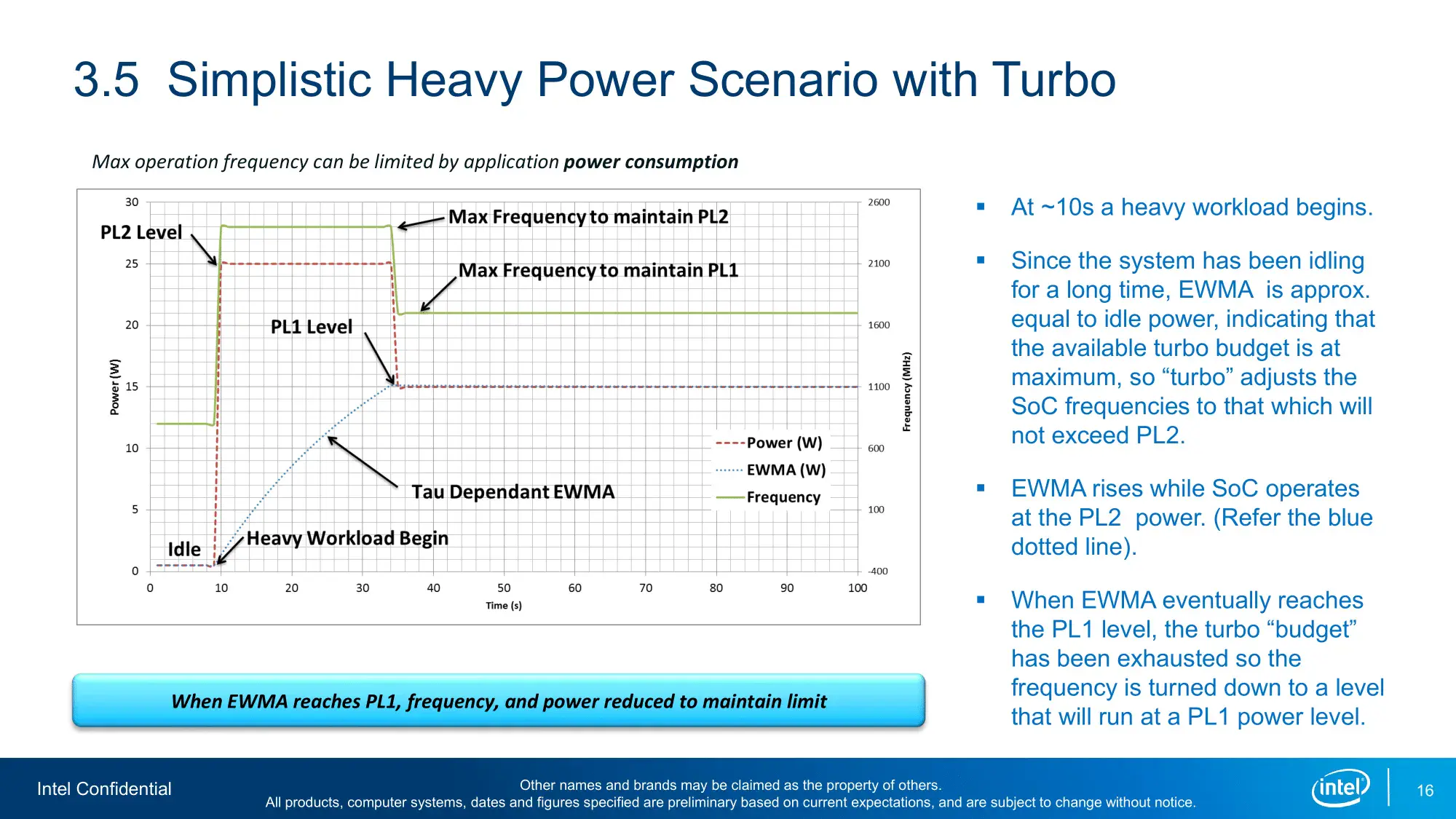
The turbo boost algorithm works according to an EWMA formula. This stands for Exponentially Weighted Moving Average. There are three main parameters to consider: PL1, PL2, and Tau.
- Power Limit 1, or PL1, is the threshold that the average power will not exceed. Historically, this has always been set equal to Intel’s advertised TDP. Very importantly, PL1 should not be set higher than the thermal solution cooling limits.
- Power Limit 2, or PL2, is the maximum power the processor is allowed to use for a limited amount of time.
- Tau is a weighing constant used in the algorithm to calculate the moving average power consumption. Tau, in seconds, is the time window for calculating the average power consumption. If the average power consumed is higher than PL1 the CPU will reduce the CPU frequency.
Turbo Boost 2.0 Technology has evolved over the past years to incorporate a lot of power, thermal, and electrical performance limiters, including PL3, PL4, IccMax, TCC_Offset, VR_TDC, RATL, Pmax, and many more.
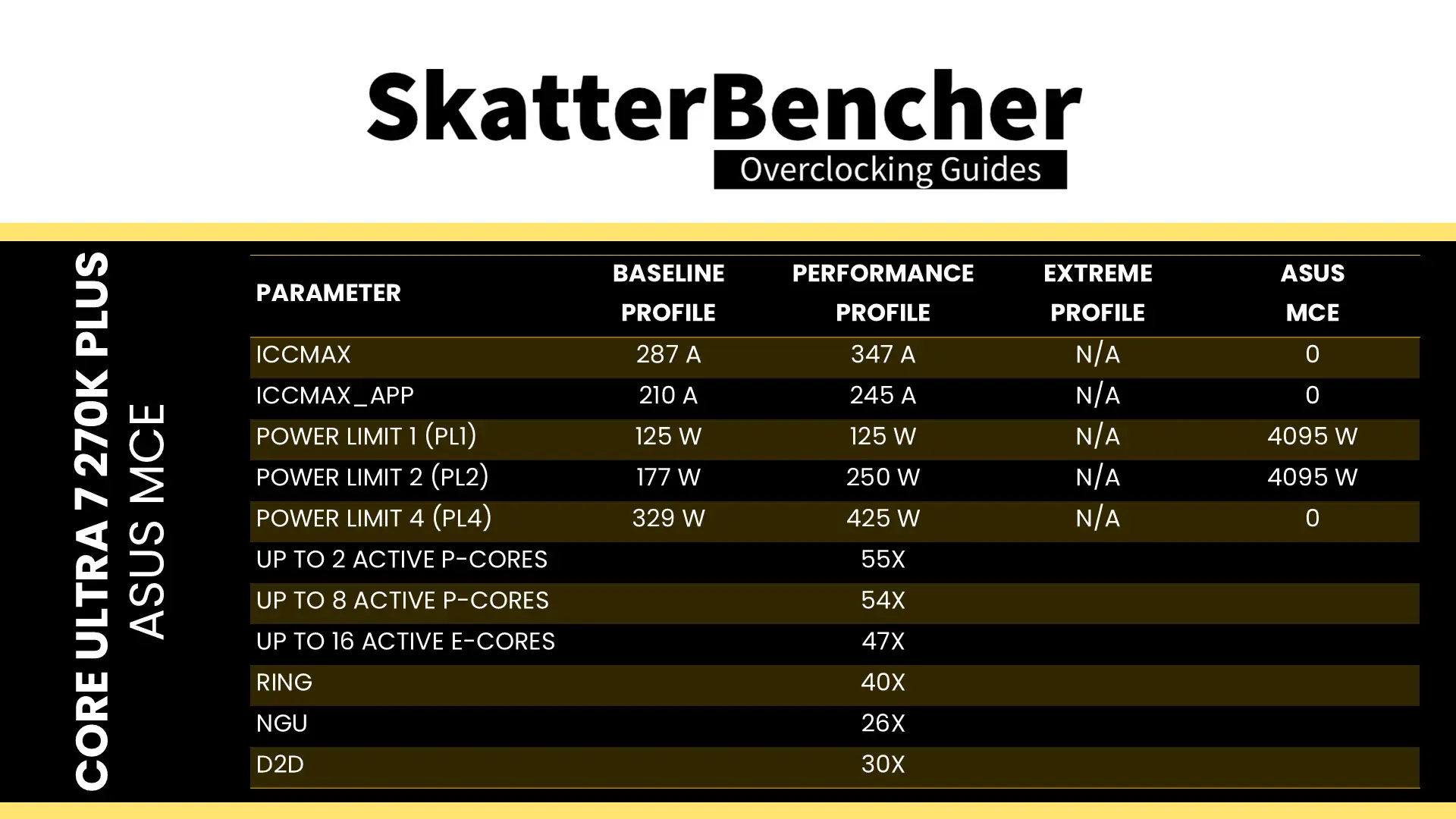
An easy ASUS MultiCore Enhancement option on ASUS motherboards allows you to unleash the Turbo Boost power limits. Set the option to Enabled – Remove All Limits and enjoy maximum performance. Enabling ASUS MultiCore Enhancement adjusts the following parameters:
BIOS Settings & Benchmark Results
Upon entering the BIOS
- Go to the Extreme Tweaker menu
- Set Performance Preferences to Intel Default
- Set Intel Default Settings to Performance
- Set Intel 200S Boost to Enabled
- Set Ai Overclock Tuner to XMP II
- Set ASUS MultiCore Enhancement to Enabled – Remove All Limits
Then save and exit the BIOS.
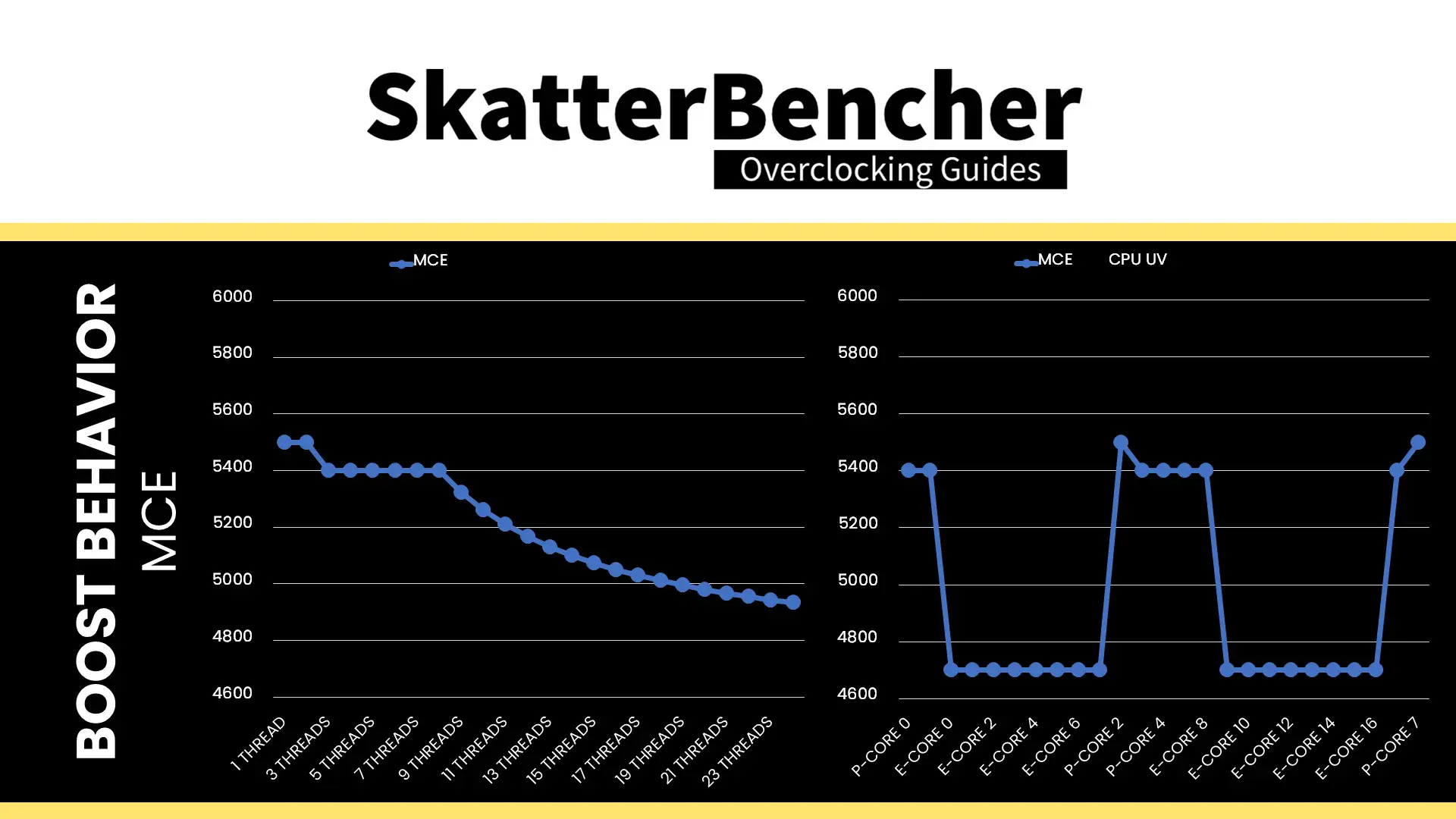
The CPU boost frequency with 1 active P-core is 5500 MHZ. The average boost frequency gradually trails off to 5400 MHz when all P-cores are active and to 4933 MHz when all P- and E-cores are active. The two favored P-cores can boost to 5.5 GHz, the six other non-favored cores can boost to 5.4 GHz, and every E-core can boost to 4.7 GHz in single-threaded workloads.
We re-ran the benchmarks and checked the performance increase compared to the default operation.
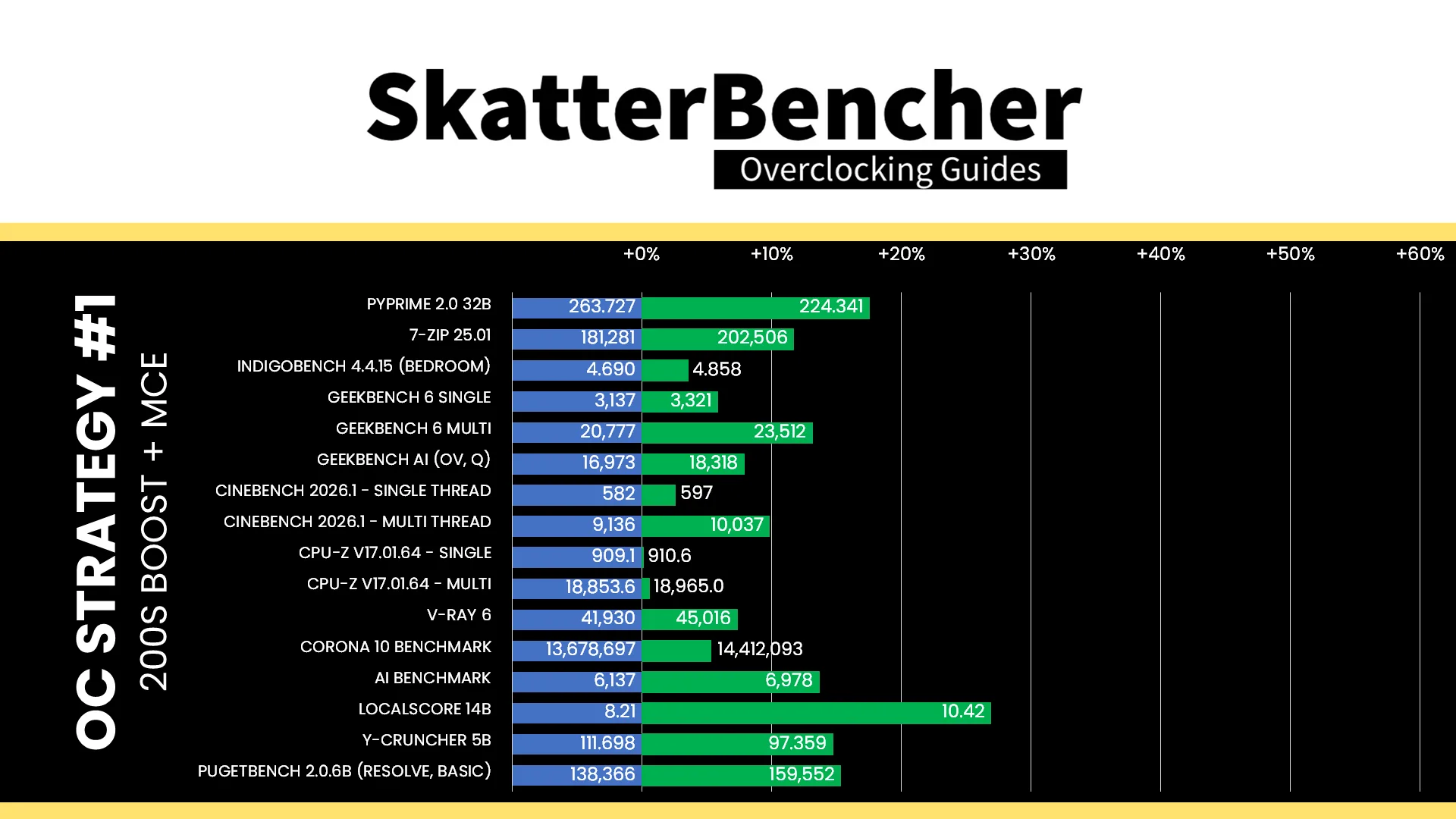
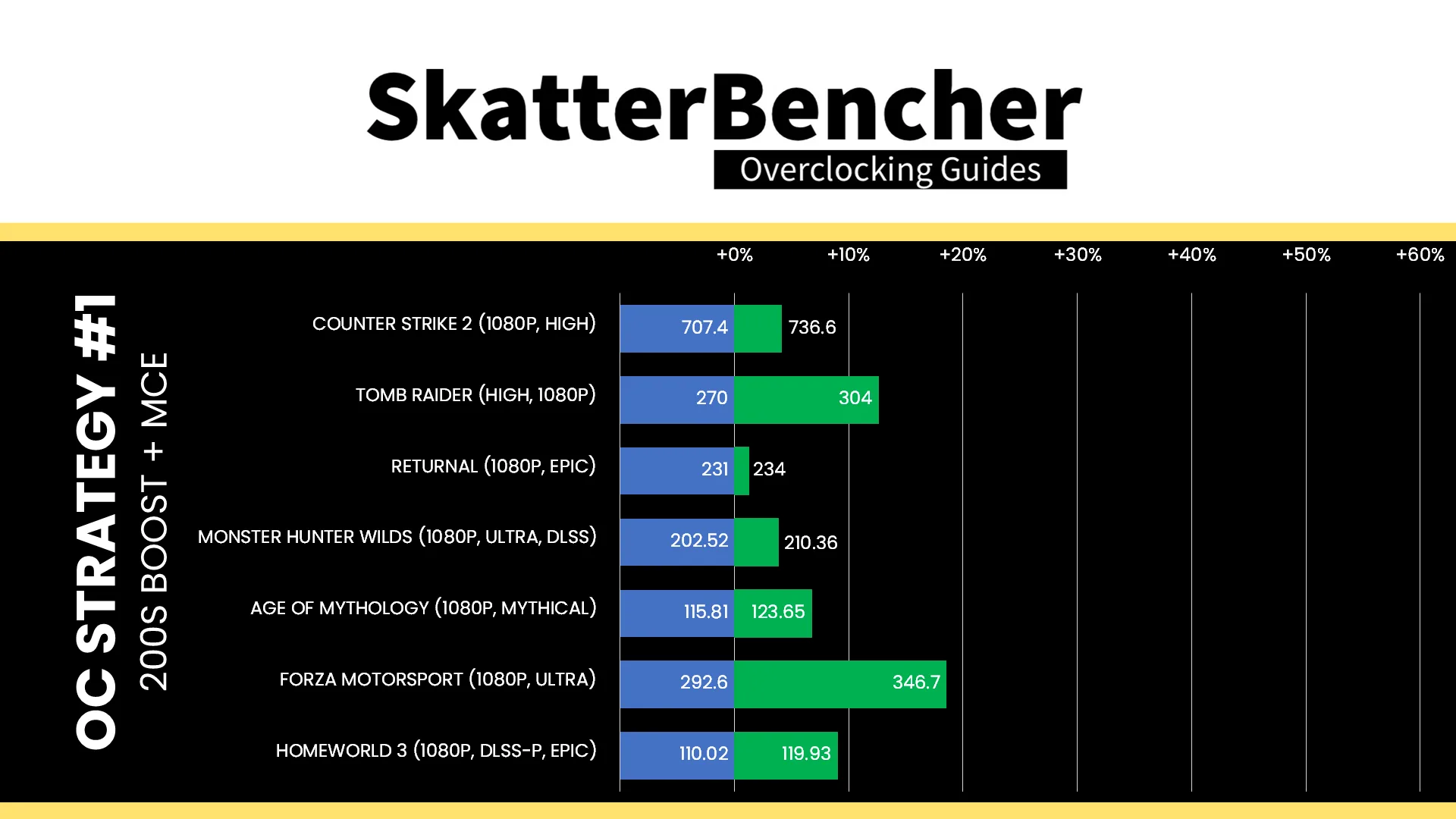
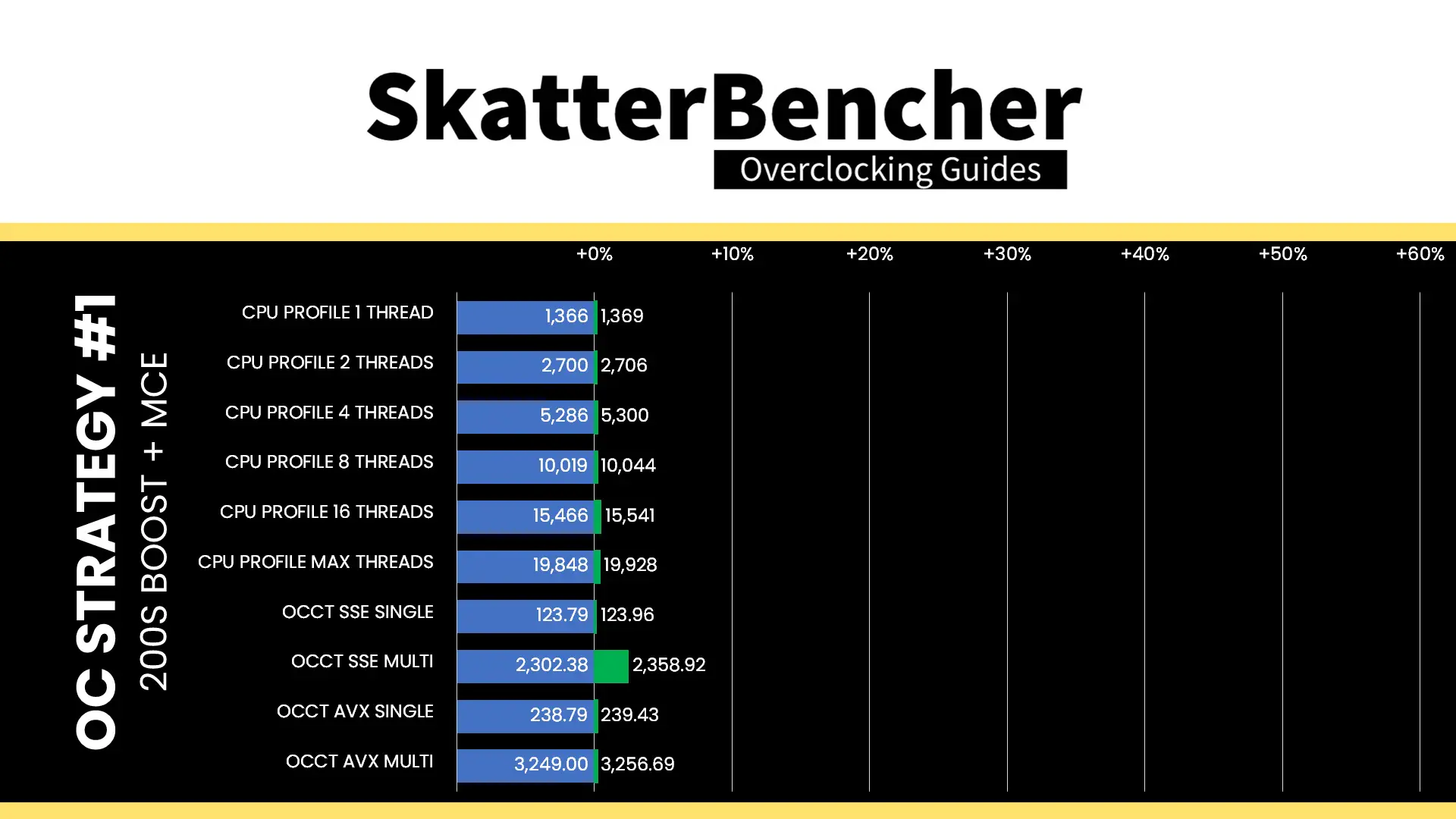
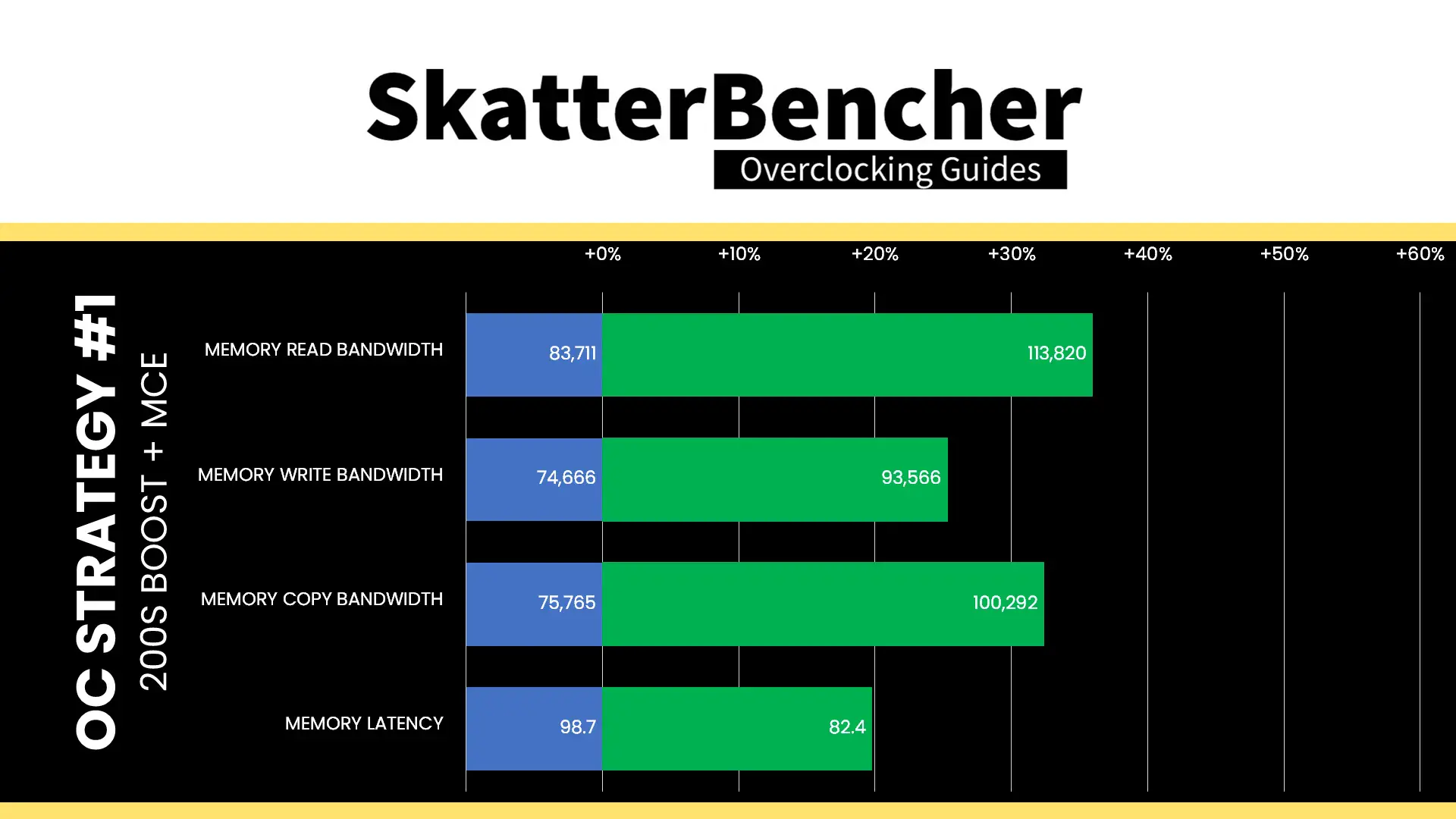
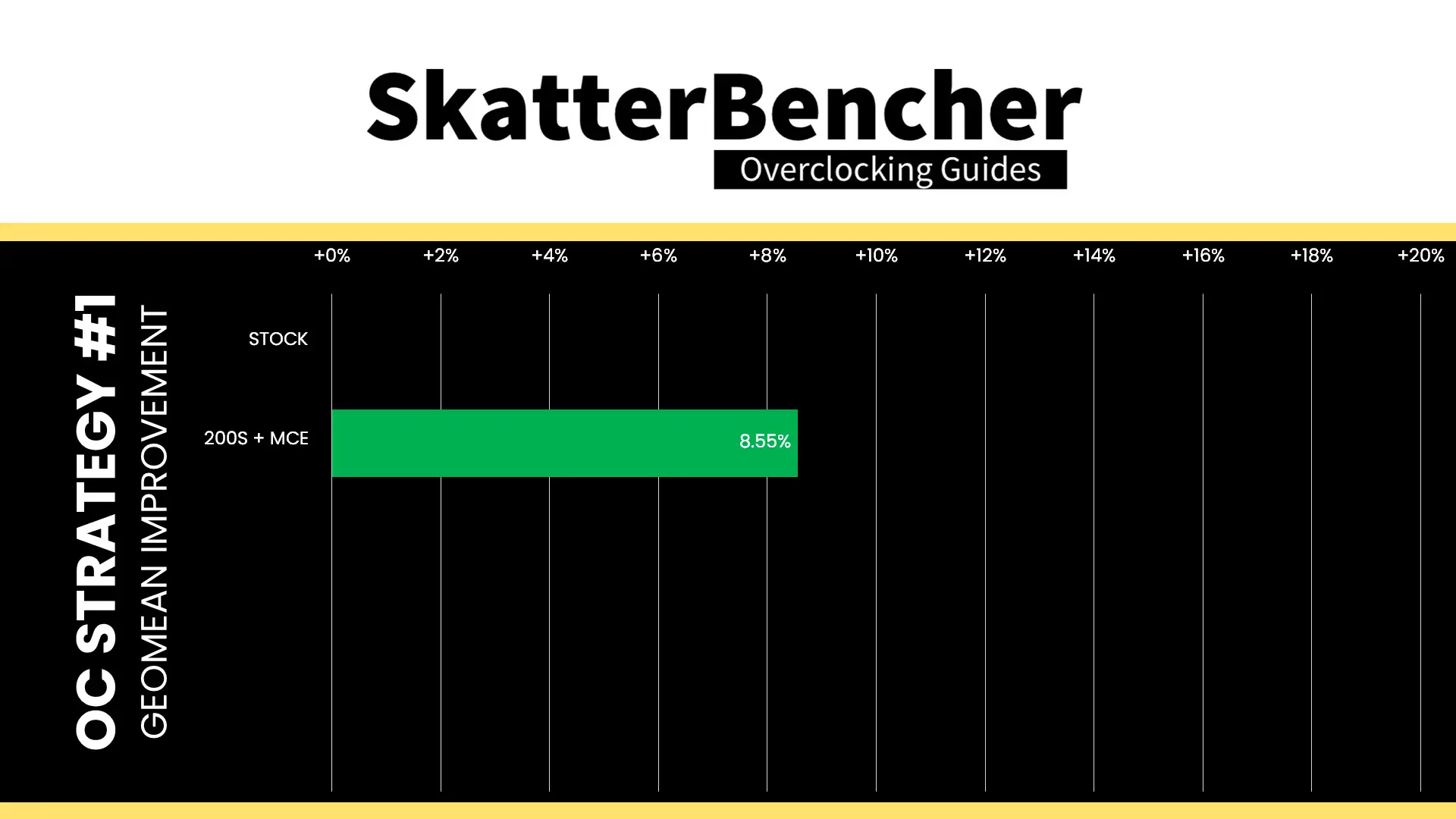
Intel 200S Boost technology isn’t very complicated as it just enables Intel XMP and optimizes the data fabric speed. However, in tandem with unleashing the power limits, it translates in a pretty neat performance uplift. Especially in multi-threaded, memory-sensitive applications like Y-Cruncher, LocalScore, and AI Benchmark. The Geomean performance speedup is +8.55%, and we get a maximum improvement of +26.92% in LocalScore
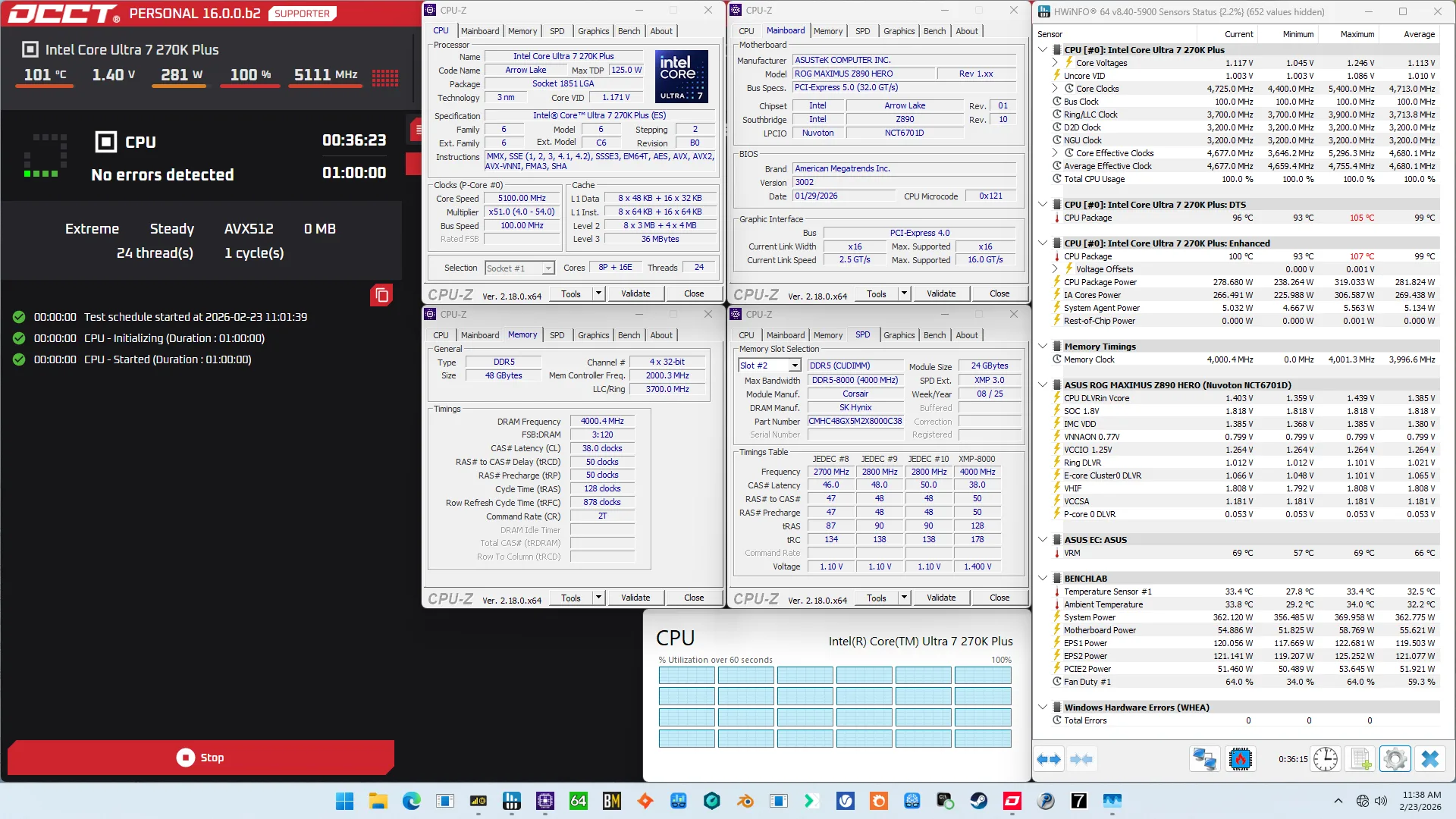
When running the OCCT CPU AVX-512 Stability Test, the average CPU P-core effective clock is 5154 MHz with 1.176 volts, and the average CPU E-core effective clock is 4442 MHz with 1.088 volts. The average CPU temperature is 99.0 degrees Celsius. The average CPU package power is 281.8 watts.
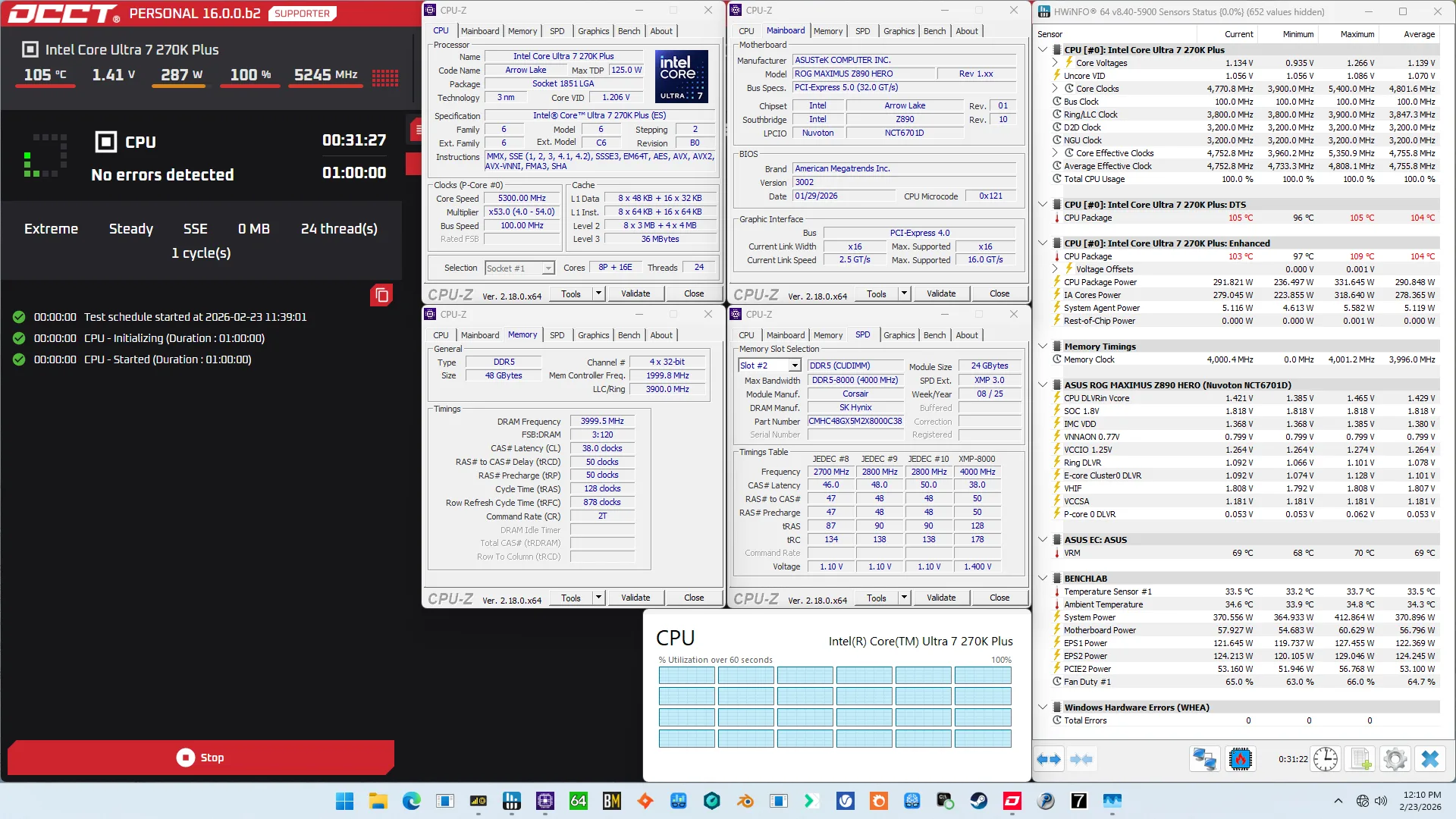
When running the OCCT CPU SSE Stability Test, the average CPU P-core effective clock is 5264 MHz with 1.207 volts, and the average CPU E-core effective clock is 4501 MHz with 1.070 volts. The average CPU temperature is 104.0 degrees Celsius. The average CPU package power is 290.8 watts.
OC Strategy #2: CPU Undervolt
In our second overclocking strategy, we look at undervolting the CPU P- and E-cores to reduce the frequency throttling at TjMax operating temperatures. For this we rely primarily on the Advanced Voltage Offset technology but also touch Turbo Ratio Limits and adaptive voltage mode.
Let’s go over each overclocking technology one by one to understand how it all works. But, before that, let’s start with the Arrow Lake clocking and voltage topologies.
CPU Core Clocking Topology
Arrow Lake’s CPU P-core and E-core 100 MHz reference clock frequency is generated internally by the CPU PLL. This clock affects all IP blocks in the Compute Tile, including the P-cores, E-cores, and Ring. This PLL can be linked to the SoC PLL when you run in synchronous mode or work independently if you run in asynchronous mode.
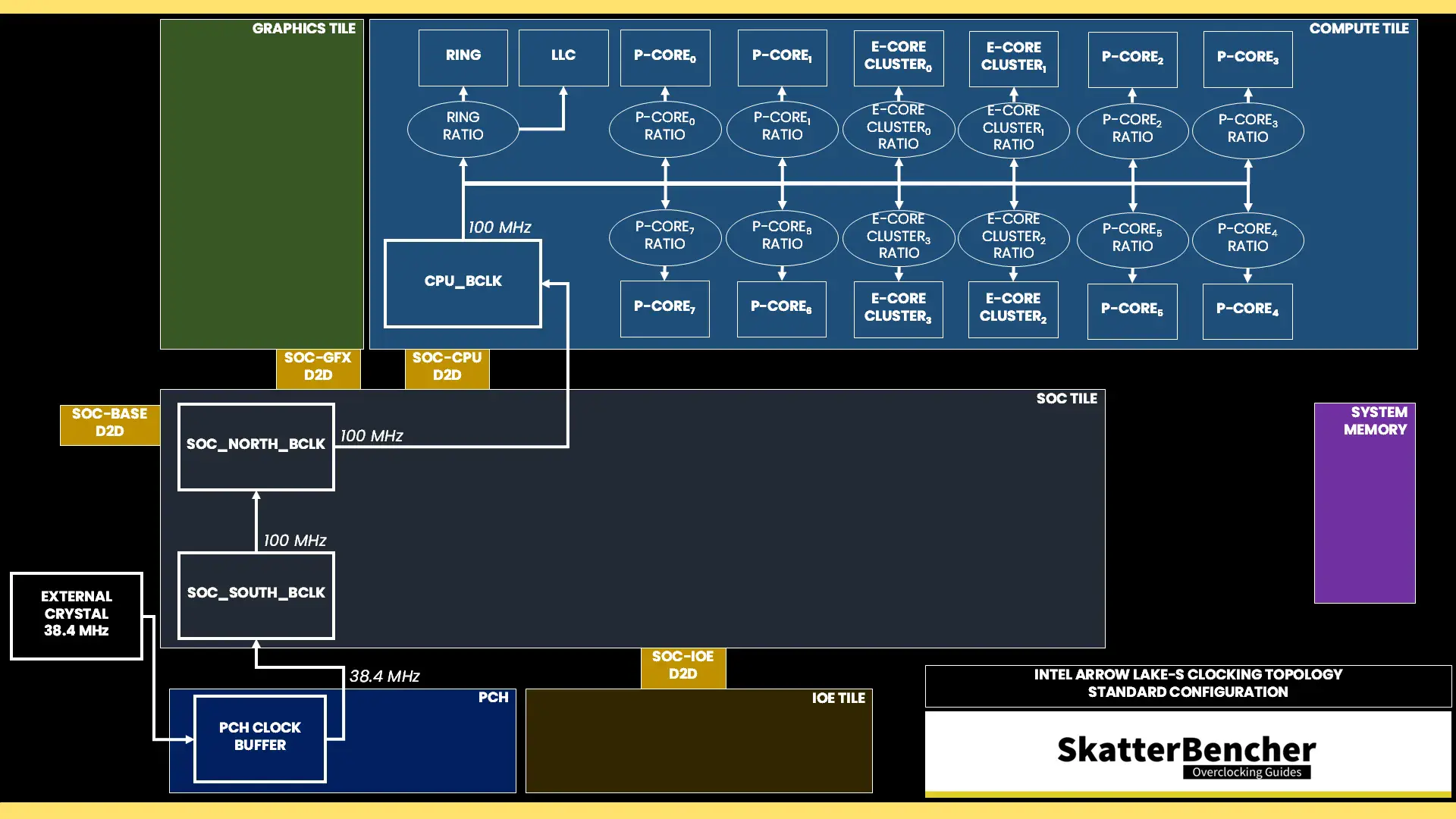
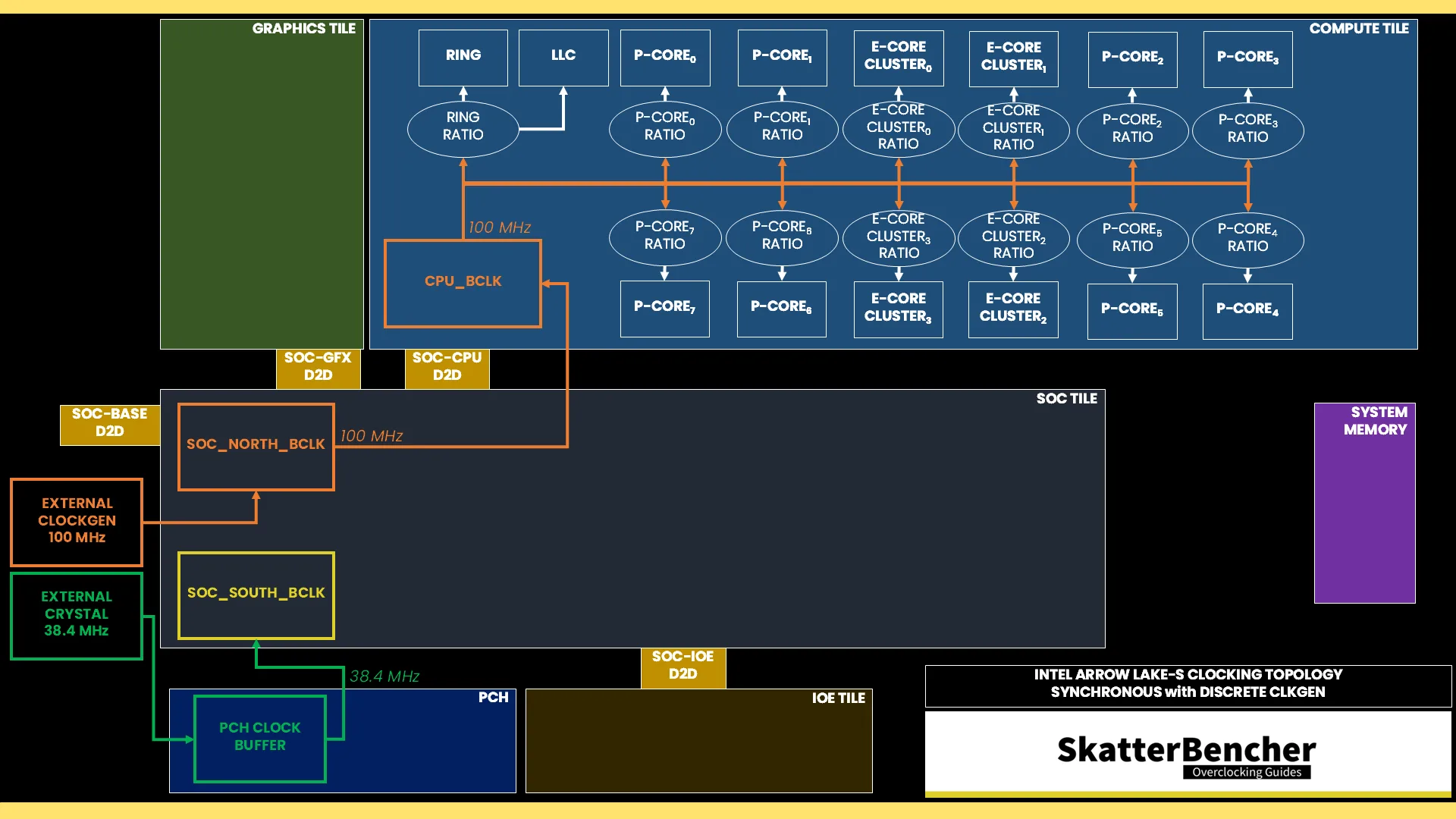
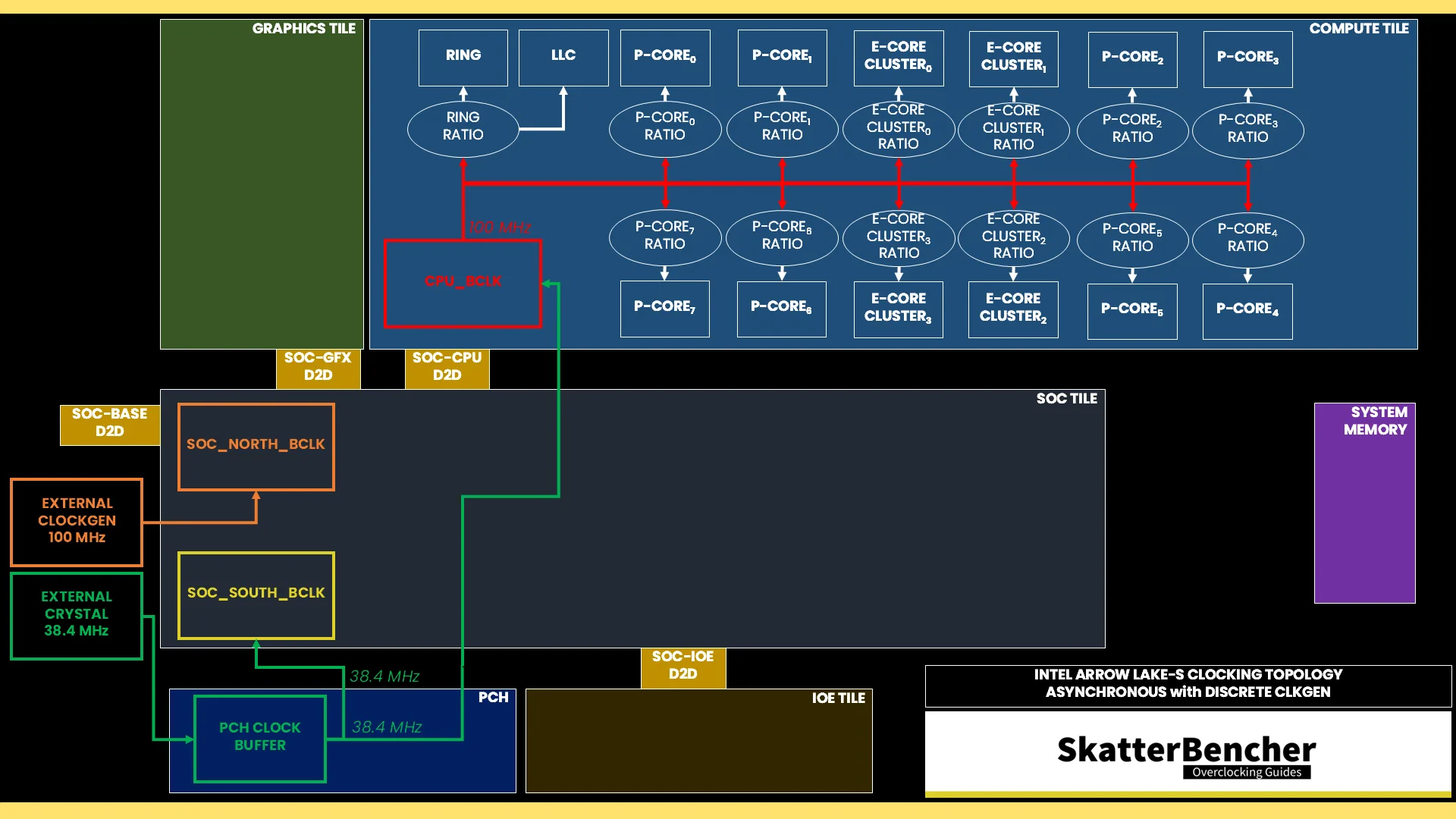
The reference clock is multiplied by the P-core and E-core group ratio to achieve the final clock frequency. Each P-core can run at an independent clock frequency while the E-cores are grouped in clusters of four.
The effective CPU core is determined by three technologies:
- the Turbo Ratio Limit (TRL)
- the Per Core Ratio Limit (PCRL)
- the Core Minimum Ratio (CMR)
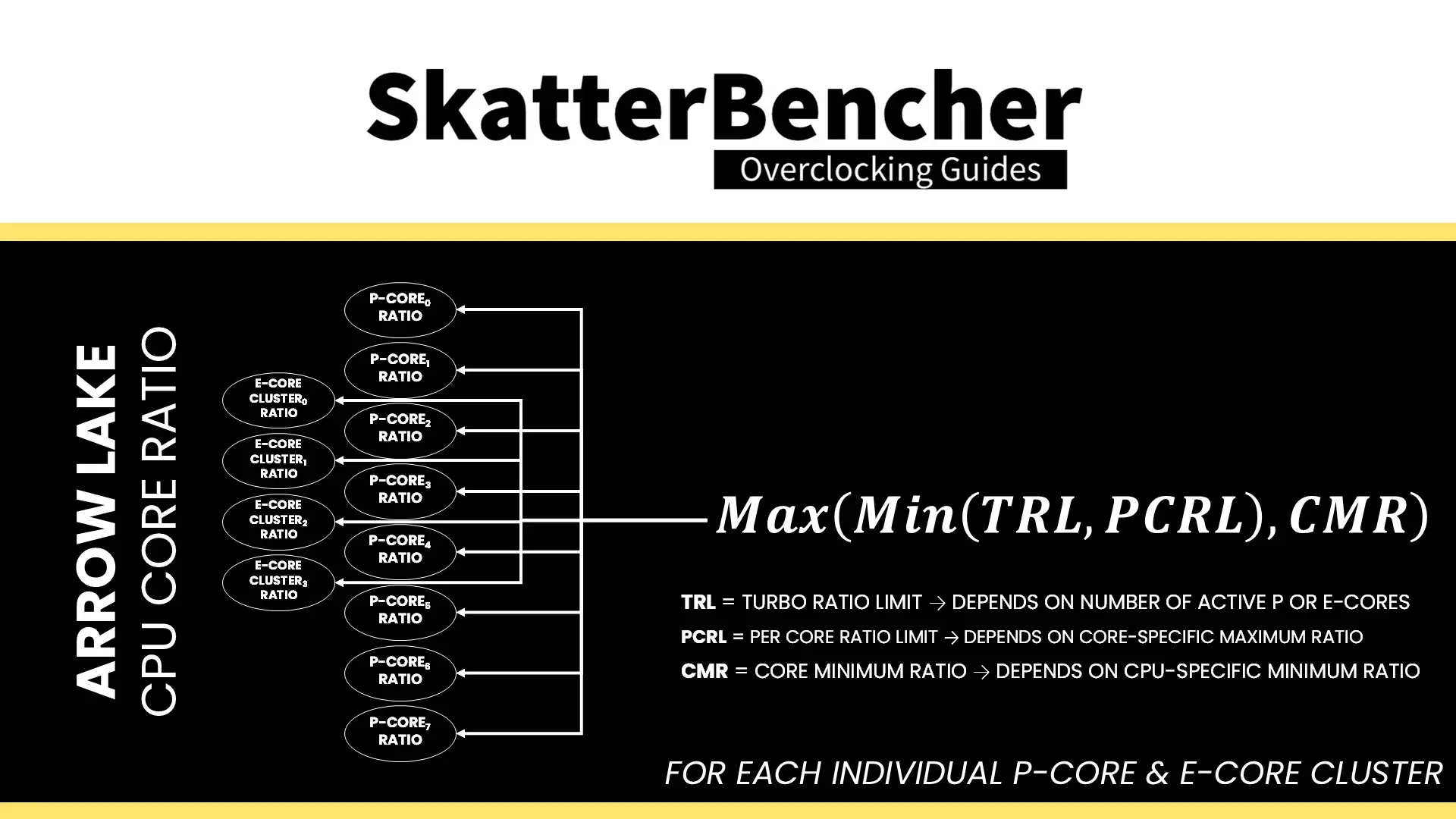
Understanding these technologies is crucial to tuning any Arrow Lake CPU.
Turbo Ratio Limit
Intel Turbo Ratio Limit is a technology that regulates the Turbo Boost frequency of an Intel processor based on the number of active cores.
Intel processors usually have two types of CPU core frequencies specified: the base frequency and the Turbo Boost frequency. The base frequency is also known as the “Maximum Non-Turbo Ratio” whereas the turbo frequency is usually referred to as the Turbo Ratio Limit.
The Turbo Ratio Limit is called a limit because it restricts the operating frequency rather than targets a frequency. Processors like the Core Ultra 7 270K Plus have an upper core frequency ratio of 120X. Without the ratio limit, the CPU would boost its frequency all the way to the maximum frequency. However, the Turbo Ratio Limit specifies an upper ceiling to the boost frequency.
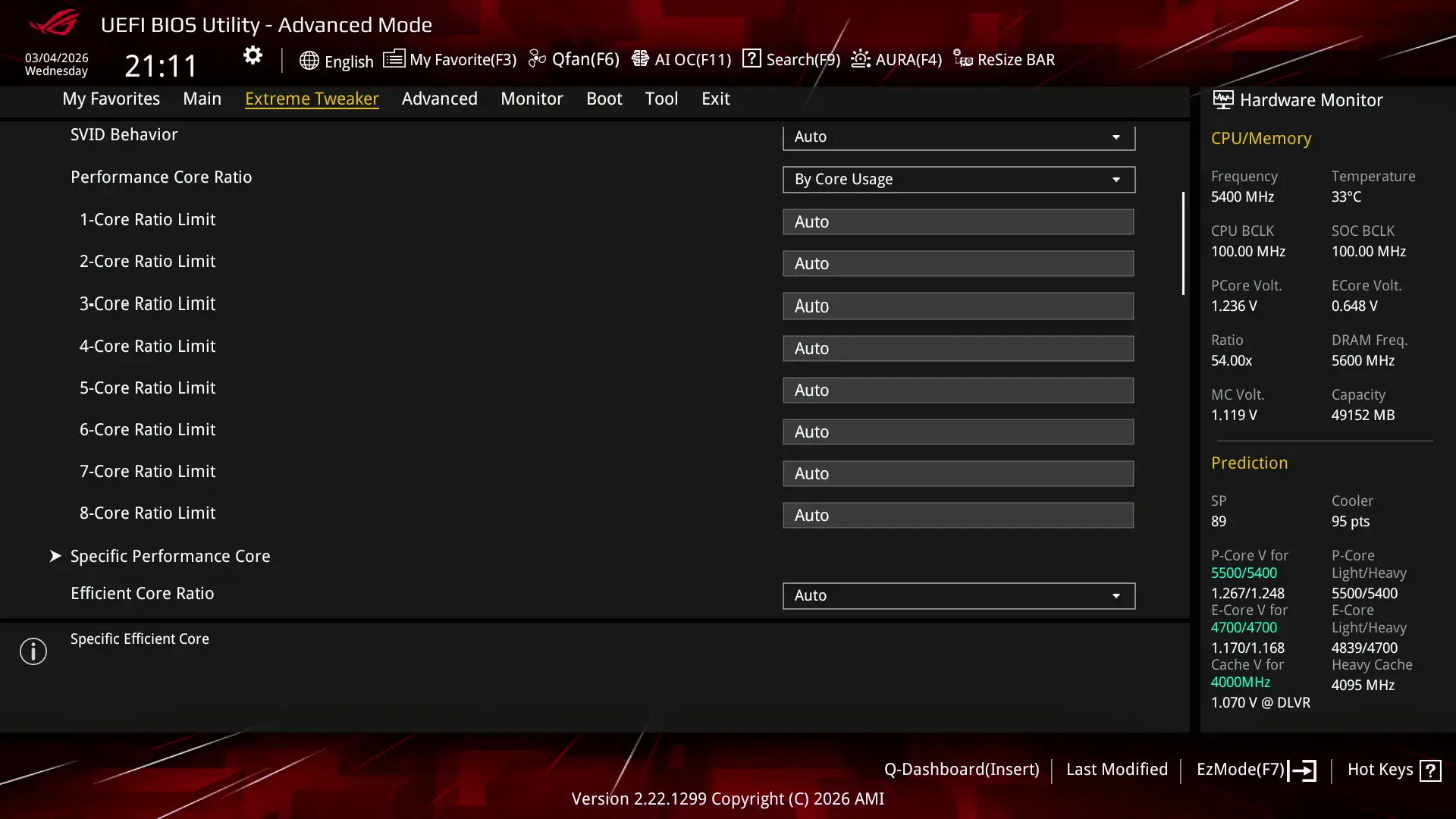
The tool is pretty flexible and can be programmed for various scenarios. The ratio limits are defined in the processor’s Machine Specific Registers (MSRs) by two parameters:
- The Turbo Ratio Limit
- The number of active cores
For CPUs like the Core Ultra 7 270K Plus, which have no more than 8 P-cores, these registers are configured from 1-active P-core to 8-active P-cores. However, on platforms with core counts beyond eight cores, we can configure each register by target Turbo Boost Ratio and the number of active cores.
Furthermore, on hybrid designs like Alder Lake, Raptor Lake, or Arrow Lake, which all feature a combination of P-cores and E-cores, the Turbo Ratio Limit configuration is specified by core type. In other words: the applied ratio limit for the P-cores is independent from the limit of the E-cores.
For example, on the Core Ultra 7 270K Plus the Turbo Ratio Limit specifies 55X when up to 2 P-cores are active, 54X when 3 or more P-cores are active, and 47X for any amount of active E-cores. In theory, if 2 P-cores and all E-cores are active, the P-cores would operate at 55X even though more than 2 cores in total are active.
Per Core Ratio Limit
Per Core Ratio Limit allows you to set a maximum CPU Ratio for every P-core or E-core cluster individually. It is an extension of the Intel Turbo Boost Max 3.0 technology introduced in 2016. It acts independently from the Turbo Ratio Limit, meaning that when you set a Per Core Ratio Limit, the P-core ratio will be restricted even if the Turbo Ratio Limit allows for a higher boost frequency.
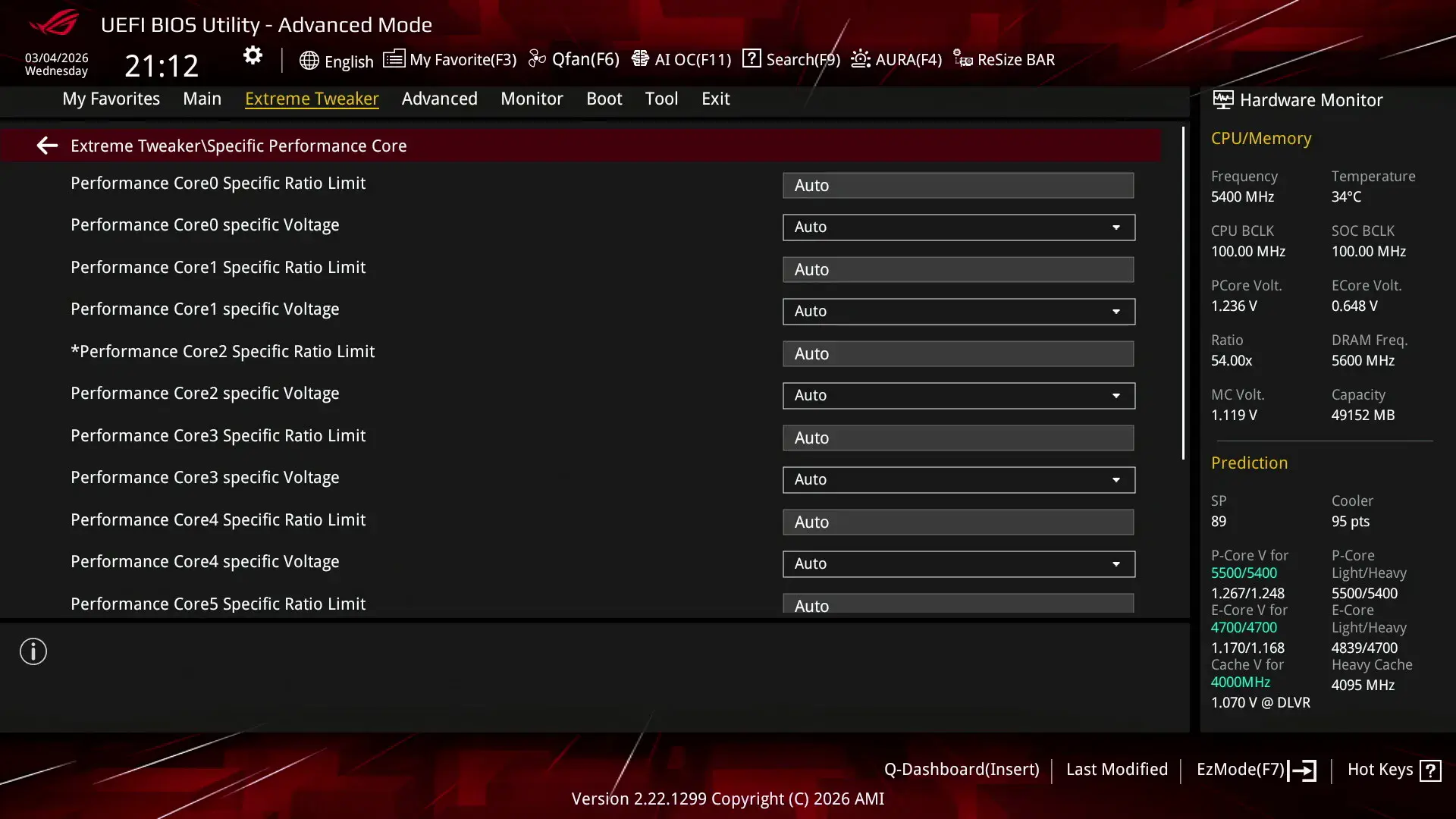
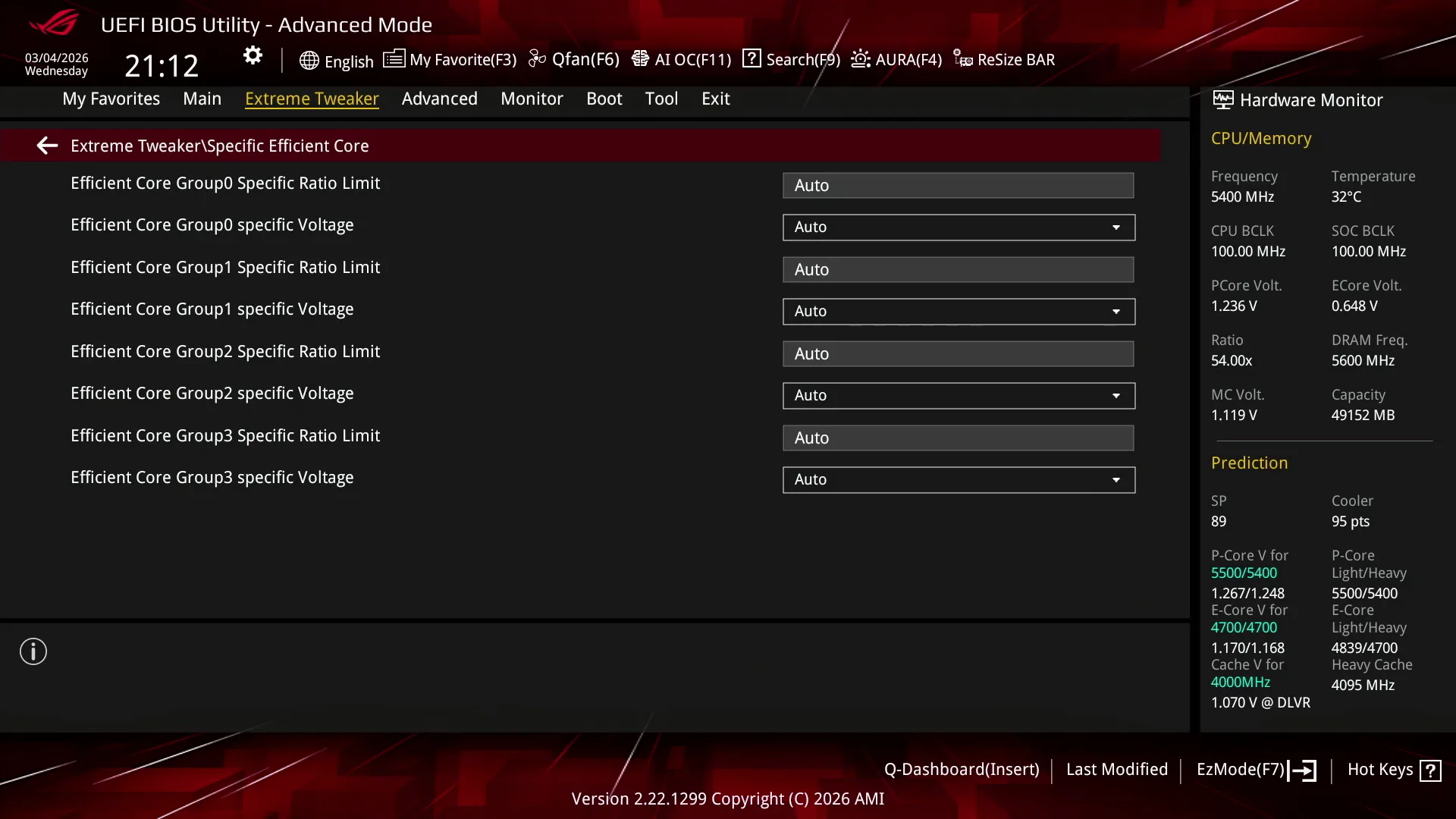
The Per Core Ratio Limit plays an important role in the Arrow Lake overclocking process. It’s not only the ratio used in the V/F point configuration but also the ratio referenced by many other ratio tuning technologies.
Core Minimum Ratio
The Core Minimum Ratio is a brand-new feature for Arrow Lake. It allows you to set a CPU ratio floor for the P- and E-cores. The floor value is still defined within the P-states, so it doesn’t prevent the cores from reducing their clock frequency in lower C-states when idling.
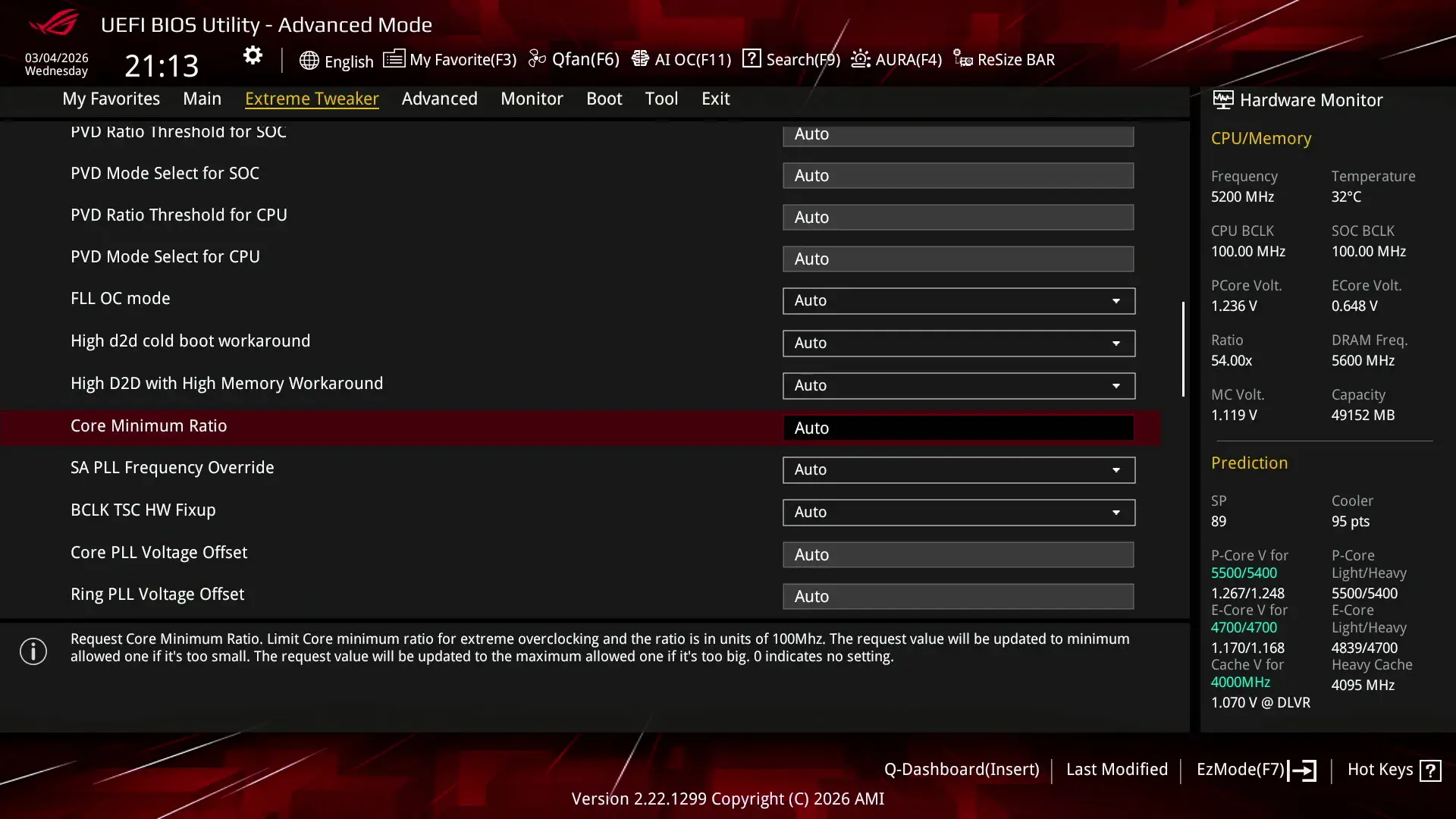
CPU Core Voltage Topology
The voltage regulation for the P- and E-cores is more complex than prior generations of Intel Core processors due to the introduction of the Digital Linear Voltage Regulator (DLVR). The DLVRs enable much lower voltage levels for the cores and ring but still rely on a dynamic external motherboard voltage regulator as the input voltage source.
VccIA, VccCORE, & VccATOM
The external VccIA motherboard voltage regulator (MBVR) provides the input voltage for the individual P-core, E-core clusters, Ring, last-level cache (LLC), and E-core L2 cache. Each P-core, E-core cluster, and Ring has an individual Digital Linear Voltage Regulator (DLVR) between the VccIA rail and the IP blocks. That means each of the blocks can operate at its own voltage.
- VccCOREn is the DLVR powering an individual P-core.
- VccR is the DLVR powering the Ring and Last-Level Cache.
- VccATOMn is the DLVR powering an individual E-core cluster, which consists of four E-cores, and its L2 cache.
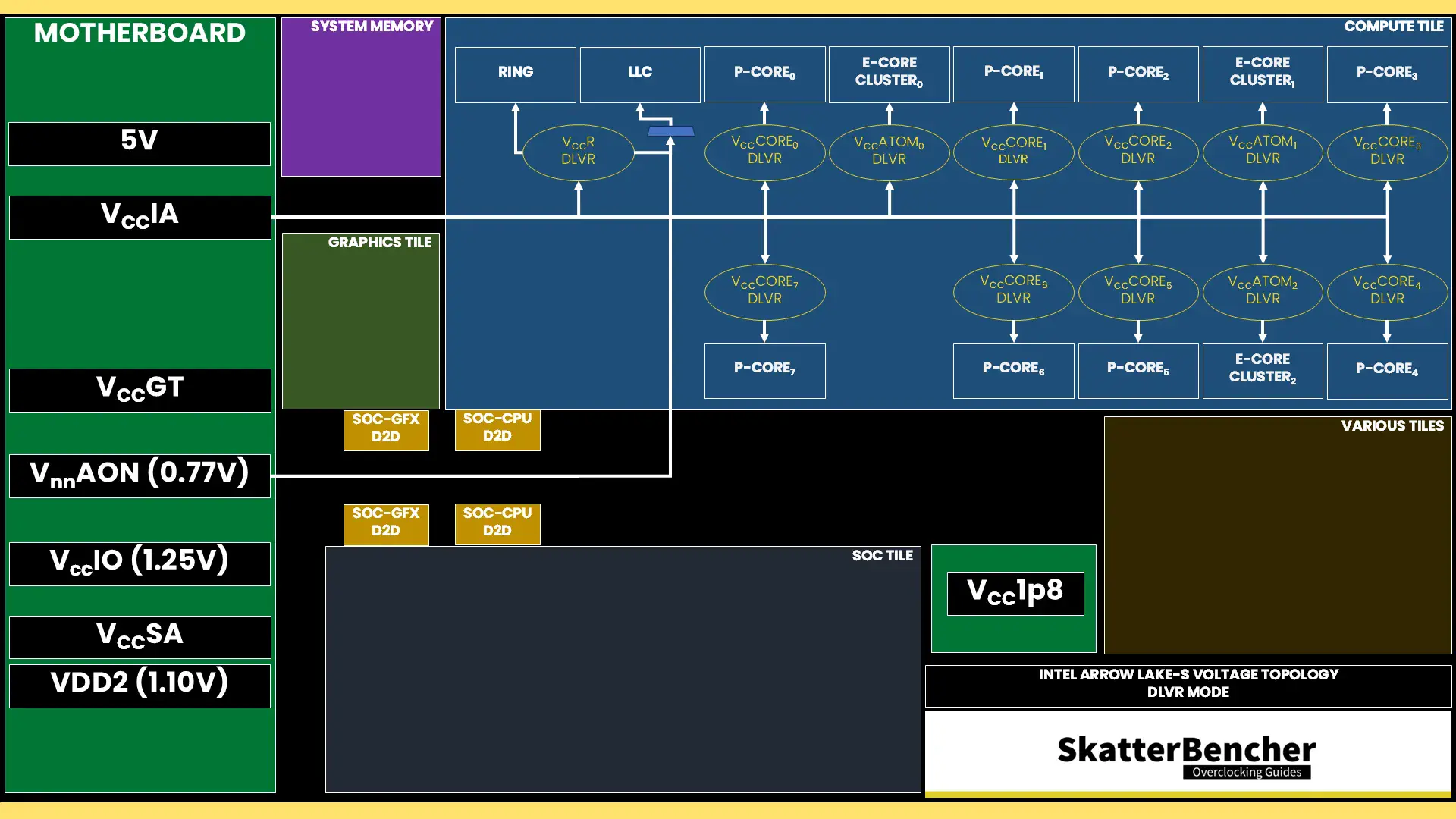
The DLVRs can also be bypassed. In that case, the IP blocks are running in so-called Power Gate (PG) mode. I covered that in depth when overclocking the Core Ultra 5 245K and the Core Ultra 9 285K.
Core Ultra 7 270K Plus V/F Curves
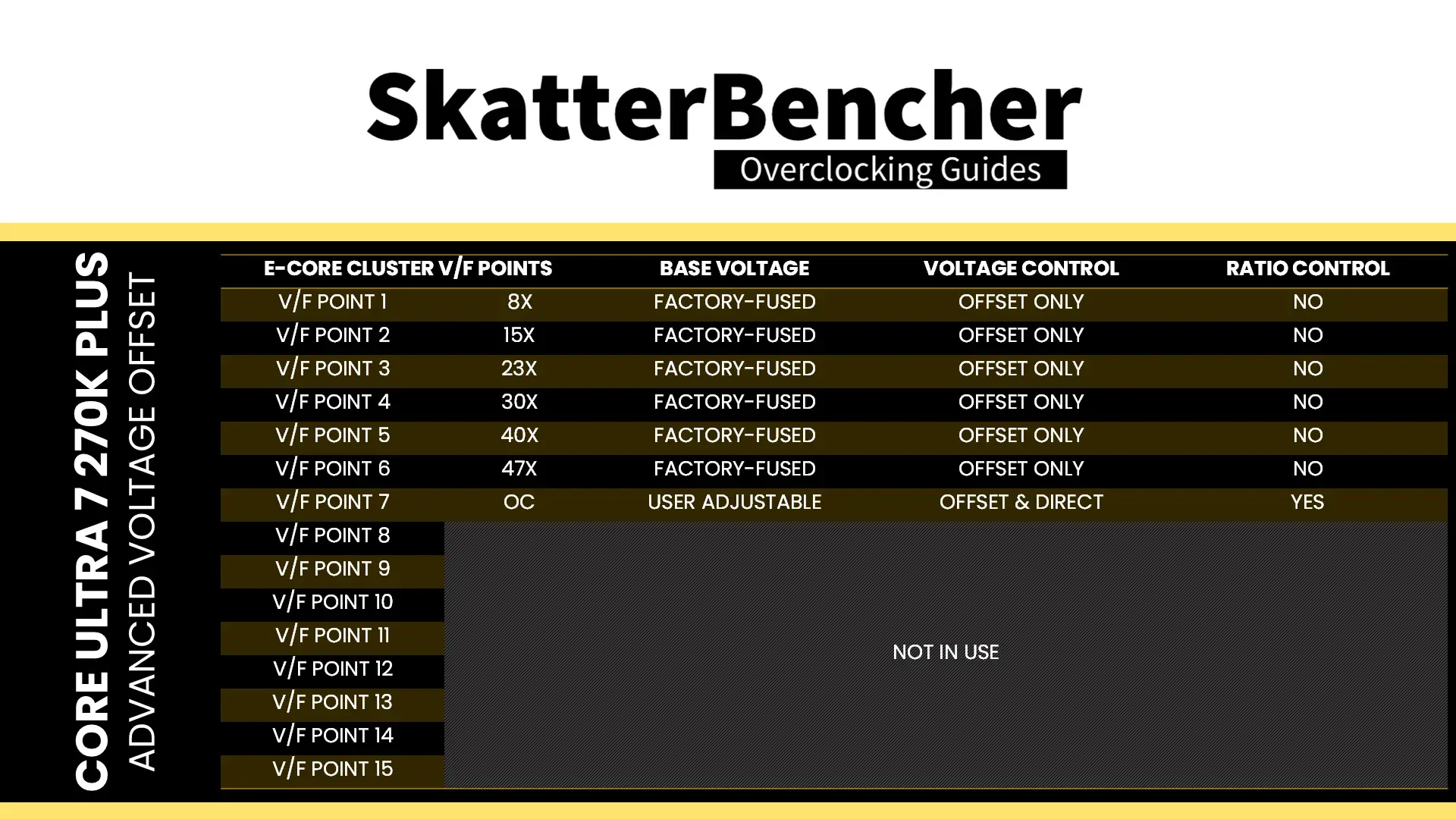
Each Core Ultra 7 270K Plus P-core and E-core cluster has its own V/F curve which is defined by eight (8) V/F points for the P-cores and seven (7) V/F points for the E-core clusters. For the P-cores, the first seven (7) V/F points are factory-fused, and the last point is mapped to the “OC Ratio.” For the E-cores, the first six (6) V/F points are factory-fused, and the last point is mapped to the “OC Ratio.”
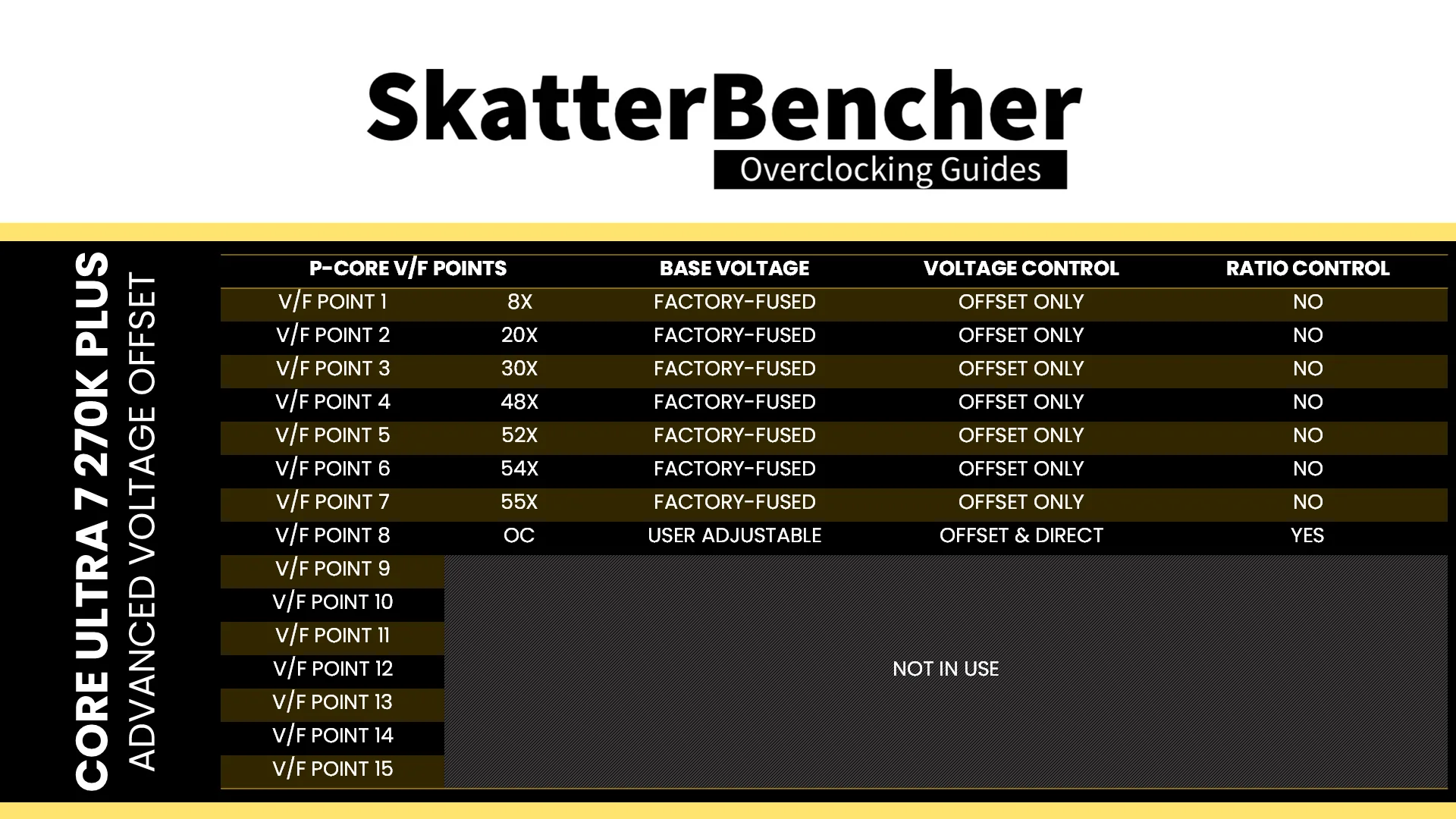
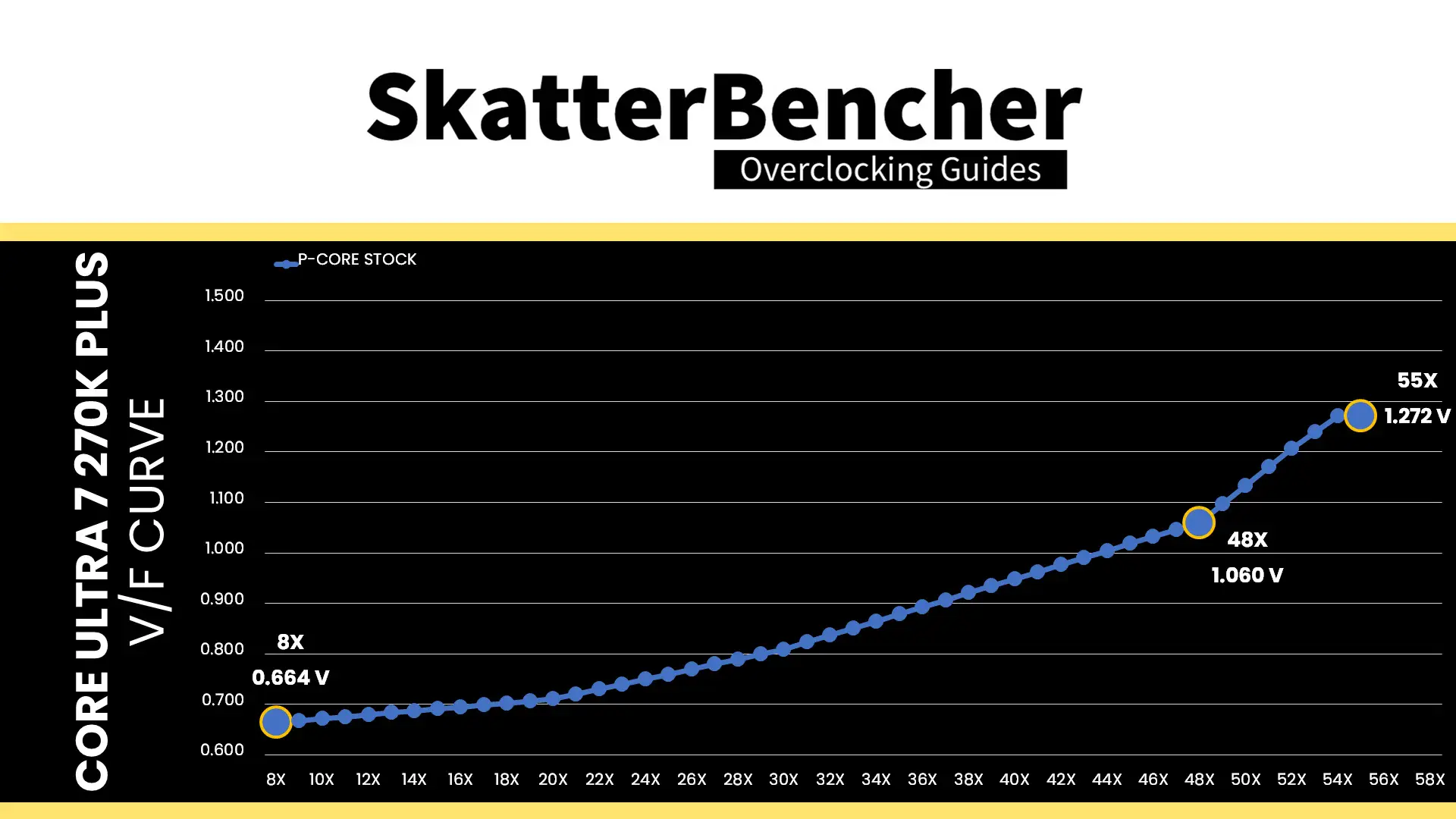
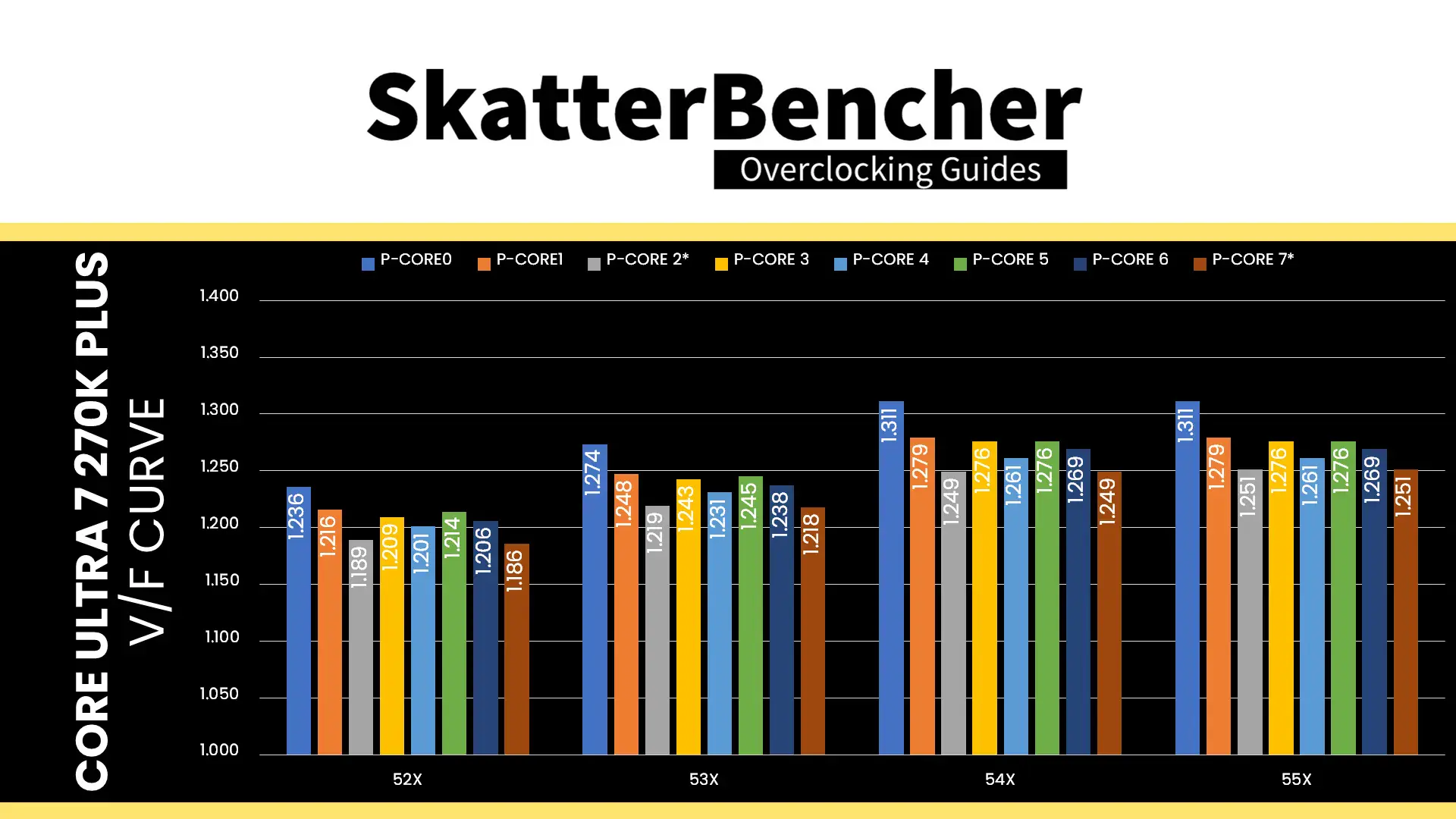
Here is the aggregate P-core V/F curve for my specific Core Ultra 7 270K Plus. The voltage is about 664 mV at 800 MHz, then increases to 1.060V for VF Point 4 at 4.8 GHz, and ultimately ends at 1.272 V for V/F Point 7 at 5.5 GHz. Each P-core has a different fused voltage for V/F Point 7 which ranges from 1.251 V for P-cores 2 and 7 to 1.311V for P-core 0.
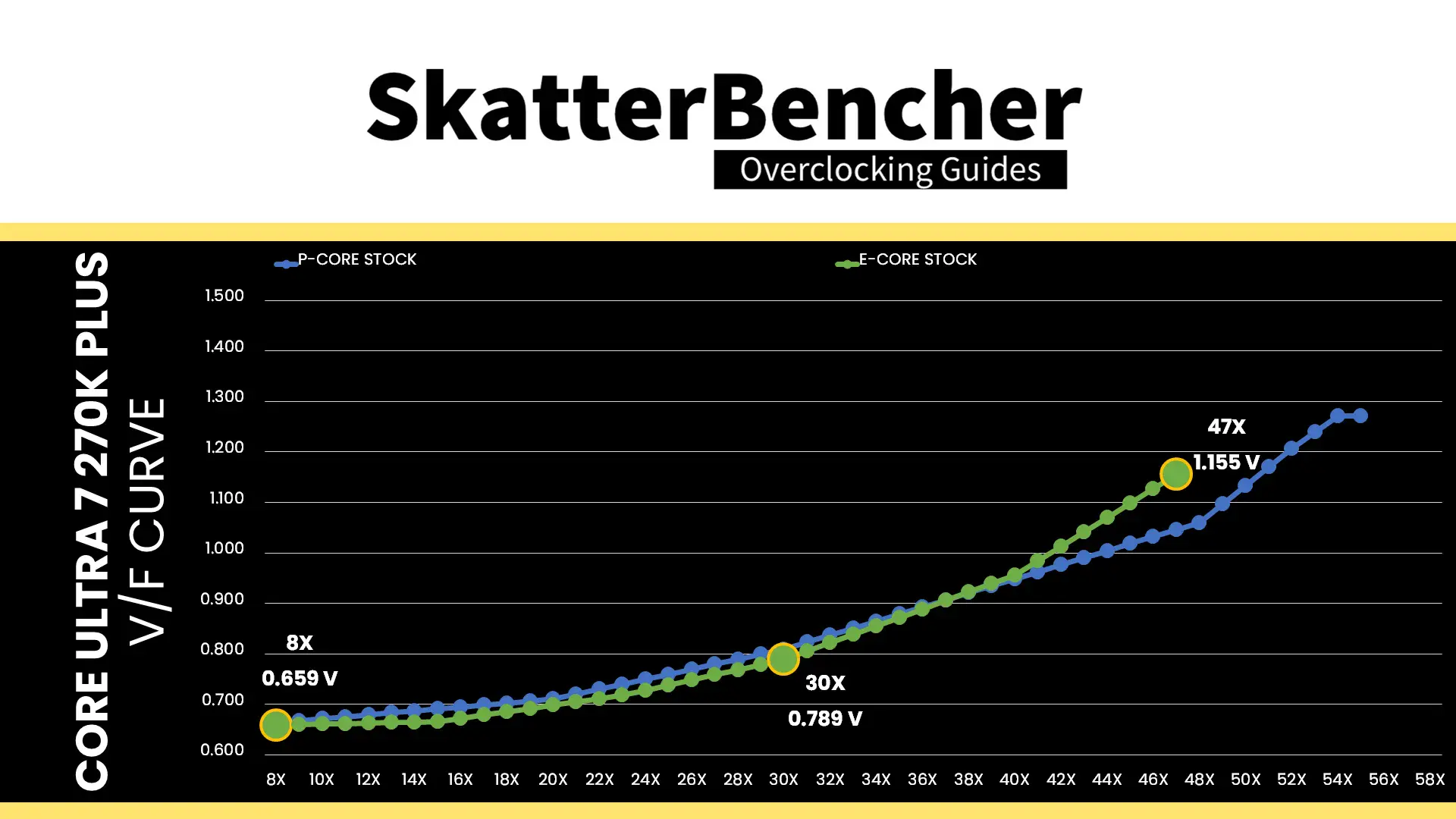
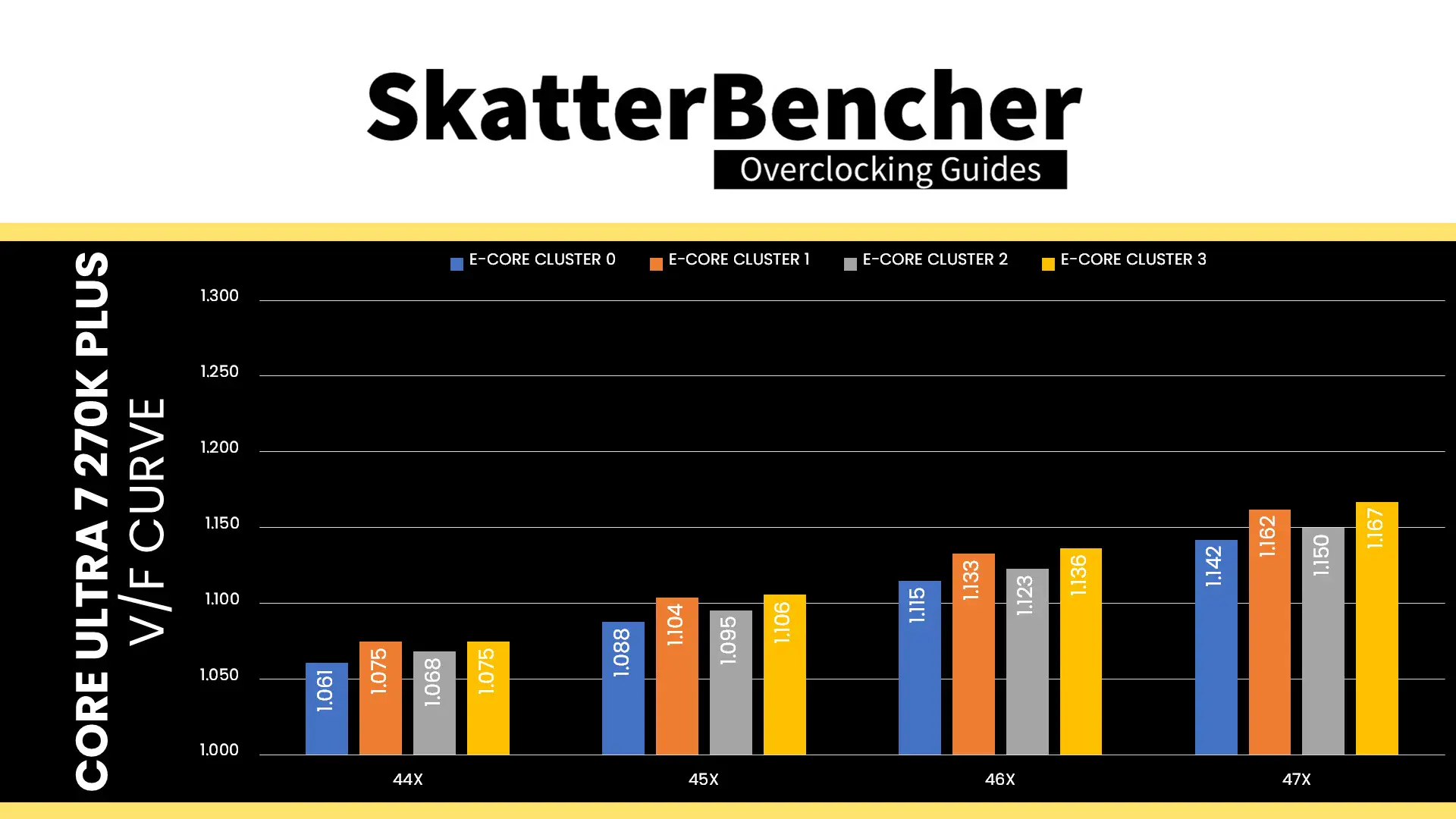
Here is the aggregate E-core V/F curve for my specific Core Ultra 7 270K Plus. The voltage is about 659 mV at 800 MHz, then increases to 789 mV for VF Point 4 at 3.0 GHz, and ultimately ends at 1.155V for V/F Point 6 at 4.7 GHz. Each E-core has a different fused voltage for V/F Point 6 which ranges from 1.142V for E-core cluster 0 to 1.167V for E-core cluster 3.
Now, when trying to put together the V/F curve using tools like HWiNFO, it’s important to know there’s other technologies affecting the effective voltage. For example, Thermal Velocity Boost.
Thermal Velocity Boost Voltage Optimizations
Intel Thermal Velocity Boost is an technology that exploits the fact that CPUs need less voltage to run a specific frequency when the operating temperature is lower. When this technology is enabled, the CPU automatically adjusts the operating voltage according to the operating temperature. So, if you want to derive the native V/F curve, you need to disable this function.
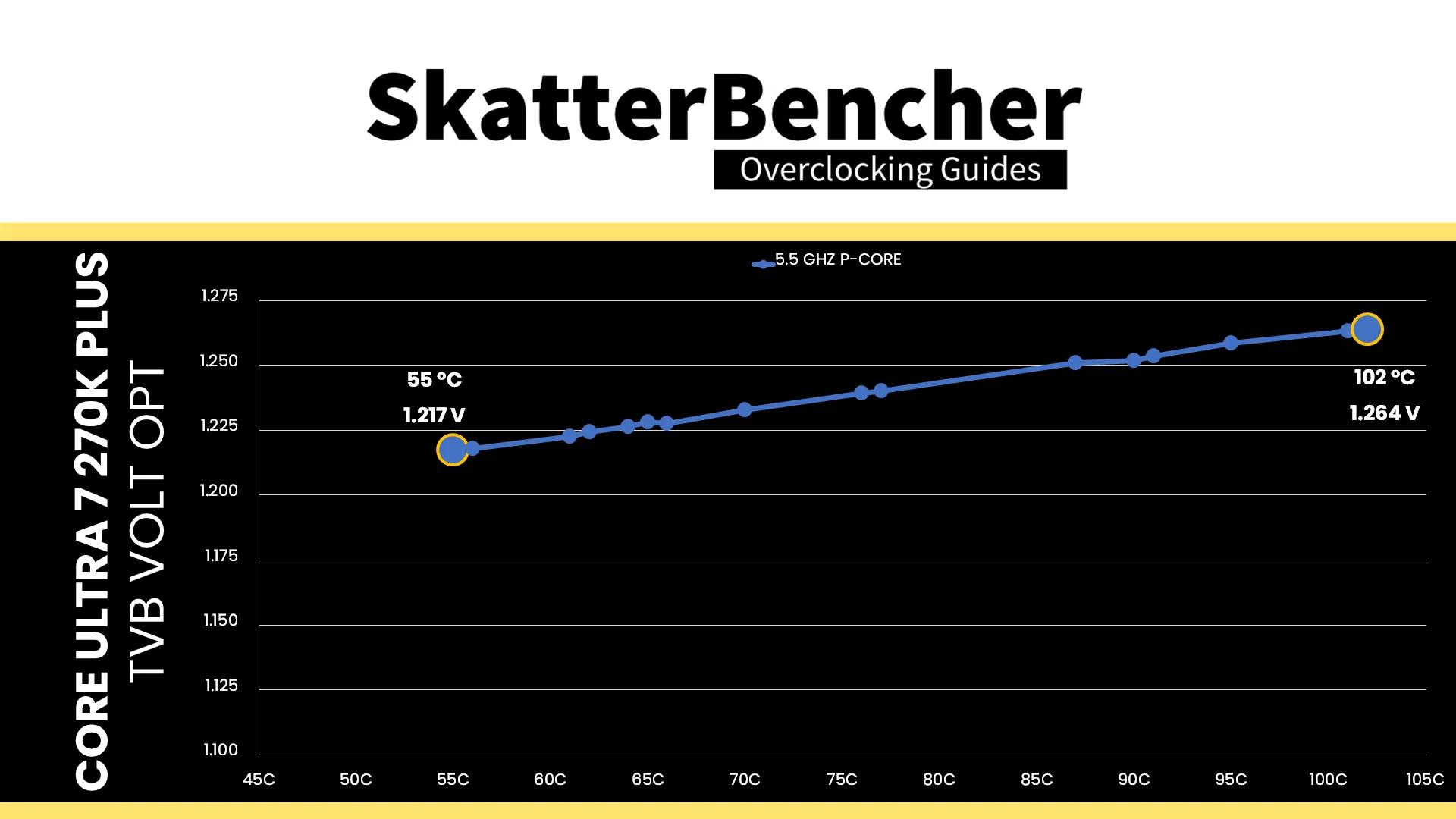
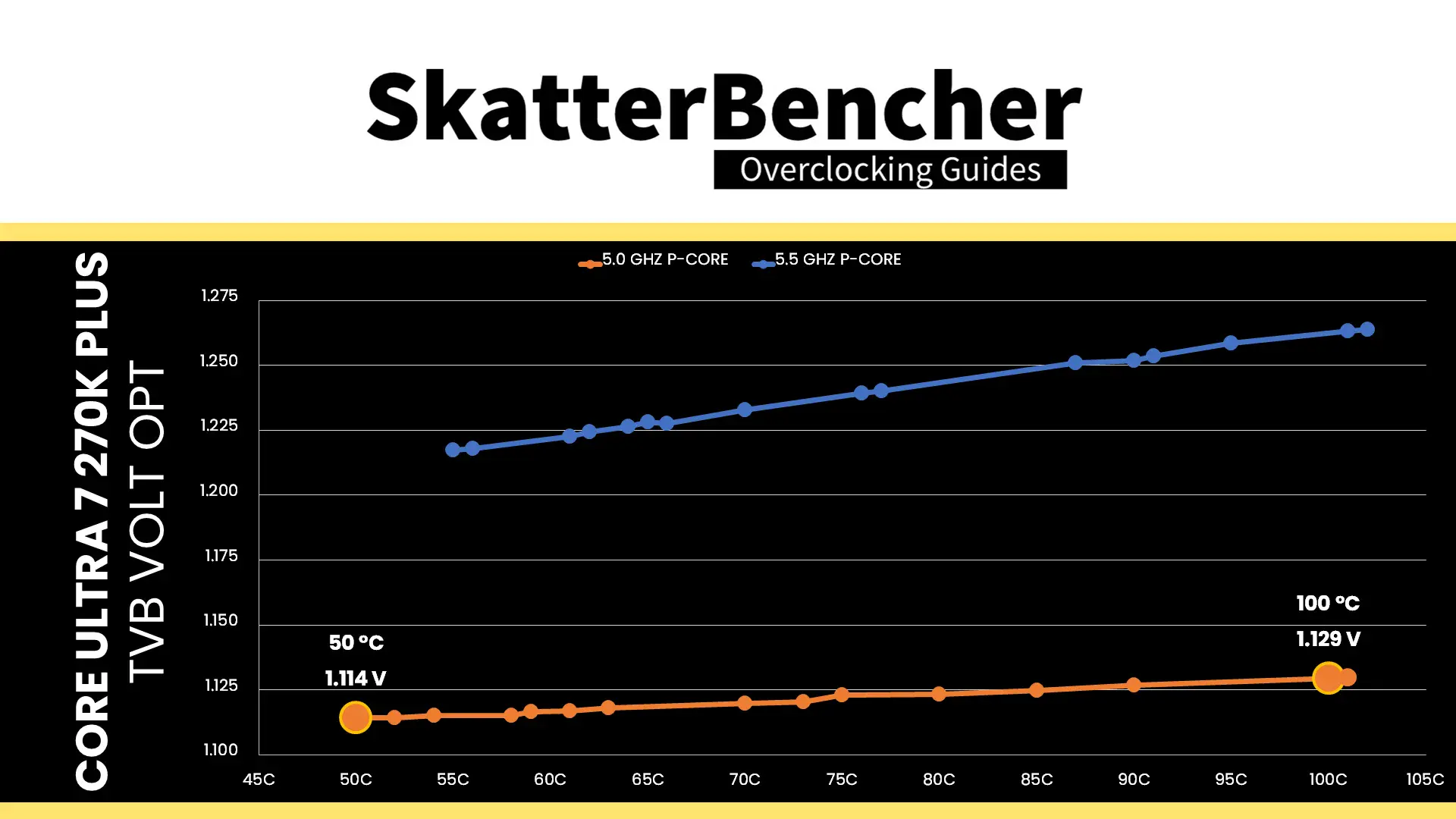
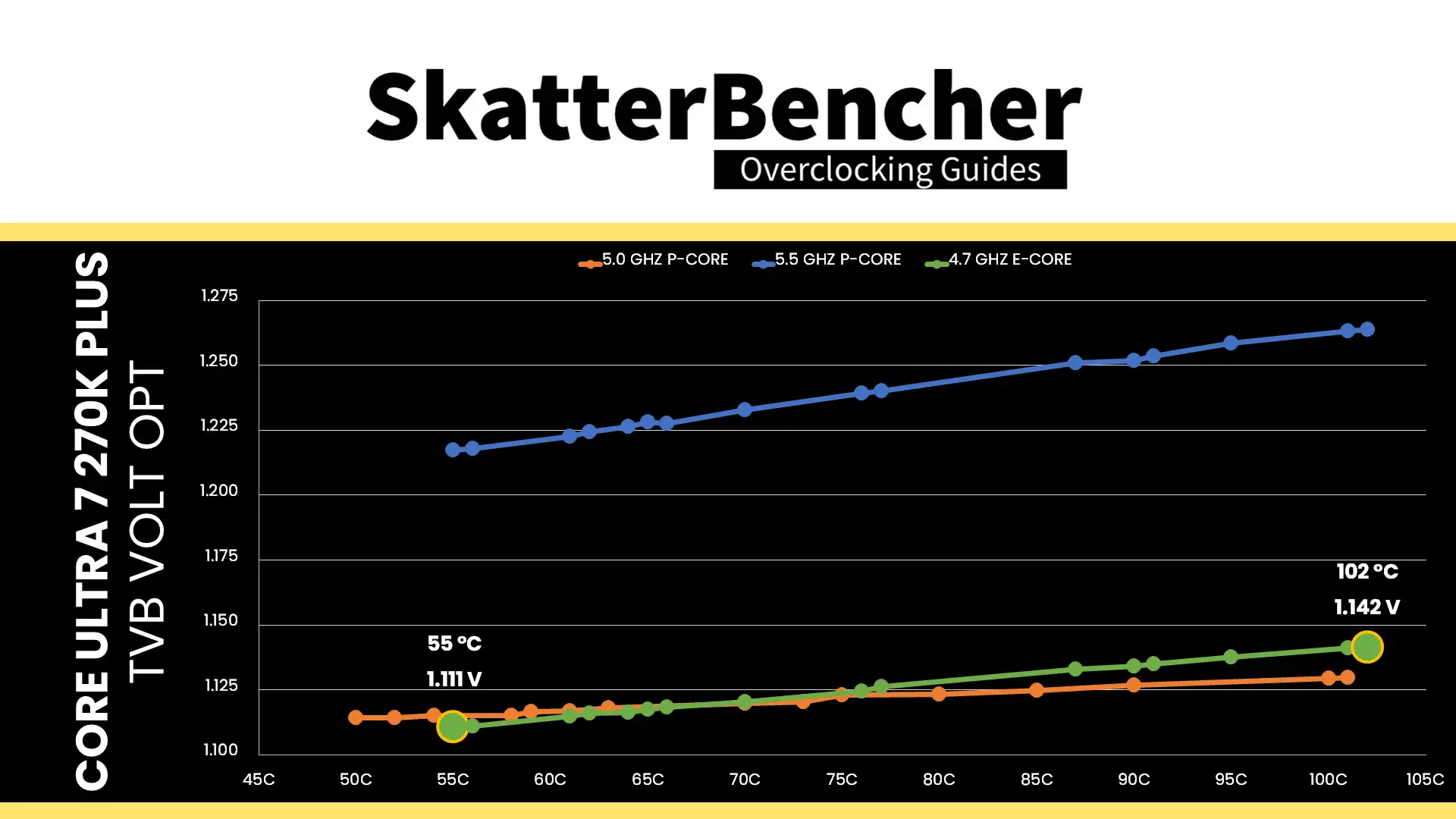
When the voltage optimizations are enabled, we can use HWiNFO to track the CPU VID request as the CPU heats up. I’ve collected data for the Core Ultra 7 270K Plus to illustrate this behavior.
- At 5.5 GHz, the average P-core voltage is 1.264V at 102C but only 1.217V at 55C. That’s a difference of 47mV with 47 degrees, or about 1mV per degree Celsius.
- At 5.0 GHz, the average P-core voltage is 1.129V at 100C but only 1.114V at 50C. That’s a difference of 15mV with 50 degrees, or about 0.3mV per degree Celsius.
The same applies for the E-cores:
- At 4.7 GHz, the average E-core voltage is 1.142V at 102C but only 1.111 at 55C. That’s a difference of 31mV with 47 degrees, or about 0.66mV per degree Celsius.
In past overclocking strategies I usually disable the TVB Voltage Optimizations because it interferes with the finetuning. However, it is a very useful technology to lower voltage and temperatures in lighter loads. So, for this guide I decided to try tuning with TVB Voltage Optimizations enabled.
Adaptive Voltage Mode
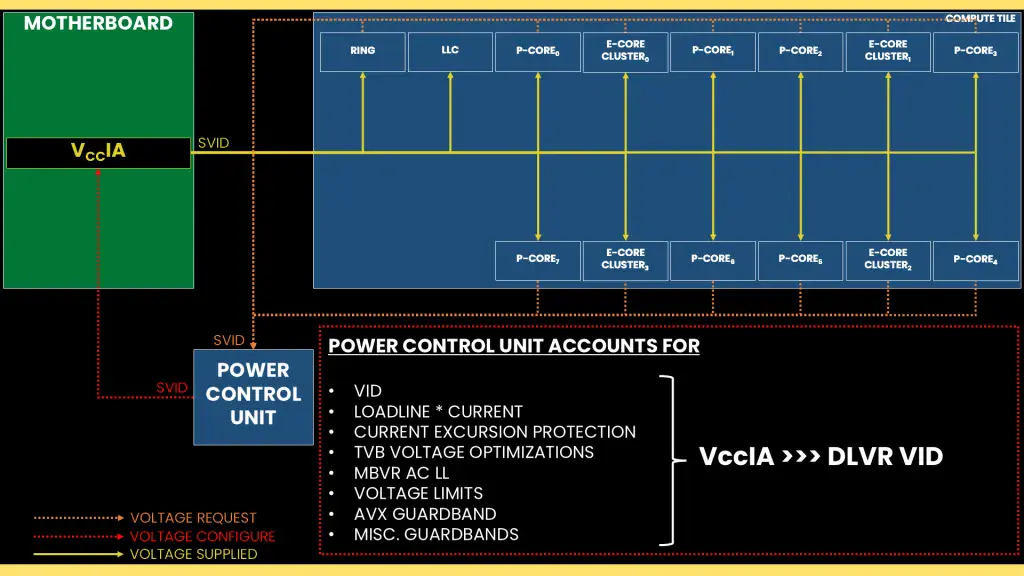
Based on the VF curve, the CPU cores request an operating voltage using the SVID protocol from the CPU Power Control Unit (PCU). The PCU in turn configures the VccIA voltage rail and the individual DLVRs. There are two ways to configure the DLVR voltage:
- Adaptive mode is the standard mode of operation, which relies on the factory-fused voltage-frequency curves we discussed before.
- Override mode specifies a single static voltage across all ratios. It is mainly used for extreme overclocking where stability at high frequencies is the only consideration.
We can configure override and adaptive modes directly in the PCU by specifying a target voltage and a voltage offset for each mode.
In adaptive mode, the target voltage is mapped to a core’s “OC Ratio.” Each P-core and E-core cluster has its own “OC Ratio” which is defined by the Per Core Ratio Limit. This also matches V/F Point 8 for the P-cores and V/F Point 7 for the E-cores. You can configure the adaptive voltage and OC Ratio to any value; however, multiple rules enforce what ratio and voltage are actually set.
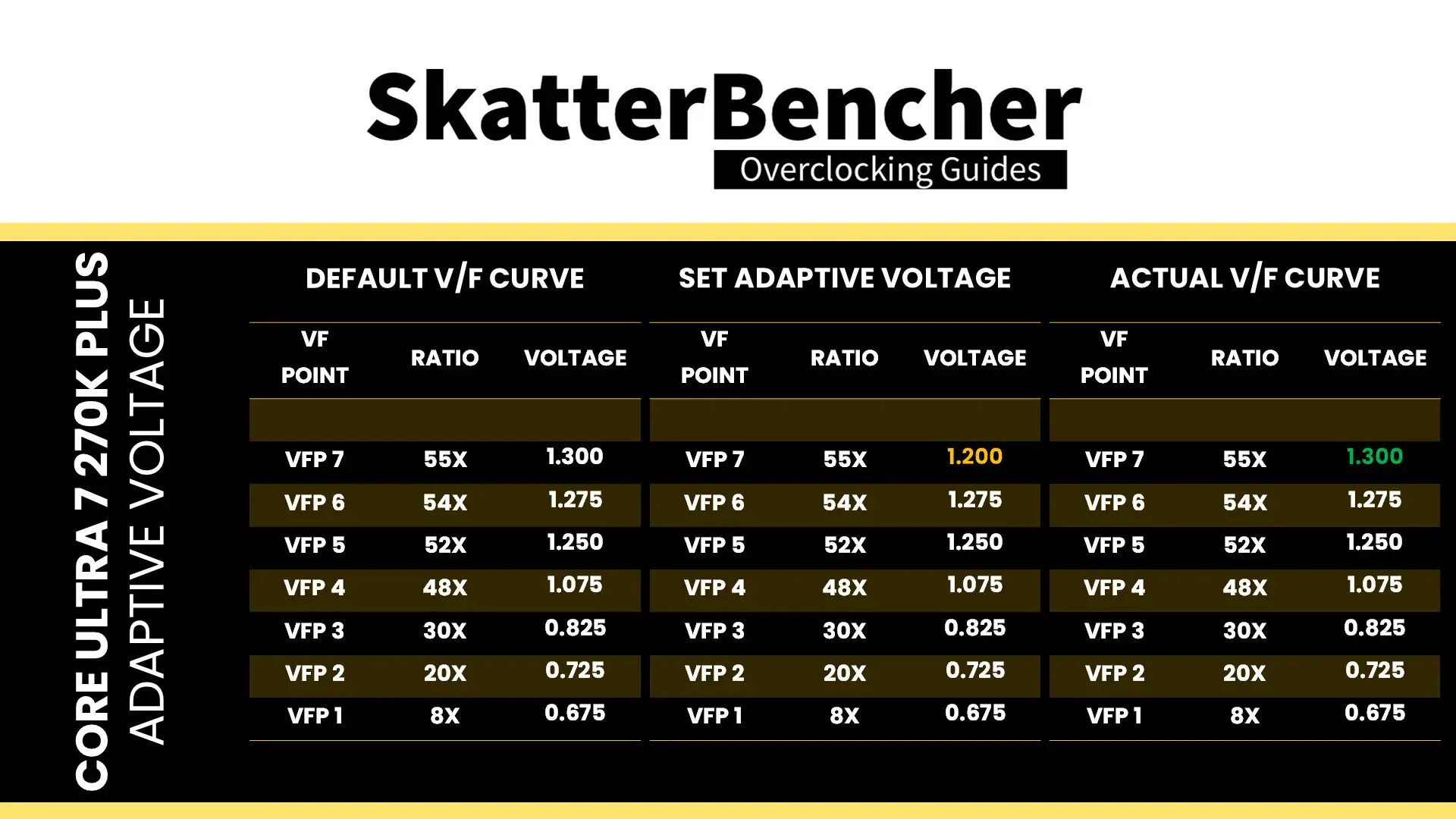
A) the voltage set for a given ratio n must be higher than or equal to the voltage set for ratio n-1.
Suppose Core 0 of our 270K Plus runs 55X at 1.30V. In that case, setting the adaptive voltage, mapped to 55X, lower than 1.30V, is pointless. 55X always runs at 1.30V or higher. Usually, BIOSes may allow you to configure lower values. However, the CPU’s internal mechanisms will override your configuration if it doesn’t follow the rules.
B) the adaptive voltage configured for any ratio below the default maximum Turbo Ratio will be ignored.
Take the same example of Core 0, specified to run 55X at 1.30V. If you try to configure all cores to 48X and set 1.1V, the CPU will ignore this because it has its own factory-fused target voltage for all ratios up to 55X and will use this voltage. You can only change the voltage of the OC Ratio. If you wish to set a fixed frequency and voltage, you should switch to override mode.
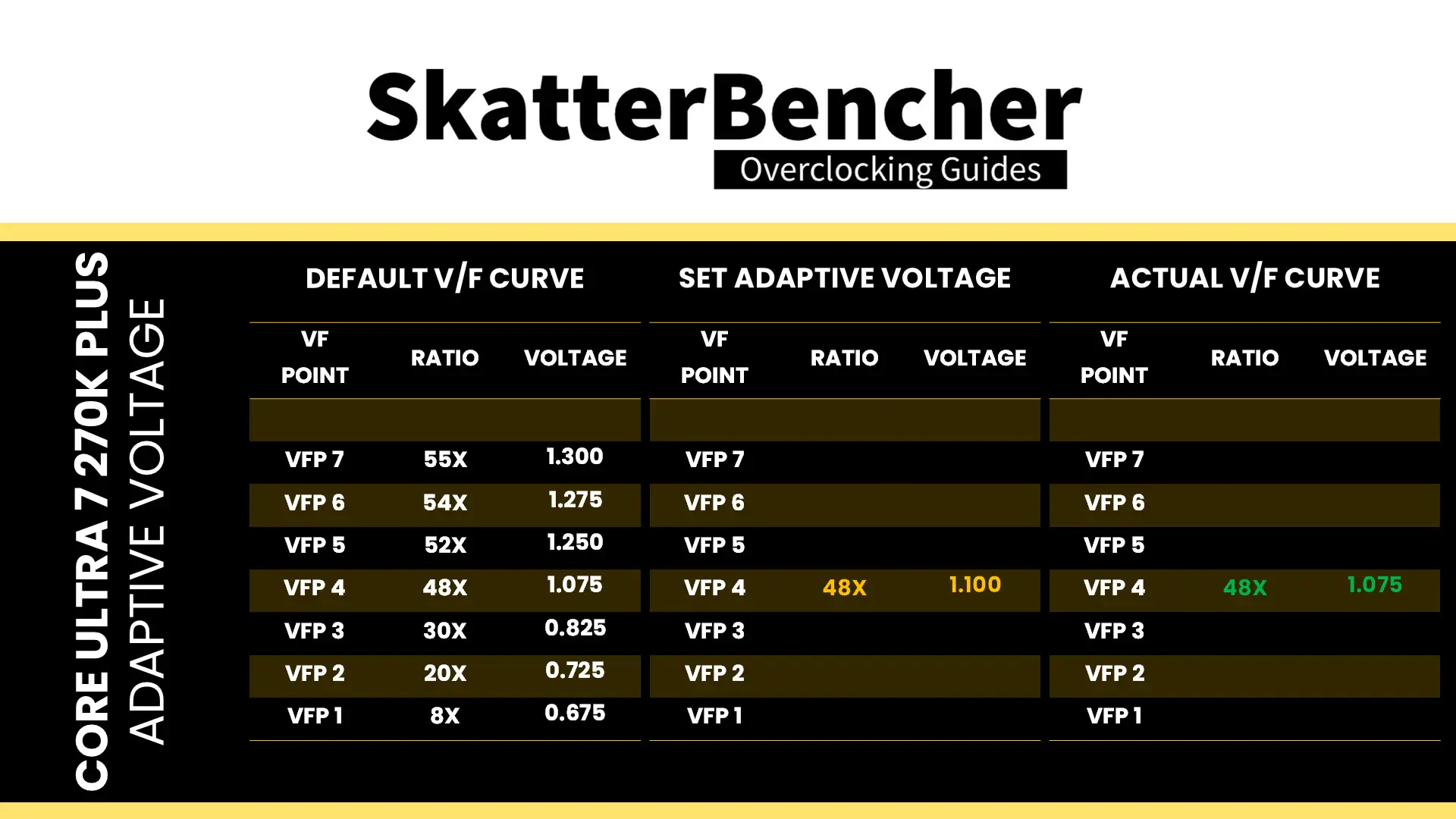
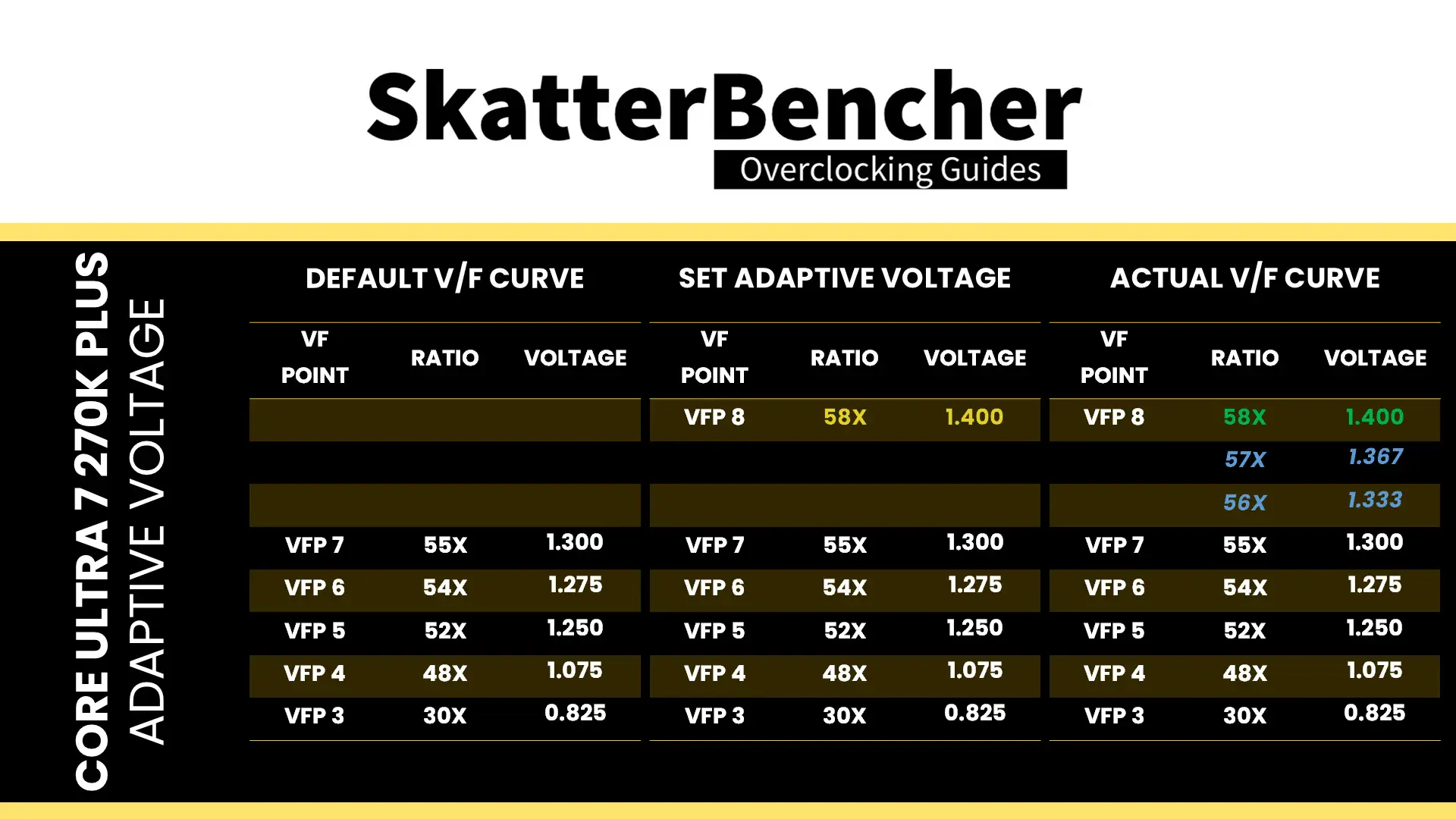
C) for ratios between the set OC Ratio and default maximum Turbo Ratio, the voltage is interpolated between the set adaptive voltage and the factory-fused voltage.
Returning to the Core 0 example, specified to run 55X at 1.30V, let’s say we manually configure the OC ratio to be 58X at 1.40V. The target voltage for ratios 56X and 57X will now be interpolated between 1.30V and 1.40V.
As I mentioned already, we can do this for each P-core and E-core cluster individually. However, that would be rather painful, especially on a 24-core CPU! Fortunately, there’s also an alternative way: we can set a global adaptive voltage for the P-cores and a global adaptive voltage for the E-cores. When we set a global adaptive voltage, it maps this voltage to the OC Ratio for each core in our CPU. That certainly makes things easier.
Over the years Intel has introduced multiple overclocking technologies that enable fine-tuning and customization of the adaptive voltage configuration. The two most prominent technologies are Advanced Voltage Offset and Per Core Voltage.
Intel Advanced Voltage Offset
Advanced Voltage Offset is an extension of the Adaptive Voltage mode which allows offset tuning of each of the available P-core and E-core cluster V/F Points, including that of the OC ratio. This is available for each P-core and E-core cluster individually, meaning there are no less than (8×8 + 7×4) 92 tunable V/F points on the Core Ultra 7 270K Plus.
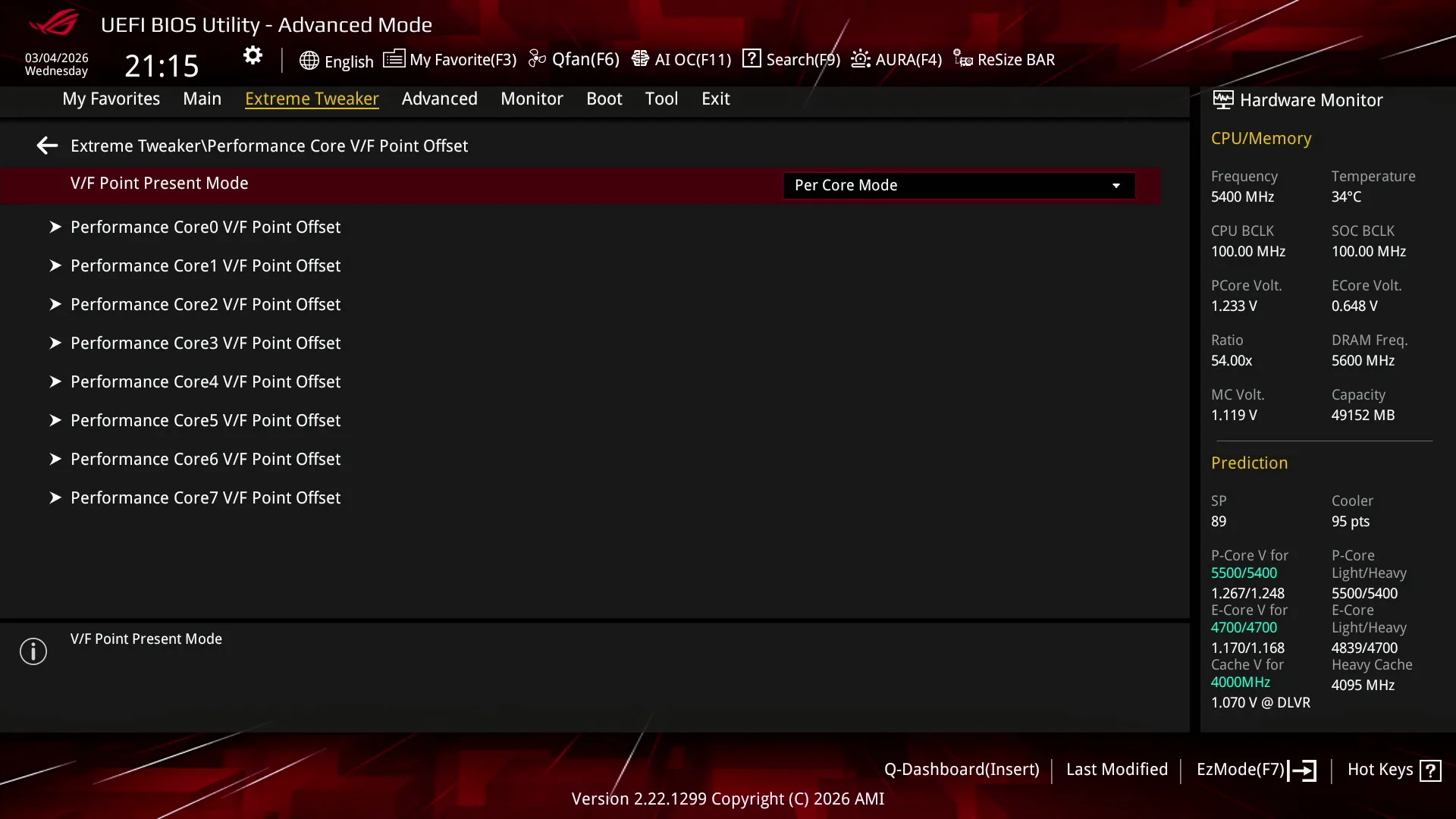
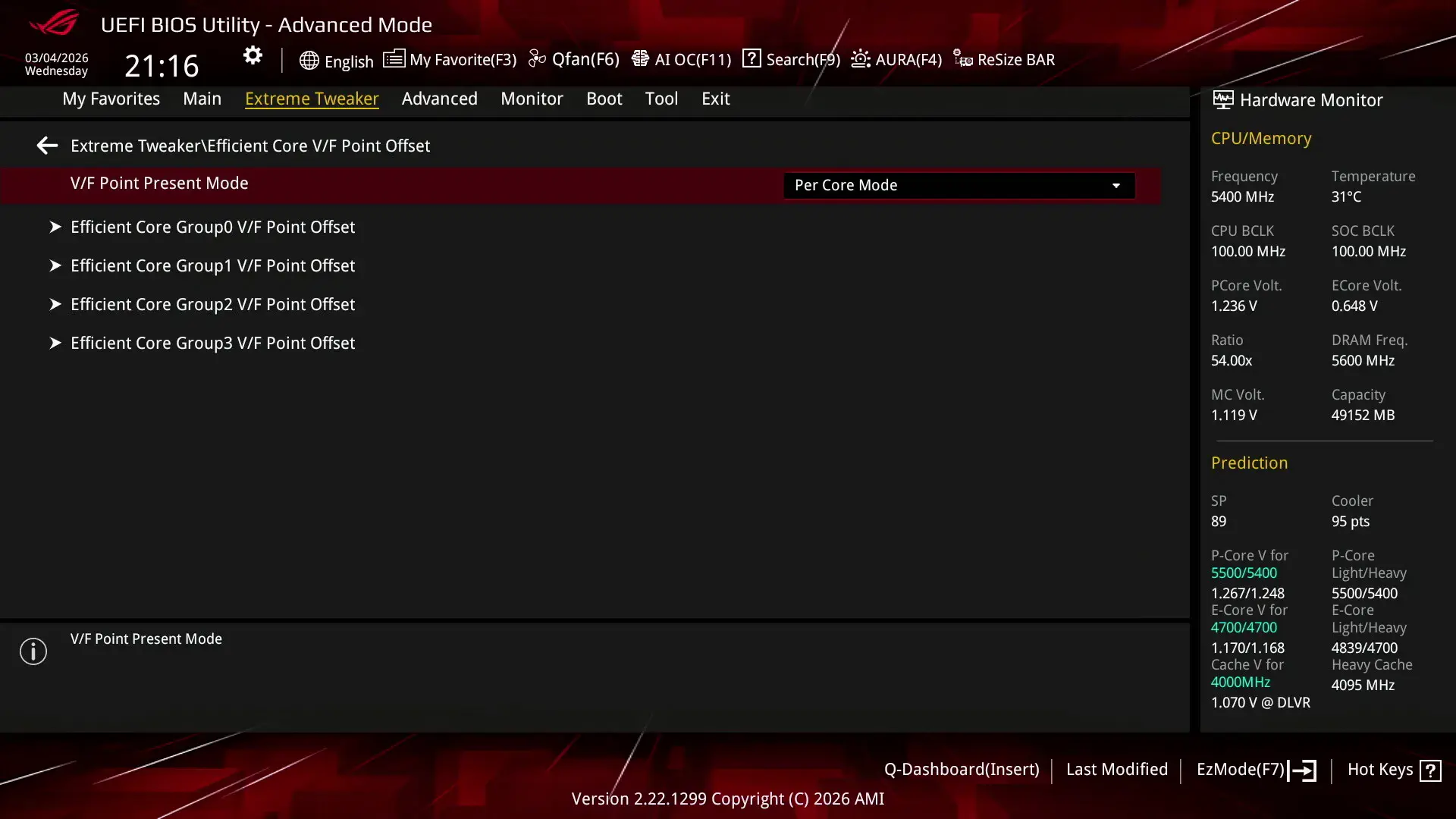
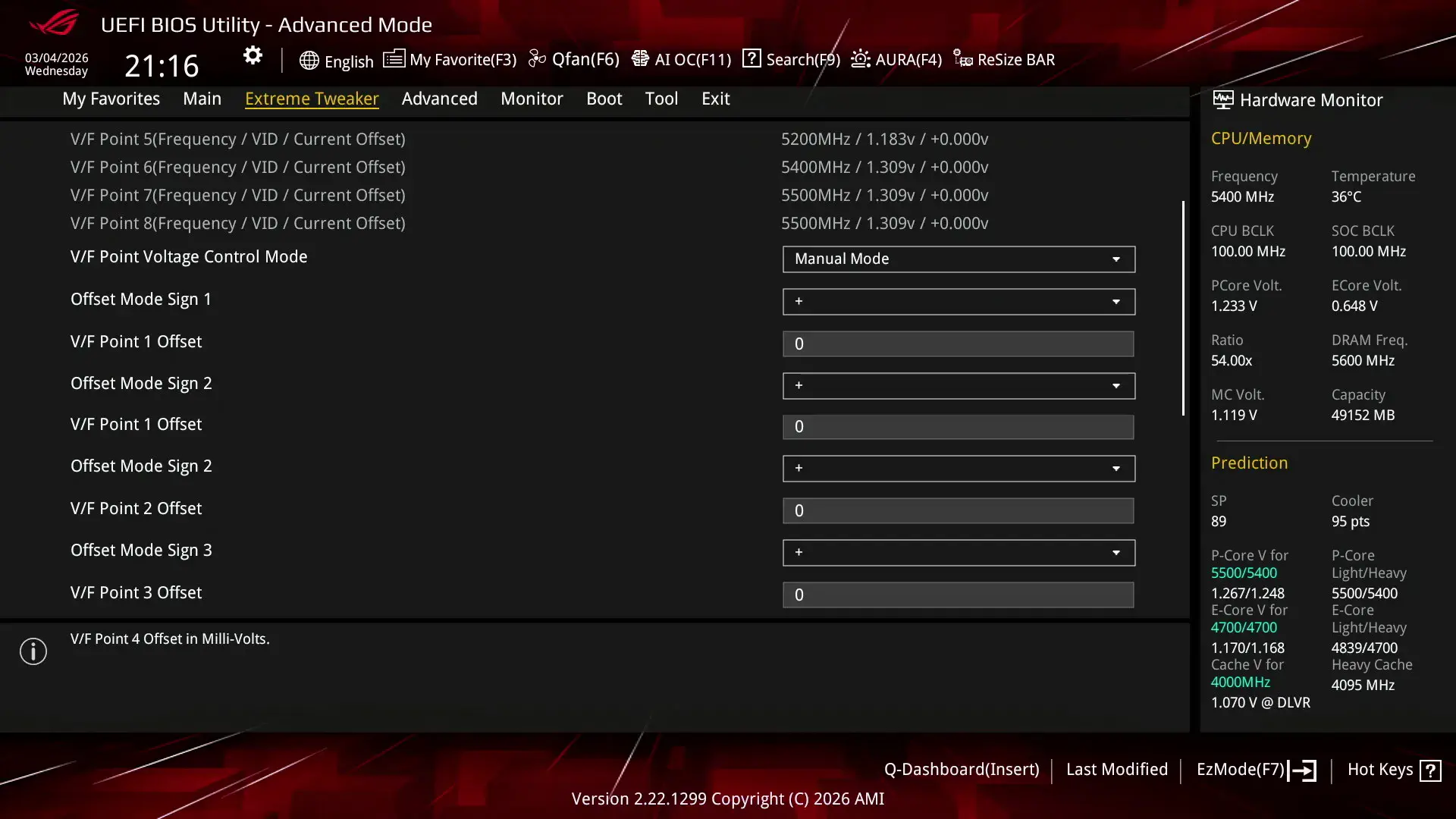
You can set a negative or positive voltage offset for each of these V/F points. The final OC ratio’s base voltage will be the user-configured adaptive voltage. I’ll cover how I tuned the V/F Points in a minute.
Intel Per Core Voltage
Intel Per Core Voltage allows you to set a specific target voltage for every individual P-core and E-core cluster inside your Arrow Lake CPU. You can configure the Per Core Voltage in adaptive mode and override mode, specifying a voltage for the defined Per Core Ratio Limit or across the V/F curve respectively.
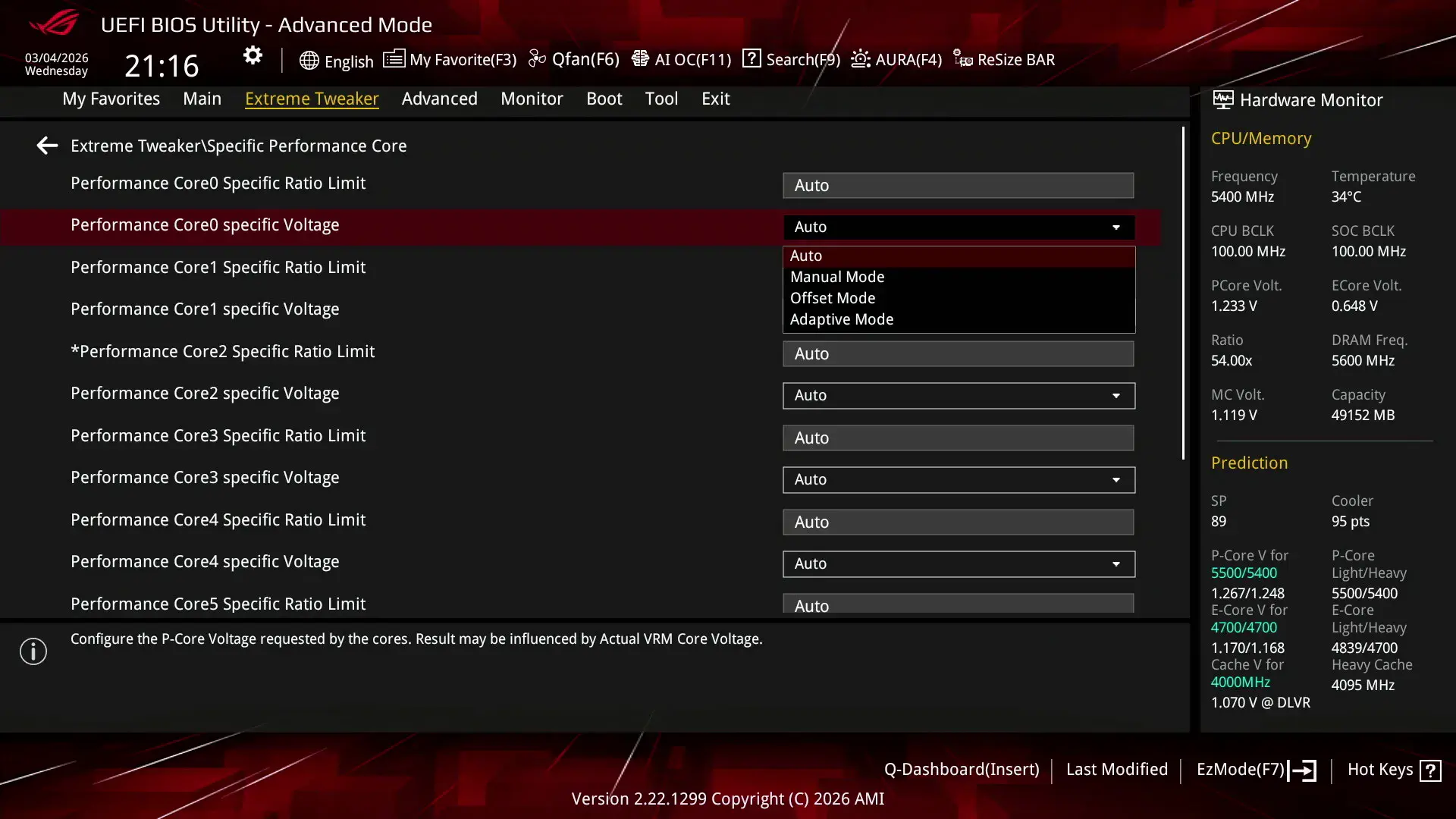
The standard rules for adaptive voltage mode still apply. As a consequence, it means that each P-core and E-core cluster’s V/F curve is truly independent as voltage interpolation is done individually.
Arrow Lake P-core and E-core Undervolt Tuning Process
Now that we’ve covered all the theory, let’s get a bit more practical with the process. For this OC Strategy, the goal is to undervolt the P-cores and E-cores and lessen the frequency throttling due to TjMax.
Undervolting Process
The approach I followed was pretty straight forward: for each P-core and E-core cluster, I try to find the maximum stable voltage for each of the respective V/F Points. I test stability by running an all-core OCCT AVX workload and setting the P-core or E-core voltage in override mode.
Let’s take the P-cores for example. To test the maximum undervolt for V/F Point 4, I set the P-cores to 48X, and the E-cores to 45X. Then, I initiated the OCCT workload. Next, I switch the P-cores to override voltage mode and set 1.10V which is slightly higher than the default average P-core voltage for that ratio.
After a minute or so, I drop the P-core override voltage by 25mV, and repeat this process until the system crashes. In my case, that was around 1V which is around 60mV below the average P-core voltage for 48X.
Now, we can return to the BIOS and configure the V/F point 4 negative voltage offset. In my case I opted to stick with All Core Mode which sets the same offset for each P-core.
Next, we can do the same for P-core VFP5 (52X), VFP6 (54X), VFP7 (55X), and the E-core Cluster VFP6 (47X). I found that the undervolt margin was -100mV, -100mV, -35mV, and -80mV respectively.
Overclocking Process
Since we managed to get the P-cores and E-cores run stably at their maximum default frequencies of 5.5 and 4.7 GHz respectively, I decided to apply the same tuning process to higher ratios.
Here, I found that 56X was unstable for the P-cores at any voltage. So, there was no additional headroom. However, the E-cores could be pushed to 49X at 1.15V.
Again, I could set the adaptive voltage for 49X for each E-core cluster individually by relying on the Per Core Voltage options, but instead I decided to set a global E-core adaptive voltage to make life simpler.
Tuned V/F curve
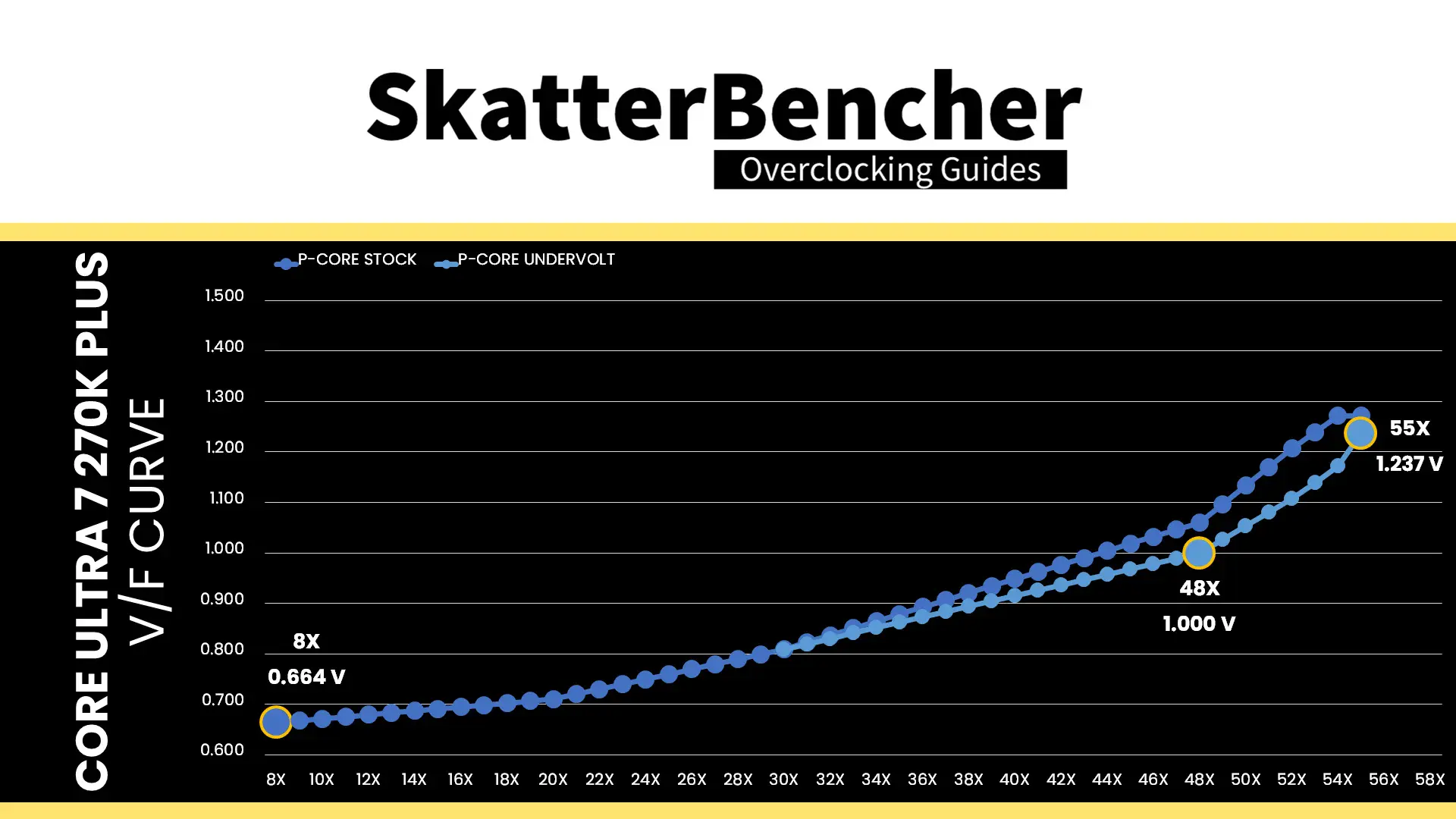
Here is the aggregate tuned P-core V/F curve for my specific Core Ultra 7 270K Plus. The voltage is about 664 mV at 800 MHz, then increases to 1.000V for VF Point 4 at 4.8 GHz, and ultimately ends at 1.237 V for V/F Point 7 at 5.5 GHz.
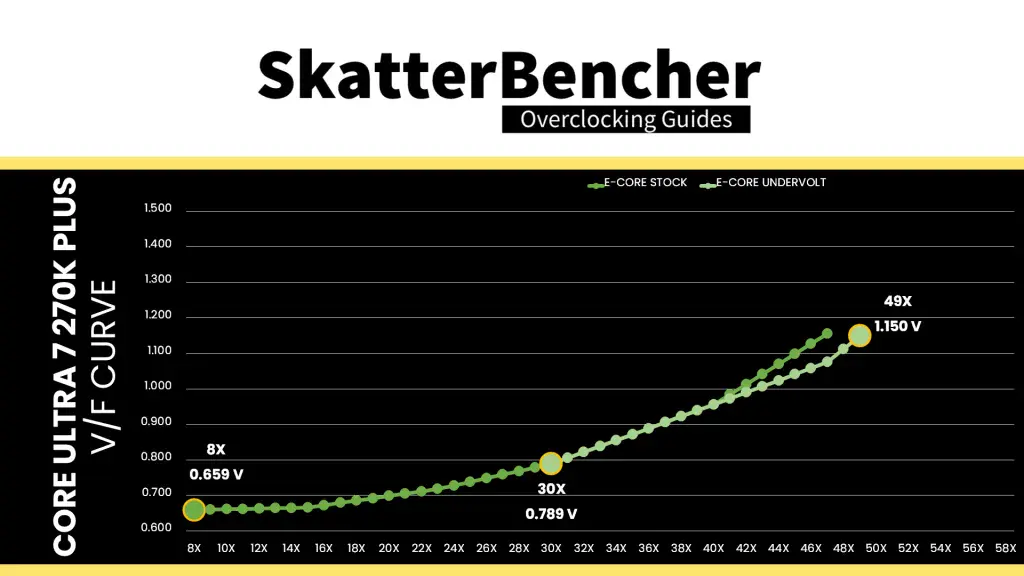
Here is the aggregate tuned E-core V/F curve for my specific Core Ultra 7 270K Plus. The voltage is about 659 mV at 800 MHz, then increases to 789 mV for VF Point 4 at 3.0 GHz, and ultimately ends at 1.150V for V/F Point 7 at 4.9 GHz.
BIOS Settings & Benchmark Results
Upon entering the BIOS
- Go to the Extreme Tweaker menu
- Set Performance Preferences to ASUS Advanced OC Profile
- Set Ai Overclock Tuner to XMP II
- Set ASUS MultiCore Enhancement to Enabled – Remove All Limits
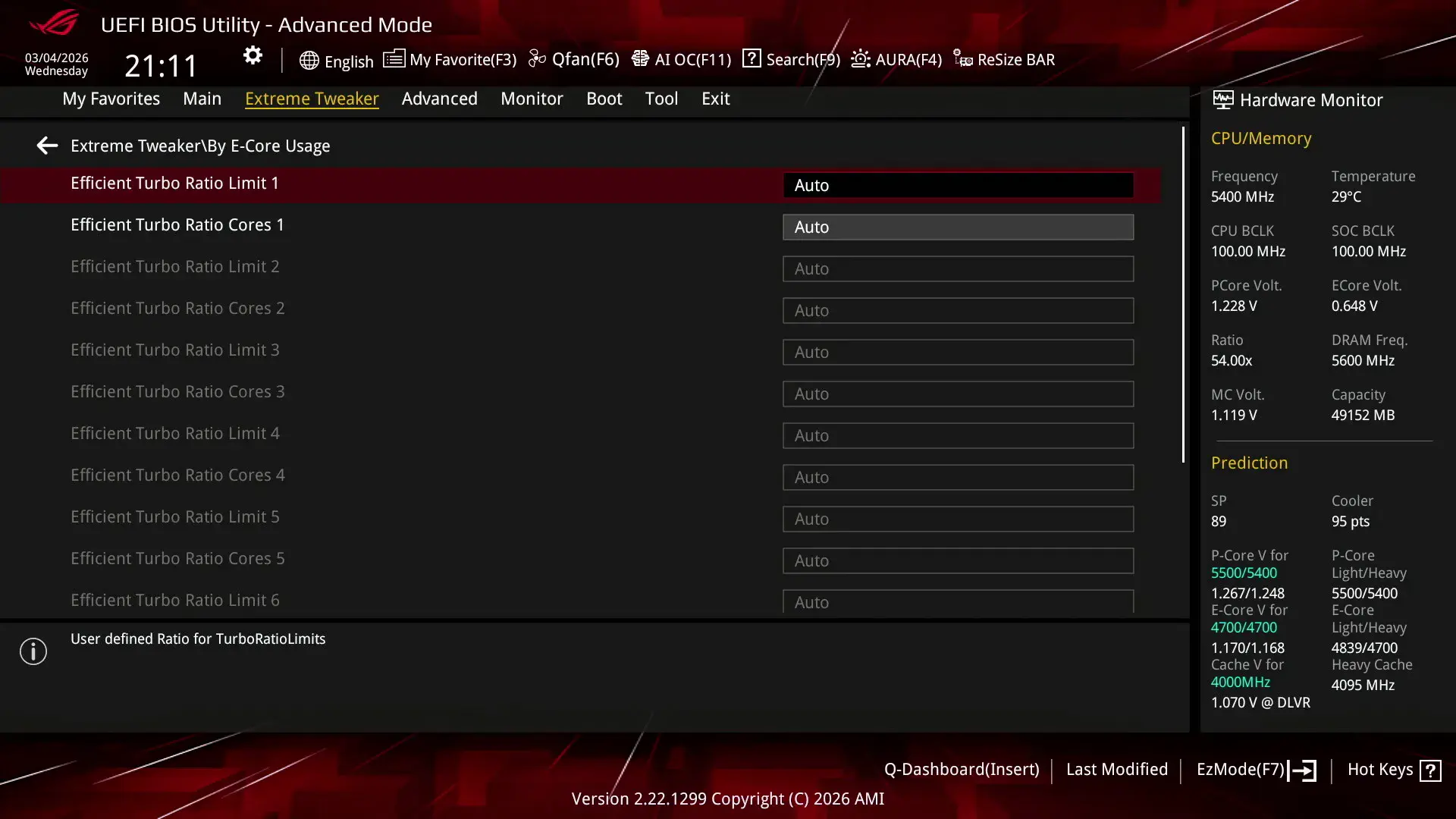
- Set Performance Core Ratio to By Core Usage
- Set 1-Core to 8-Core Ratio Limit to 55
- Set Efficient Core Ratio to By Core Usage
- Enter the By E-Core Usage submenu
- Set Efficient Turbo Ratio Limit 1 to 49
- Set Efficient Turbo Ratio Cores 1 to 16
- Leave the By E-Core Usage submenu
- Enter the Thermal Velocity Boost submenu
- Set TVB Voltage Optimizations to Enabled
- Set Enhanced TVB to Disabled
- Set Overclocking TVB to Disabled
- Leave the Thermal Velocity Boost submenu
- Enter the Performance Core V/F Point Offset submenu
- Set V/F Point Present Mode to All Core Mode
- Set V/F Point Voltage Control Mode to Manual Mode
- Set V/F Point 4 Offset to -60
- Set V/F Point 5 Offset to -100
- Set V/F Point 6 Offset to -100
- Set V/F Point 7 Offset to -35
- Leave the Performance Core V/F Point Offset submenu
- Enter the Efficient Core V/F Point Offset submenu
- Set V/F Point Present Mode to All Core Mode
- Set V/F Point Voltage Control Mode to Manual Mode
- Set V/F Point 6 Offset to -80
- Leave the Efficient Core V/F Point Offset submenu
- Set NGU Ratio to 32
- Set CPU D2D Ratio to 32
- Set Performance Core DLVR Voltage to Adaptive Mode
- Set Additional Turbo mode Voltage to 0.6
- Set Efficient Core DLVR Voltage to Adaptive Mode
- Set Additional Turbo mode Voltage to 1.150
- Set CPU System Agent Voltage to Manual Mode
- Set CPU System Agent Voltage Override to 1.200
- Set VNNAON 0.77V Voltage to Manual Mode
- Set VNNAON Voltage Override to 0.800
Then save and exit the BIOS.
The CPU boost frequency with 1 active P-core is 5500 MHZ. The average boost frequency stays at 5500 MHz when all P-cores are active, then gradually trails off to 5100 MHz when all P- and E-cores are active. In single-threaded applications, all P-cores can boost to 5.5 and all E-core clusters can boost to 4.9 GHz.
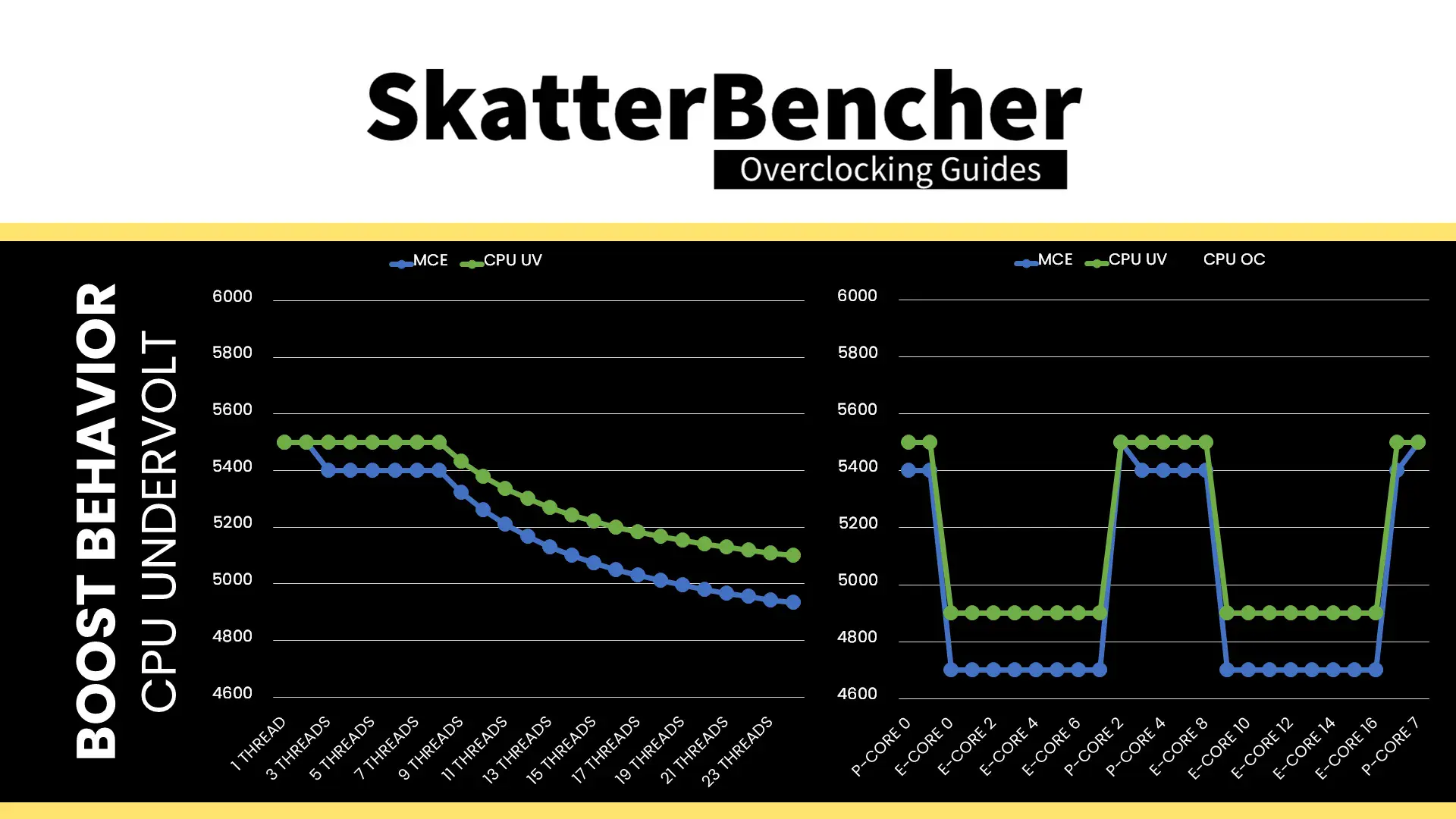
We re-ran the benchmarks and checked the performance increase compared to the default operation.
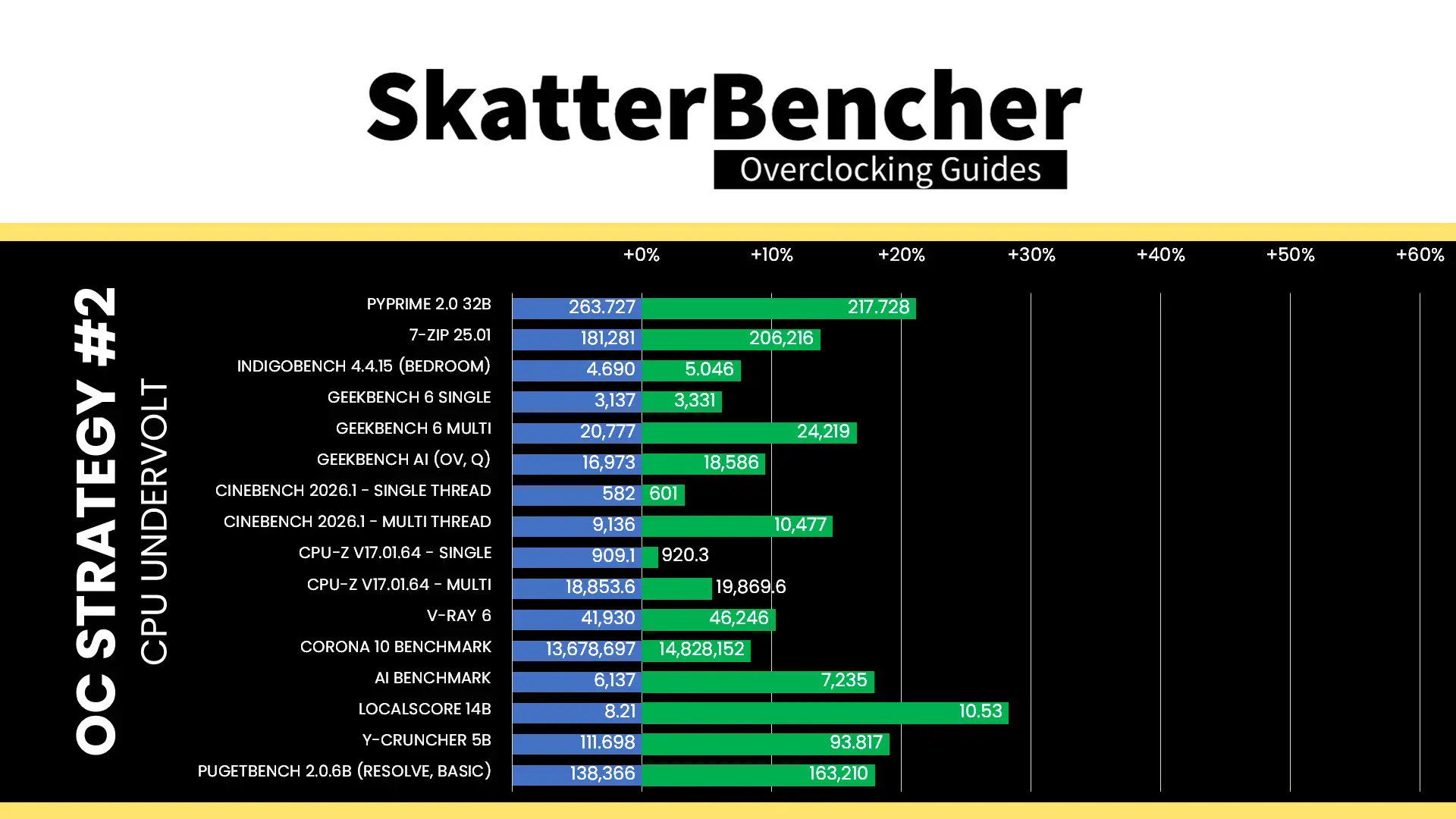
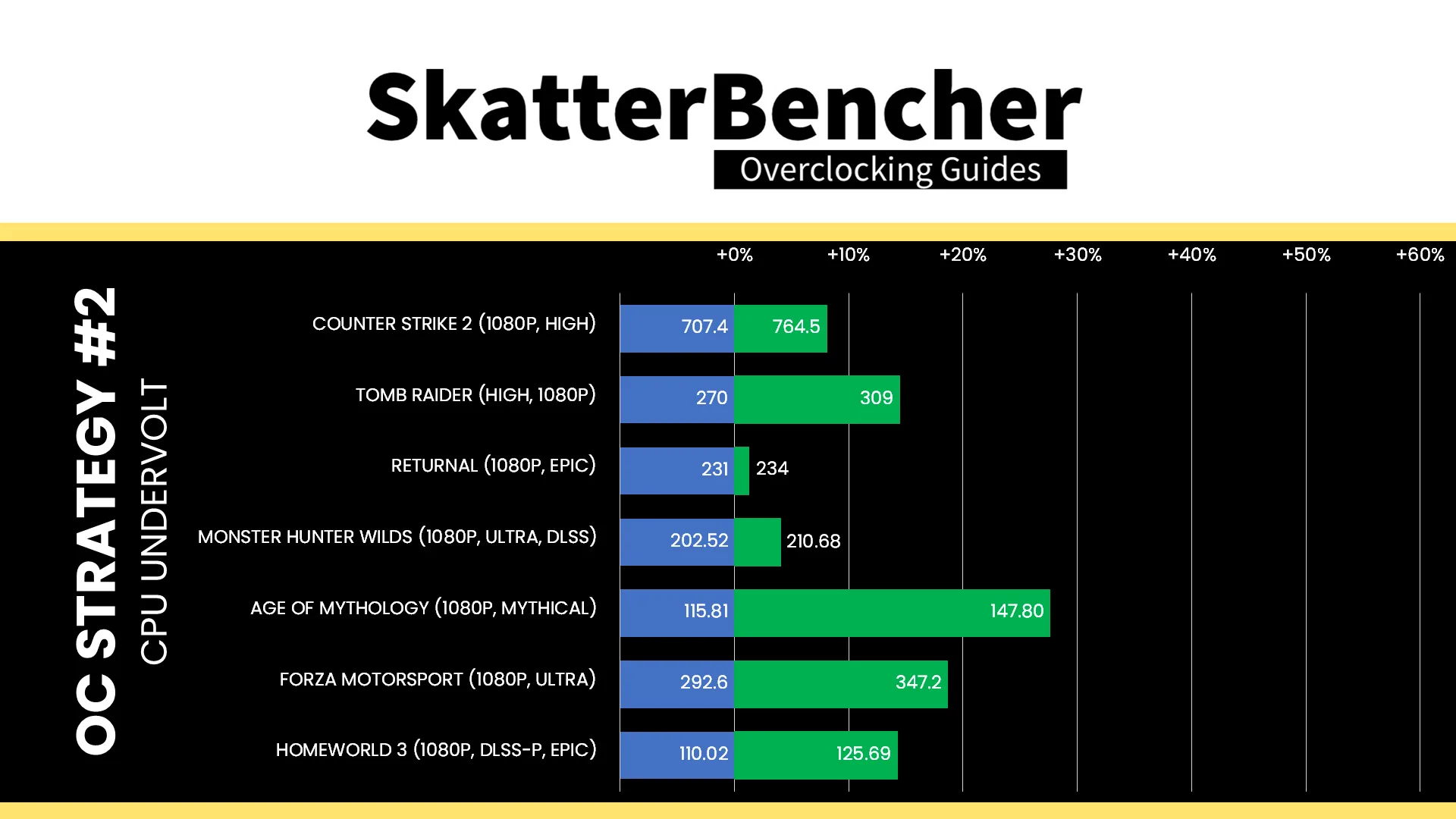
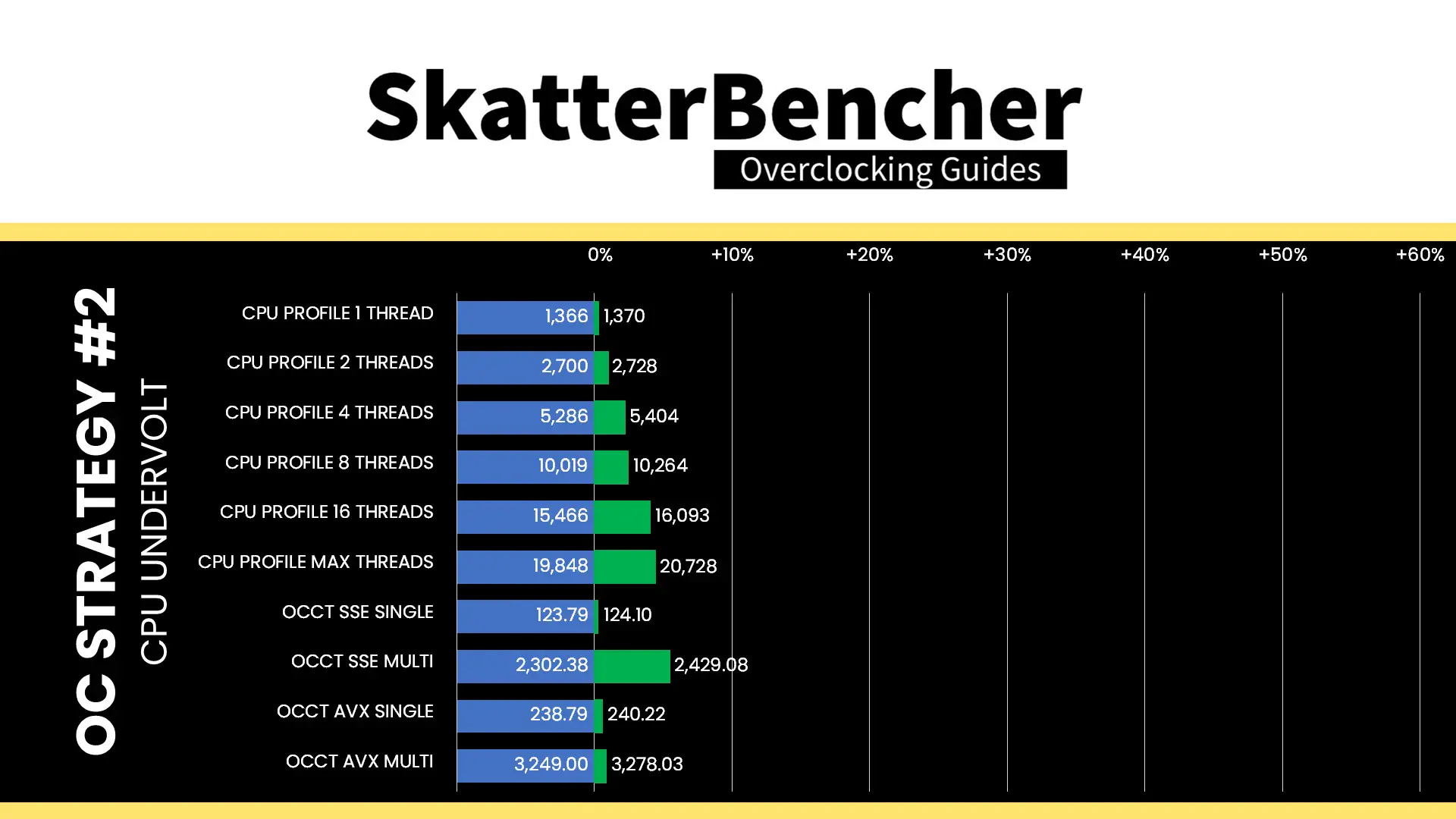
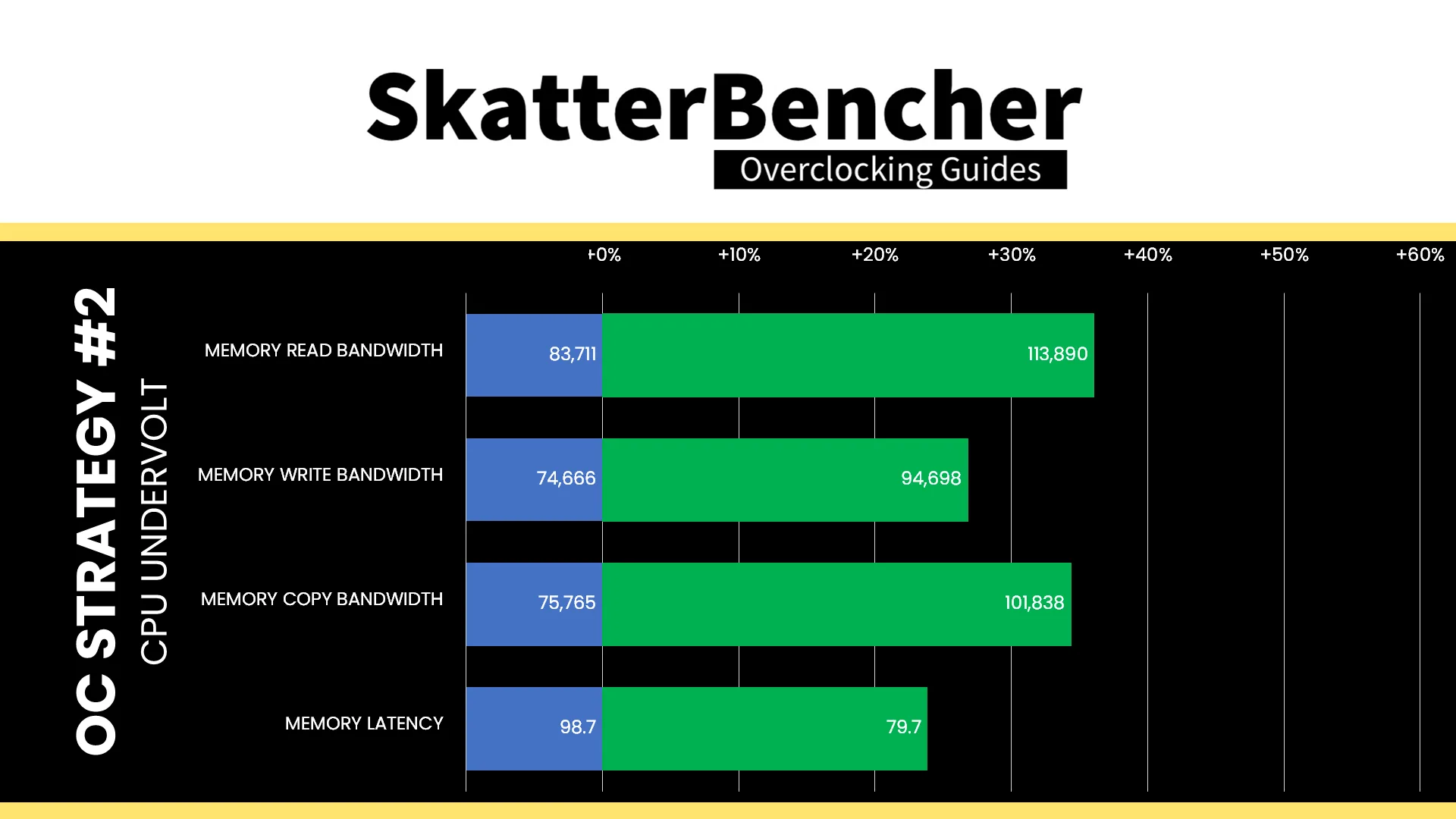
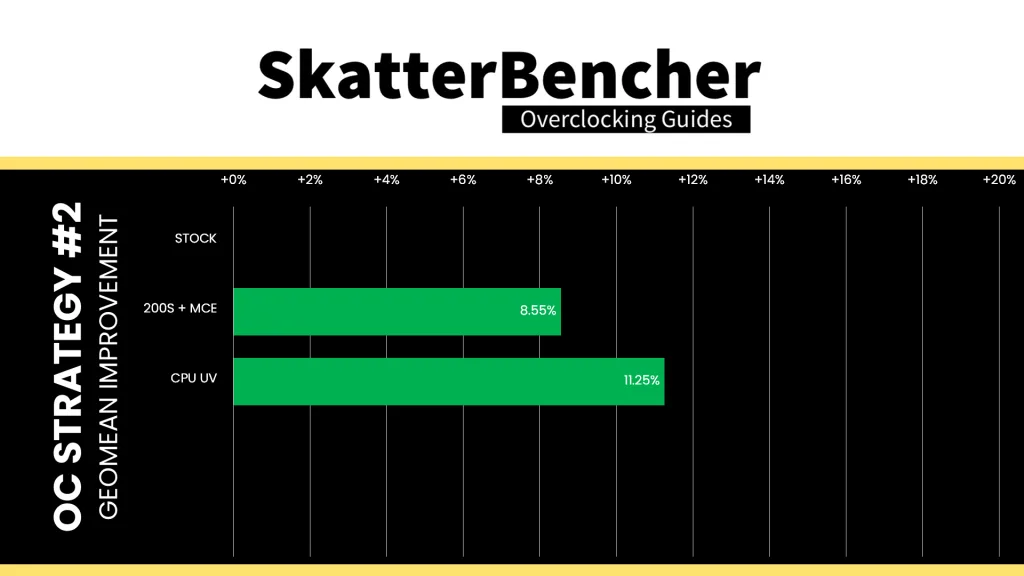
While the P-core overclocking headroom is very limited, we are able to squeeze it for an extra 350 MHz in extreme all-core workloads like OCCT thanks to our undervolting efforts. We can also squeeze the E-cores for a couple hundred MHz extra frequency through undervolting and overclocking. The Geomean performance speedup improves by another 3.7 percentage points, and we get a maximum improvement of +28.26% in LocalScore.
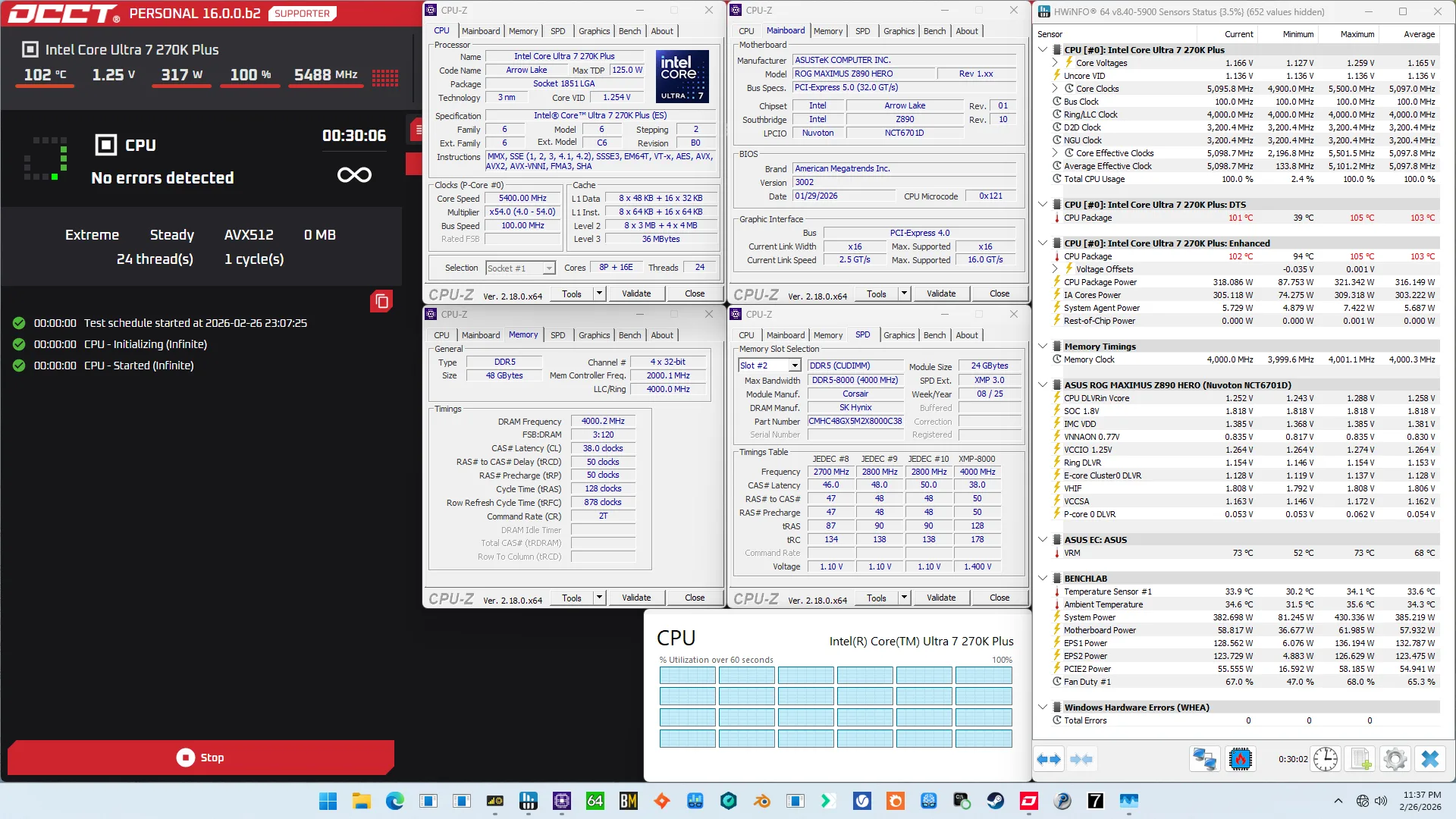
When running the OCCT CPU AVX-512 Stability Test, the average CPU P-core effective clock is 5493 MHz with 1.224 volts and the average CPU E-core effective clock is 4900 MHz with 1.136 volts. The average CPU temperature is 103.0 degrees Celsius. The average CPU package power is 316.1 watts.
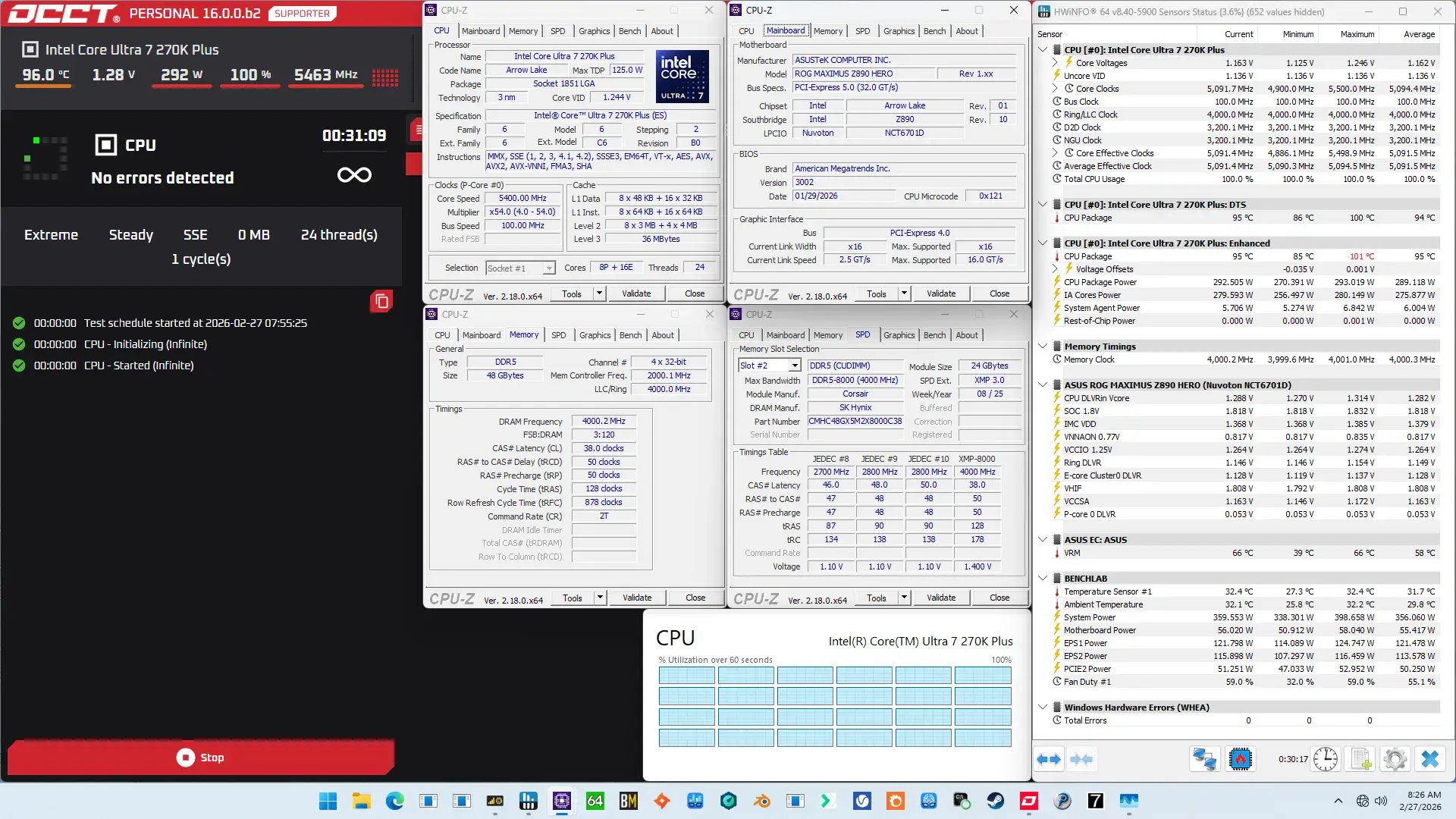
When running the OCCT CPU SSE Stability Test, the average CPU P-core effective clock is 5491 MHz with 1.217 volts and the average CPU E-core effective clock is 4892 MHz with 1.134 volts. The average CPU temperature is 95.0 degrees Celsius. The average CPU package power is 289.1 watts.
OC Strategy #3: CPU Overclock
In our third overclocking strategy, we look at further overclocking the CPU P-cores and E-cores to increase performance in lighter load scenarios. For this we rely on two foundational overclocking technologies which we covered in the previous OC Strategy: Turbo Ratio Limit and Adaptive Voltage mode.
Before we get going with the tuning process, I do have to quickly explain the Voltage Limits however.
Voltage Limits
To safeguard the processor, Intel has imposed strict voltage limits for several IP blocks, including the P-cores and E-core clusters. This limit effectively prevents requesting a higher-than-allowed voltage from the PCU.
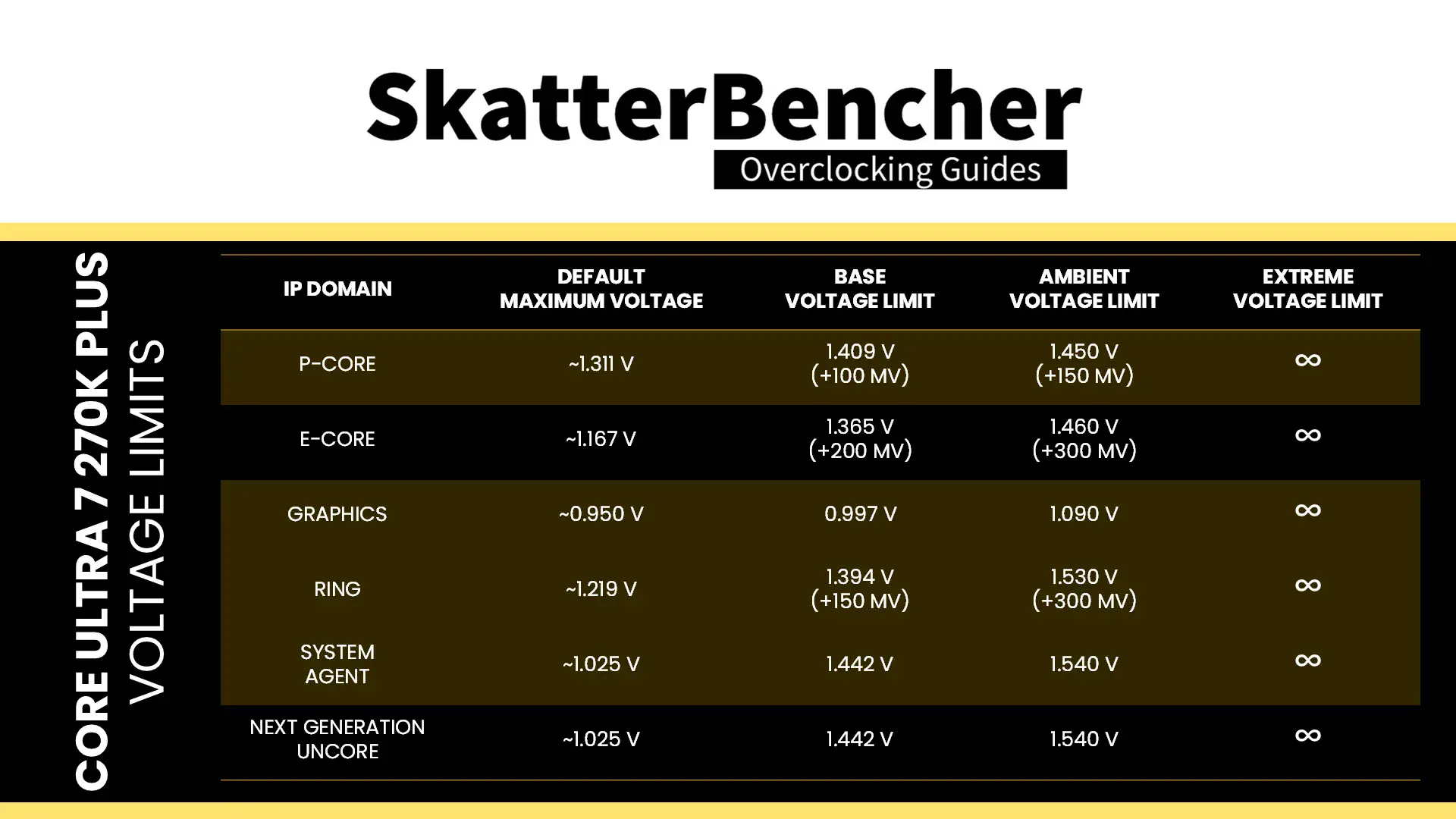
By default, the voltage limit for the P-cores is 1.409V, which is about 100mV above the highest P0 VID for any of the P-cores. This can be increased by an additional 50mV to 1.45V under ambient conditions. When the temperature is below 10 degrees Celsius, you can further increase the voltage limit or disable the limit altogether.
The voltage limit for the E-cores is 1.365V, about 200mV above the highest default VID. This can further increase by another 100mV to 1.46V under ambient conditions.
Arrow Lake P-core and E-core Overclock Tuning Process
The manual tuning process for Arrow Lake can be difficult because there’s a wide range of workload and operating scenarios to test. Furthermore, as you’ll get to see in throughout this guide, the Core Ultra 7 270K Plus P-cores don’t have that much overclocking headroom and don’t scale particularly well with voltage.
Choosing the Voltage
Usually, I determine an appropriate starting point for the adaptive voltage by first considering the current maximum voltage and then adding 50 to 200mV.
For example, the default maximum voltage for the P-cores is 1.311V for P-core 0, so I decided to add about 100mV headroom and set the P-core adaptive voltage to 1.4 V. For the E-cores, the maximum voltage is 1.167V, so I added +90 mV and set it to 1.25V.
Now keep in mind that we’re keeping the TVB Voltage Optimizations enabled. So, the 1.4V for the P-cores will only be used when we’re at 100 degrees Celsius while the voltage will be lower when we’re operating below TjMax. In idle, the voltage for 5.8 GHz goes as low as 1.28V!
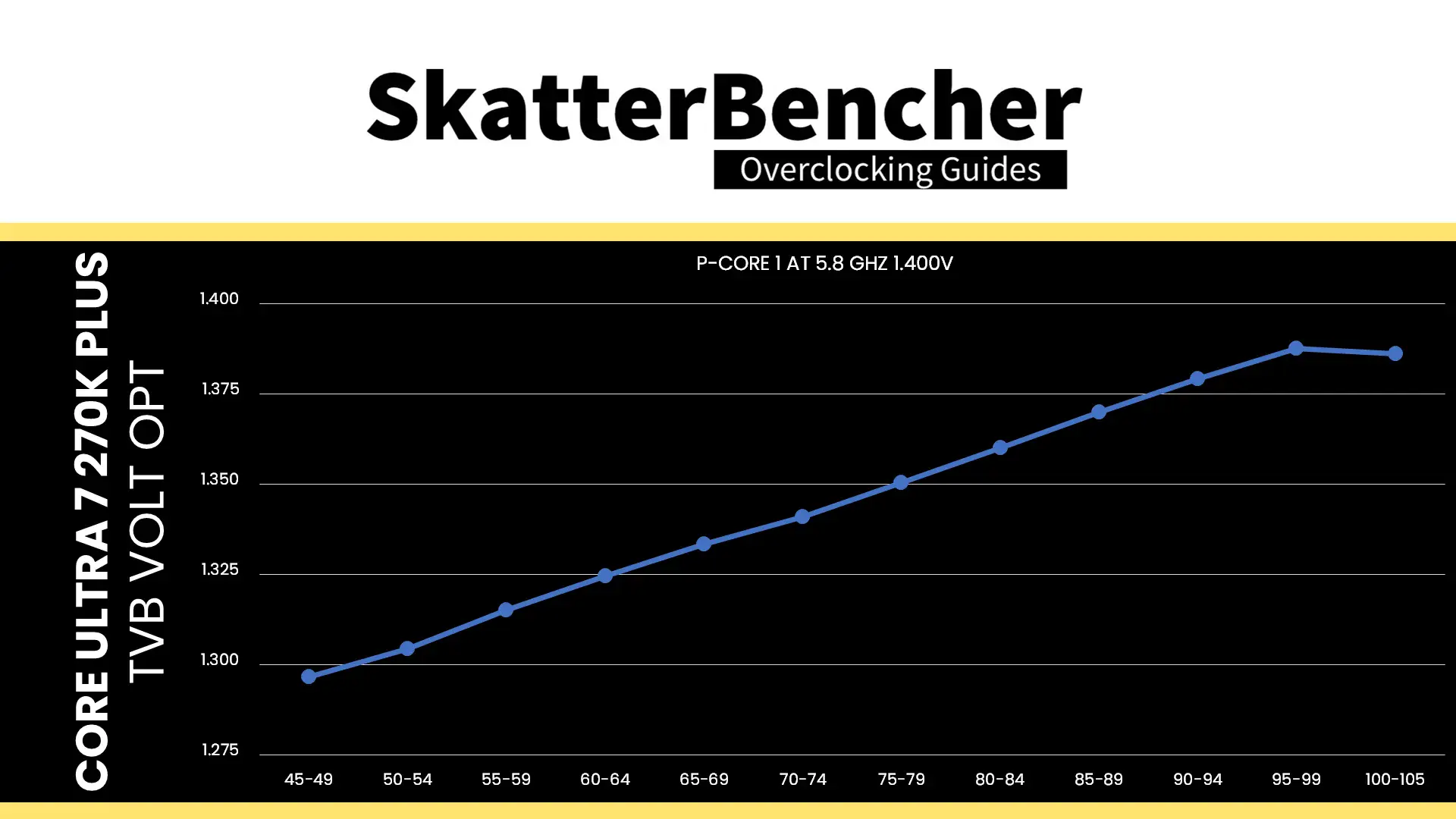
Little side-note: the voltage optimizations only work up to 100C, not the Arrow Lake 105C TjMax.
Checking Stability
I decided not to overcomplicate my life and focus on real-world performance tuning by finding the maximum stable frequency for up to 4 active P-cores and up to 8 active E-cores. The main limiting benchmark was, surprisingly, Corona 10 Benchmark. This workload would give out after just a couple of seconds whereas other workloads would run just fine.
I could increase the P-cores to 58X and the E-cores up to 51X. 5.9 GHz was possible to test but no matter the voltage and workload, it would simply end up crashing even at idle.
Tuned V/F curve
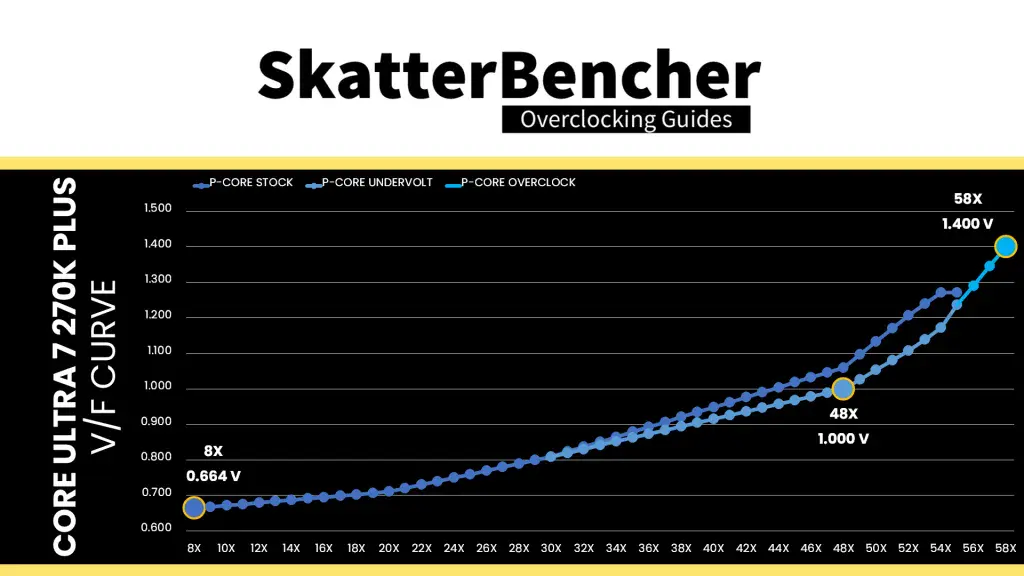
Here is the aggregate tuned P-core V/F curve for my specific Core Ultra 7 270K Plus. The voltage is about 664 mV at 800 MHz, then increases to 1.00V for VF Point 4 at 4.8 GHz, and ultimately ends at 1.40 V for V/F Point 8 at 5.8 GHz.
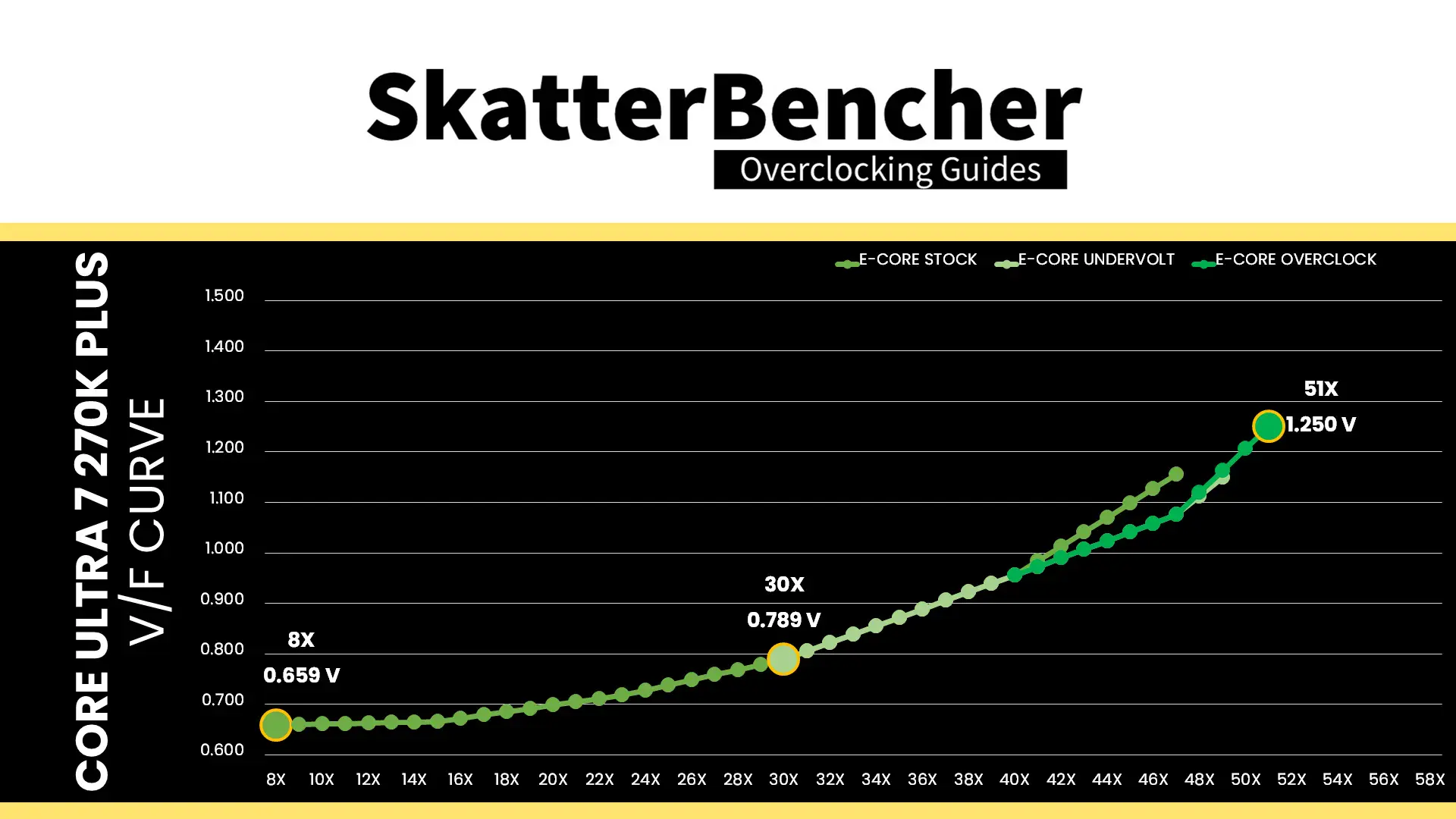
Here is the aggregate tuned E-core V/F curve for my specific Core Ultra 7 270K Plus. The voltage is about 659 mV at 800 MHz, then increases to 789 mV for VF Point 4 at 3.0 GHz, and ultimately ends at 1.250V for V/F Point 7 at 5.1 GHz.
BIOS Settings & Benchmark Results
Upon entering the BIOS
- Go to the Extreme Tweaker menu
- Set Performance Preferences to ASUS Advanced OC Profile
- Set Ai Overclock Tuner to XMP II
- Set ASUS MultiCore Enhancement to Enabled – Remove All Limits
- Set Performance Core Ratio to By Core Usage
- Set 1-Core to 4-Core Ratio Limit to 58
- Set 5-Core to 8-Core Ratio Limit to 55
- Set Efficient Core Ratio to By Core Usage
- Enter the By E-Core Usage submenu
- Set Efficient Turbo Ratio Limit 1 to 51
- Set Efficient Turbo Ratio Cores 1 to 8
- Set Efficient Turbo Ratio Limit 1 to 49
- Set Efficient Turbo Ratio Cores 1 to 16
- Leave the By E-Core Usage submenu
- Enter the Thermal Velocity Boost submenu
- Set TVB Voltage Optimizations to Enabled
- Set Enhanced TVB to Disabled
- Set Overclocking TVB to Disabled
- Leave the Thermal Velocity Boost submenu
- Enter the Performance Core V/F Point Offset submenu
- Set V/F Point Present Mode to All Core Mode
- Set V/F Point Voltage Control Mode to Manual Mode
- Set V/F Point 4 Offset to -60
- Set V/F Point 5 Offset to -100
- Set V/F Point 6 Offset to -100
- Set V/F Point 7 Offset to -35
- Leave the Performance Core V/F Point Offset submenu
- Enter the Efficient Core V/F Point Offset submenu
- Set V/F Point Present Mode to All Core Mode
- Set V/F Point Voltage Control Mode to Manual Mode
- Set V/F Point 6 Offset to -80
- Leave the Efficient Core V/F Point Offset submenu
- Set NGU Ratio to 32
- Set CPU D2D Ratio to 32
- Set Performance Core DLVR Voltage to Adaptive Mode
- Set Additional Turbo mode Voltage to 1.400
- Set Efficient Core DLVR Voltage to Adaptive Mode
- Set Additional Turbo mode Voltage to 1.250
- Set CPU System Agent Voltage to Manual Mode
- Set CPU System Agent Voltage Override to 1.200
- Set VNNAON 0.77V Voltage to Manual Mode
- Set VNNAON Voltage Override to 0.800
Then save and exit the BIOS.
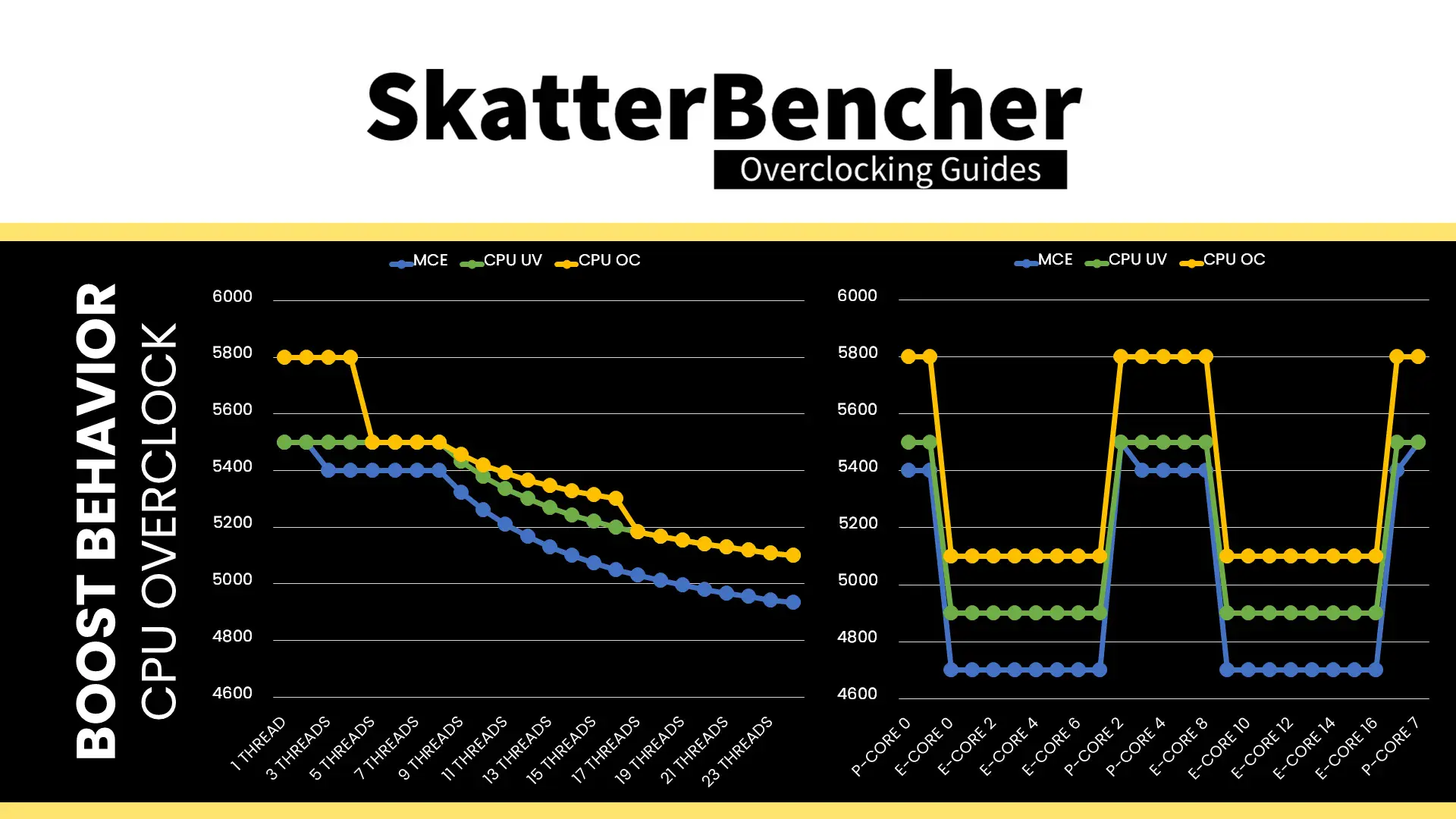
The CPU boost frequency with 1 active P-core is 5800 MHZ. The average boost frequency drops off to 5500 MHz when all P-cores are active, then gradually trails off to 5100 MHz when all P- and E-cores are active. In single-threaded applications, all P-cores can boost to 5.8 and all E-core clusters can boost to 5.1 GHz.
We re-ran the benchmarks and checked the performance increase compared to the default operation.
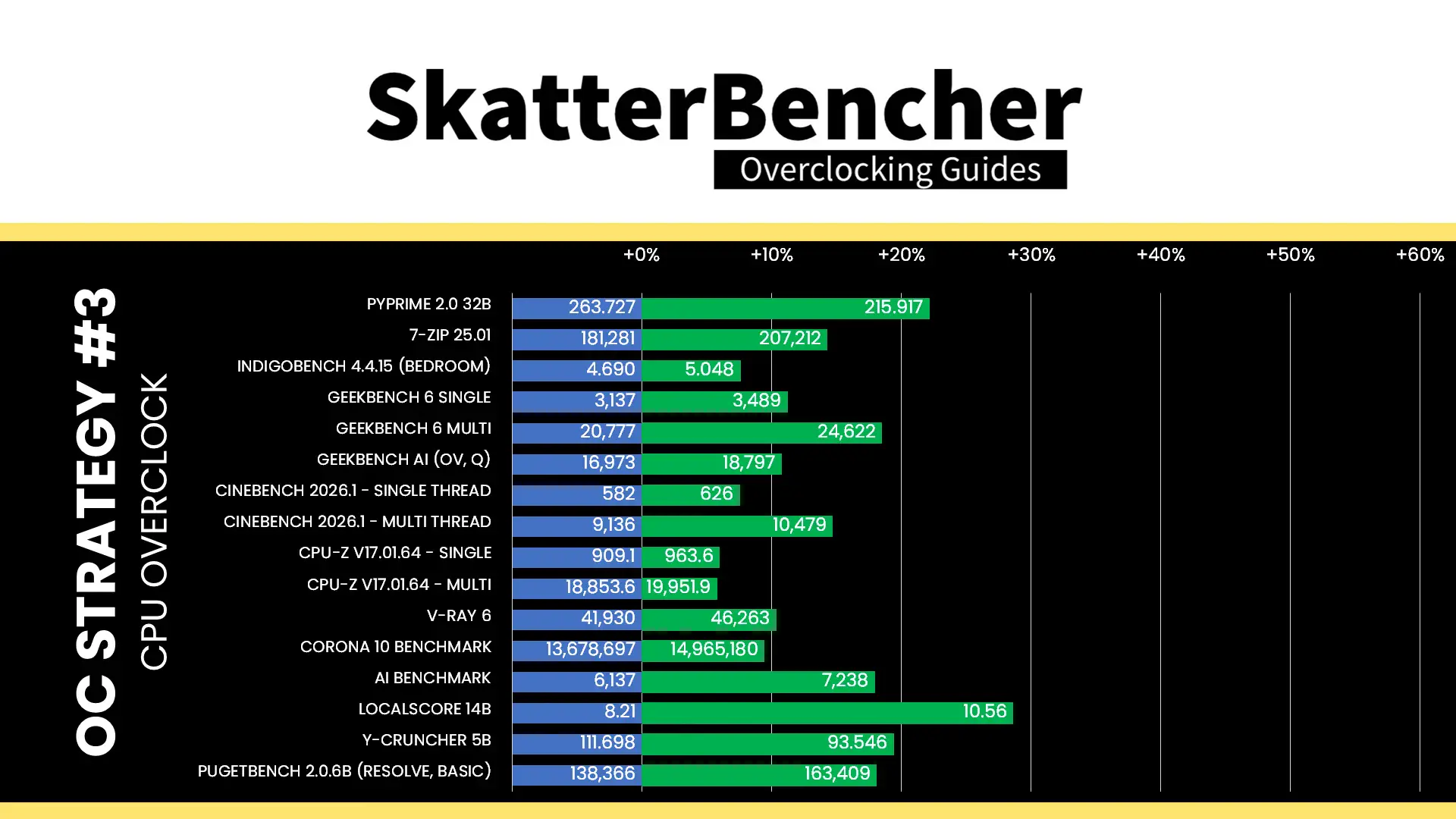
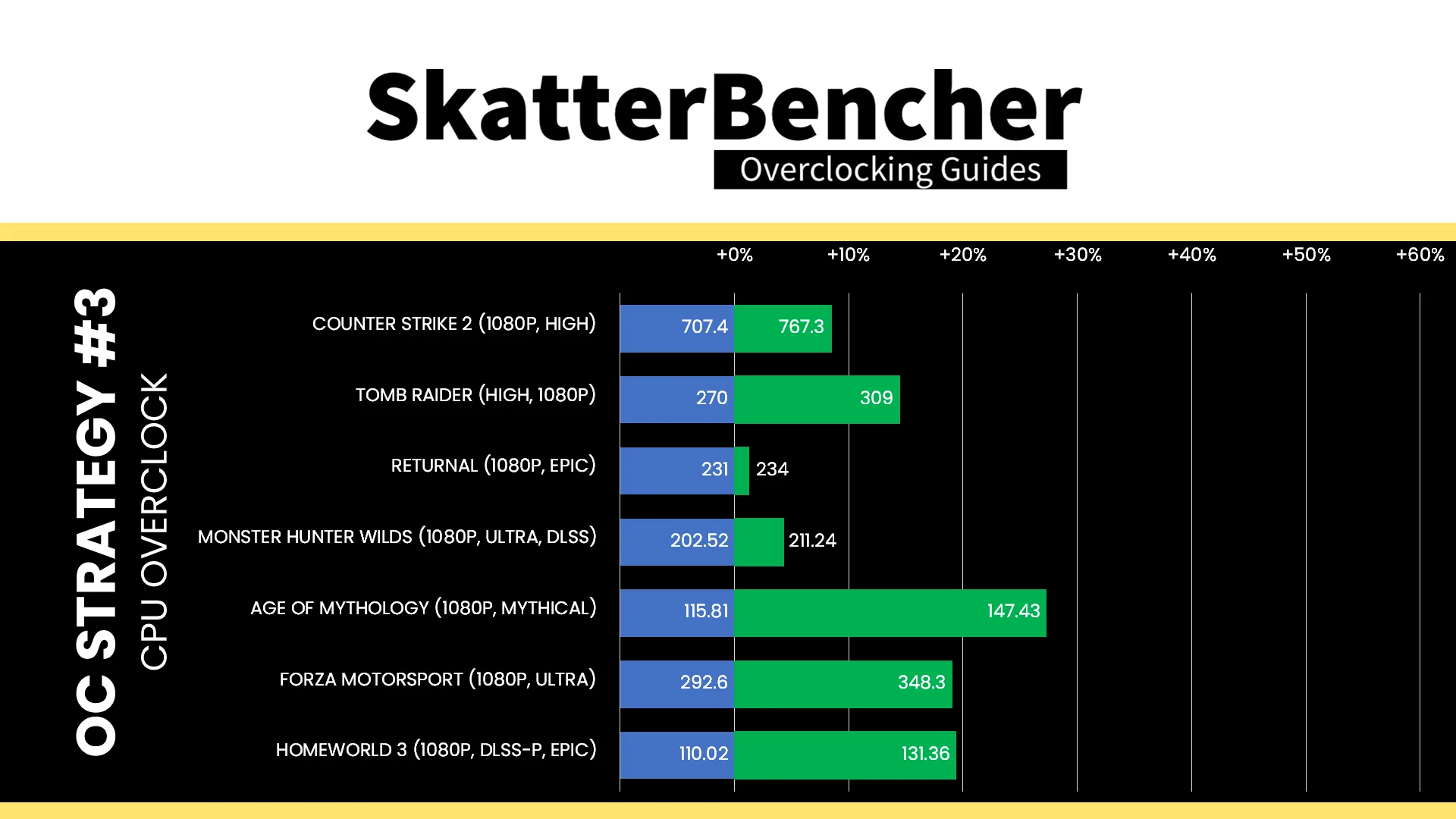
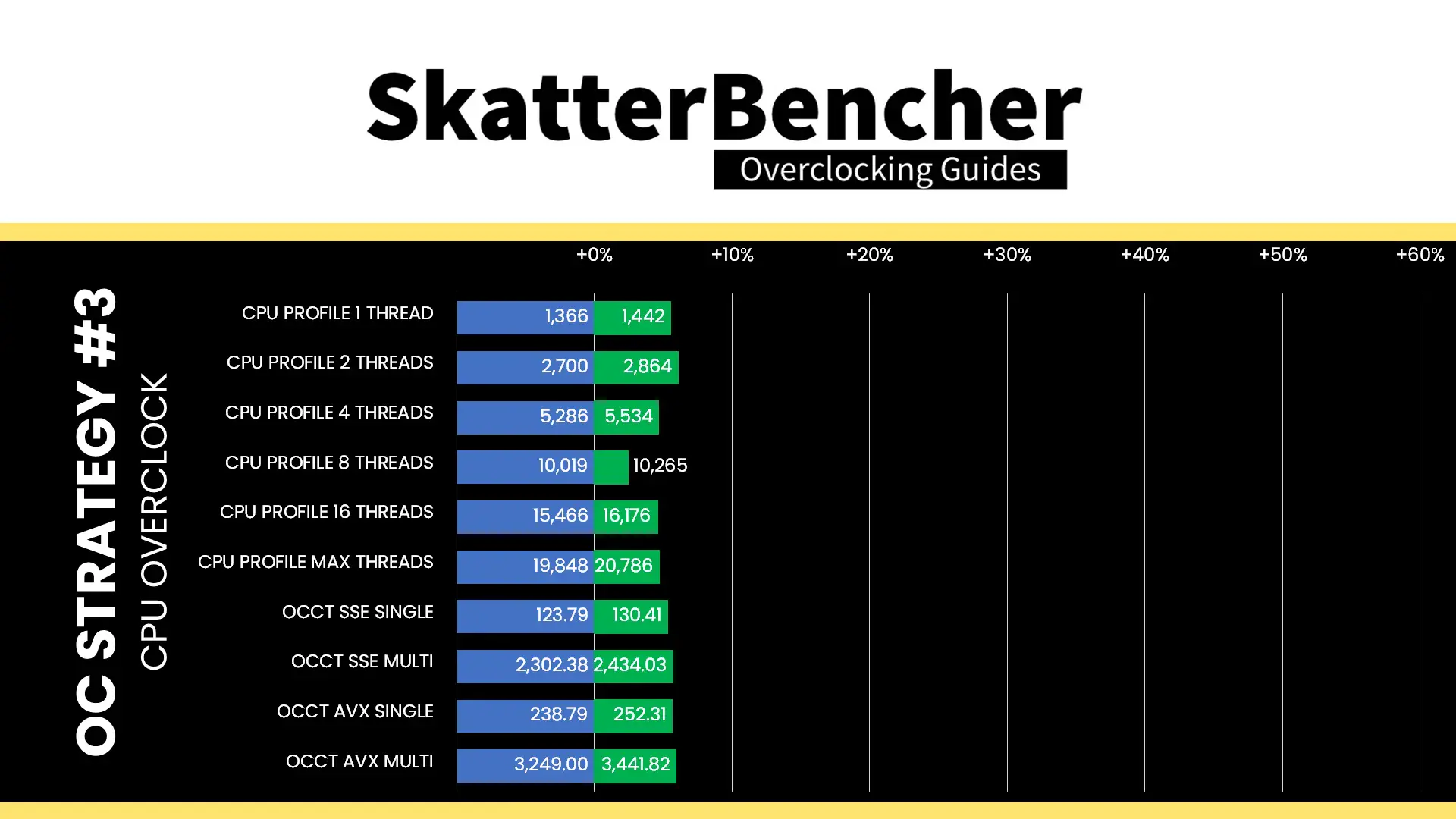
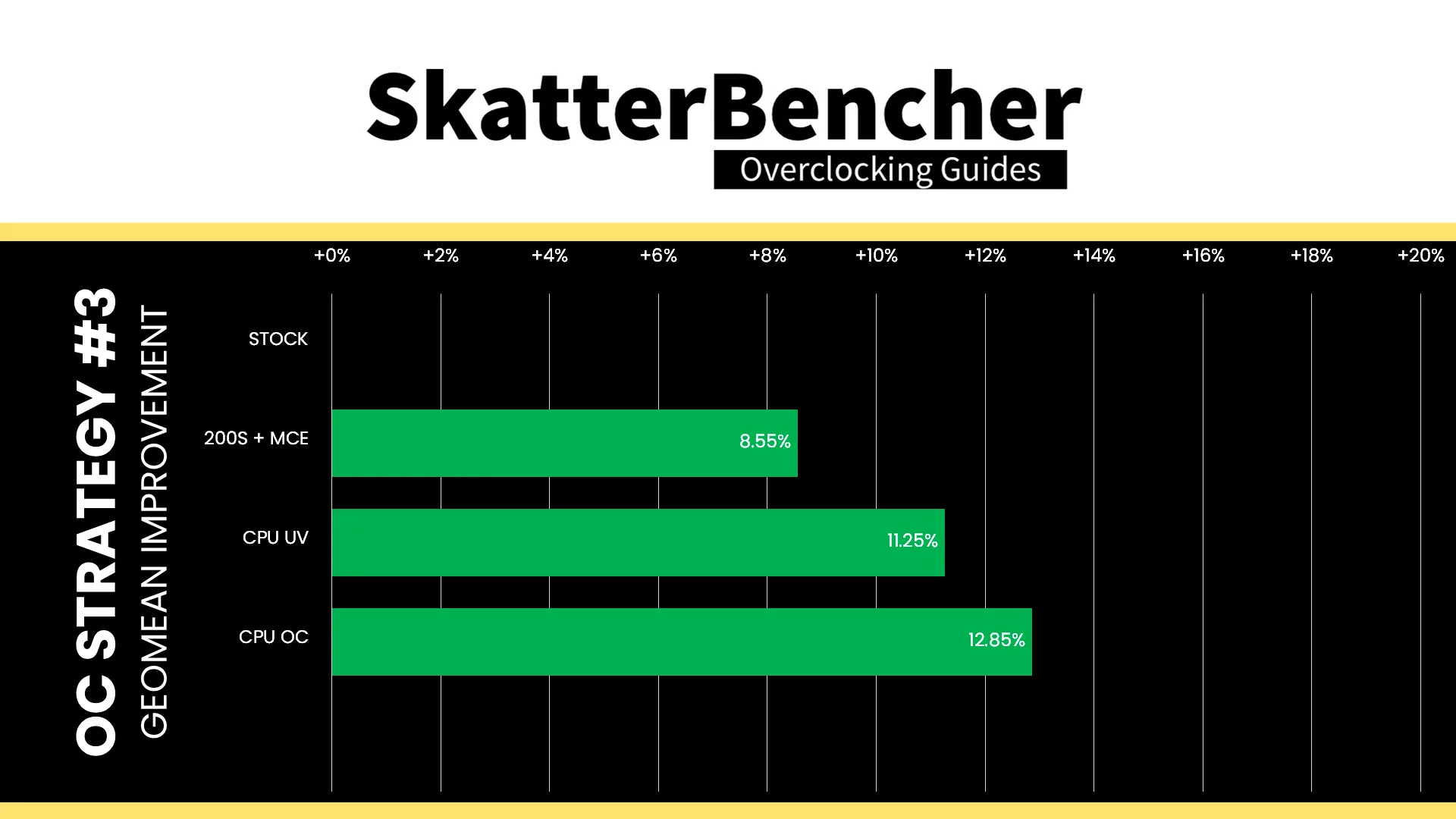
Even when we focus on just pushing just a few cores in lighter workloads, there’s limited overclocking headroom. With 300 MHz higher P-core speed and 200 MHz higher E-core speed, it’s unlikely to propel the performance to extreme heights, however we do get a nice performance bump. The Geomean performance speedup improves by another 1.6 percentage points, and we get a maximum improvement of +28.62% in LocalScore.
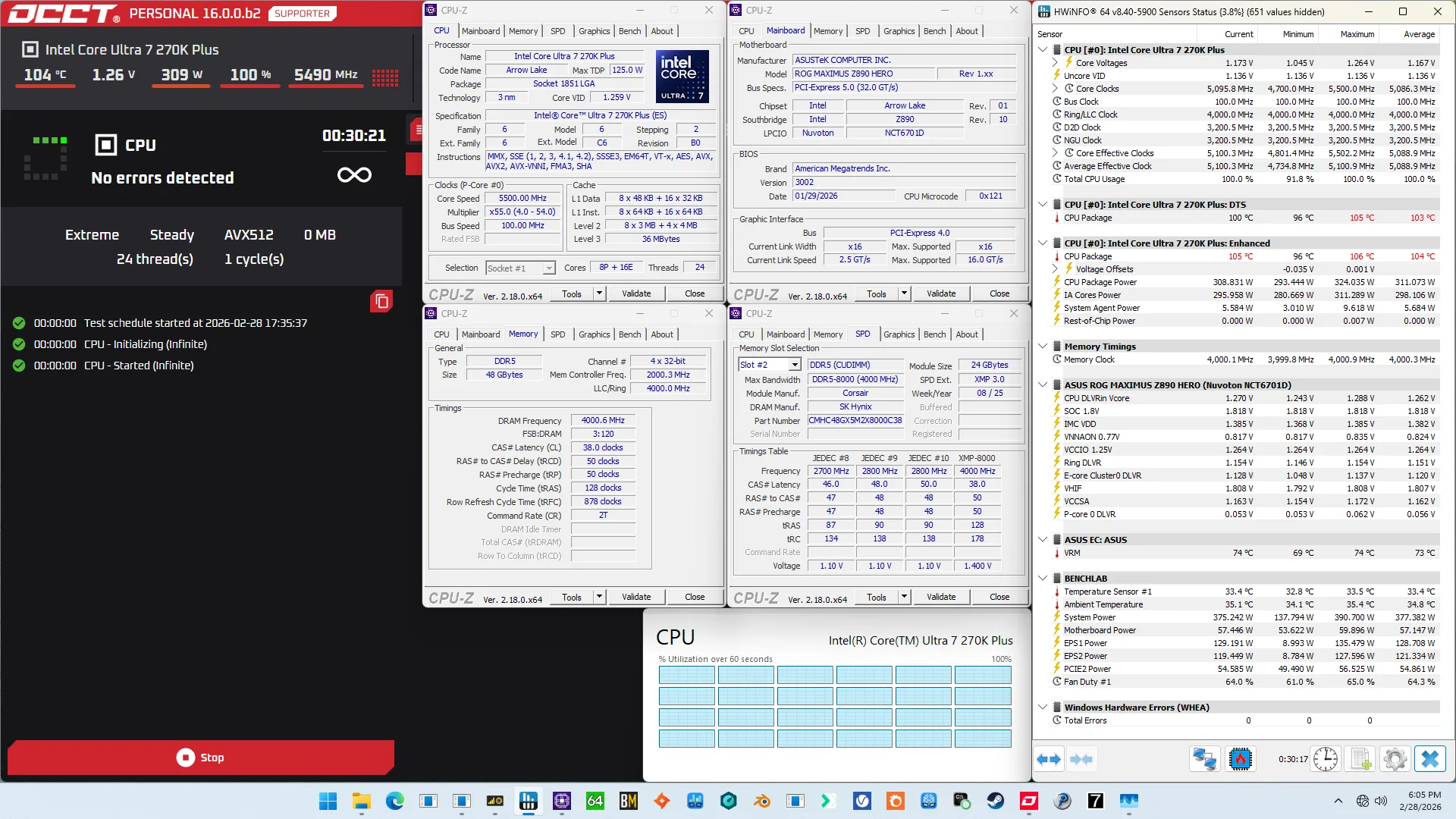
When running the OCCT CPU AVX-512 Stability Test, the average CPU P-core effective clock is 5496 MHz with 1.222 volts and the average CPU E-core effective clock is 4885 MHz with 1.136 volts. The average CPU temperature is 104.0 degrees Celsius. The average CPU package power is 311.1 watts.
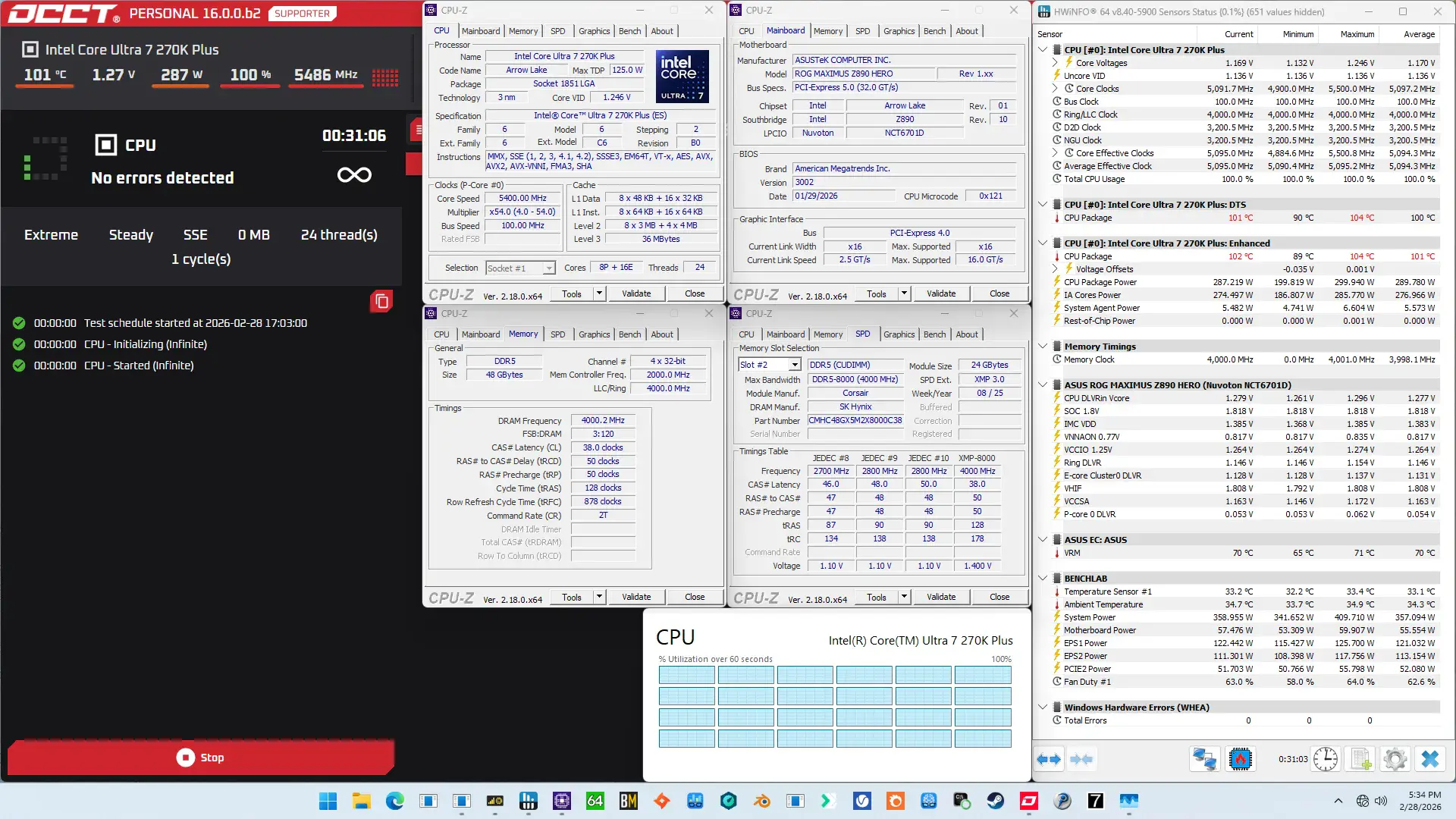
When running the OCCT CPU SSE Stability Test, the average CPU P-core effective clock is 5496 MHz with 1.218 volts and the average CPU E-core effective clock is 4893 MHz with 1.146 volts. The average CPU temperature is 101.0 degrees Celsius. The average CPU package power is 289.8 watts.
OC Strategy #4: Data Fabric & Memory Subsystem Tuning
In our final overclocking strategy, we delve into tuning the data fabric and memory subsystem which consists of the Ring, the NoC, the CPU D2D interface, the memory controllers, and the system memory.
Ring
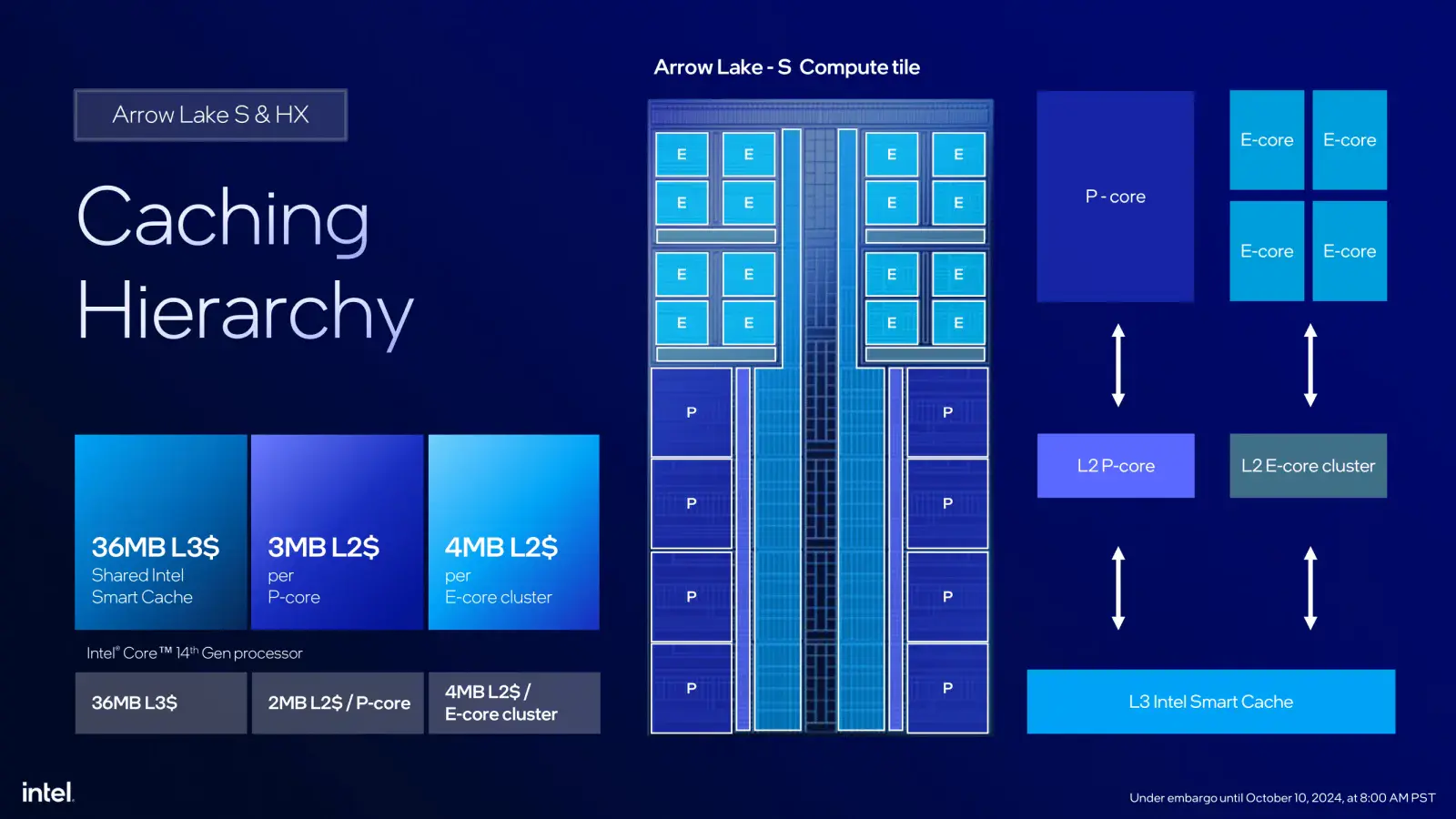
The Ring fabric provides the data fabric interface between the various Compute IP blocks in the Compute Tile, the last-level cache, and the SOC-Compute D2D interface.
Ring Clocking Topology
The Ring reference clock frequency is generated internally by the CPU PLL. This clock affects all IP blocks in the Compute Tile, including the P-cores, E-cores, and Ring. This PLL can be linked to the SoC PLL when you run in synchronous mode or work independently if you run in asynchronous mode.
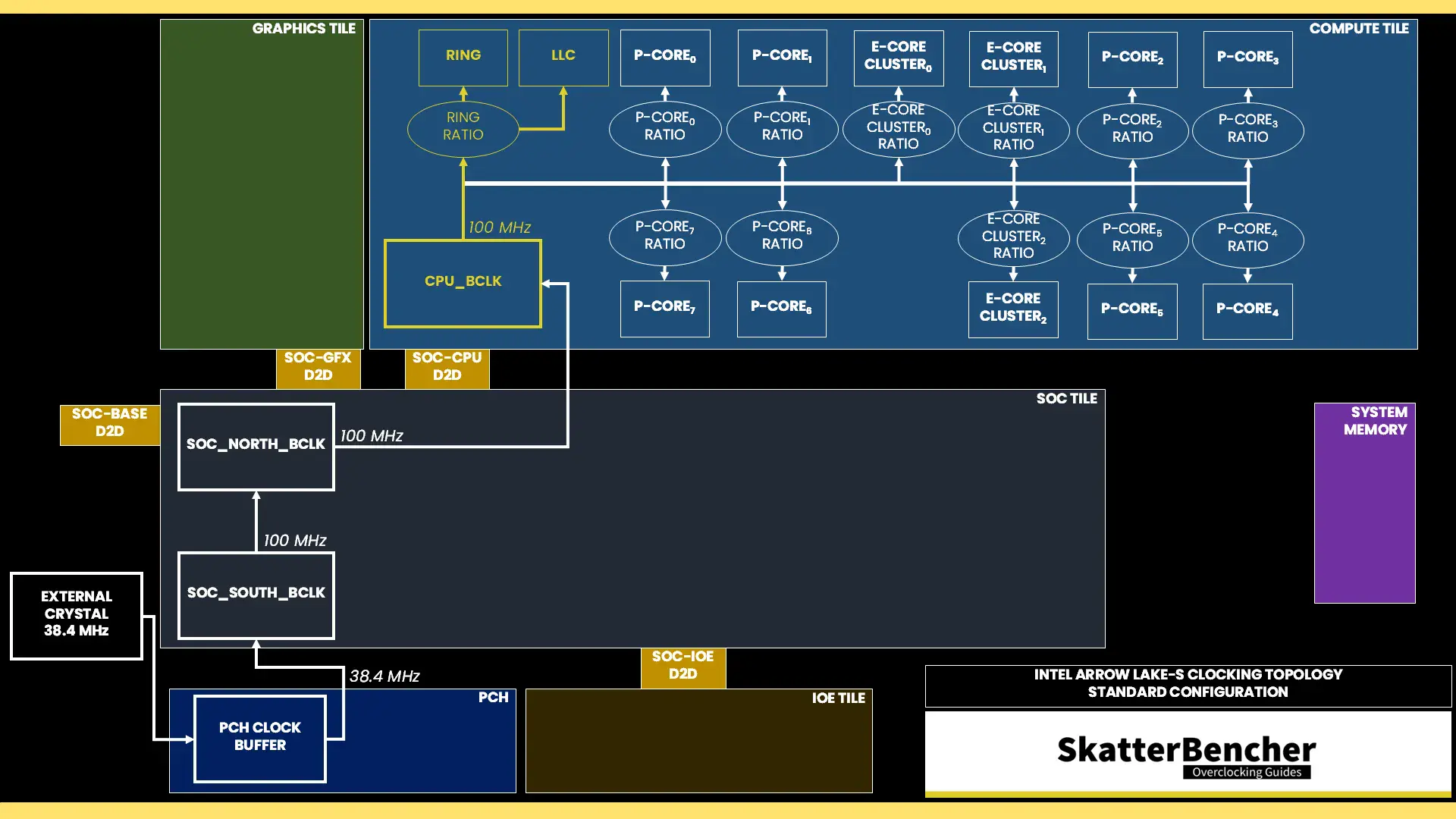
The reference clock is multiplied by the Ring ratio to achieve the final clock frequency. It operates independently from the P-cores and the E-cores. The default ratio is 40X, which yields a 4.0 GHz operating frequency.
Ring Voltage Topology
The voltage regulation for the Ring is more complex than prior generations of Intel Core processors due to the introduction of the DLVR. The DLVR enables much lower voltage levels for the Ring but still relies on a dynamic external motherboard voltage regulator as the input voltage source.
As we discussed earlier in the guide, the external VccIA motherboard voltage regulator (MBVR) provides the input voltage for DLVRs of the individual P-core, E-core clusters, Ring, last-level cache (LLC), and E-core L2 cache.
- VccCOREn is the DLVR powering an individual P-core.
- VccR is the DLVR powering the Ring and Last-Level Cache.
- VccATOMn is the DLVR powering an individual E-core cluster, which consists of four E-cores, and its L2 cache.
The DLVRs can also be bypassed. In that case, the IP blocks are running in so-called Power Gate (PG) mode.
Ring V/F Curve
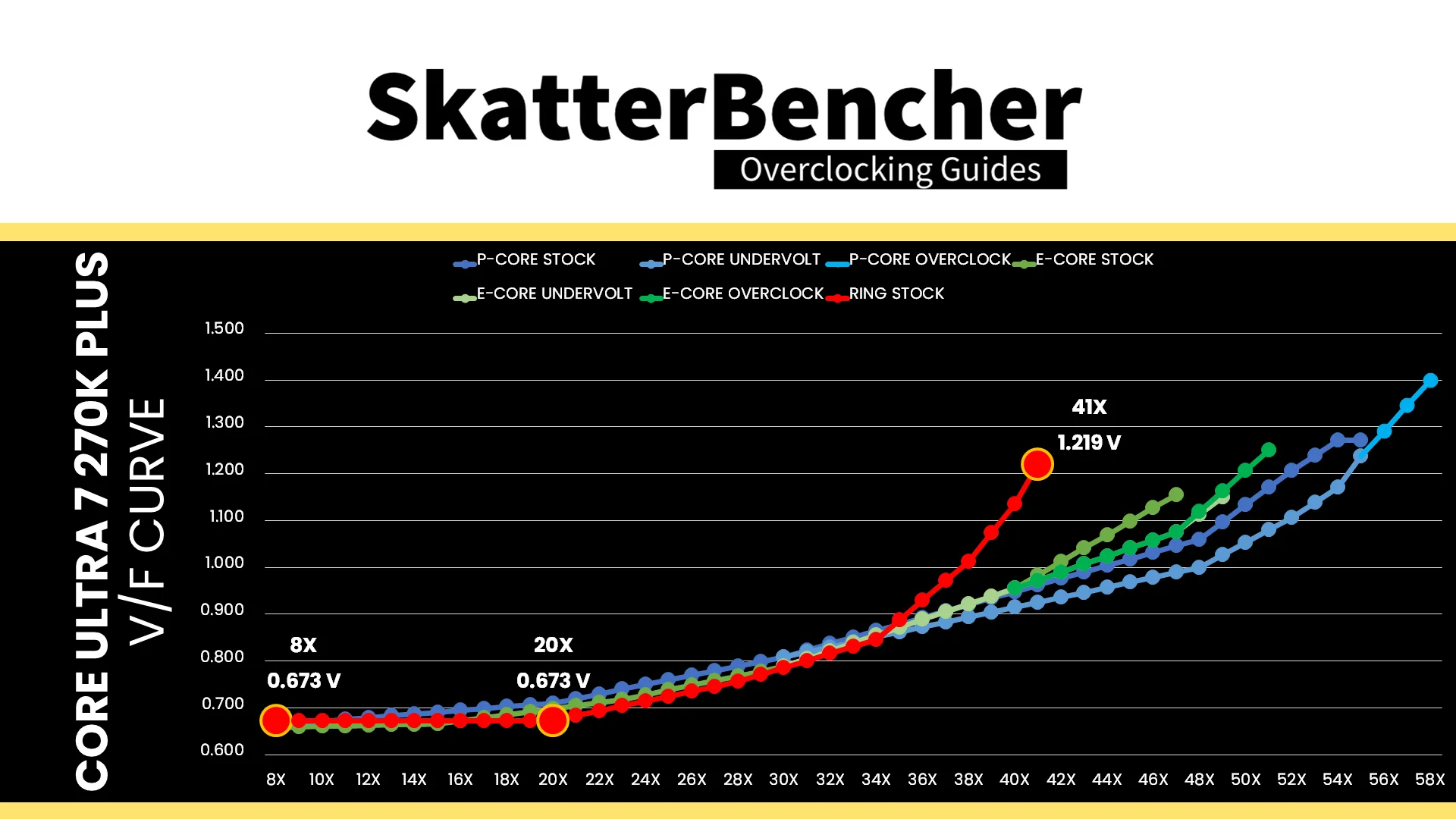
The Core Ultra 7 270K Plus Ring has its own V/F curve which is defined by up to nine (9) V/F points. The first eight (8) V/F points are factory-fused, and the last point is mapped to the “OC Ratio.” Oddly enough, while the default Ring frequency is 4.0 GHz, the V/F curve is actually defined up to 4.1 GHz!
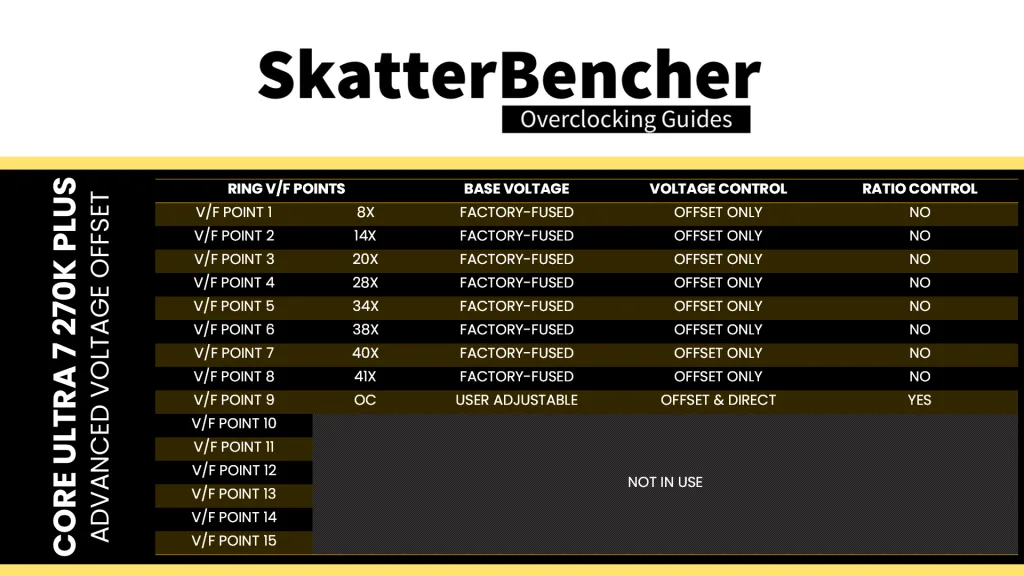
Here is the Ring V/F curve for my specific Core Ultra 7 270K Plus. The voltage is about 673 mV at 800 MHz all the way up to 2.0 GHz, then gradually increases to 1.219V for VF Point 8 at 4.1 GHz.
Adaptive Voltage Mode
Similar to the P-cores and E-cores, the Ring requests an operating voltage using the SVID protocol from the CPU Power Control Unit (PCU) based on its VF curve. The PCU in turn configures the VccIA voltage rail and the individual DLVRs.
The voltage configuration of the Ring is identical to that of the P-cores, including the Adaptive and Override modes, and the specific rules governing the adaptive voltage mode which I covered at length in the previous OC Strategy.
NGU / NoC
NGU stands for “Next Generation Uncore” and is the successor to the uncore we know from previous generation Intel processors. The NGU fabric – sometimes called sub-system – includes several subcomponents such as the network on chip (NoC) and UFI bridges. It’s located on the SoC tile.
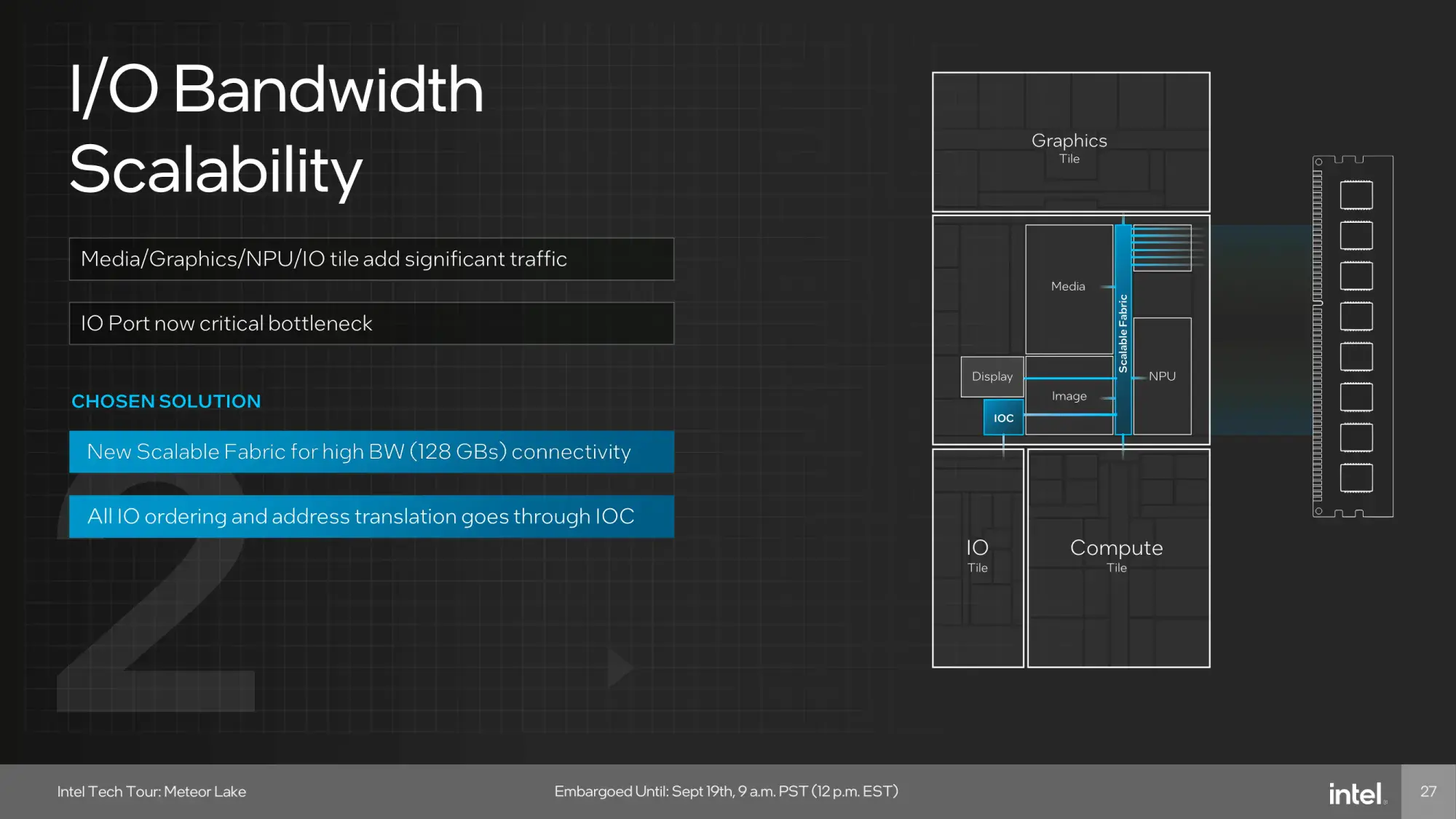
On Arrow Lake-S, NGU overclocking is essentially NoC overclocking. The NOC fabric is the primary communication bridge between the various IP blocks on the chip such as the memory controller, the CPU cores (via D2D), graphics (via D2D), and so on.
NGU Clocking Topology
The NGU reference clock frequency is generated internally by the SoC PLL. However, it can also be clocked with an external clock generator providing the reference clock for the SoC PLL. This clock affects nearly all the IP blocks of Arrow Lake, except for those in the Compute Tile and the PCIe/DMI links.
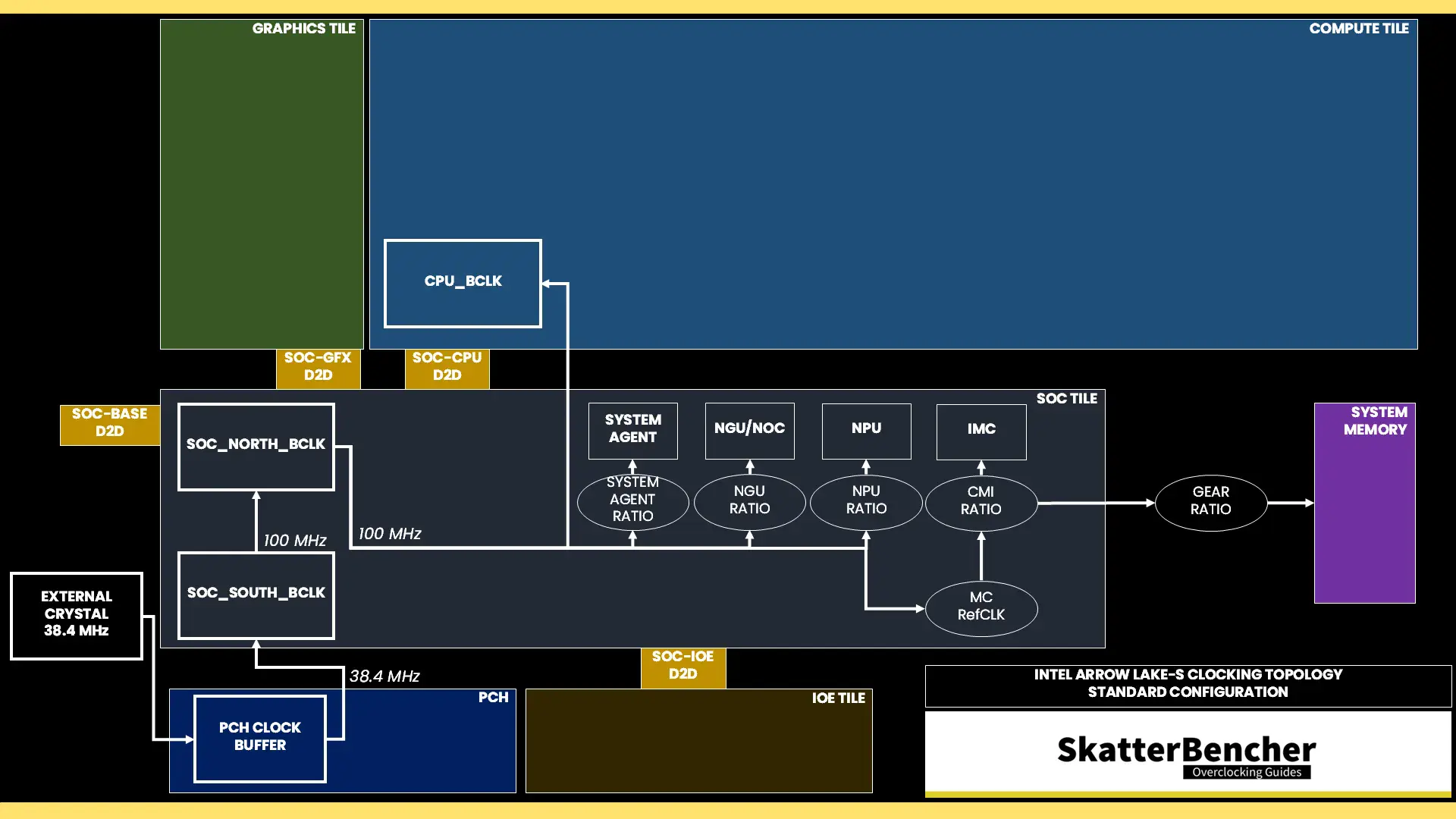
The reference clock is multiplied by the NGU ratio to achieve the final clock frequency. The default ratio is 26X, which yields a 2.6 GHz operating frequency.
NGU Voltage Topology
The external VccSA MBVR powers several parts of the SOC dielet, including the NGU. Unlike Compute IP, the parts of the SOC dielet are not powered using DLVR. So, power delivery is identical to previous architectures.
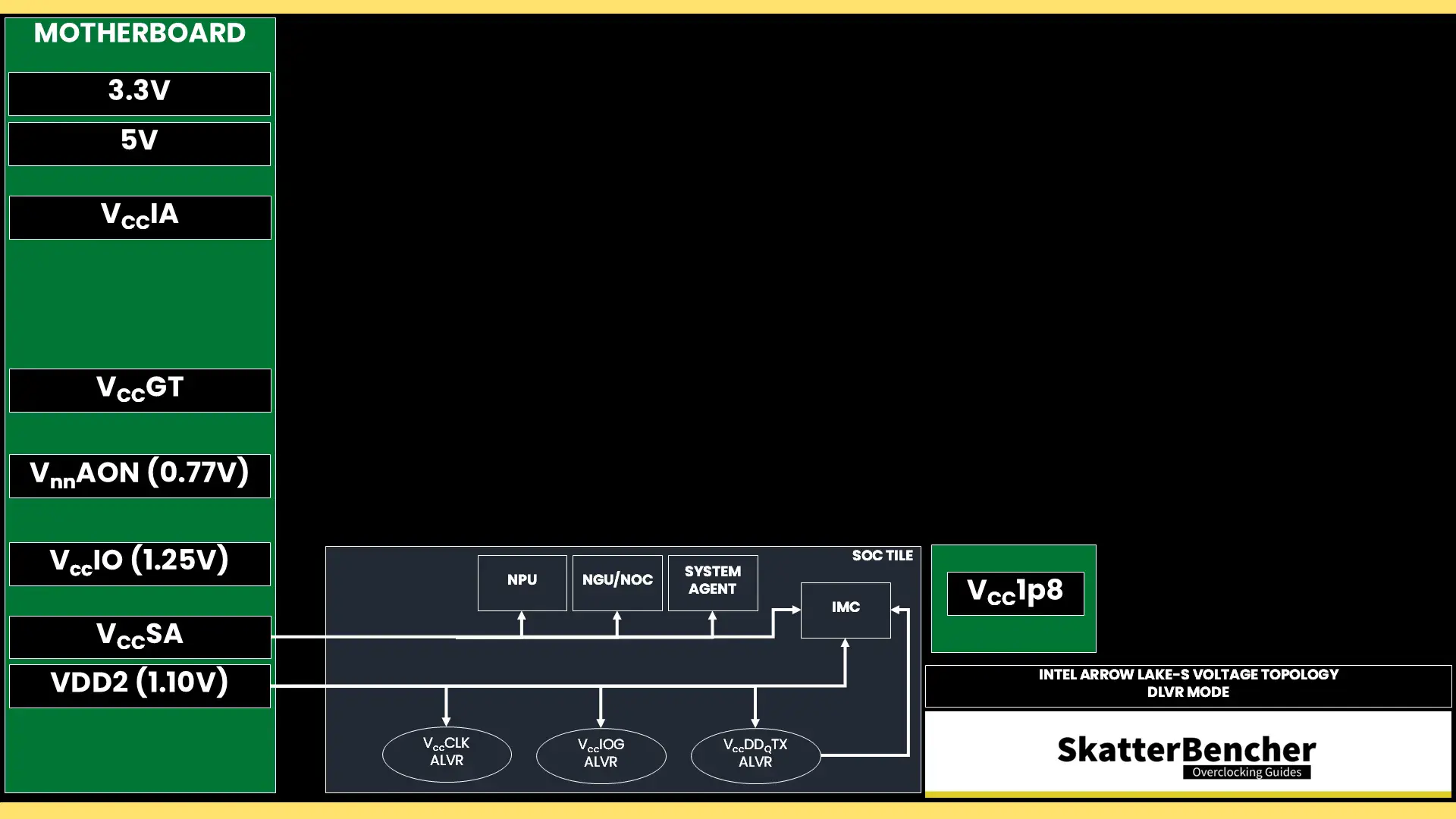
The most relevant parts powered by the VccSA voltage rail are the system agent, the NoC, the NPU, and the memory controller. The voltage configuration of the VccSA voltage rail is rather complicated. Since multiple IP domains share the voltage rail, the VccSA voltage is set based on the highest requested voltage from the various connected IP blocks.
The NoC has its own V/F curve which is defined by up to five (5) V/F work points. The first four (4) V/F points (at 11X, 23X, 26X, and 31X) are factory-fused and the last point is mapped to the “OC Ratio.” Unfortunately, that’s as much as we can gather regarding the default V/F curve. It’s not easy to separate the NGU SVID request based on the VccSA behavior.
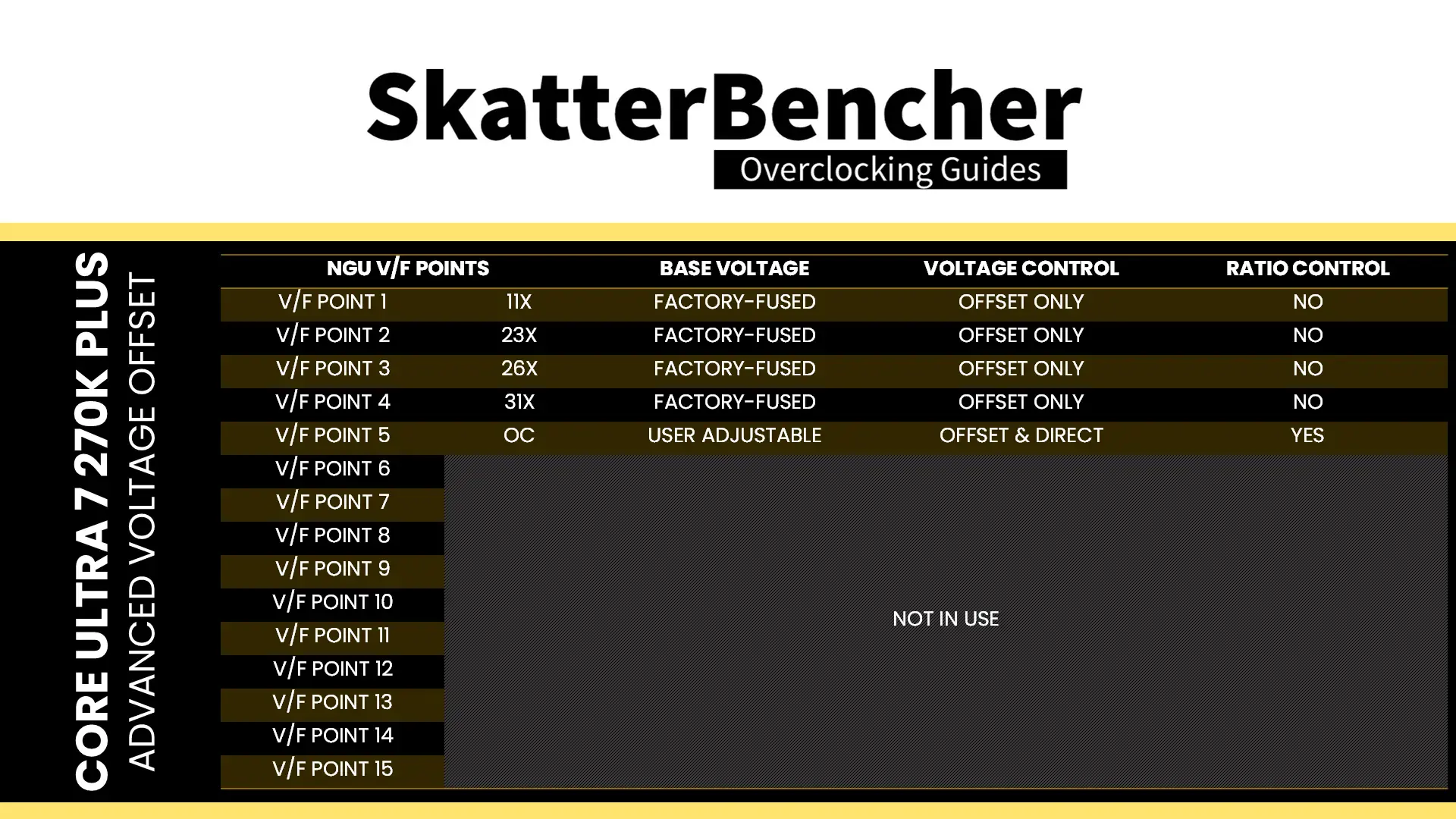
Based on the work points, the NGU requests an operating voltage from the VccSA voltage rail using the SVID protocol. However, there’s a second way to voltage configuration: ignore the SVID voltage requests and calculations, and program the VccSA voltage regulator directly over PMBus. This process effectively allows us to take full control over the voltage set by the VccSA voltage rail.
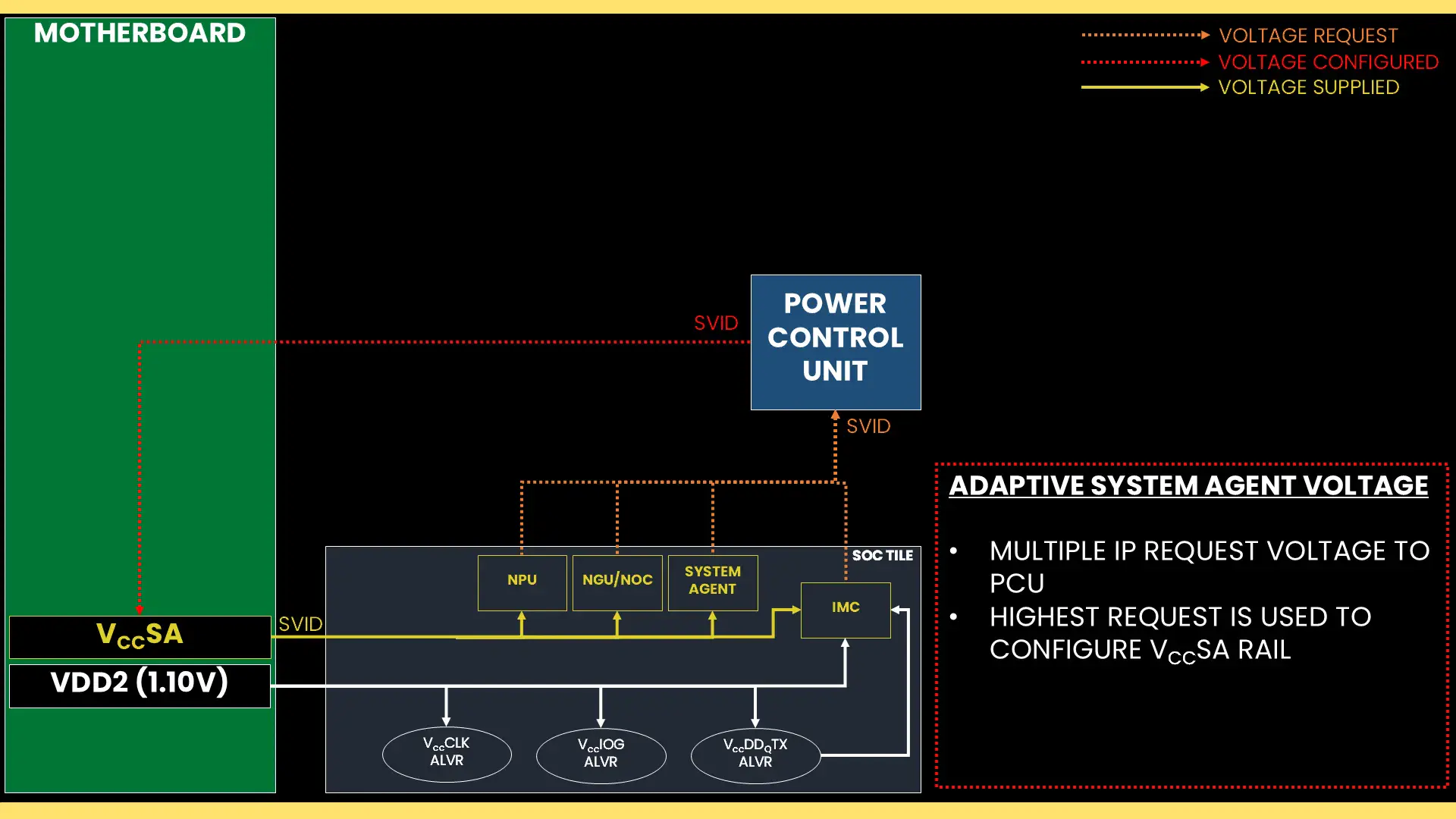
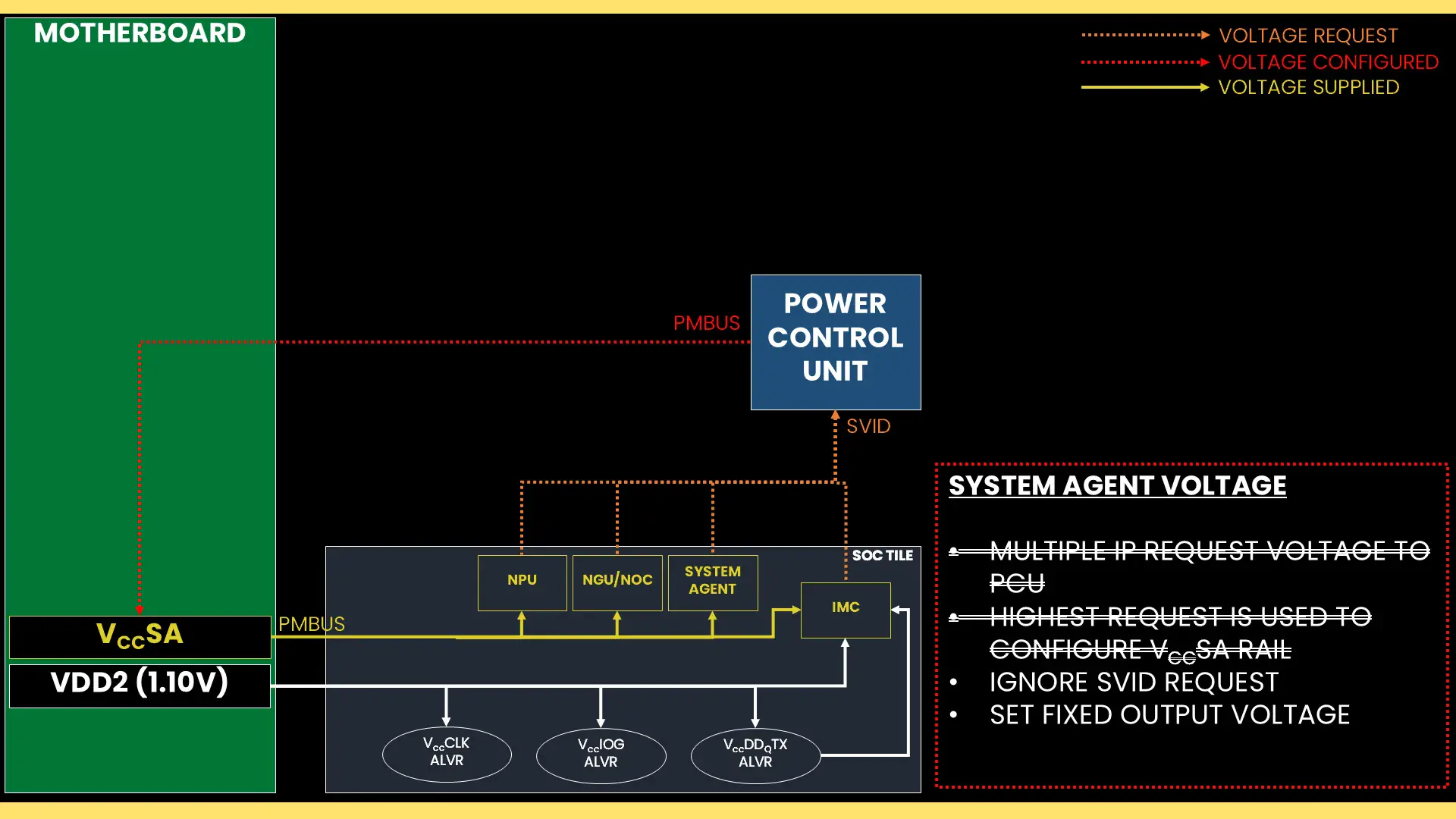
This approach is a very traditional way of overclocking whereby you set a fixed output voltage and then use an appropriate VRM load-line setting – if available – to reduce the operating voltage in higher load scenarios. The load-line configuration isn’t particularly useful for SA voltage rail.
D2D
D2D stands for Die-to-Die. It is the interface between the various tiles on the Arrow Lake package. There are three D2D links connecting the various tiles on the Arrow Lake package:
- SOC-Compute (H-IDI protocol) – P-core, E-core, Ring
- SOC-Graphics (CXL protocol) – Integrated Graphics
- SOC-IOE (PSF protocol) – IO extension
On Arrow Lake Refresh, only the SOC-Compute D2D can be overclocked. The base frequency is 3.0 GHz which is 900 MHz higher than what it was for the original Arrow Lake processors.
D2D Clocking Topology
The D2D reference clock frequency is generated internally by the SoC PLL. However, it can also be clocked with an external clock generator providing the reference clock for the SoC PLL. This clock affects nearly all the IP blocks of Arrow Lake, except for those in the Compute Tile and the PCIe/DMI links.
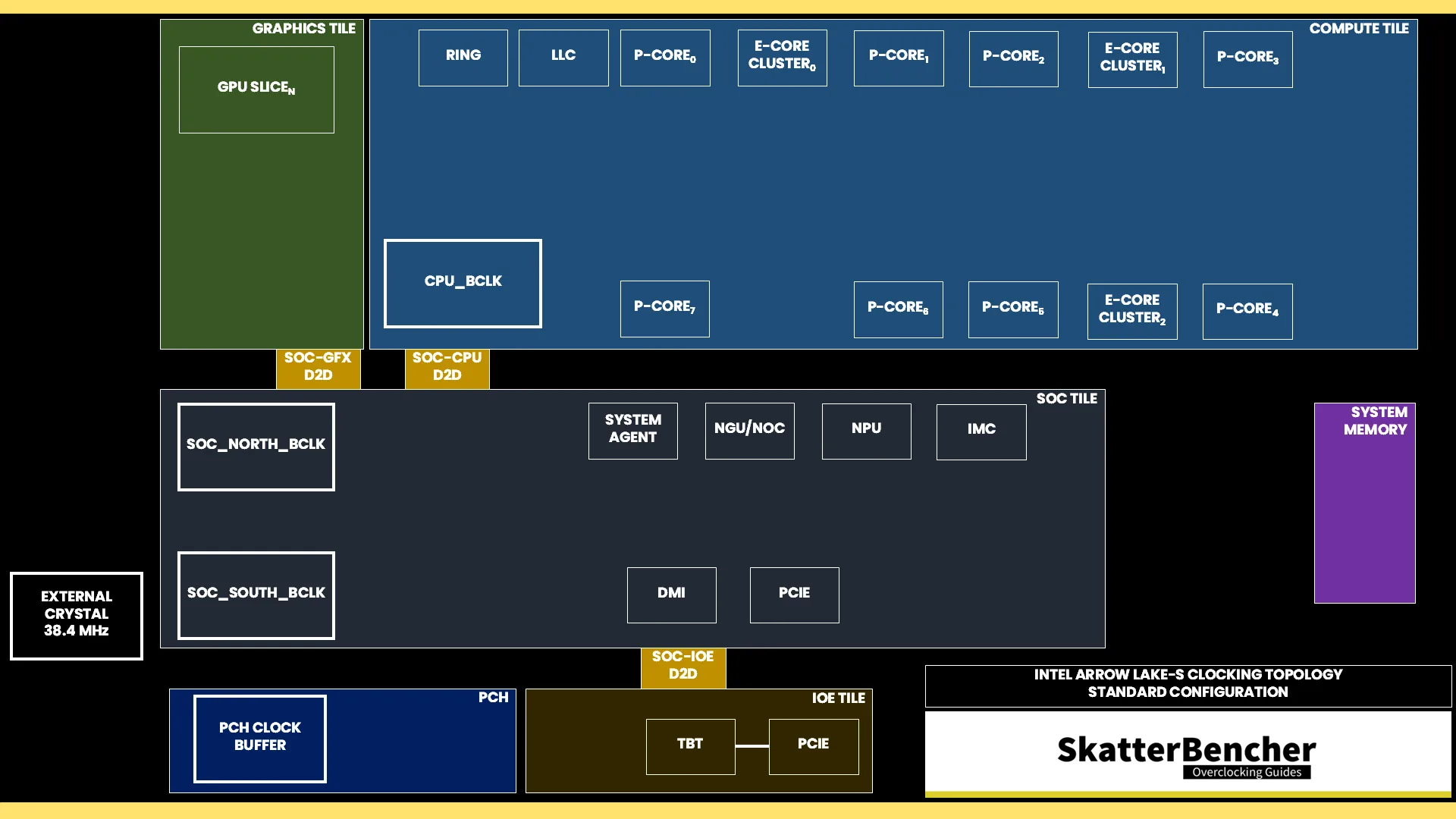
The reference clock is multiplied by the D2D ratio to achieve the final clock frequency. As said, we can only adjust the SOC-Compute D2D frequency.
The default ratio is 30X, which yields a 3.0 GHz operating frequency. The maximum configurable ratio is 40X. The frequency can only be set at boot and cannot be changed in the operating system.
D2D Voltage Topology
The external 0.77V VnnAON voltage rail powers several internal voltages, including the D2D interfaces. The VnnAON voltage is pretty important for Arrow Lake CPUs as it is part of the voltage multiplexer for many IP blocks, including the cores and ring, typically serving as the floor voltage in power-saving scenarios.
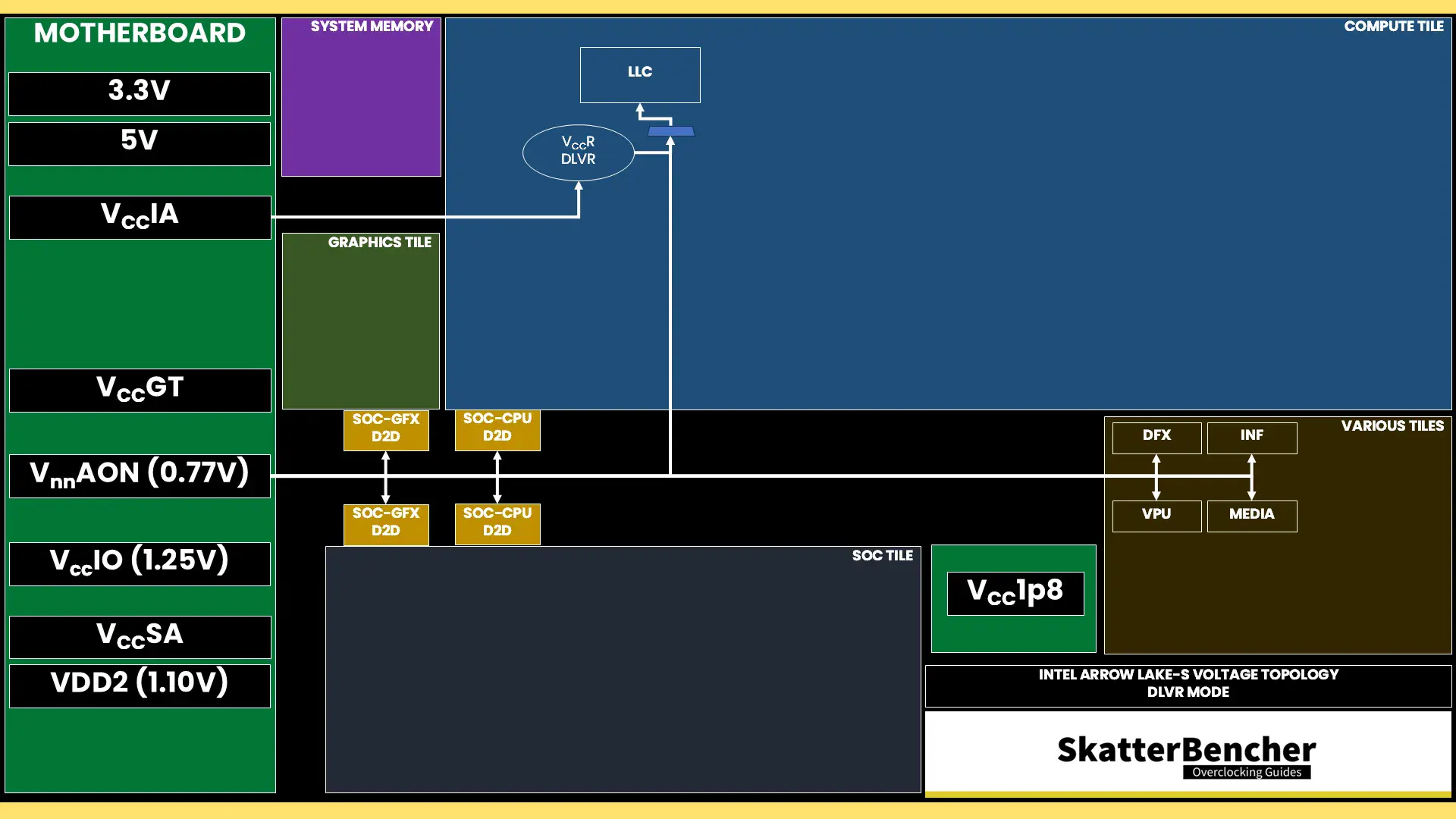
I don’t suggest increasing it above 1.0V since it provides little additional benefit for overclocking and performance. Furthermore, increasing the VnnAON voltage can also cause issues when cold booting the system. Fortunately, ASUS has included an option called “High d2d cold boot workaround” in the BIOS that can help alleviate some of the booting issues with increased VnnAON voltages.
Data Fabric Tuning Process
Tuning the data fabric is a matter of testing each component systematically. I recommend first picking target voltages for each of the components and setting those in the BIOS with each component set to its default frequency. So:
| IP | Default | Initial Config |
|---|---|---|
| Ring | 40X at 1.136 V | 40X at 1.200 V |
| NGU | 26X at 1.150 V | 26X at 1.300 V |
| D2D | 30X at 0.770 V | 30X at 1.000 V |
Then I increase the frequency for each component until I find instability. The initial tests can be very quick. For example, I’ll run a 30 second cycle of Y-Cruncher FFT Component tester to find the initial upper limit for each component.
| IP | Default | Initial Config | 1st Test | 2nd Test | 3rd Test |
|---|---|---|---|---|---|
| Ring | 40X at 1.136 V | 40X at 1.200 V | Increase Ring | 40X at 1.200 V | 40X at 1.200 V |
| NGU | 26X at 1.150 V | 26X at 1.300 V | 26X at 1.300 V | Increase NGU | 26X at 1.300 V |
| D2D | 30X at 0.770 V | 30X at 1.000 V | 30X at 1.000 V | 21X at 1.000 V | Increase D2D |
When I know the upper limit, I’ll set all target ratios and do longer stints of stability testing including the introduction of other tests. I find that, typically, Cinebench R23, Y-Cruncher Benchmark & Component Tester, and AI Benchmark are very sensitive to data fabric overclocking.
This process might take a bit longer, especially if you’re trying to find the maximum stable setting. When I’m satisfied with the stability testing, of course it also has to pass all the other benchmarks in our benchmark suite.
The Ring seemed stable at 4.3 GHz with 1.2V at first but when doing longer heavy load stability runs at high temperature, the system would freeze up. So, I settled for 4.2 GHz. The 3.4 GHz NGU really needs 1.3V as it was unstable with 1.25V. Lastly, the D2D could boot at 4.0 GHz but I’d get weird 2D glitches, so I settled for 3.8 GHz instead.
| IP | Default | Initial Config | Final Config |
|---|---|---|---|
| Ring | 38X at 1.076 V | 38X at 1.250 V | 42X at 1.200 V |
| NGU | 26X at 1.050 V | 26X at 1.300 V | 34X at 1.300 V |
| D2D | 21X at 0.770 V | 21X at 1.000 V | 38X at 1.000 V |
System Memory
The last part of this OC strategy is tuning the memory subsystem. For this I would usually rely on the ASUS Memory Presets with some manual finetuning, but in this case I couldn’t quite find stability. As a backup option I switched to XMP Tweaked..
ASUS XMP Tweaked
ASUS XMP Tweaked is an ASUS overclocking technology that takes the DRAM XMP profile and finetunes certain parameters if there’s a suitable profile available. The key timing differences between XMP II and XMP Tweaked are:
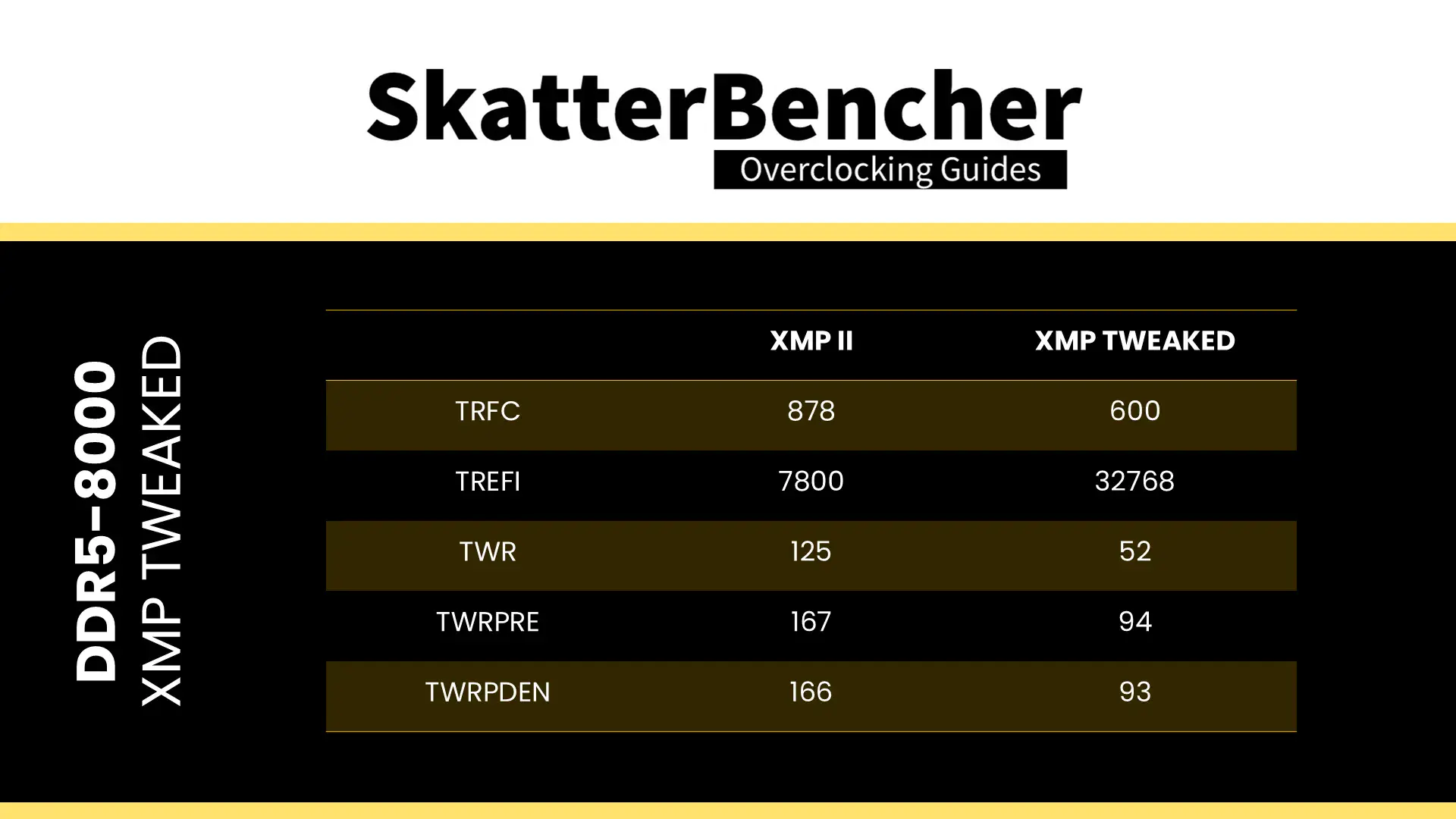
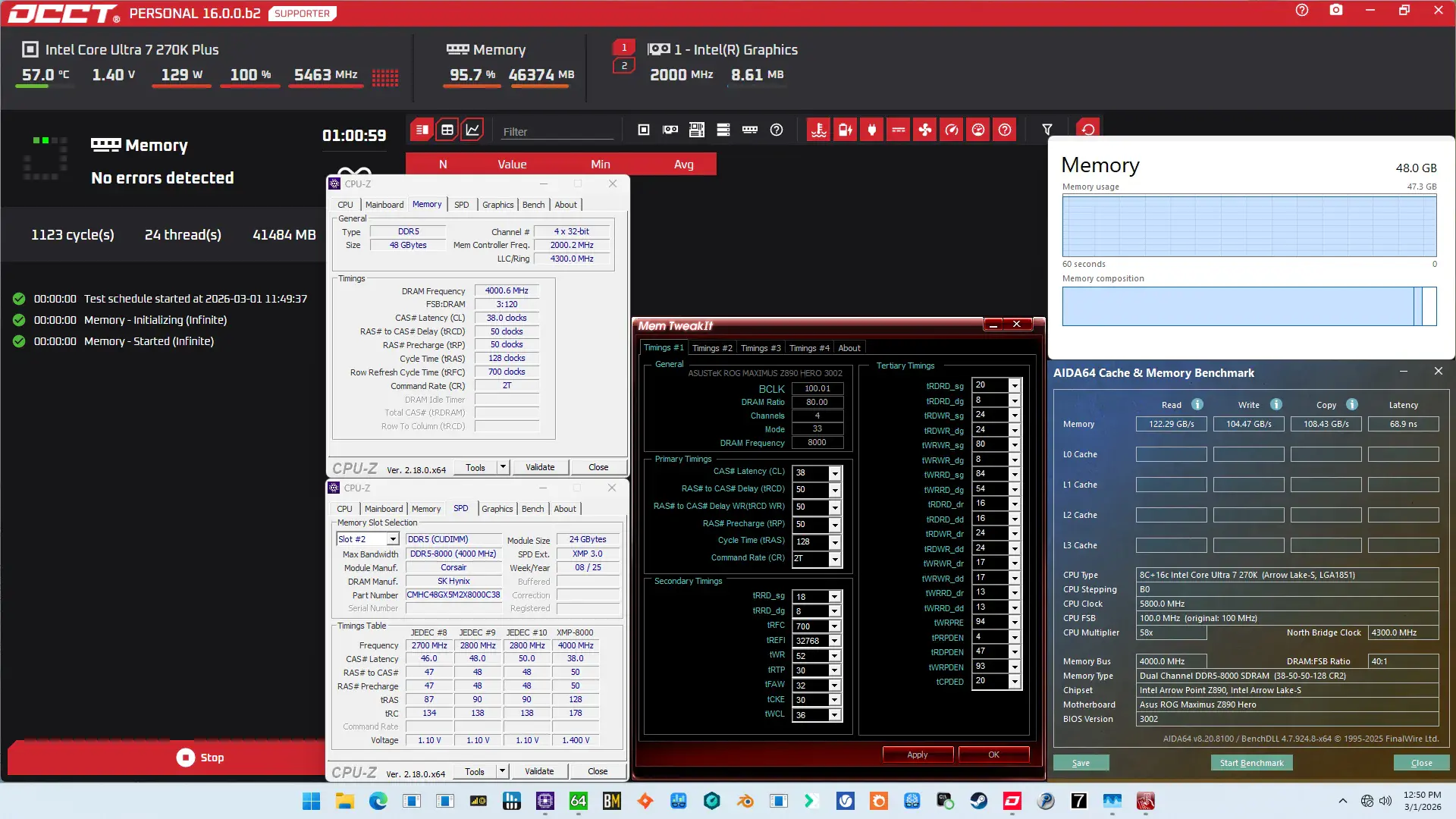
Fortunately, I could keep the memory at DDR5-8000 while completing 1 hour of OCCT Memory Stress test.
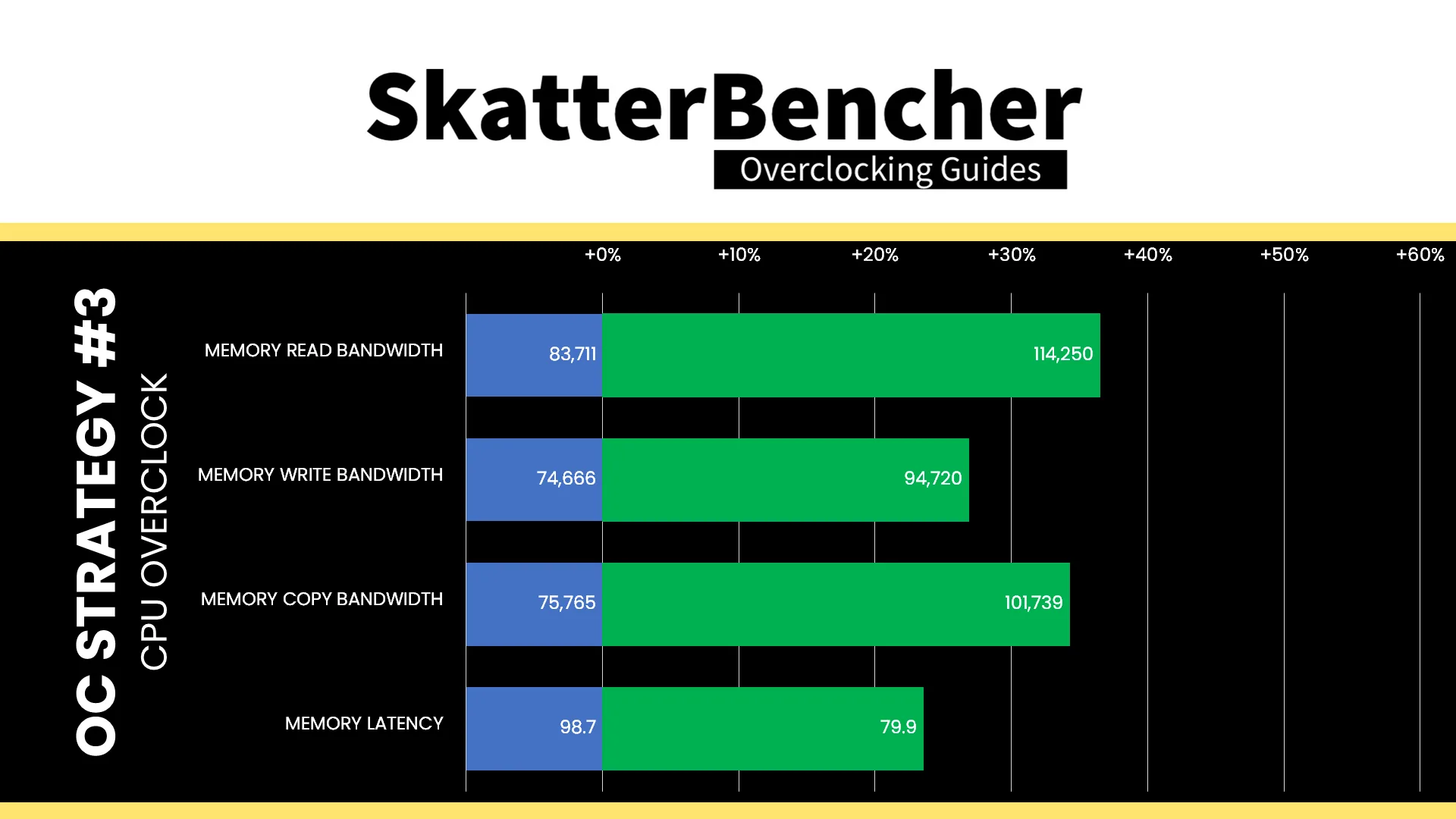
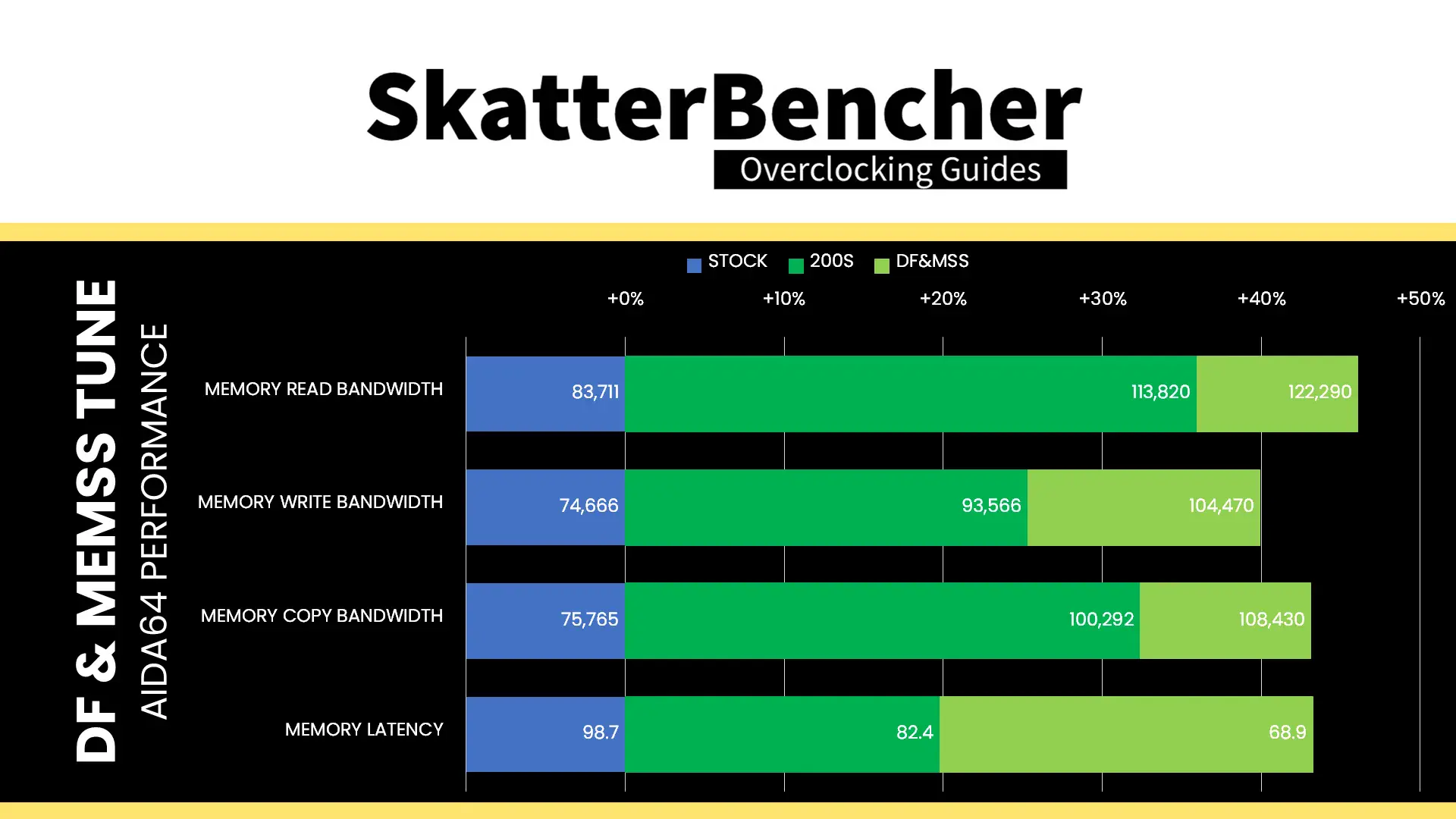
After tuning the data fabric and memory subsystem, our AIDA64 performance improved quite significantly. We got about +30% extra bandwidth and +20% better latency enabling 200S Boost. Further tuning the data fabric and memory subsystem added a couple of percentage points. Then, tuning the memory added another 15% extra bandwidth and further improved the latency by 20%.
BIOS Settings & Benchmark Results
Upon entering the BIOS
- Go to the Ai Tweaker menu
- Set Performance Preferences to ASUS Advanced OC Profile
- Set Ai Overclock Tuner to XMP Tweaked
- Set ASUS MultiCore Enhancement to Enabled – Remove All Limits
- Set Performance Core Ratio to By Core Usage
- Set 1-Core to 4-Core Ratio Limit to 58
- Set 5-Core to 8-Core Ratio Limit to 55
- Set Efficient Core Ratio to By Core Usage
- Enter the By E-Core Usage submenu
- Set Efficient Turbo Ratio Limit 1 to 51
- Set Efficient Turbo Ratio Cores 1 to 8
- Set Efficient Turbo Ratio Limit 1 to 49
- Set Efficient Turbo Ratio Cores 1 to 16
- Leave the By E-Core Usage submenu
- Enter the Thermal Velocity Boost submenu
- Set TVB Voltage Optimizations to Enabled
- Set Enhanced TVB to Disabled
- Set Overclocking TVB to Disabled
- Leave the Thermal Velocity Boost submenu
- Enter the Performance Core V/F Point Offset submenu
- Set V/F Point Present Mode to All Core Mode
- Set V/F Point Voltage Control Mode to Manual Mode
- Set V/F Point 4 Offset to -60
- Set V/F Point 5 Offset to -100
- Set V/F Point 6 Offset to -100
- Set V/F Point 7 Offset to -35
- Leave the Performance Core V/F Point Offset submenu
- Enter the Efficient Core V/F Point Offset submenu
- Set V/F Point Present Mode to All Core Mode
- Set V/F Point Voltage Control Mode to Manual Mode
- Set V/F Point 6 Offset to -80
- Leave the Efficient Core V/F Point Offset submenu
- Enter the Tweaker’s Paradise submenu
- Set High d2d cold boot workaround to Enabled
- Set High D2D with High Memory Workaround to Enabled
- Leave the Tweaker’s Paradise submenu
- Set Min CPU Cache Ratio to 42
- Set Max CPU Cache Ratio to 42
- Set NGU Ratio to 34
- Set CPU D2D Ratio to 38
- Set Performance Core DLVR Voltage to Adaptive Mode
- Set Additional Turbo Mode Voltage to 1.400
- Set Efficient Core DLVR Voltage to Adaptive Mode
- Set Additional Turbo Mode Voltage to 1.250
- Set Ring DLVR Voltage to Manual Mode
- Set Additional Turbo Mode Voltage to 1.200
- Set CPU System Agent Voltage to Manual Mode
- Set CPU System Agent Voltage Override to 1.300
- Set VNNAON 0.77V Voltage to Manual Mode
- Set VNNAON Voltage Override to 1.000
Then save and exit the BIOS.
We re-ran the benchmarks and checked the performance increase compared to the default operation.
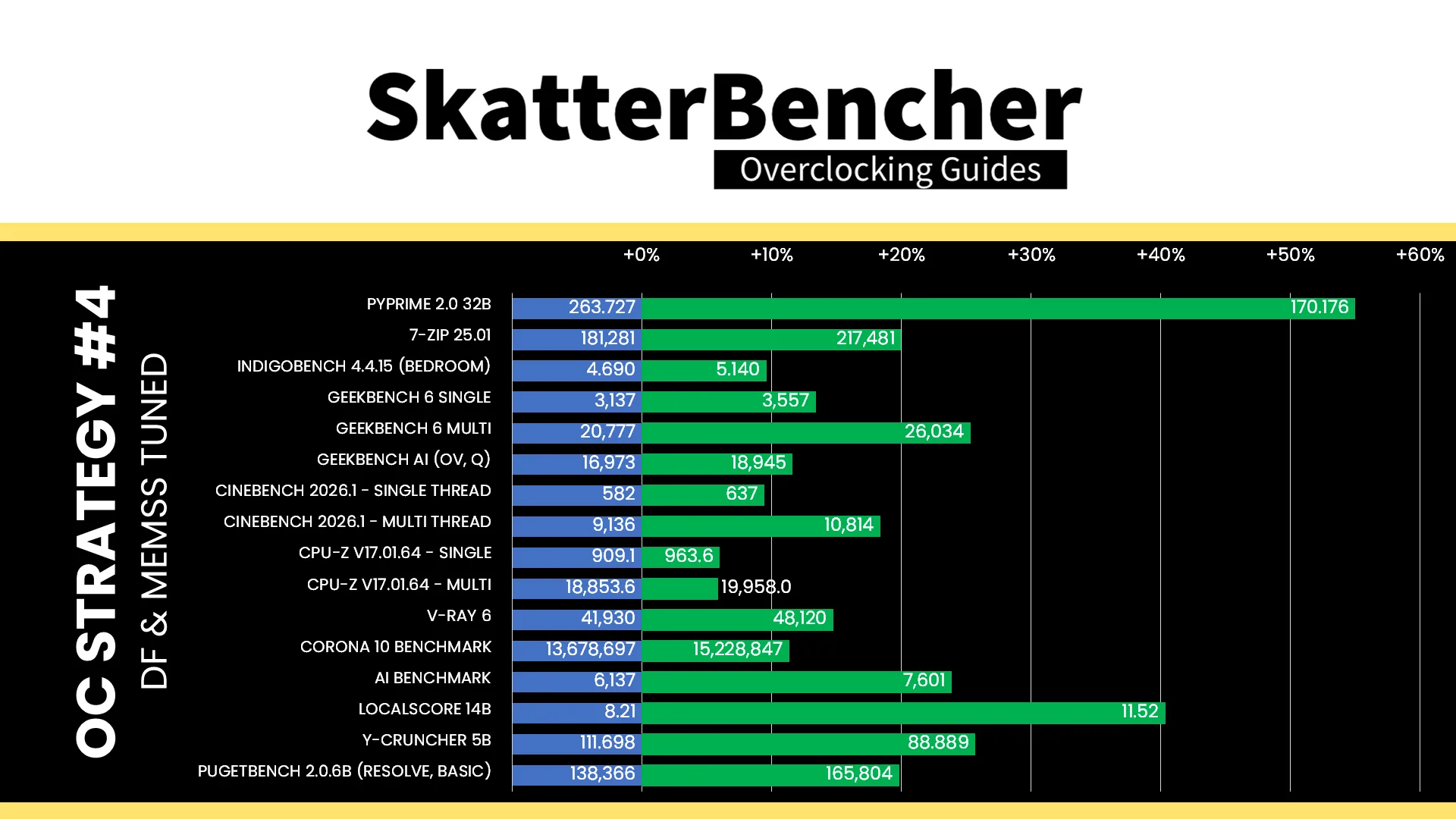
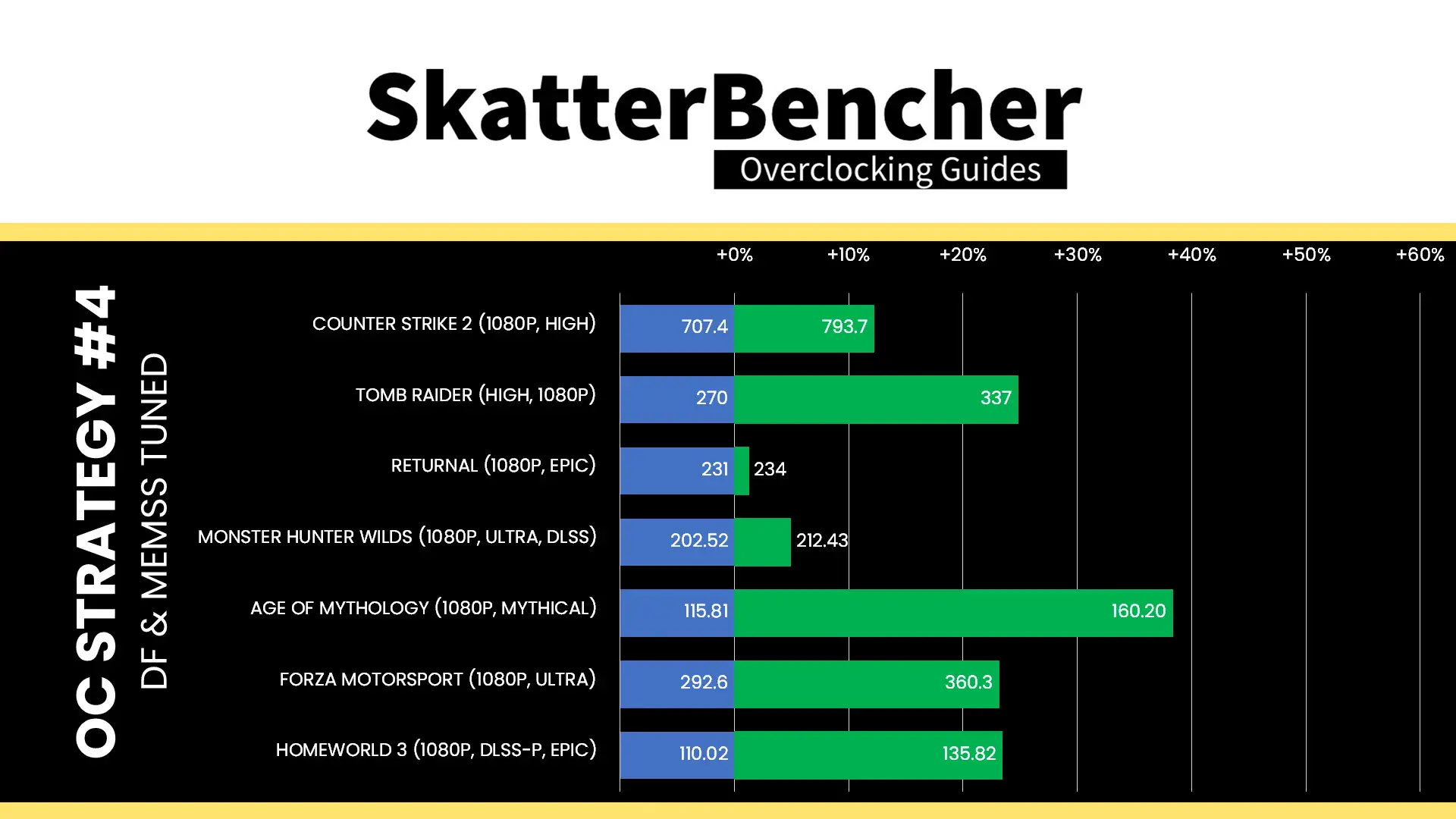
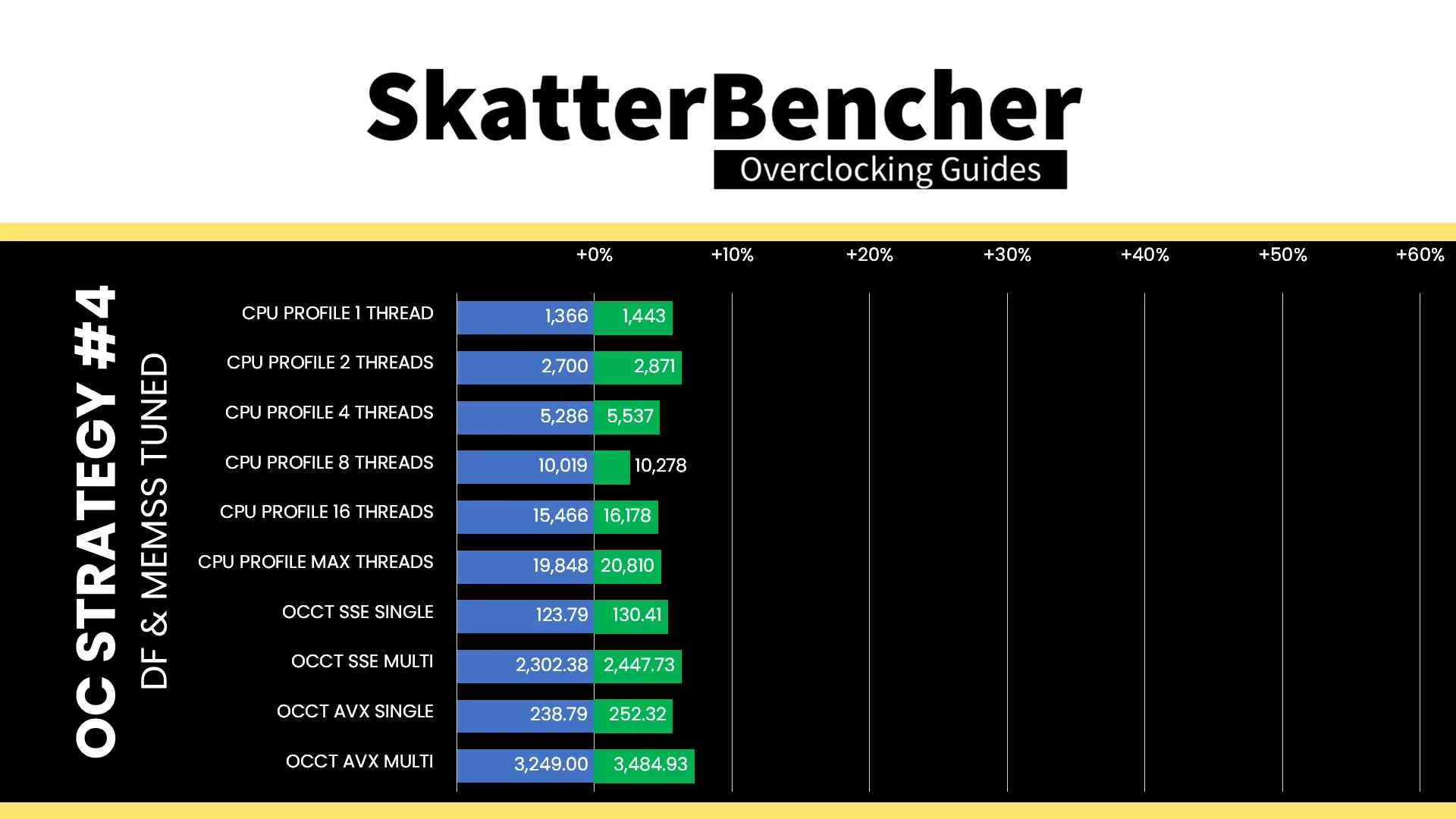
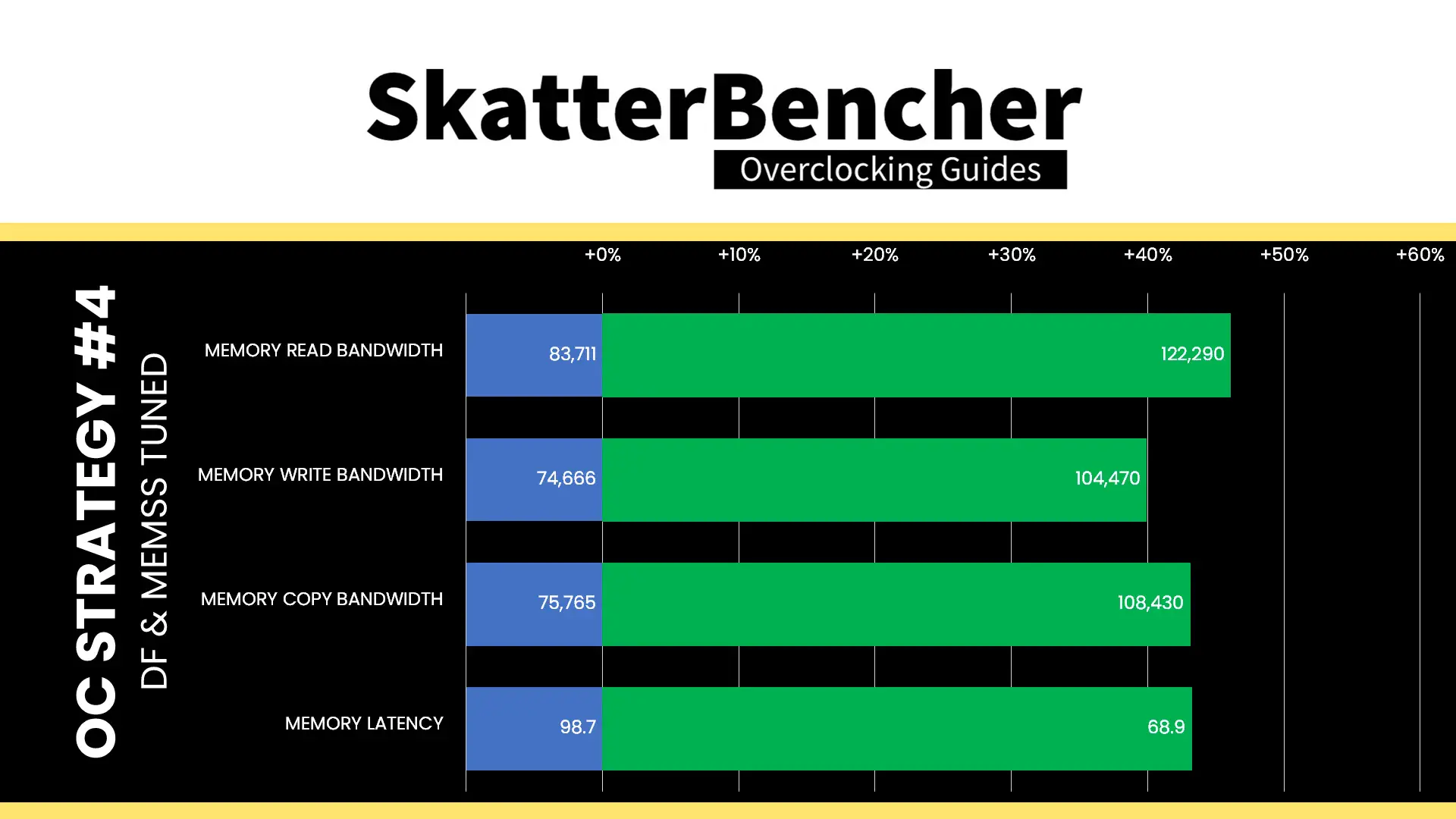
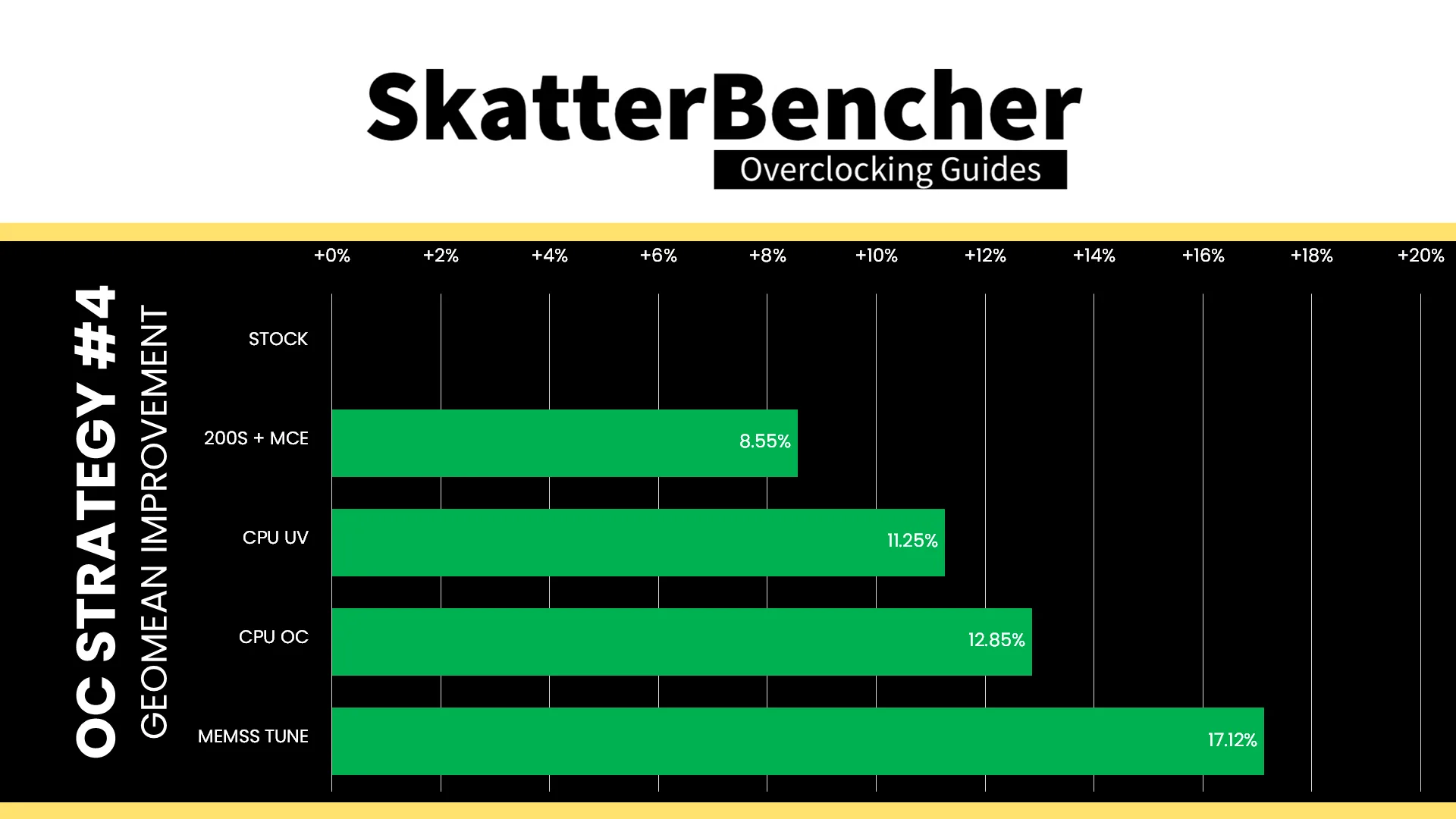
The multi-tile Arrow Lake architecture adds some layers of communication between the system memory and CPU cores. By increasing the frequency of the Ring, NGU, and D2D, we aim to increase the data transfer speed. Then, tuning the memory timings helps improve bandwidth and latency. While the memory tuning wasn’t very elaborate, we still see get a significant performance uplift. The Geomean performance speedup improves by another 4.3 percentage points, and we get a maximum improvement of +54.97% in PyPrime.
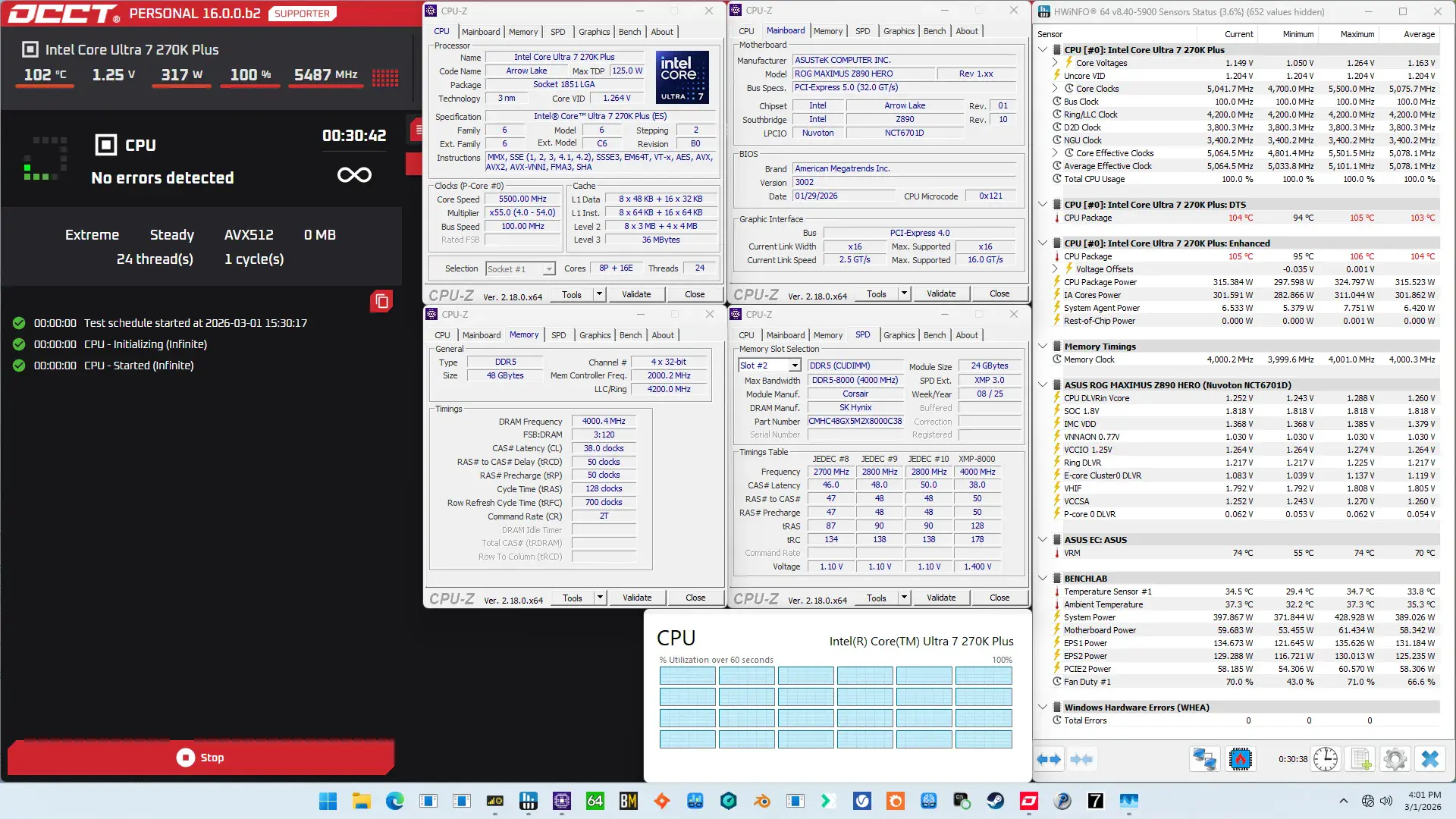
When running the OCCT CPU AVX-512 Stability Test, the average CPU P-core effective clock is 5493 MHz with 1.222 volts and the average CPU E-core effective clock is 4870 MHz with 1.159 volts. The average CPU temperature is 104.0 degrees Celsius. The average CPU package power is 315.5 watts.
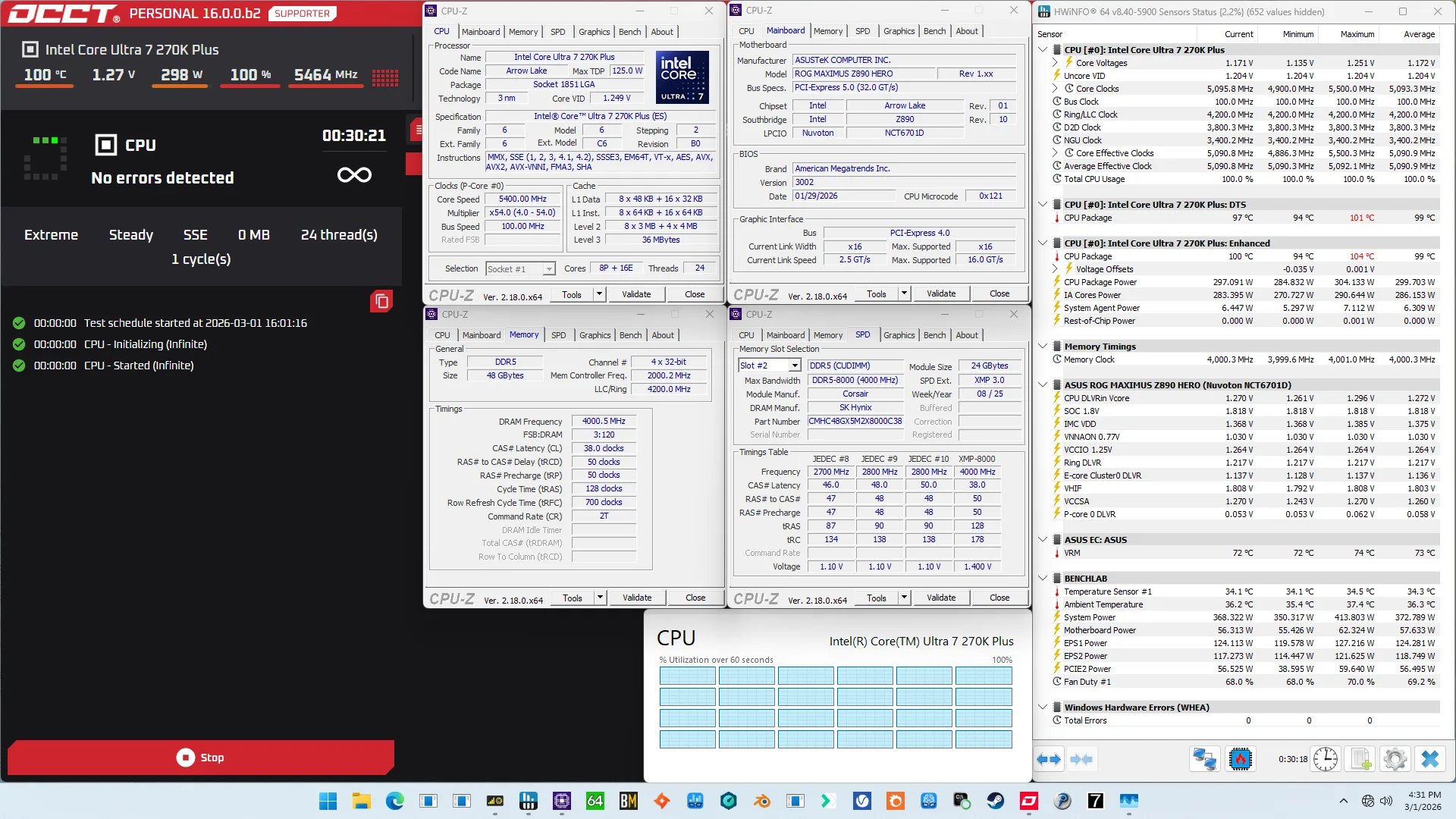
When running the OCCT CPU SSE Stability Test, the average CPU P-core effective clock is 5490 MHz with 1.220 volts and the average CPU E-core effective clock is 4891 MHz with 1.148 volts. The average CPU temperature is 99.0 degrees Celsius. The average CPU package power is 299.7 watts.
Intel Core Ultra 7 270K Plus: Conclusion
Let’s wrap this up.
The Core Ultra 7 270K Plus is the first of the Arrow Lake Refresh K-SKU processors I plan to overclock on this channel. The overclocking experience is similar to that of the non-refresh SKUs with limited P-core overclocking headroom.
However, Arrow Lake tuning is pretty fun because it appears that everything you do can add performance, whether that’s from tuning the CPU cores, data fabric, or system memory. So, while I’m already happy with the +17% geomean performance speedup, I feel there might still be performance left in the tank.
Anyway, that’s it for this guide.
I want to thank my Patreon supporters and YouTube members for supporting my work. If you have any questions or comments, please drop them in the comment section below.
See you next time!
Bahlul
Hey Pieter, I appreciate your effort.
I’m not able to increase the D2D beyond 30x. The 200S boost is also not stable. I tested three different 270K Plus CPUs, but my system was rock-solid stable with the 265K at D2D 36x.
Current Stable Profile and Configuration:
ASUS ROG Maximus Z890 Hero (BIOS 3202) + Core Ultra 7 270K Plus
G.Skill Trident Z 7200 MHz, 2 × 16 GB
P-Core: 58x, 1.355 V
E-Core: 51x, 1.25 V
Ring: 42x, 1.20 V
NGU: 34x, VCSSA: 1.28 V
Maximus A-Die preset timings
bona fide
Is it worth going for the 270k Plus? How is the overclockability?
I have the 285k, with stable OC at d2d 40, ngu 35, ring 42. mem is 8000. latency 69ns. p-core stock, e-core 5.0. i passed all teh tests.
or do you think just hold that ? if the average oc isn’t as good, then maybe i should just hodl?
also – does this processor support avx-512? i see you had that as a test, but the specs arent listing it as supporting that hence much lower scores than ryzen cpu in certain benchmarks i believe
Pieter
That already sounds like a pretty good Arrow Lake CPU so I wouldn’t expect any 270K Plus to simply exceed that.
The processor does not support AVX-512.
C.centanni
Im bummed, im on a z890 Unify-X and ive been trying to follow the guides and for some reason I cant get a post… I think its due to the fact that there are so many things labeled differently between msi and asus boards that im doing something wrong…. I was hopping there would be a comment section, or somebody I could relate to with an msi board!! I knew i should have just gone with a maximus hero
Paolo
Running into the same issues as you, most things have similar implementations e.g. the v/f points and d2d speeds/voltages etc. The main differences seem down to finding the “additional turbo” parameters. It’s also not clear if the TVB is operating the same way as on an ASUS board. The lack of a high d2d workaround on the unify also doesn’t help with posting.
So far the only way I’ve gotten any system stability is enabling the high voltage unlock…. doesn’t seem wise to run the chip at an average of 1.6v.