SkatterBencher #97: Ryzen 7 9850X3D Overclocked to 5860 MHz
Today we undervolt and overclock the AMD Ryzen 7 9850X3D processor up to 5860 MHz with the ASUS ROG Crosshair X870E hero motherboard.
I do this by leveraging Precision Boost Overdrive tools like Fmax Boost Override, Curve Optimizer, but also delve into memory subsystem tuning and OC Mode. In this video, I break down the Ryzen 7 9850X3D tuning process into five unique overclocking strategies for beginner and advanced overclockers.
- First, we enable Precision Boost Overdrive 2 and EXPO,
- Second, we tune with the Precision Boost Overdrive 2 toolkit (incl. Curve Optimizer),
- Third, we tune the memory subsystem performance,
- Fourth, we use asynchronous eCLK,
- And, finally, we tried two static manual overclocks.
However, before we jump into overclocking, let us quickly review the hardware and benchmarks used in this video.
AMD Ryzen 7 9850X3D: Introduction
The AMD Ryzen 7 9850X3D is part of AMD’s Zen 5-based Ryzen 9000 desktop processor product line codenamed “Granite Ridge.” The Granite Ridge processors were introduced on June 2, 2024, during Computex 2024.
The 8-core Ryzen 7 9850X3D is the bigger brother of the Ryzen 7 9800X3D which we overclocked in SkatterBencher #82 last year. It has a base clock of 4.7 GHz and a listed boost frequency of up to 5.6 GHz. Its TDP is 120W.
Platform Overview
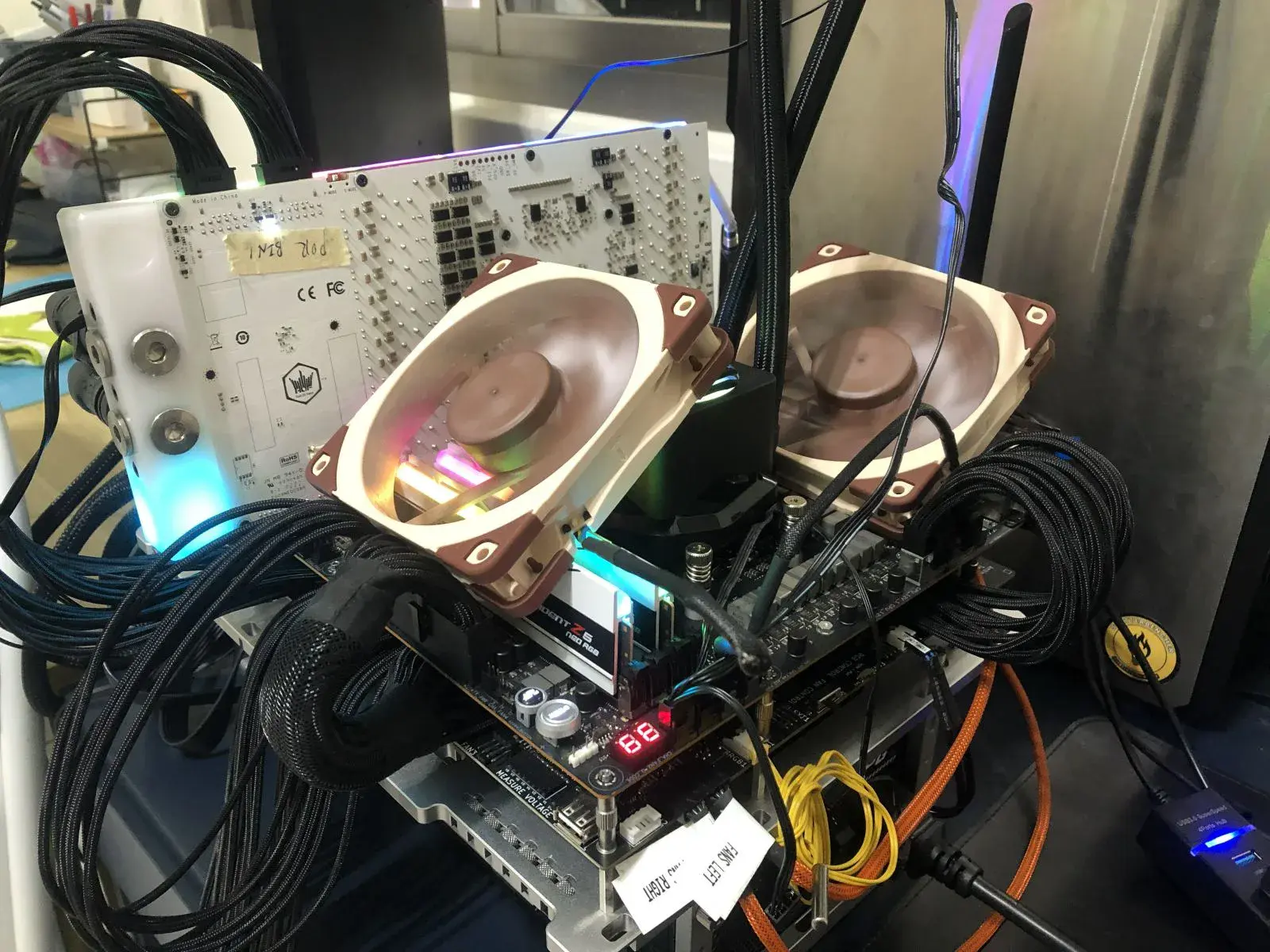
The system we’re overclocking today consists of the following hardware.
| Item | SKU |
|---|---|
| CPU | AMD Ryzen 7 9850X3D |
| Motherboard | ASUS ROG Crosshair X870E Hero |
| CPU Cooling | Enermax LIQMAXFLO 420 |
| Memory | G.SKILL Trident Z5 Neo DDR5-8000 32GB |
| Power Supply | XPG Fusion 1600W Titanium |
| Graphics Card | GALAX GeForce RTX 4090 HOF |
| Storage | AORUS RGB NVMe M.2 512GB Gen4 AGI 512GB NVMe M.2 Gen3 |
| Chassis | Open Benchtable V2 |
| Telemetry | BENCHLAB |
Benchmarks, Games & Tools
We use Windows 11 and the following benchmark applications and games to measure performance and ensure system stability.
| Benchmarks | Link |
|---|---|
| Pyprime 2.0 | https://github.com/mbntr/PYPrime-2.x |
| 7-Zip 19.0 | https://www.7-zip.org/ |
| IndigoBench Bedroom | https://www.indigorenderer.com/indigobench |
| Geekbench 6 | https://www.geekbench.com/ |
| Geekbench AI | https://www.geekbench.com/ai/ |
| Cinebench 2024.1 | https://www.maxon.net/en/cinebench/ |
| CPU-Z | https://www.cpuid.com/softwares/cpu-z.html |
| V-Ray 6 | https://www.chaosgroup.com/vray/benchmark |
| Corona 10 Benchmark | https://corona-renderer.com/benchmark |
| AI-Benchmark | https://ai-benchmark.com/ |
| Y-Cruncher 5B | http://www.numberworld.org/y-cruncher/ |
| PugetBench for Creators | https://www.pugetsystems.com/pugetbench/creators/ |
| 3DMark CPU Profile | https://www.3dmark.com/ |
| OCCT | https://www.ocbase.com/ |
| AIDA64 | https://www.aida64.com/ |
| Games | Link |
|---|---|
| Counter Strike 2 | https://store.steampowered.com/app/730/CounterStrike_2/ |
| Returnal | https://store.steampowered.com/app/1649240/Returnal/ |
| Shadow of the Tomb Raider | https://store.steampowered.com/app/750920/Shadow_of_the_Tomb_Raider_Definitive_Edition/ |
| Monster Hunter Wilds | https://www.monsterhunter.com/wilds/en-us/benchmark/ |
| Bright Memory: Infinite | http://benchmark.finalfantasyxv.com/na/ |
| Age of Mythology Retold | https://store.steampowered.com/app/1934680/Age_of_Mythology_Retold/ |
| Forza Motorsport | https://store.steampowered.com/app/2440510/Forza_Motorsport/ |
| Homeworld 3 | https://store.steampowered.com/app/1840080/Homeworld_3/ |
I use the following tools to check and log system telemetry, adjust clock frequencies, and launch benchmarks.
| Tools | Link |
|---|---|
| Benchmate | https://benchmate.org/ |
| CPU-Z | https://www.cpuid.com/softwares/cpu-z.html |
| HWiNFO | https://www.hwinfo.com/ |
| NopBench | https://skatterbencher.com/nopbench/ |
| Shamino OCPak | https://rog-forum.asus.com/t5/amd-600-series/x670-x870-resource-thread/m-p/901576/ |
| Ryzen LoopFmax | https://skatterbencher.com/ryzen-loopfmax/ |
AMD Ryzen 7 9850X3D: Stock Performance
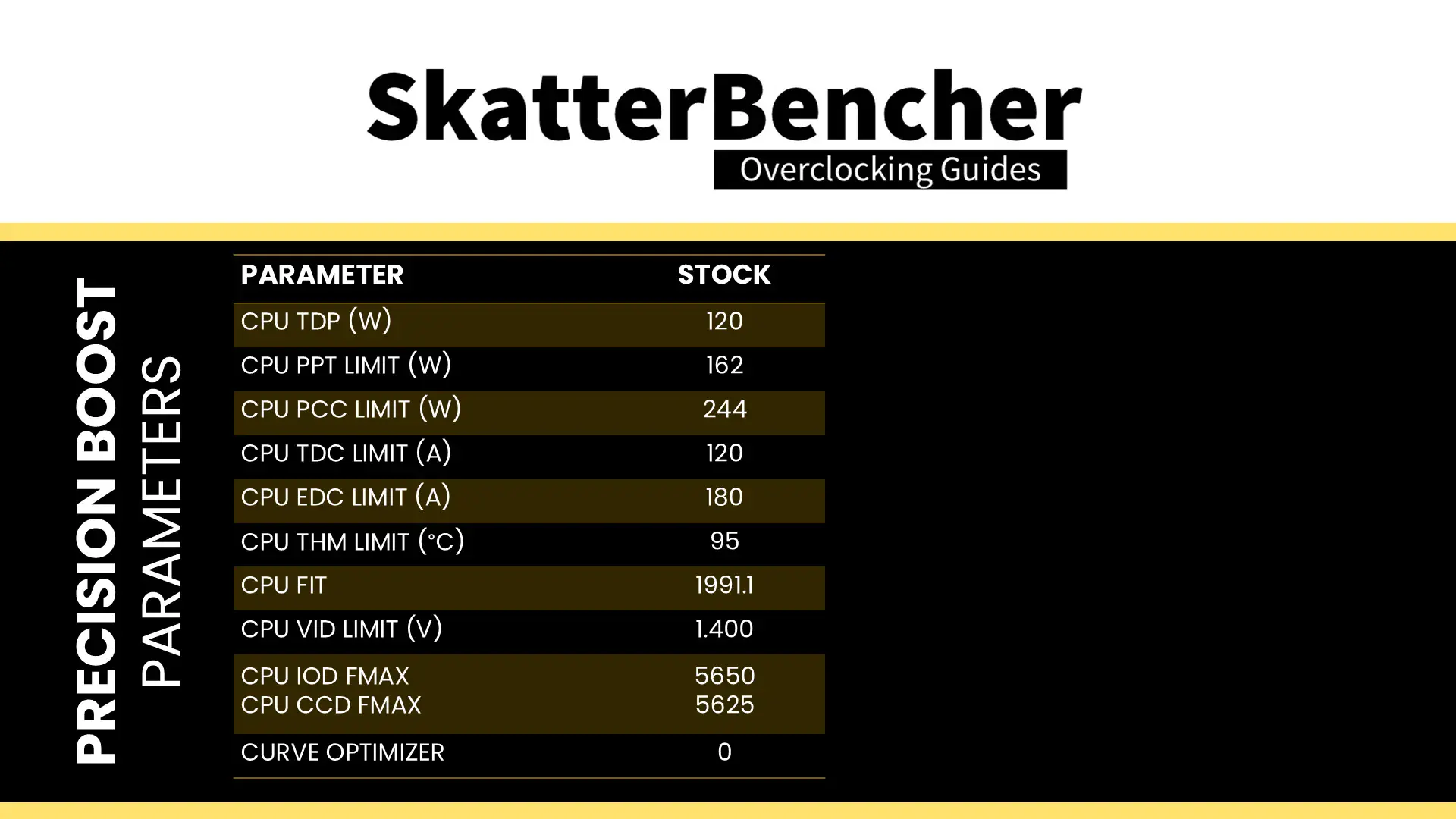
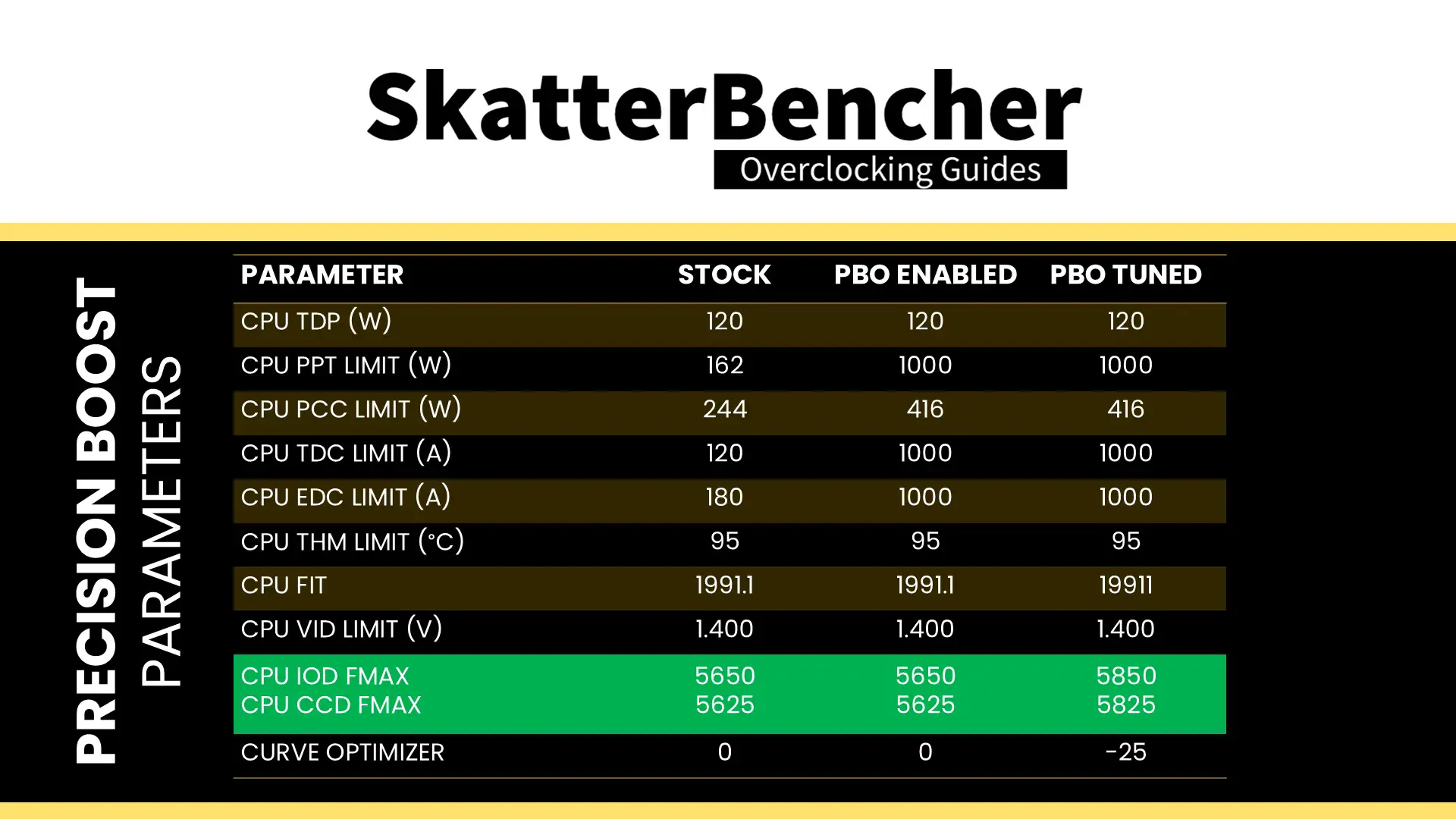
Before starting overclocking, we must check the system performance at default settings. The default Precision Boost 2 parameters for the Ryzen 7 9850X3D are as follows:
- PPT: 162 W
- TDP: 120 W
- PCC: 416 W
- TDC CPU: 120 A
- EDC CPU: 180 A
- THM: 95 C
- VID: 1.40 V
- CPU FMAX: 5650 MHz
- CCD0 FMAX: 5625 MHz
- FIT: 1991.1
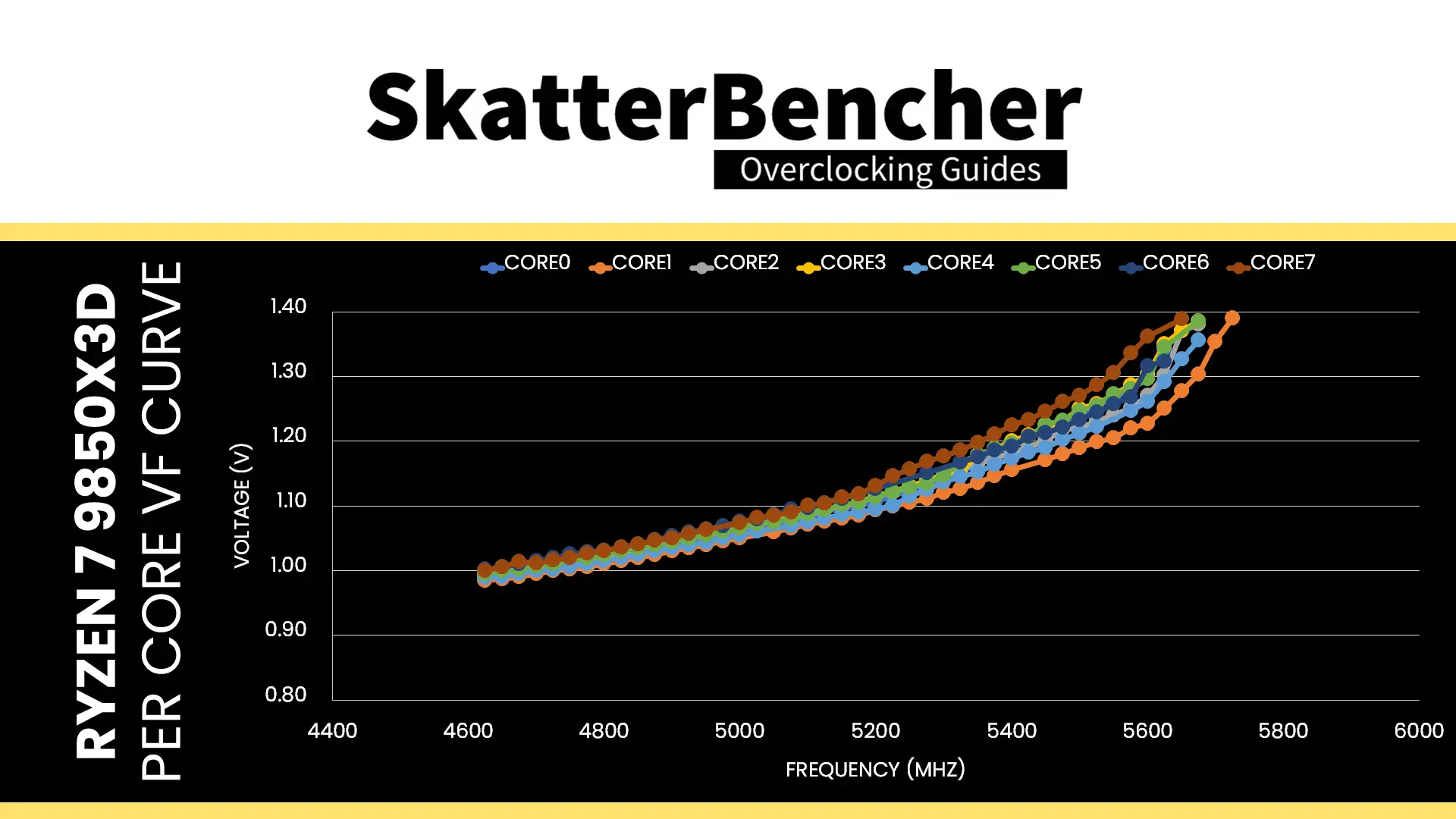
The Ryzen 7 9850X3D has one CCD with eight Zen 5 CPU cores, each with their own factory-fused V/F Curve. We’ll talk about this more in depth later in the guide.
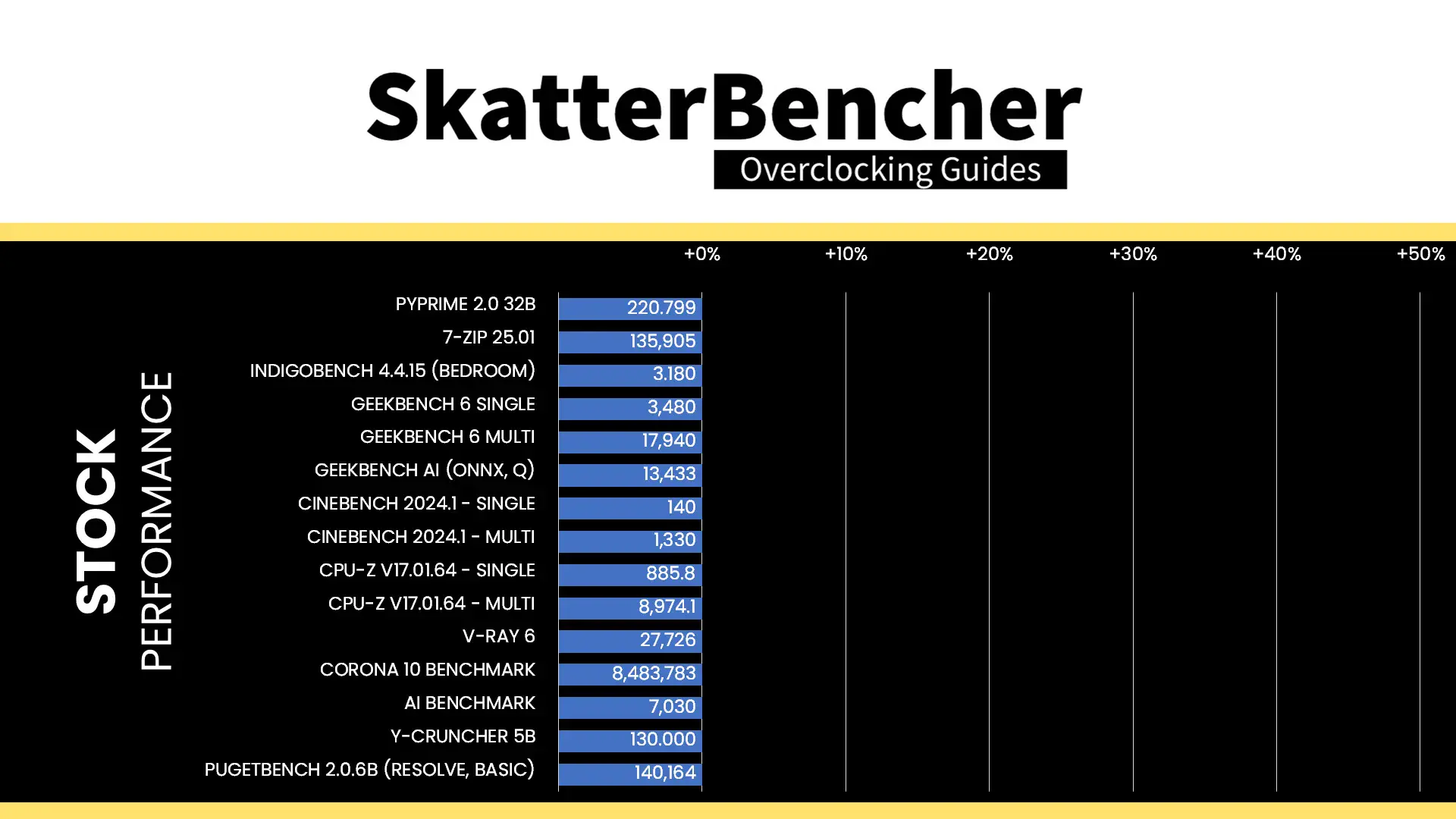
Here is the benchmark performance at stock:
- PyPrime 2.0 32B: 220.799 sec
- 7-Zip 19.0: 135,905 mips
- Indigobench (Bedroom): 3.180 Msamples
- Geekbench 6 (Single): 3,480 points
- Geekbench 6 (Multi): 17,940 points
- Geekbench AI (ONNX, Q): 13,433 points
- Cinebench 2024.1 (Single): 140 points
- Cinebench 2024.1 (Multi): 1,330 points
- CPU-Z V17.01.64 (Single): 885.8 points
- CPU-Z V17.01.64 (Multi): 8,974.1 points
- V-Ray 6: 27,726 vsamples
- Corona 10 Benchmark: 8,483,783 rays/s
- AI Benchmark: 7,030 points
- Y-Cruncher 5B: 130.000 sec
- PugetBench for Creators (Resolve, Basic): 140,164 points
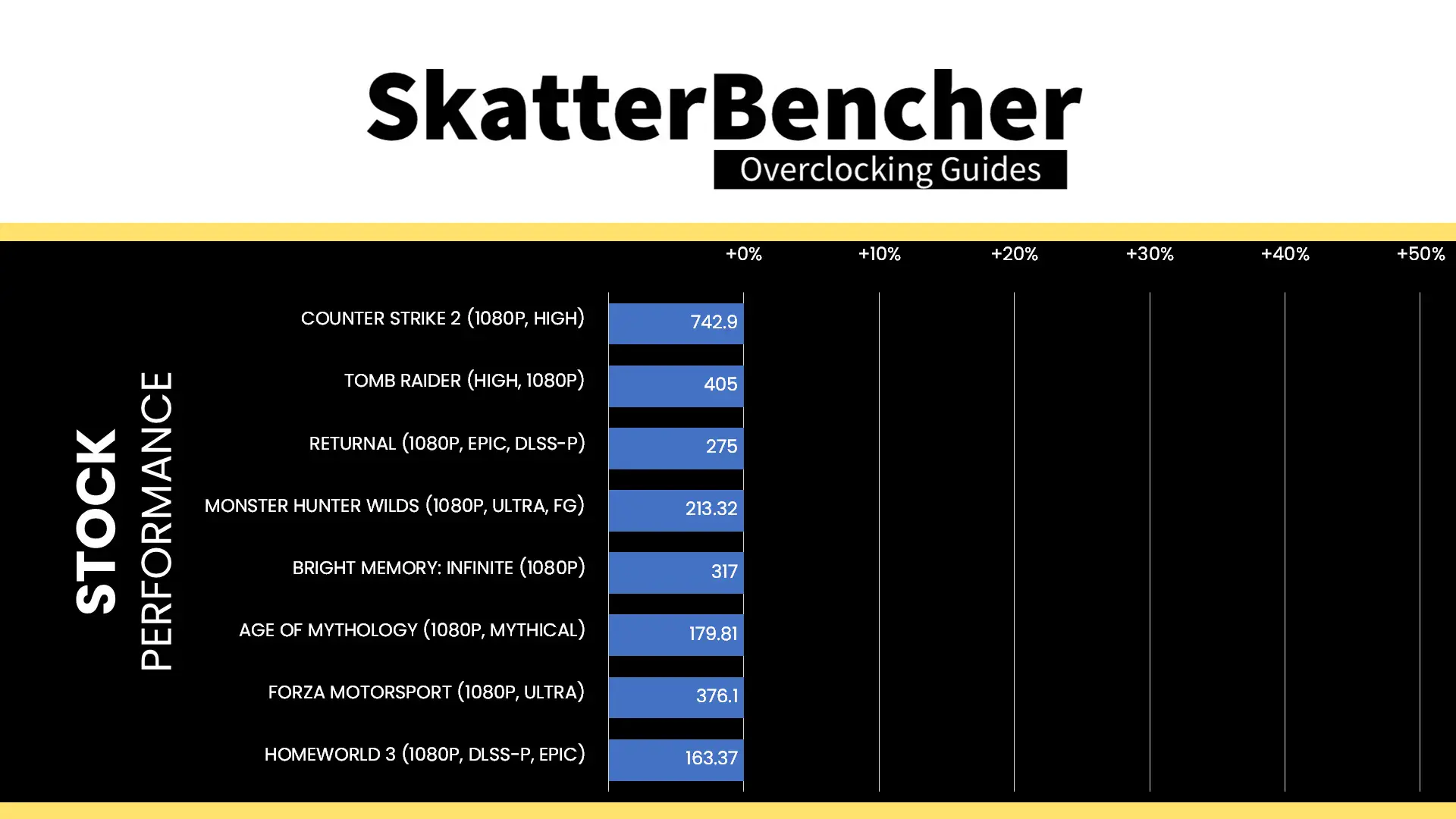
Here is the game performance at stock:
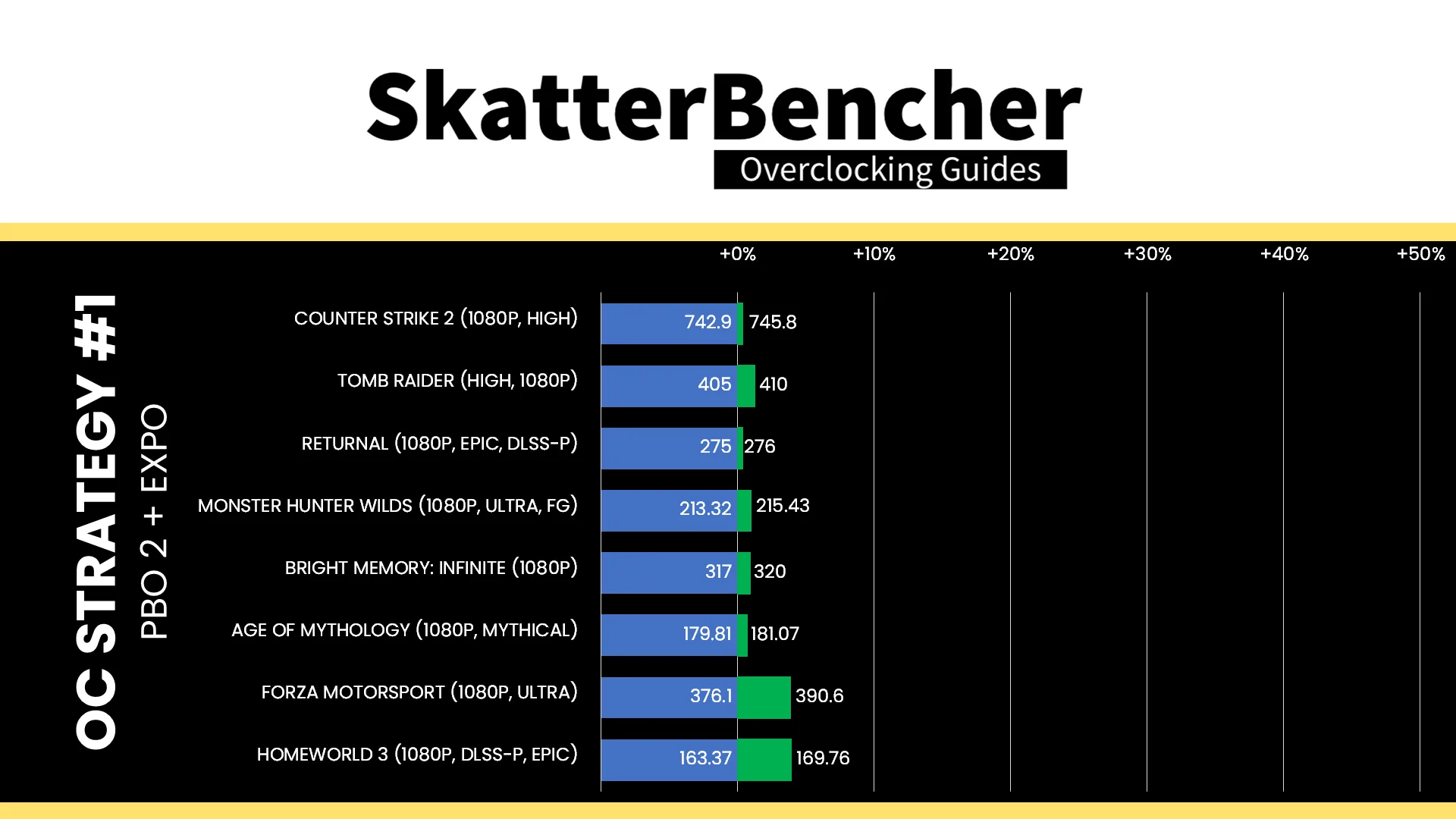
- Counter Strike 2 (1080P, HIGH): 742.9 fps
- Tomb Raider (HIGH, 1080P): 405 fps
- Returnal (1080P, EPIC): 275 fps
- Monster Hunter Wilds: (1080P, ULTRA, FG): 213.32 fps
- Bright Memory (1080P): 317 fps
- Age of Mythology: 179.81 fps
- Forza Motorsport (1080P, ULTRA): 376.1 fps
- Homeworld 3: 163.37 fps
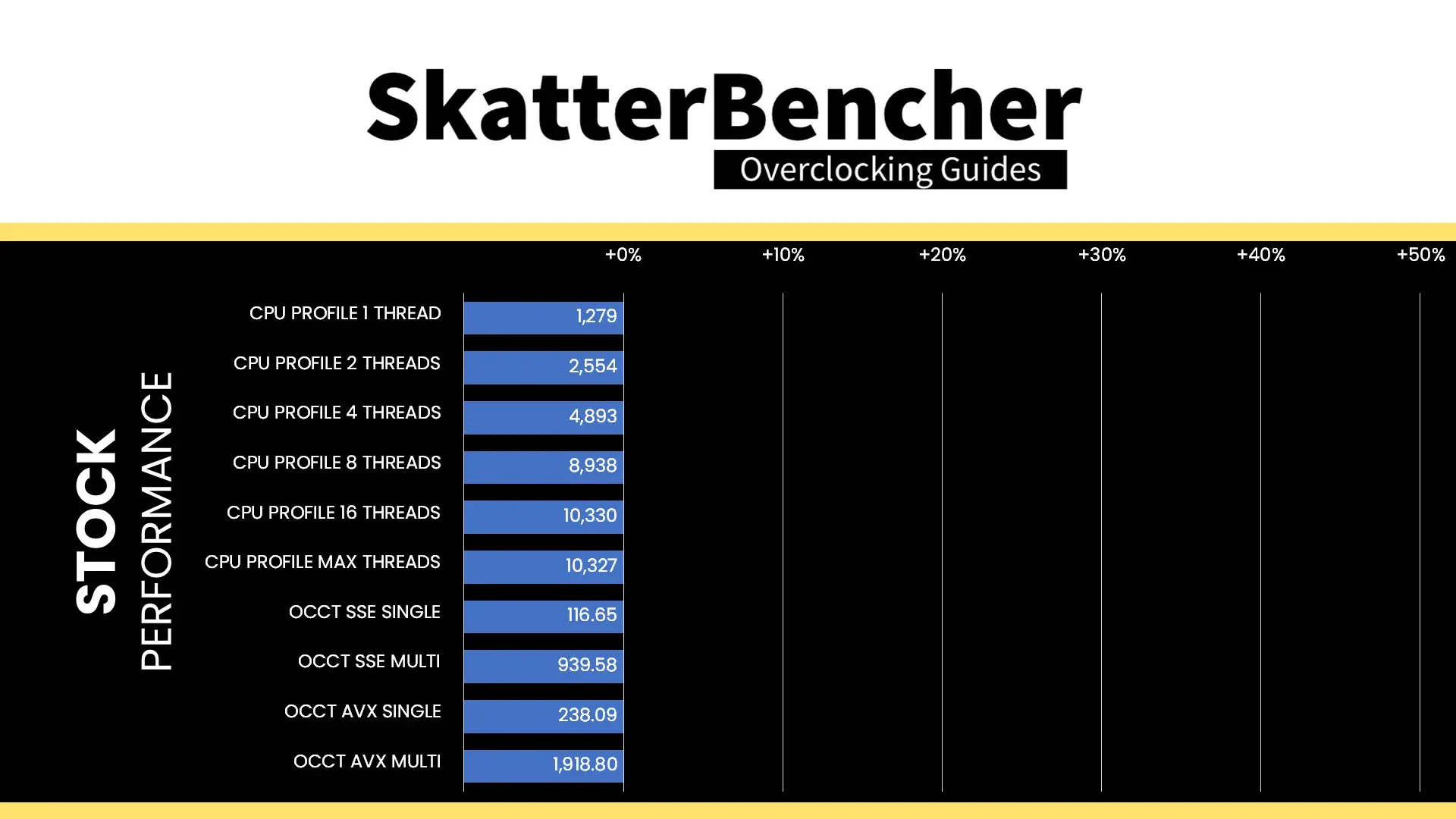
Here are the 3DMark CPU Profile and OCCT Benchmark scores at stock:
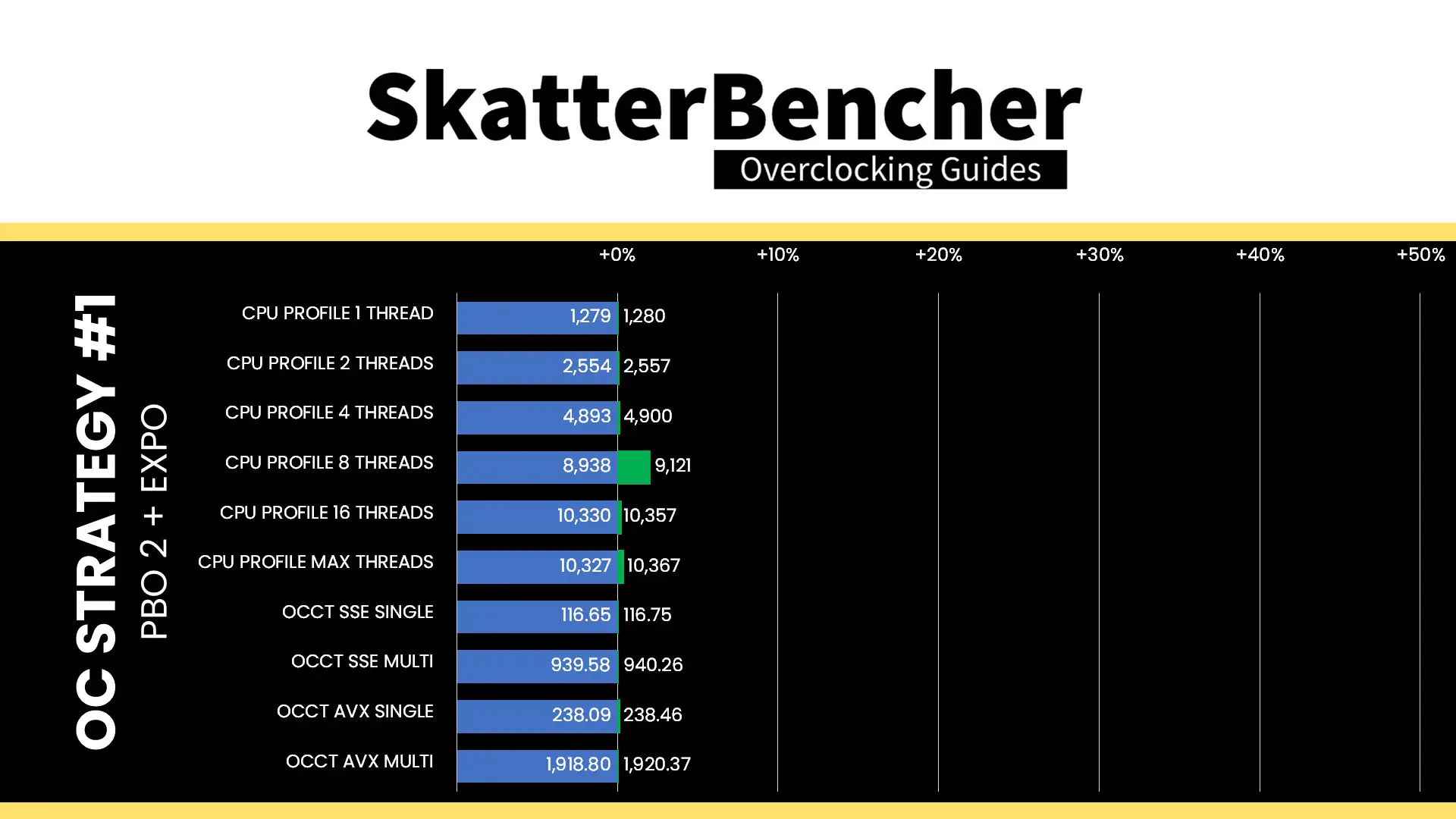
- 1 Thread: 1,279 points
- 2 Threads: 2,554 points
- 4 Threads: 4,893 points
- 8 Threads: 8,938 points
- 16 Threads: 10,330 points
- Max Threads: 10,327 points
- SSE Single: 116.65 points
- SSE Multi: 939.58 points
- AVX Single: 238.09 points
- AVX Multi: 1,918.80 points
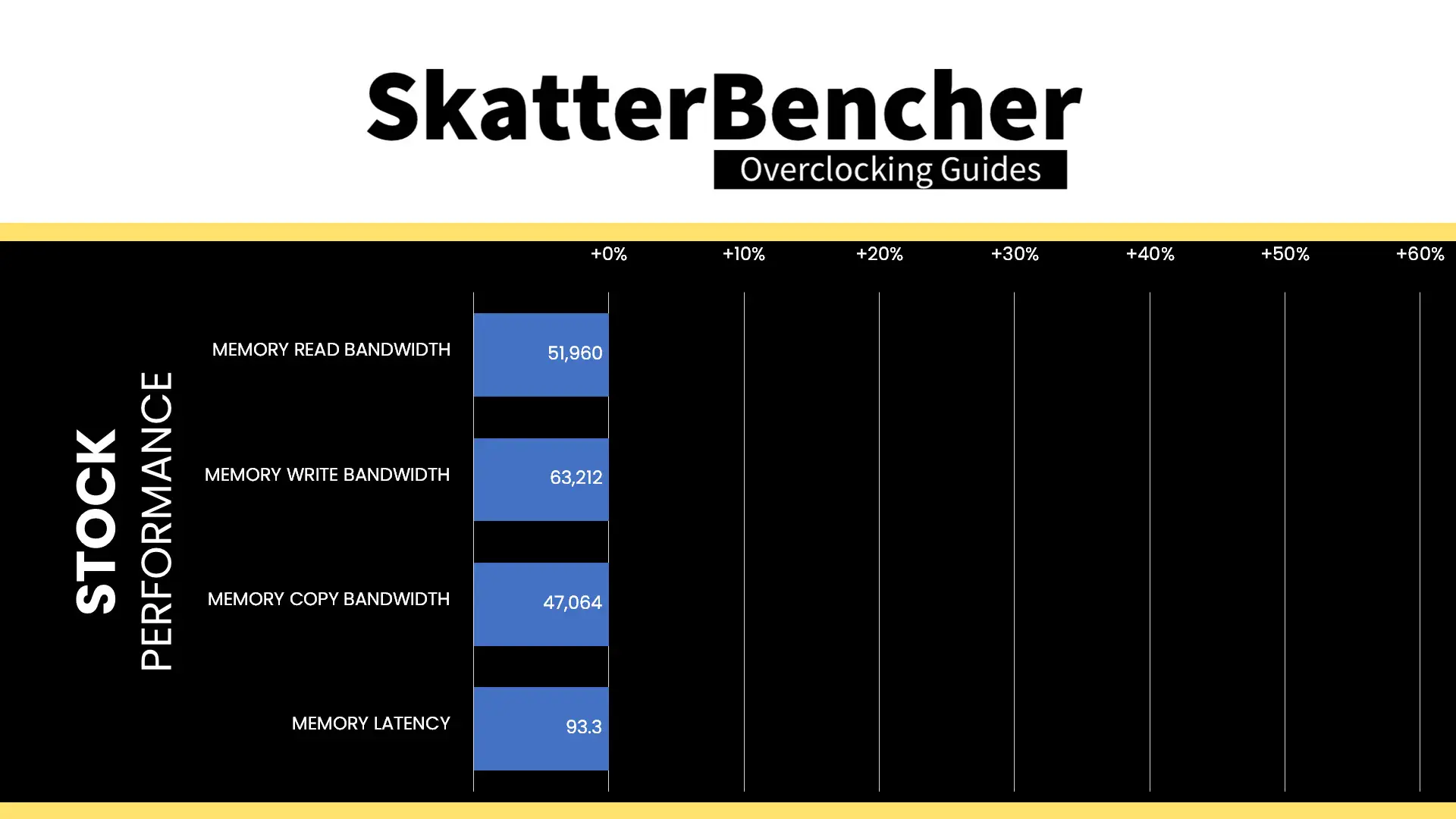
Here are the AIDA64 memory benchmark scores at stock:
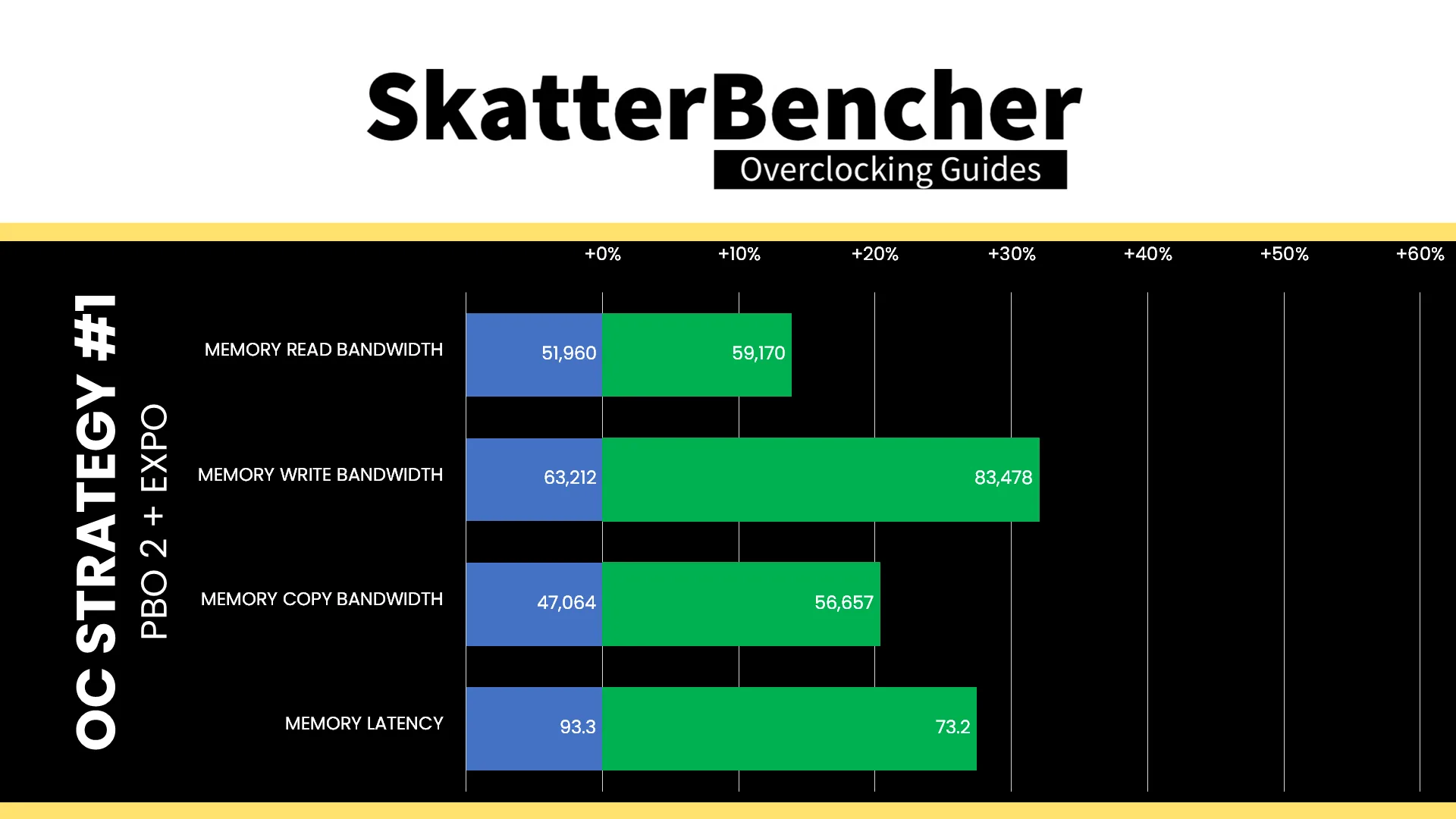
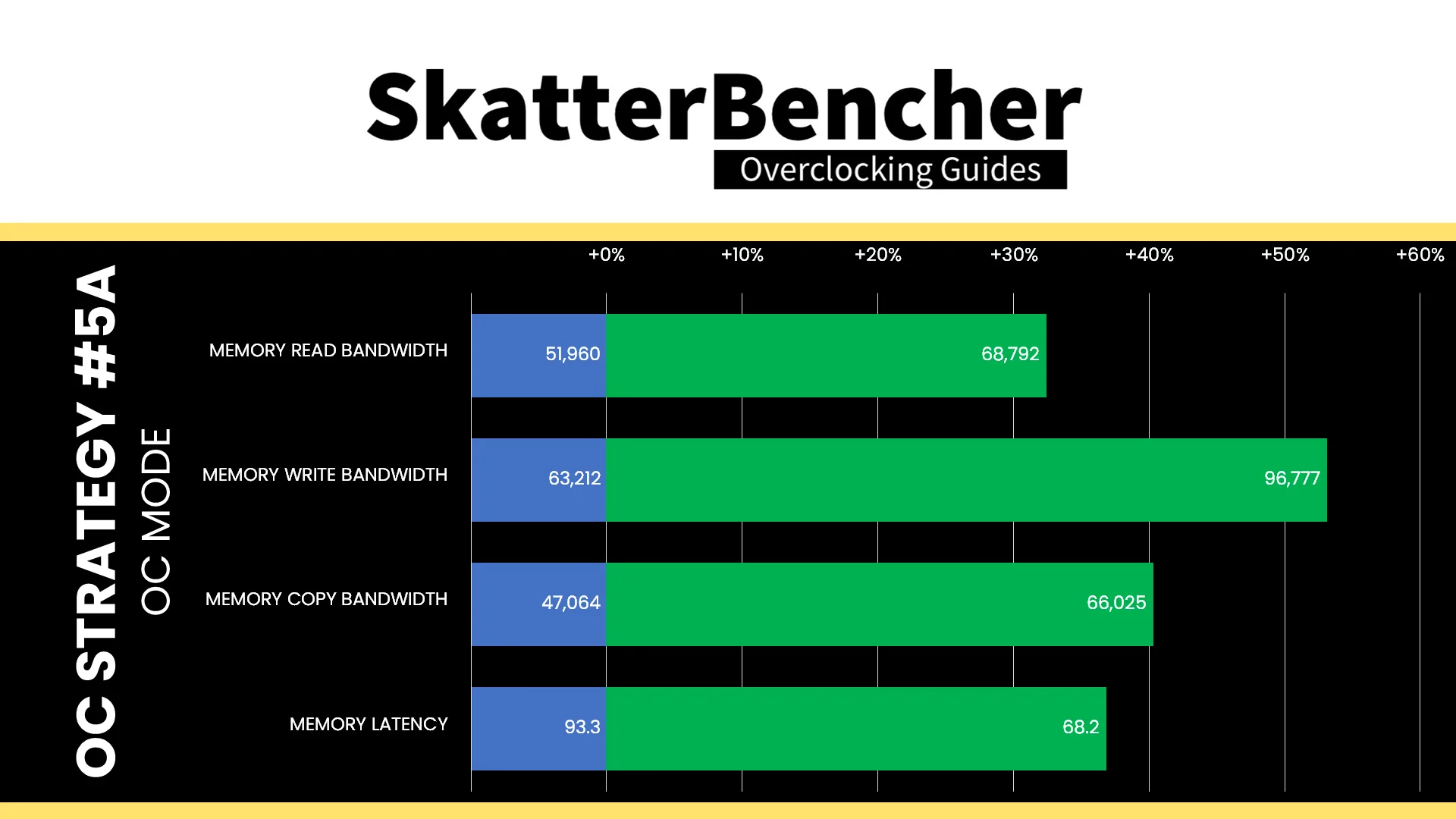
- Memory Read Bandwidth: 51,960 MB/s
- Memory Write Bandwidth: 63,212 MB/s
- Memory Copy Bandwidth: 47,062 MB/s
- Memory Latency: 93.3 ns
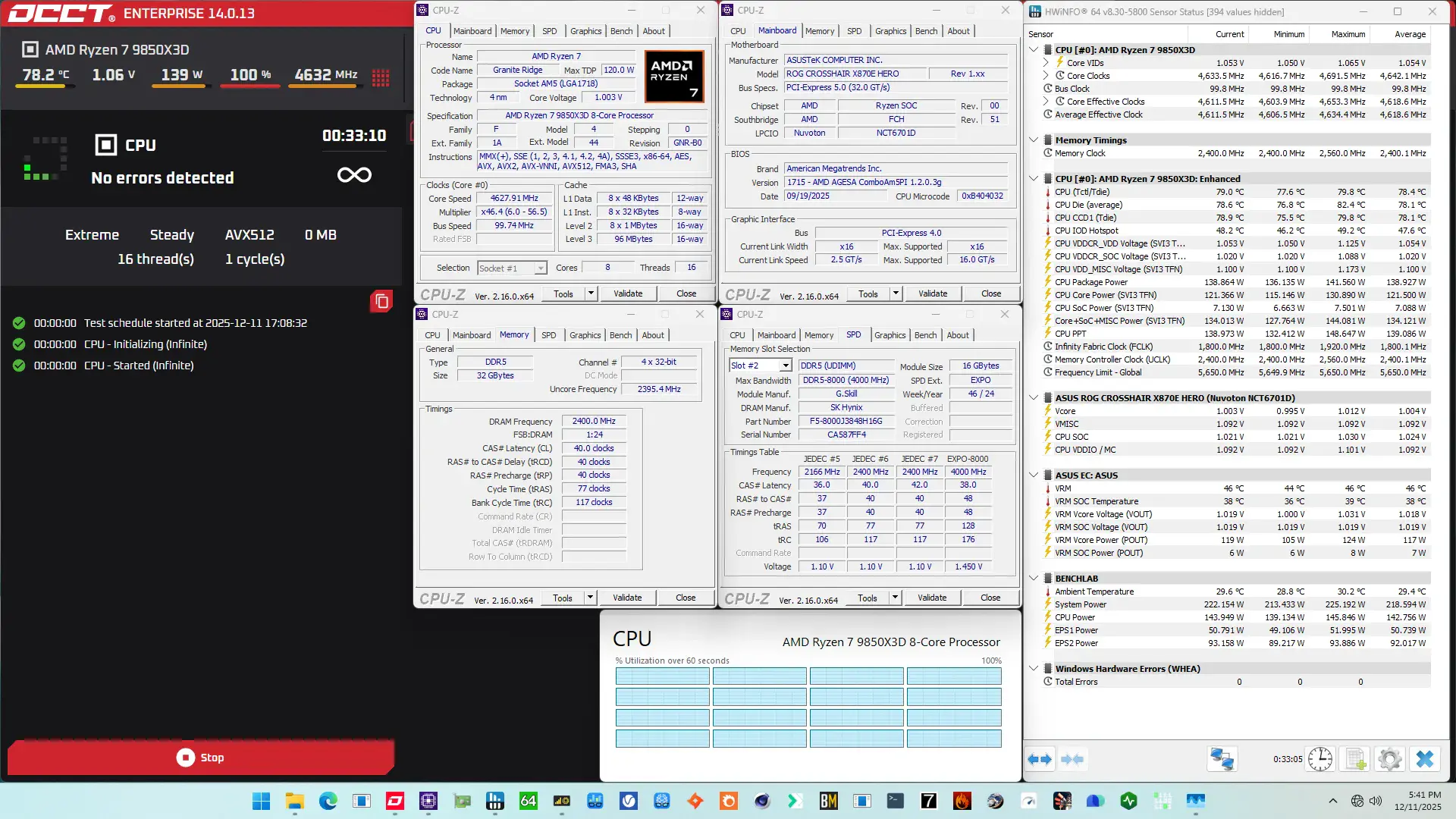
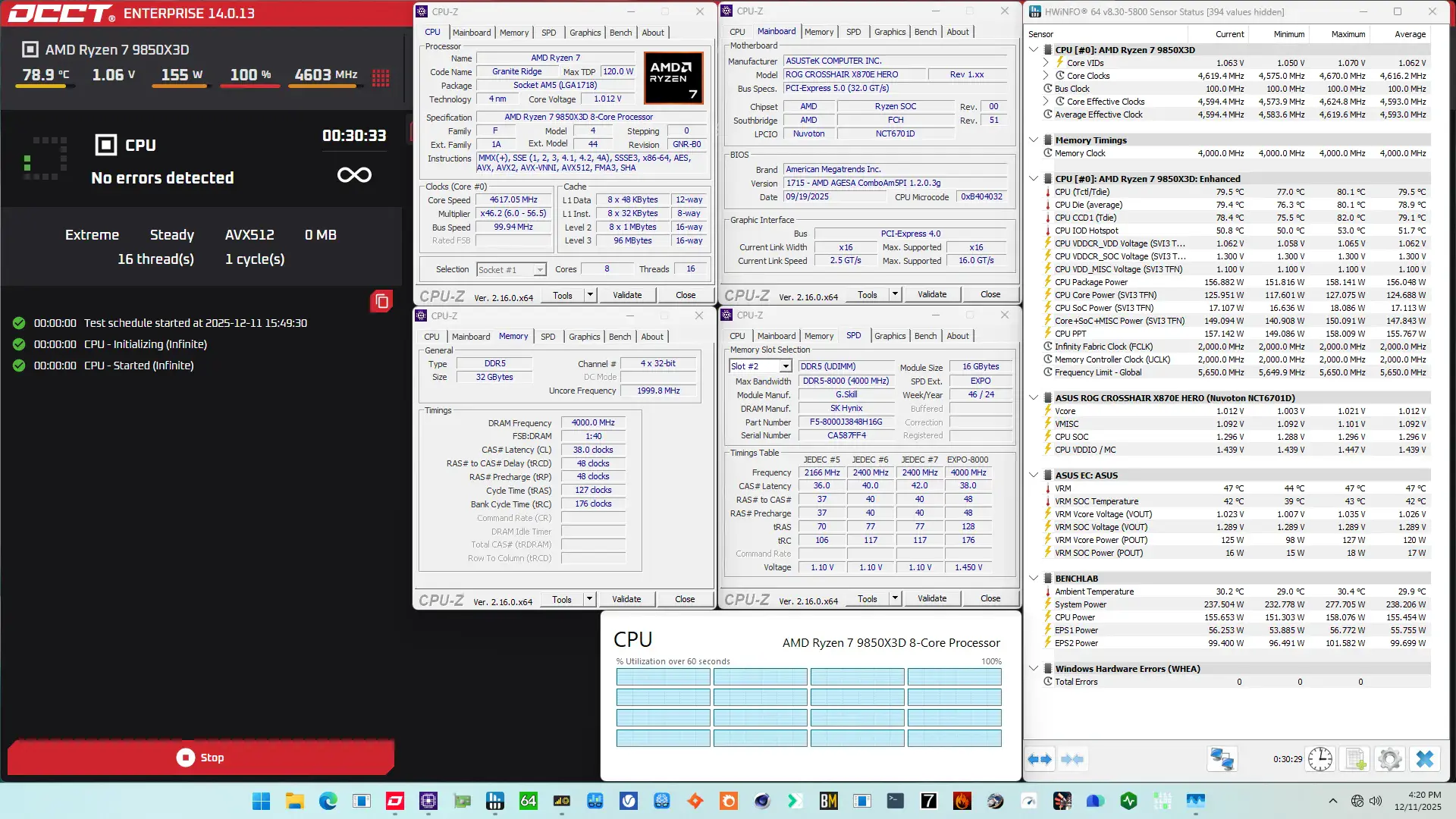
When running the OCCT CPU AVX-512 Stability Test, the average CPU effective clock is 4618 MHz with 1.054 volts. The average CPU temperature is 78.1 degrees Celsius. The average CPU package power is 121.5 watts.
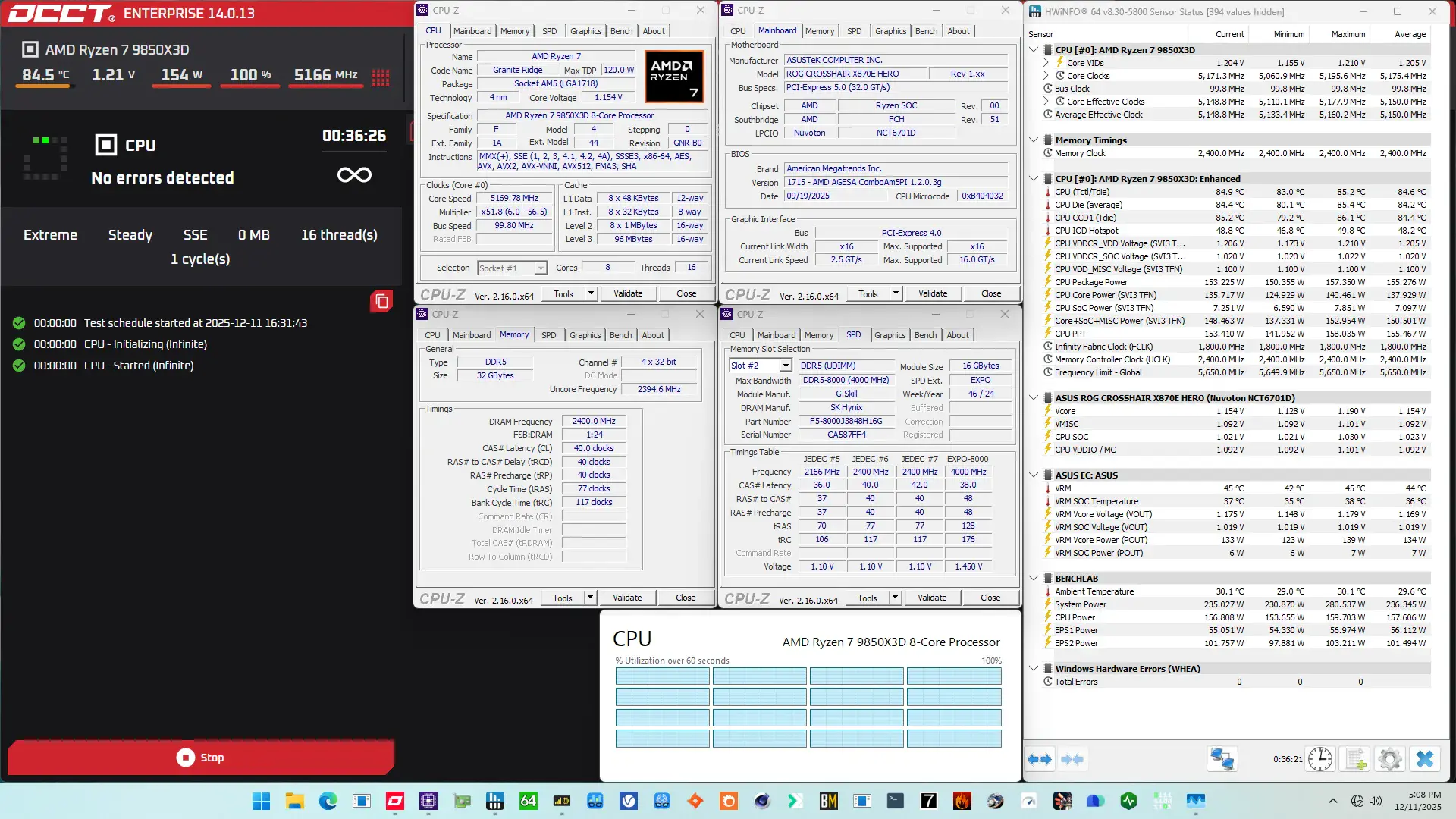
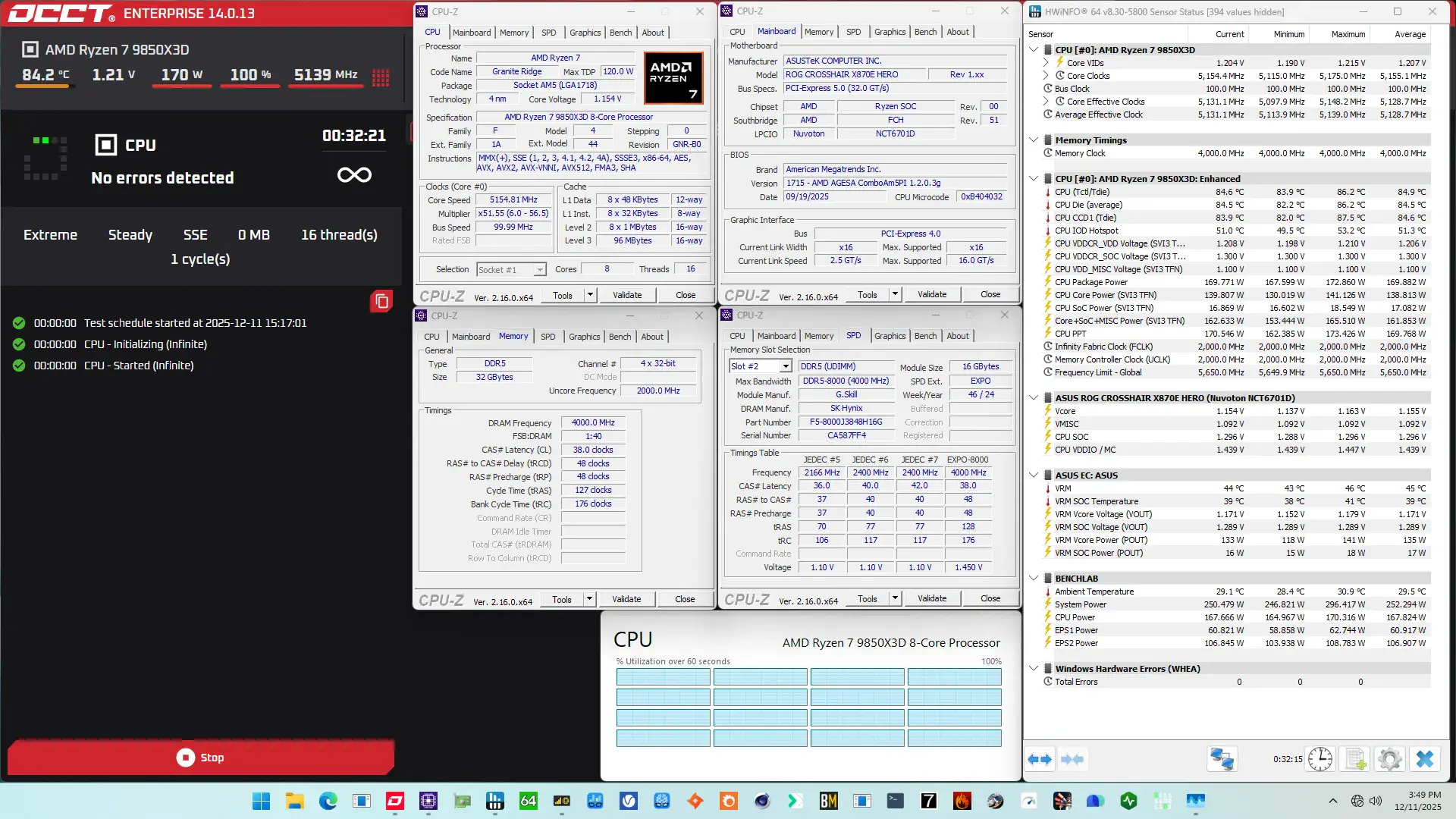
When running the OCCT CPU SSE Stability Test, the average CPU effective clock is 5150 MHz with 1.205 volts. The average CPU temperature is 84.4 degrees Celsius. The average CPU package power is 155.3 watts.
Of course, we can increase the maximum power consumption limit using Precision Boost Overdrive. That’s what we’ll do in our first overclocking strategy.
However, before we get going, make sure to locate the CMOS Clear button.
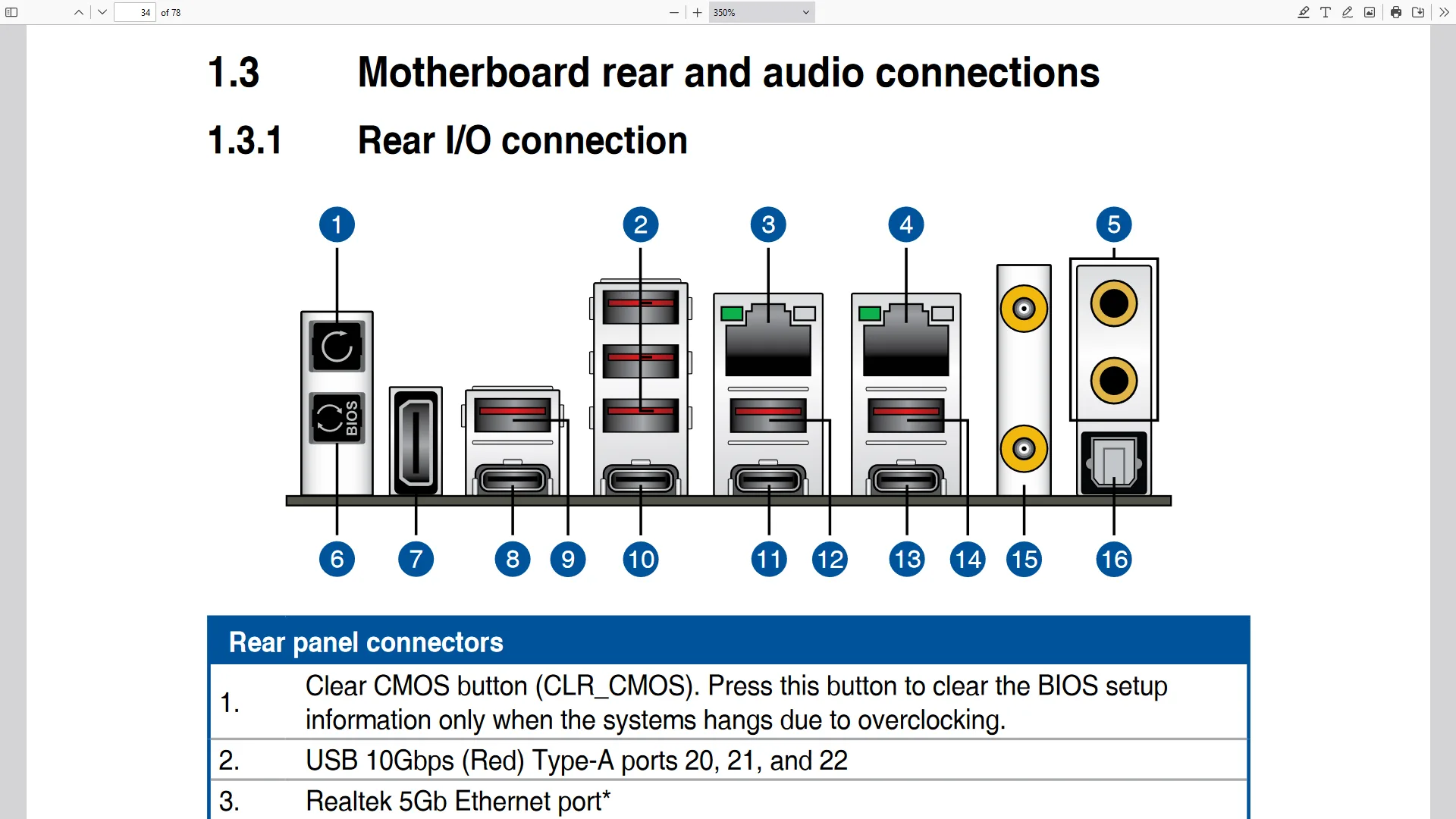
Pressing the Clear CMOS button will reset all your BIOS settings to default, which is helpful if you want to start your BIOS configuration from scratch. The Clear CMOS button is located on the back I/O of the motherboard.
OC Strategy #1: PBO + EXPO
In our first overclocking strategy, we simply take advantage of enabling AMD Precision Boost Overdrive 2 and AMD EXPO.
Precision Boost Overdrive 2
With the launch of Zen 5, AMD introduced a further improved version of the Precision Boost Overdrive overclocker’s toolkit, allowing for manual tuning of the parameters affecting the Precision Boost 2 frequency boost algorithm.
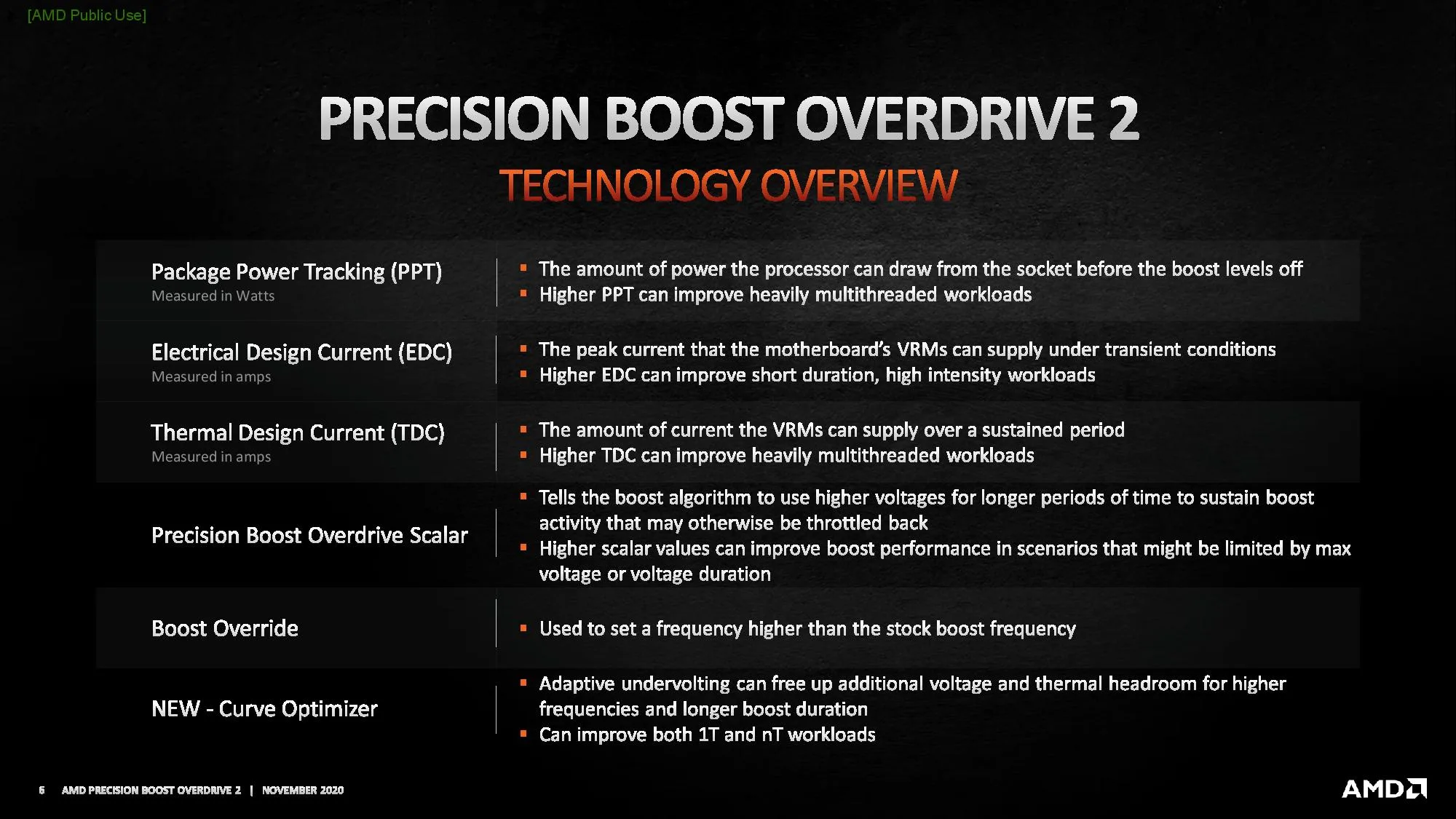
The Precision Boost Overdrive 2 toolkit for Zen 5 Ryzen processors includes the overclocking knobs from Zen+ (PPT, TDC, EDC), Zen 2 (Boost Override and Scalar), Zen 3 (Curve Optimizer), and the newly announced Curve Shaper for Zen 5.
There are essentially 3 levels of Precision Boost Overdrive
- AMD’s stock values, which can be set by disabling PBO
- The motherboard vendor values, which are programmed into BIOS to match the motherboard VRM specification and can be set by enabling PBO
- Custom values, which can be programmed by the end-user
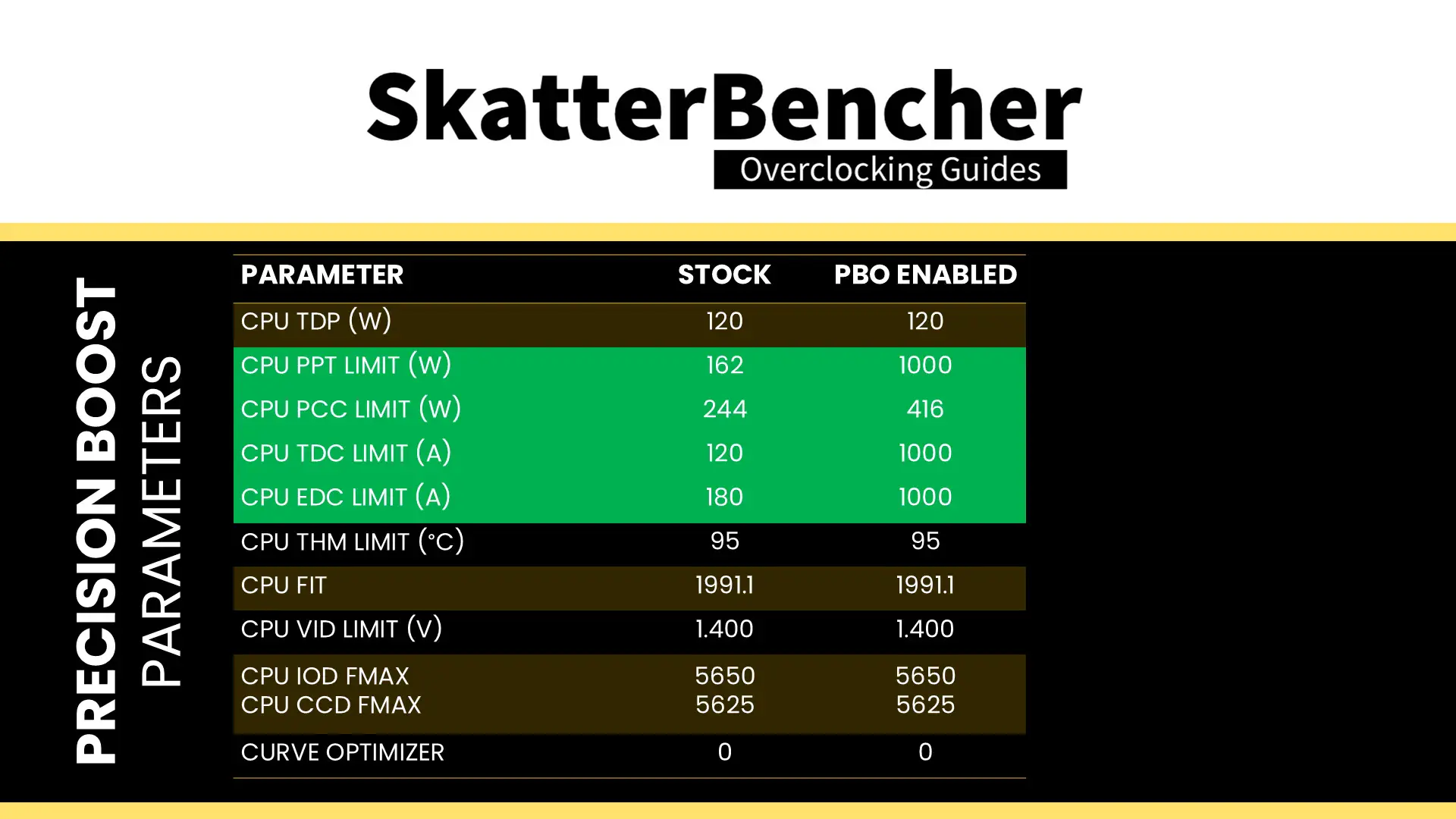
In this overclocking strategy, we’re just enabling Precision Boost Overdrive, whereas, in the following strategies, we’ll explore tuning the parameters. By enabling Precision Boost Overdrive, we rely on the motherboard pre-programmed PBO parameters. We find that the following values have changed:
EXPO – Extended Profiles for Overclocking
EXPO stands for AMD Extended Profiles for Overclocking. It is an AMD technology that enables ubiquitous memory overclocking for AMD platforms supporting DDR5 memory.
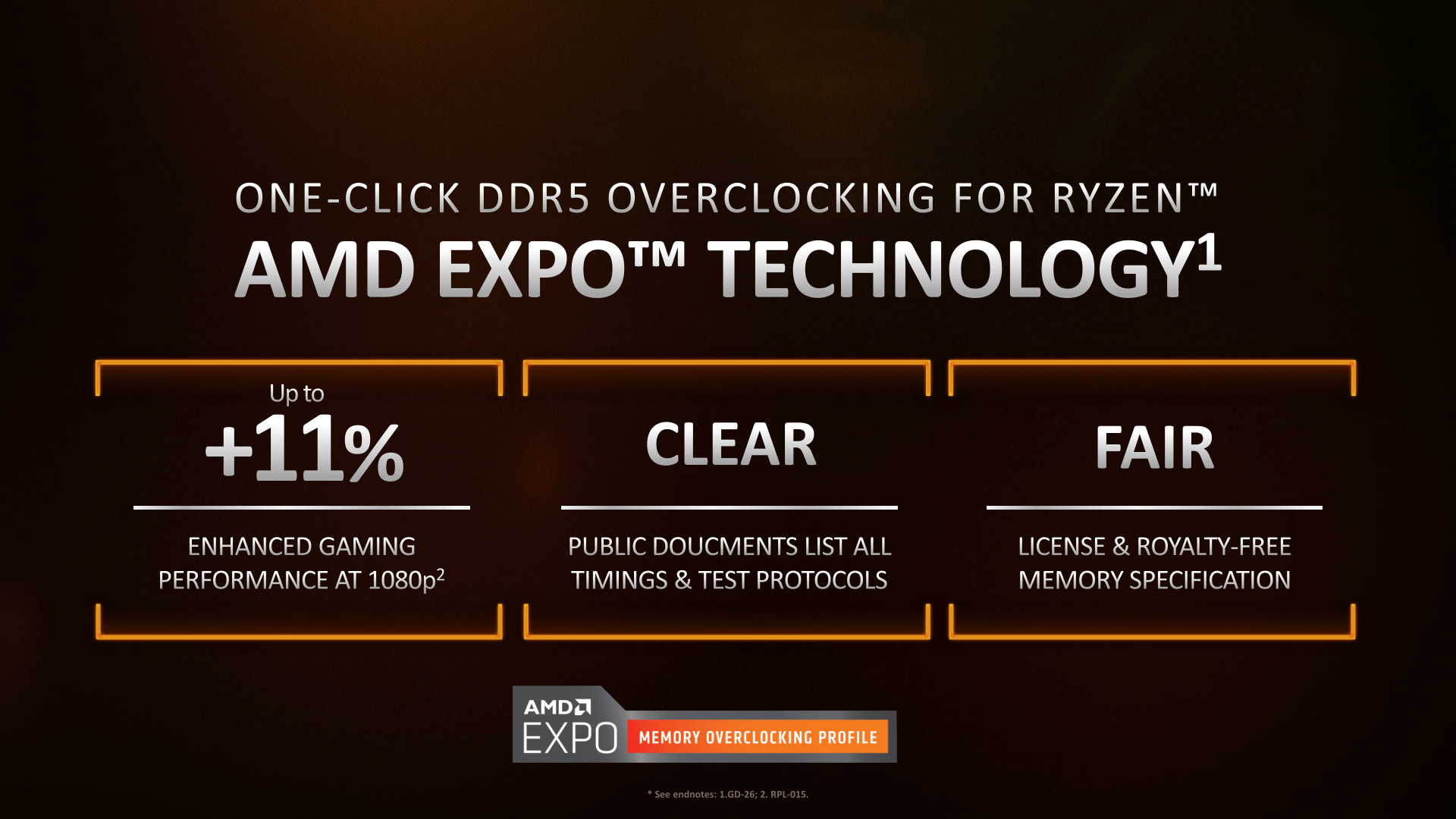
EXPO allows memory vendors such as G.SKILL to program higher performance settings onto the memory sticks. If the motherboard supports EXPO, you can enable higher performance with a single BIOS setting. So, it saves you lots of manual configuration.
ASUS provides us with three EXPO options: EXPO I, EXPO II, and EXPO Tweaked. EXPO II loads the entire EXPO profile on the memory sticks, so that’s what I pick for this strategy. Check out SkatterBencher #95 to get a more detailed look at what EXPO I and EXPO Tweaked do in terms of settings and performance.
BIOS Settings & Benchmark Results
Upon entering the BIOS
- Go to the Extreme Tweaker menu
- Set Ai Overclock Tuner to EXPO II
- Enter the Precision Boost Overdrive submenu
- Set Precision Boost Overdrive to enabled
Then save and exit the BIOS.
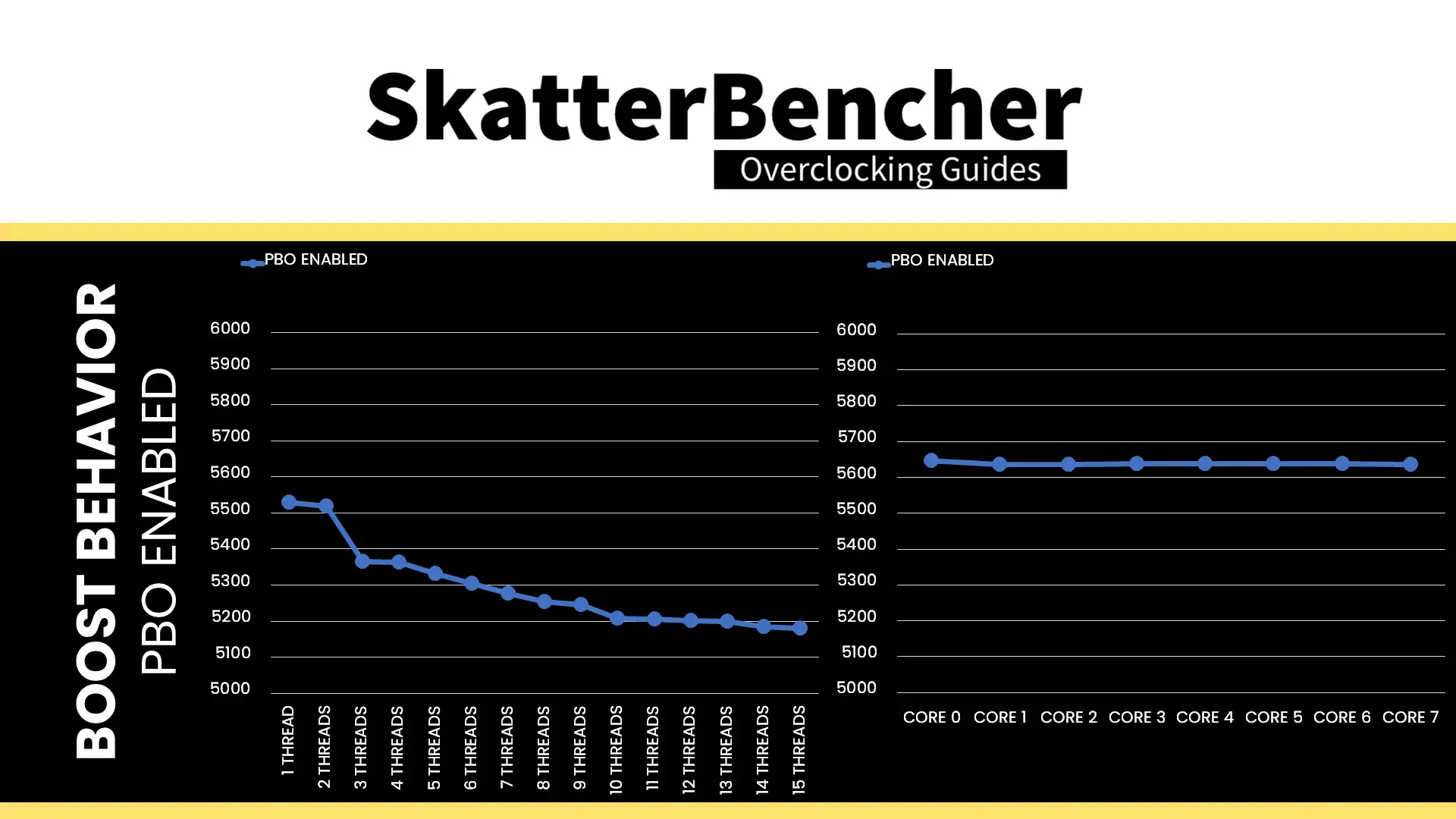
The boost frequency at 1 active thread is about 5529 MHz and the average boost frequency gradually trails off to 5180 MHz when all cores are active. In light single-threaded workloads, all cores can boost to over 5.6 GHz.
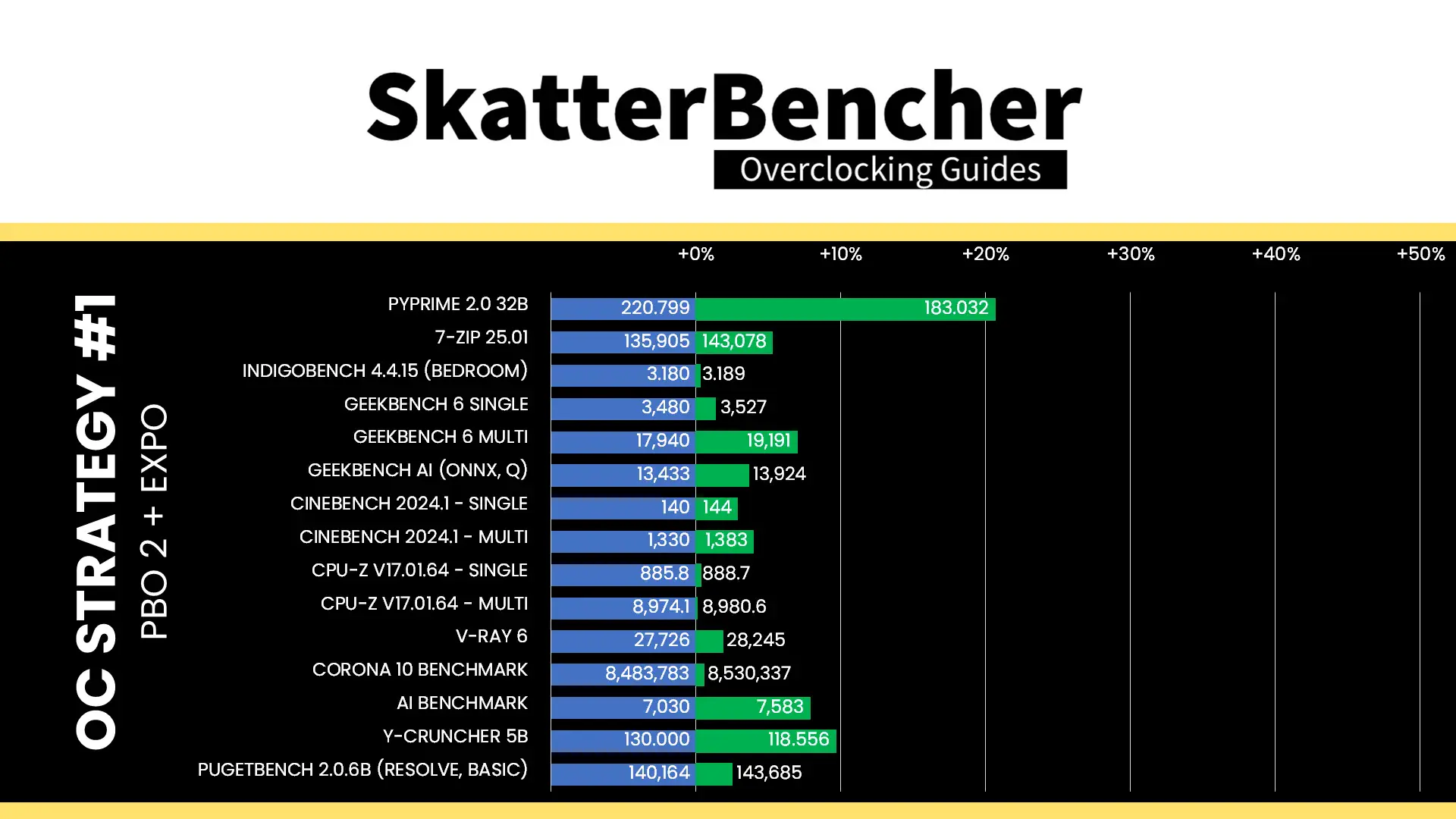
We re-ran the benchmarks and checked the performance increase compared to the default operation.
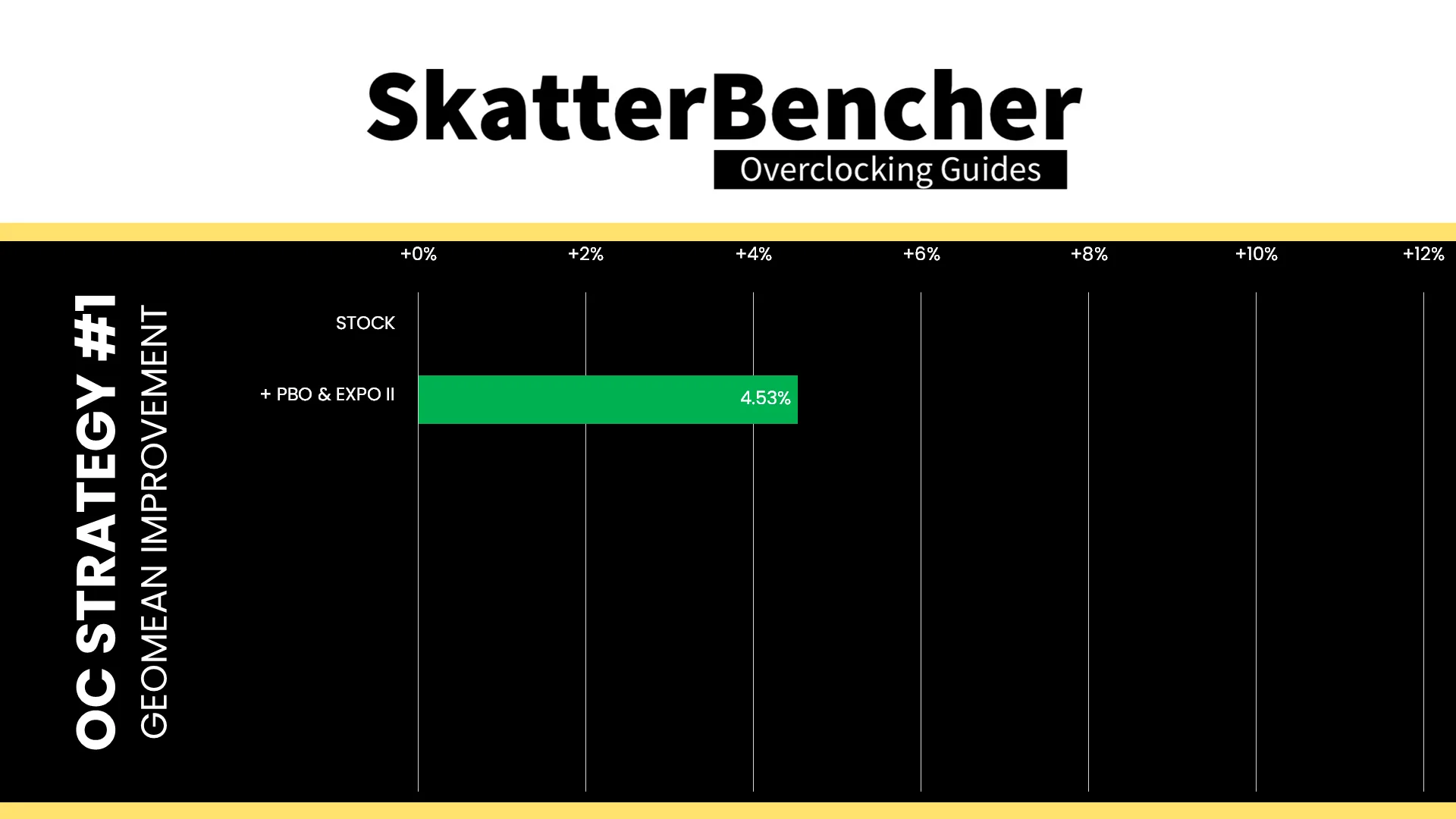
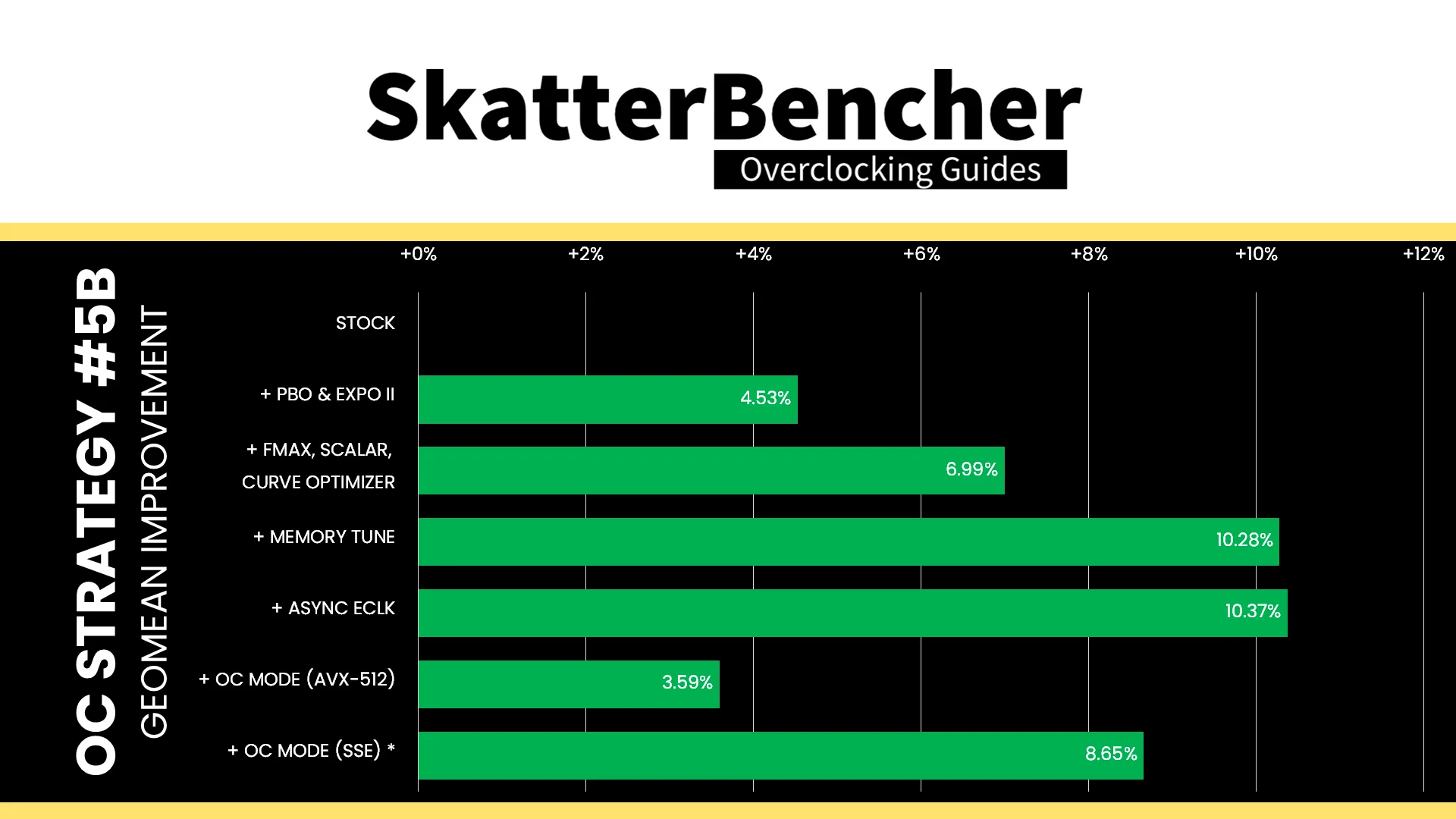
While the Ryzen 7 9850X3D has an 120W TDP, its actual power limit is 162W according to the Precision Boost 2 PPT parameter. Given we’re not seeing it hit this limit in the stock OCCT Stress Tests, unlocking the power limits is unlikely to give much of a performance boost. However, the improved memory subsystem will help a bit. The Geomean performance speedup is +4.53%, and we get a maximum benchmark speedup of +20.63% in PyPrime.
When running the OCCT CPU AVX-512 Stability Test, the average CPU effective clock is 4593 MHz with 1.062 volts. The average CPU temperature is 79.1 degrees Celsius. The average CPU package power is 156.0 watts.
When running the OCCT CPU SSE Stability Test, the average CPU effective clock is 5128 MHz with 1.207 volts. The average CPU temperature is 84.6 degrees Celsius. The average CPU package power is 169.9 watts.
OC Strategy #2: PBO Tuned
In our second overclocking strategy, we tune the CPU’s Precision Boost dynamic frequency technology using the Precision Boost Overdrive 2 toolkit.
PBO 2: Fmax Boost Override
Fused maximum frequency, or Fmax, is one of the Precision Boost infrastructure limiters constraining the CPU performance. Each chip in your CPU has a factory-fused Fmax, including the CCD and the IOD.
The IOD typically governs the overall CPU Fmax. For the Ryzen 7 9850X3D, the IOD Fmax is 5650 MHz whereas the CCD is limited to 5625 MHz.
Boost Clock Override or Fmax Override is one of the tools available in the PBO 2 overclocker’s toolkit. It allows us to override the arbitrary clock frequency limit between -1000 MHz and +200 MHz. That’s been available in steps of 25 MHz since forever, but it seems that with Ryzen 9000 we can now set the Fmax in steps of as little as 1 MHz! The BIOS option still jumps in steps of 25 MHz, but with specialized tools we can set it to any frequency in the operating system.
The programmed CPU Fmax limit of the Ryzen 7 9850X3D is 5650 MHz. So, with a +200 Fmax Boost Override, the new maximum boost frequency is 5850 MHz.
It’s important to note that the Fmax override only adjusts the upper ceiling of the frequency and doesn’t act as a frequency offset.
PBO 2: Scalar
Scalar is a tool that allows the user to override the warranted silicon stress level, or FIT, to achieve higher frequency. You can adjust the maximum allowed FIT level to 10 times higher than the factory-fused limit. While the tool offers precise granularity, typically, you’ll find the available options to range between 1X and 10X in steps of 1 multiple.
The effect of increasing Scalar is that the Precision Boost algorithm more aggressively pursues higher voltages as it is less concerned with CPU lifespan. The tool’s relevance shifts from architecture to architecture as the FIT is only one of the Precision Boost infrastructure limiters managing the maximum allowed voltage.
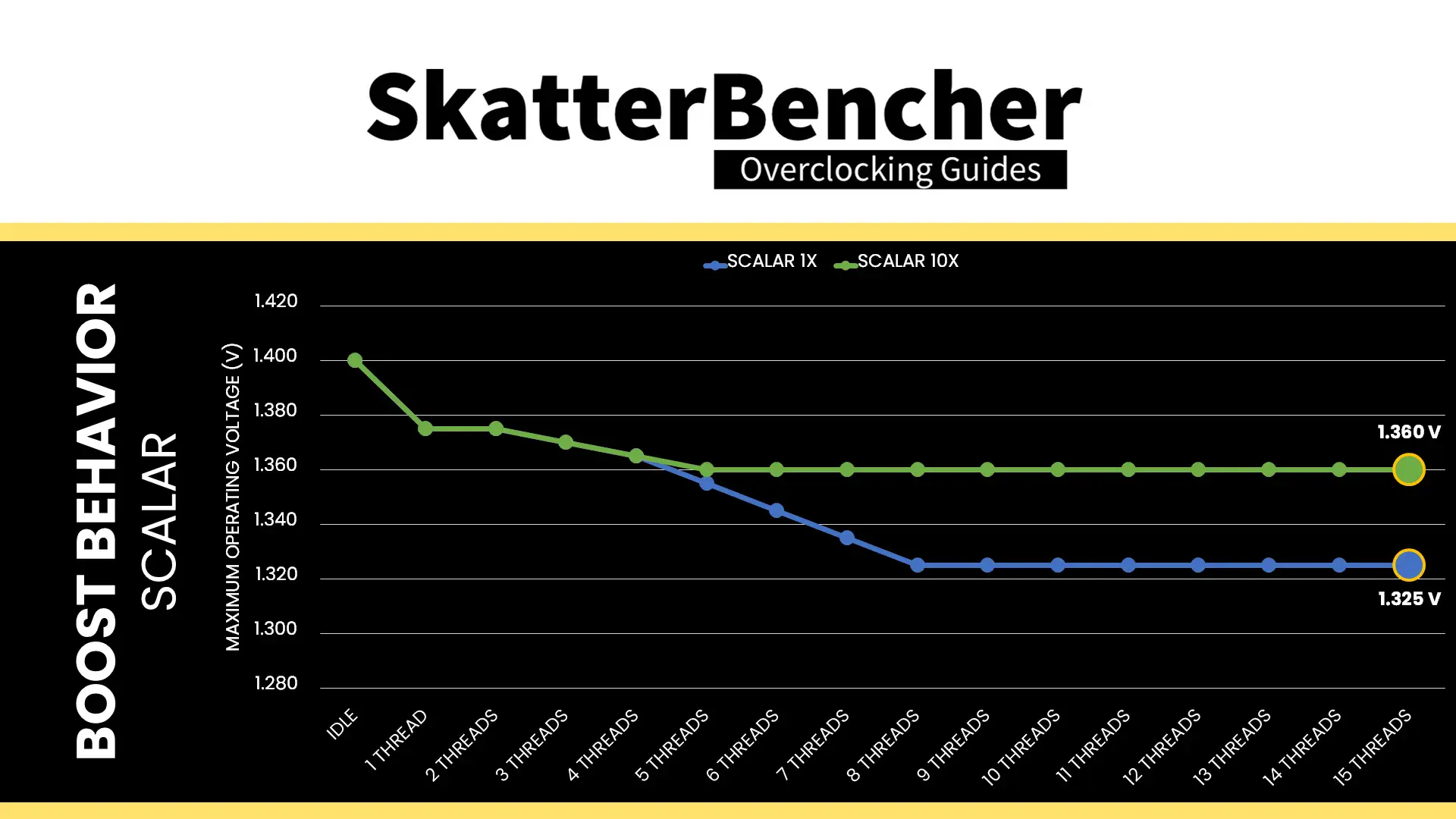
For the Zen 5 Granite Ridge processors, it appears Scalar is making a comeback in the overclocking strategies because the chips are voltage limited. When all cores are active, the maximum voltage is 1.325V. The maximum voltage when a single thread is active is 1.375V.
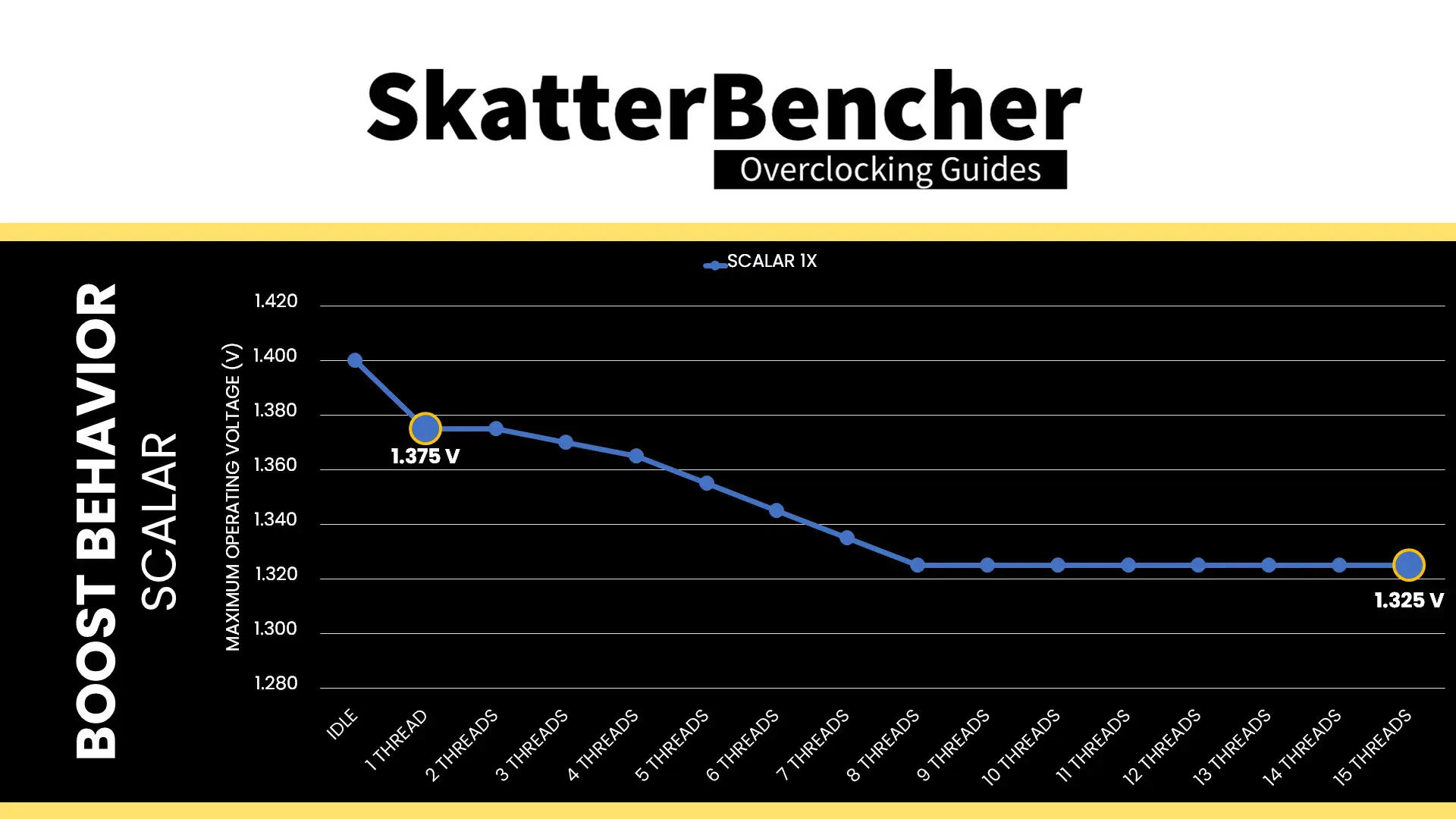
The programmed FIT value of this particular Ryzen 7 9850X3D is 1991.1. So, with a 10X scalar, the new FIT value is 19911. We find that in an all-core workload, the maximum voltage increased from 1.325V to 1.360V. That’s not a big increase, but in voltage-constraint scenarios, every little bit helps!
PBO 2: Curve Optimizer
Curve Optimizer has been one of the most important overclocking tools of the Precision Boost Overdrive 2 toolkit. It is most commonly known for its undervolting capabilities, but on AMD Ryzen CPUs, it kind of also works as an overclocking tool.
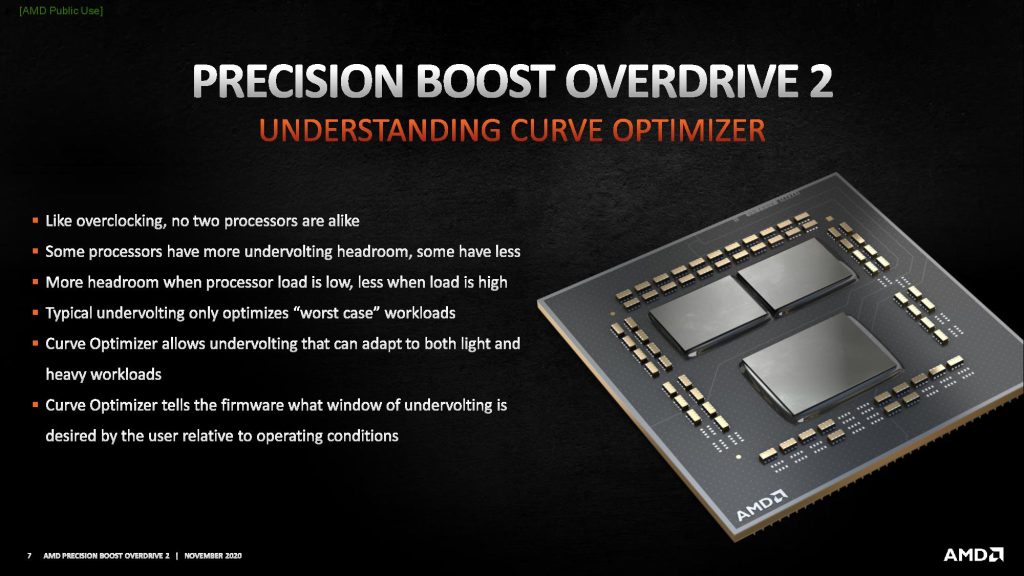
To explain how it works, Let’s start with the basics: the voltage-frequency curve.
Simply put: a voltage-frequency curve describes the relationship between an operating frequency and the voltage required to operate at that frequency. Every modern SOC has a factory-fused voltage-frequency curve and uses this to dynamically adjust power consumption depending on the workload needs.
This V/F curve is not readily available for us to read but we can use a couple of tools to approximate the curve. I explained how to do that in a different video on this channel.
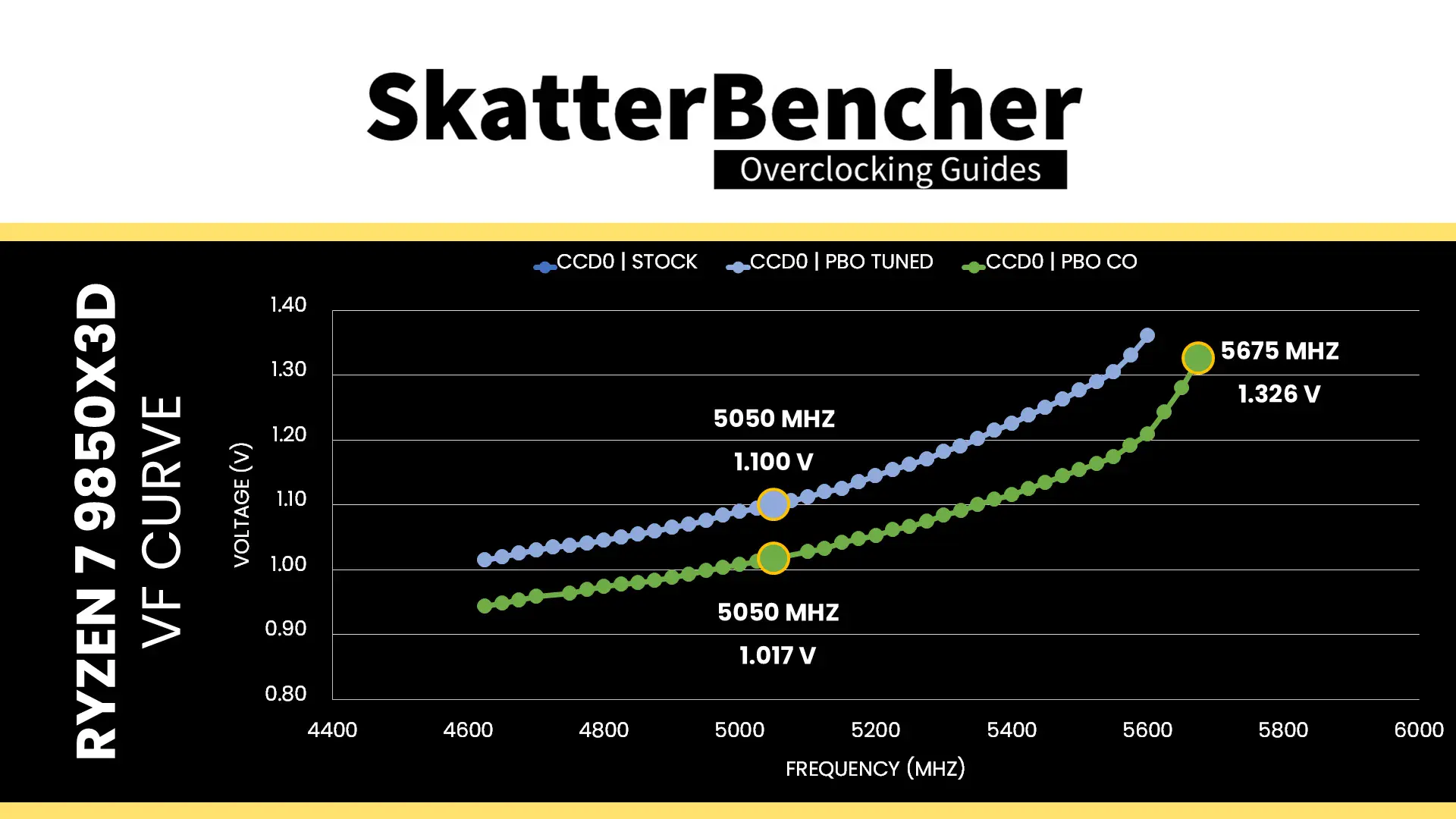
Here’s the default voltage-frequency curve of my Ryzen 7 9850X3D processor. We can immediately make a simple and redundant observation: the higher the frequency, the higher the voltage. For example: 1.1V gets us 5050 MHz, but we need 1.25V for 5450 MHz.
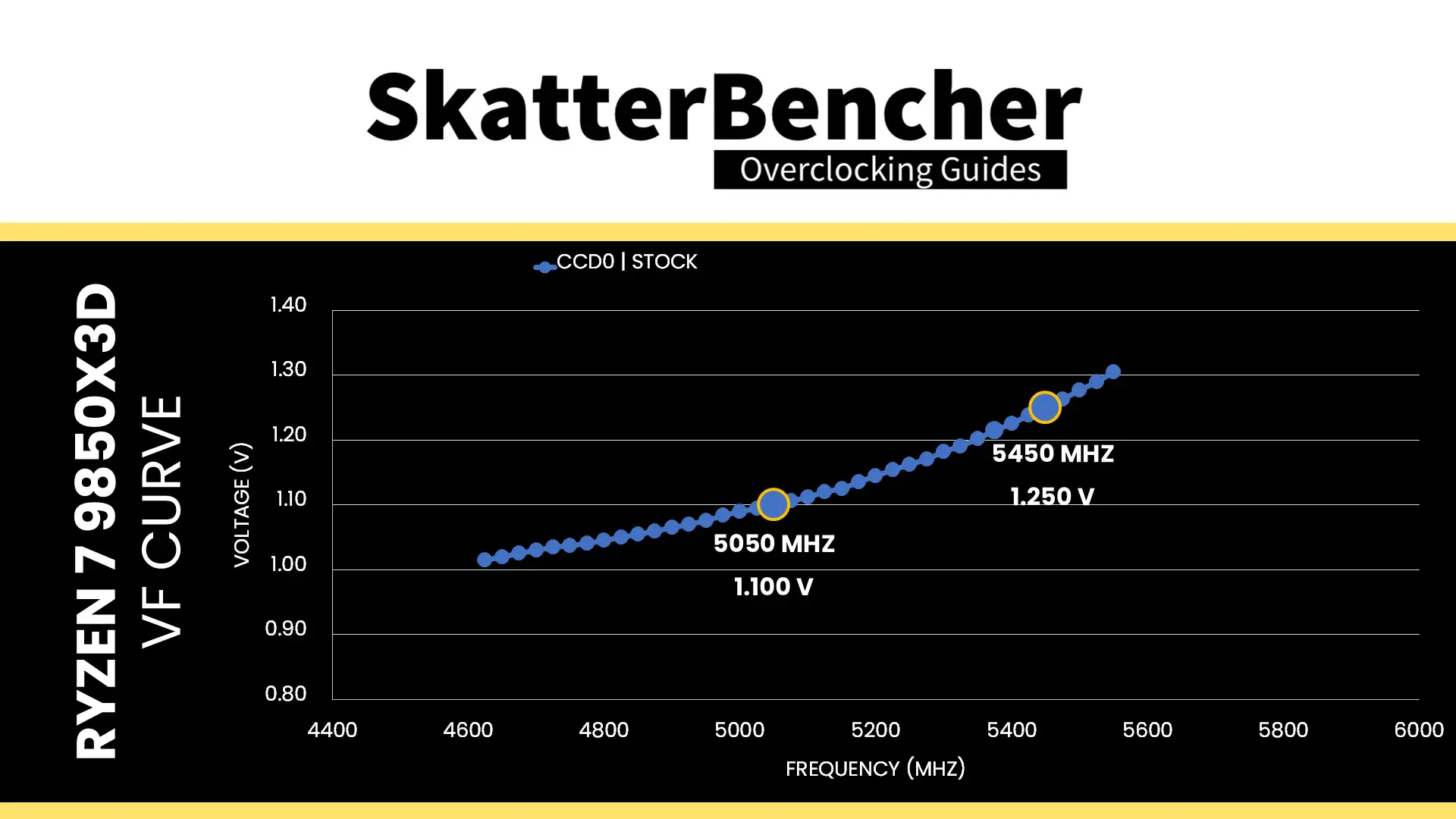
Although it’s not obvious from the V/F curve, the maximum allowed voltage is about 1.330V when all cores are active.
As I showed just a minute ago, we can use the Fmax Boost Override tool to increase the Fmax by another 200 MHz and extend the maximum allowed voltage using Scalar. That further extends the CCD V/F curve from 5625 to 5825 MHz. However, the Precision Boost limiter rules such as the Vlimit still apply and may restrict the maximum possible frequency.
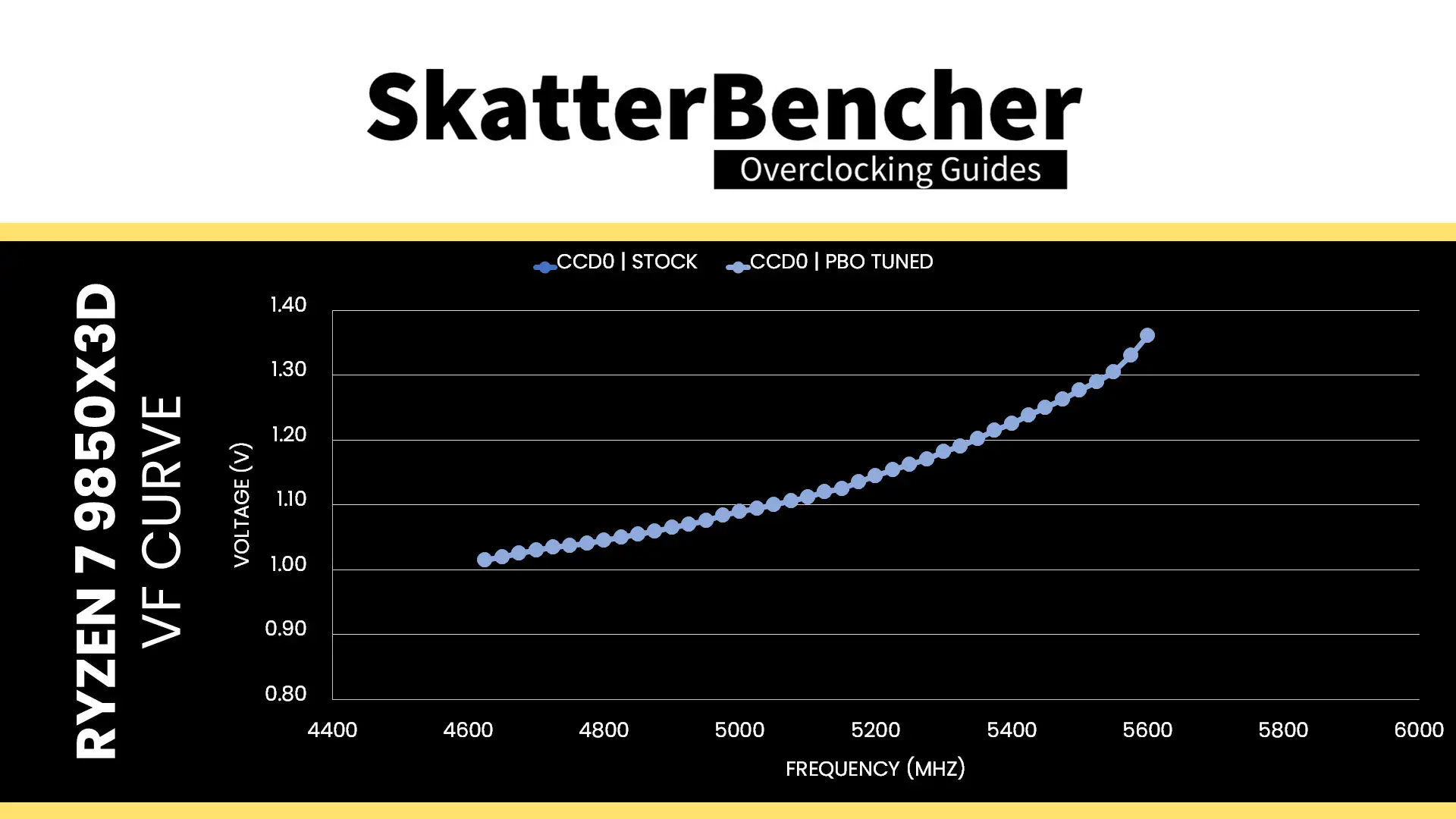
If we set a negative Curve Optimizer, we can shift the entire voltage-frequency curve along the voltage axis. And, suddenly, we need less voltage for every operating frequency. For example, at default, 5050 MHz needed 1.1V but with a -25 Curve Optimizer it only needs 1.017V!
Moreover, the frequency is also boosting higher! The highest frequency with all cores in the CCD active has increased to 5675 MHz. These higher frequencies are now possible because our Curve Optimizer undervolting pulled them below the voltage threshold.
Curve Optimizer is a powerful tuning tool. It’s simple but not simplistic. And the more you dig into the details of what it does, the more intricate it becomes to figure out how to apply it in a daily overclock. The traditional overclocking approach for AMD Ryzen CPUs is to undervolt by setting a negative curve optimizer. That helps in two ways.
- First, undervolting lowers the operating voltage, temperature, and power consumption.
- Second, as a consequence, the Precision Boost 2 algorithm can leverage the additional headroom to boost to higher frequencies.
So, you tend to get lower temperatures and extra performance. It’s a win-win. However, there are a couple of caveats to tuning with Curve Optimizer:
- Curve Optimizer impacts the entire voltage-frequency curve. So, it affects stability across the entire range of operating frequencies: from 600 to 6000 MHz.
- The same Curve Optimizer value impacts differently across the curve
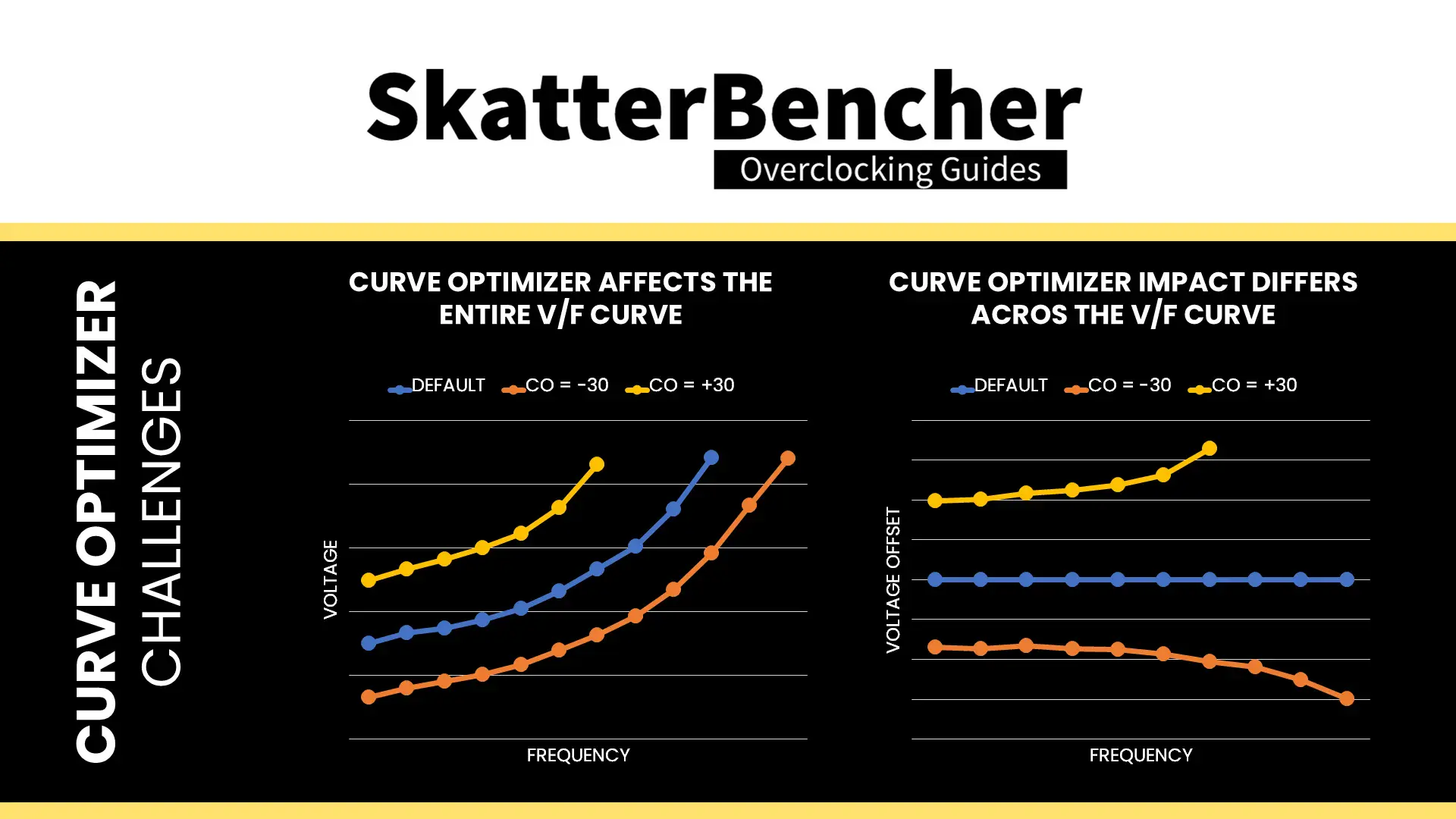
If you’re lucky, your CPU’s undervolt margin matches how Curve Optimizer offsets the voltage across the curve. Then you’ll maximize the performance gains. But if you’re unlucky, and one part of your CPU’s V/F curve has a lot less margin, then your Curve Optimizer tuning journey will be a rough ride.
Curve Optimizer is available on a per CPU, per CCD, and per Core basis. For single-CCD CPUs I often use the per CPU basis because it’s pretty fast.
Curve Optimizer Tuning Process
The manual tuning process for Curve Optimizer can become quite convoluted since it affects the CPU core voltage in all scenarios ranging from very light single-threaded workloads to heavy all-core workloads.
I want to emphasize this point and refer to my Ryzen 9 9950X overclocking guide, where I demonstrated that the V/F curve changes depending on the workload. With dynamic voltage-frequency scaling technologies like Precision Boost 2, it’s vital to test a wide variety of scenarios as opposed to just a heavy all-core workload pushing the power consumption to its limit. Sometimes your all-core AVX workload can be entirely stable, but you get bluescreens in games.
I identified five typical workloads that tend to show early signs of instability:
- OCCT AVX-512 Stress Test, which is a heavy AVX all-core workload
- Y-Cruncher Benchmark, which is a moderate AVX all-core workload
- 7-Zip Benchmark, which is a moderate AVX all-core workload
- OCCT Memory Stress Test, which is an extremely light all-core workload
- Y-Cruncher BKT, which is a light all-core workload
In this particular case, I found that 7-Zip was the earliest indicator of instability. Another way to think about this is that 7-Zip runs at the weakest part of this CPU’s VFT curve hence why it shows to be the most sensitive to undervolting.
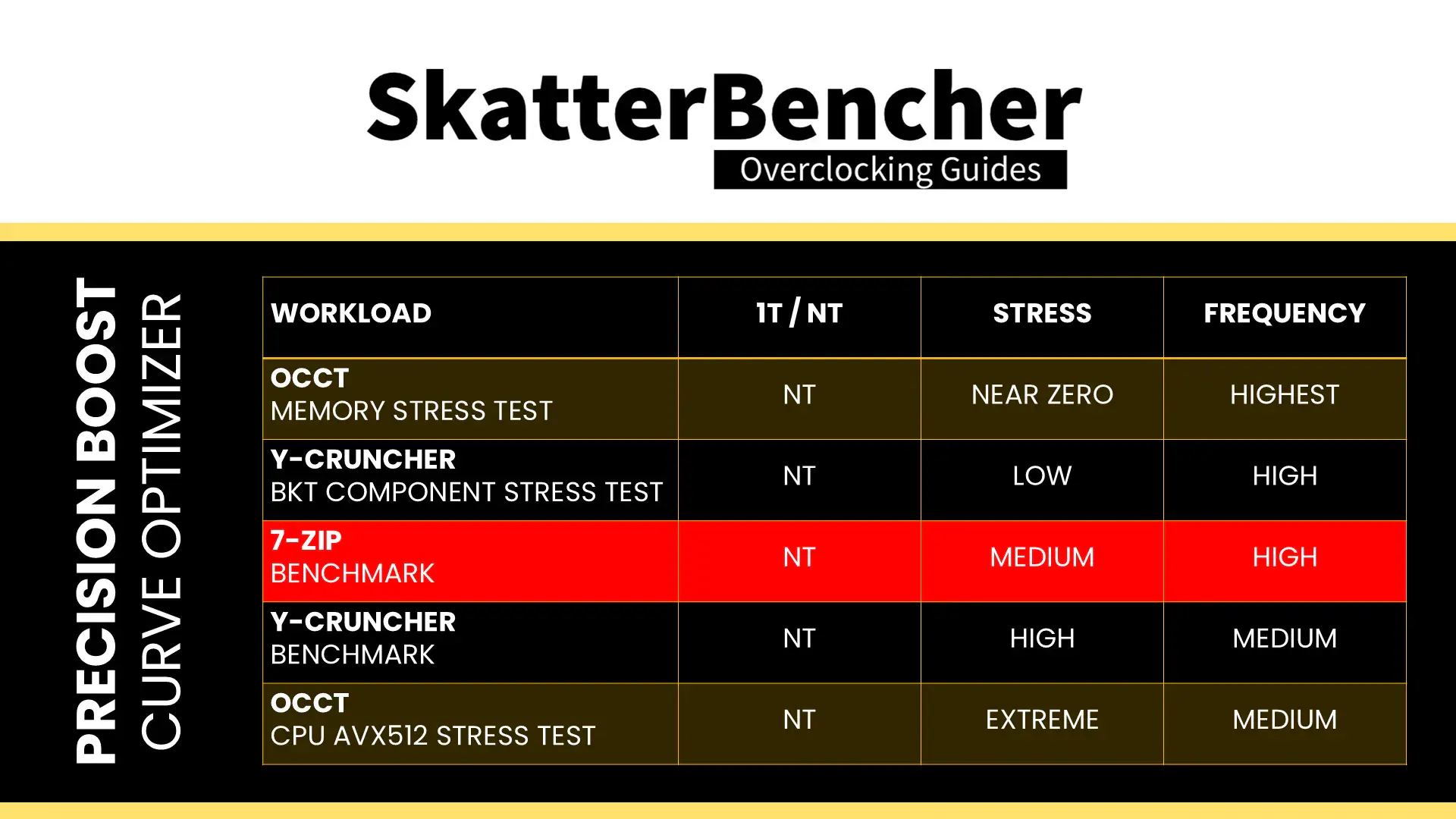
When testing, I increase the negative Curve Optimizer setting in steps of 5 points, then check stability with each of these applications. Once I find an instability, I back off on the Curve Optimizer and check stability across the benchmark suite.
I ultimately ended up with a Curve Optimizer setting of -25.
BIOS Settings & Benchmark Results
Upon entering the BIOS
- Go to the Extreme Tweaker menu
- Set Ai Overclock Tuner to EXPO II
- Switch to the Advanced menu
- Enter the AMD Overclocking submenu and click accept
- Enter the Precision Boost Overdrive submenu
- Set Precision Boost Overdrive to Advanced
- Set PBO Limits to Motherboard
- Set Precision Boost Overdrive Scalar Ctrl to Manual
- Set Precision Boost Overdrive Scalar to 10X
- Set CPU Boost Clock Override to Enabled (Positive)
- Set Max CPU Boost Clock Override to 200
- Enter the Curve Optimizer submenu
- Set Curve Optimizer to All Cores
- Set All Core Curve Optimizer Sign to Negative
- Set All Core Curve Optimizer Sign to 25
- Set Curve Optimizer to All Cores
- Leave the Curve Optimizer submenu
- Enter the Precision Boost Overdrive submenu
Then save and exit the BIOS.
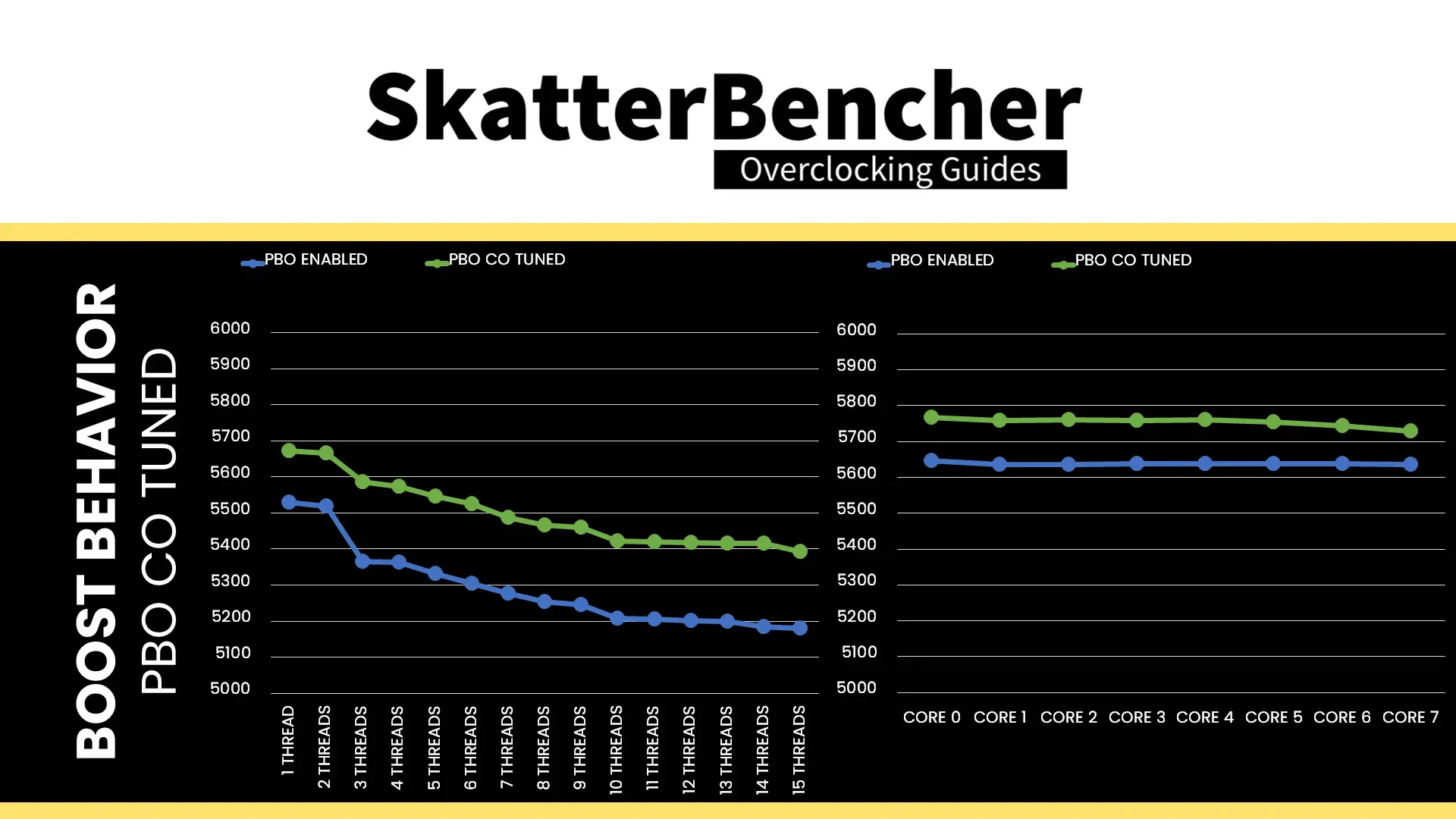
The boost frequency at 1 active thread is about 5673 MHZ and the average boost frequency gradually trails off to 5393 MHz when all cores are active. In light single-threaded workloads, all cores boost to over 5.7GHz but none boost over 5.8 GHz.
We re-ran the benchmarks and checked the performance increase compared to the default operation.
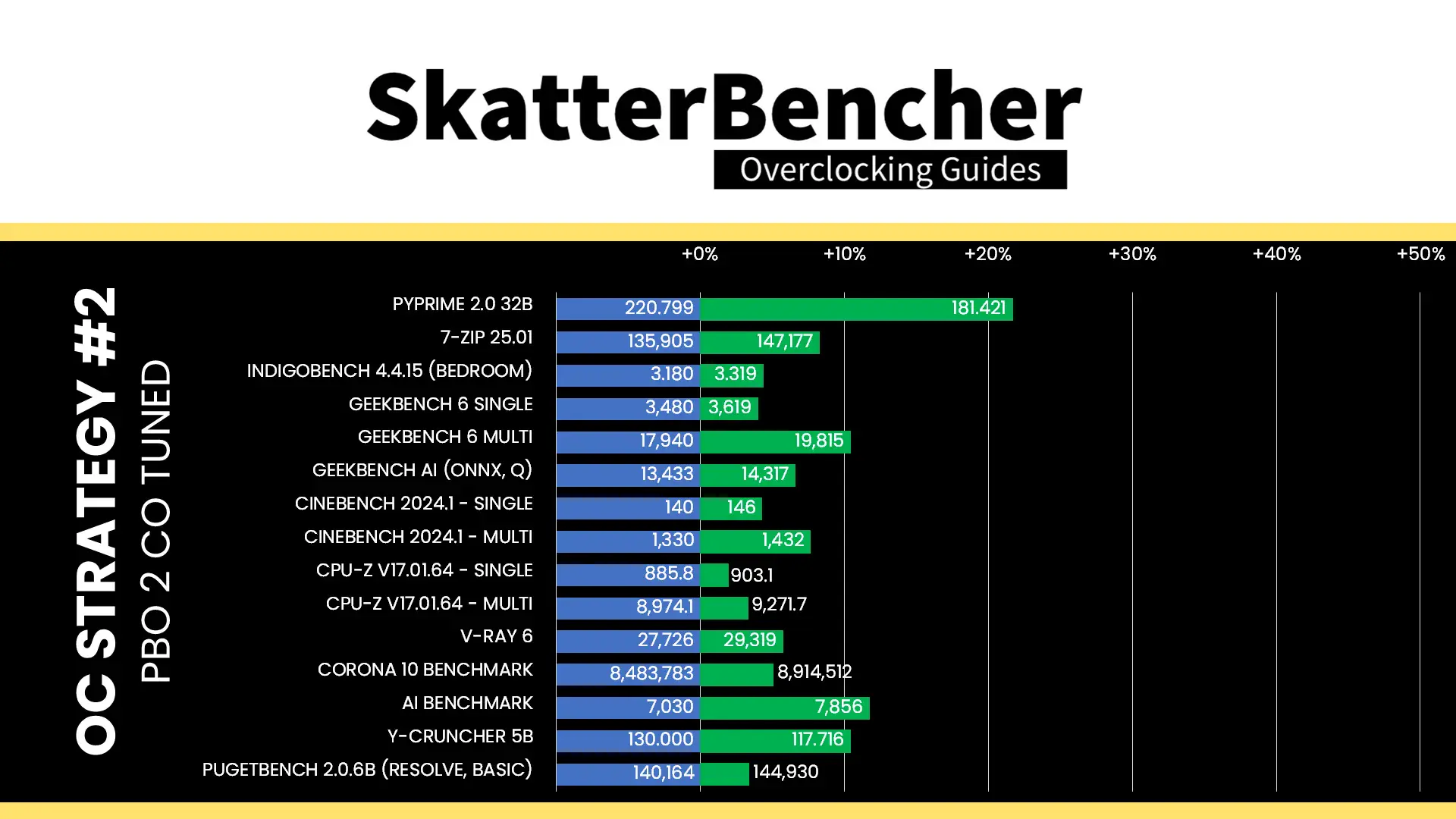
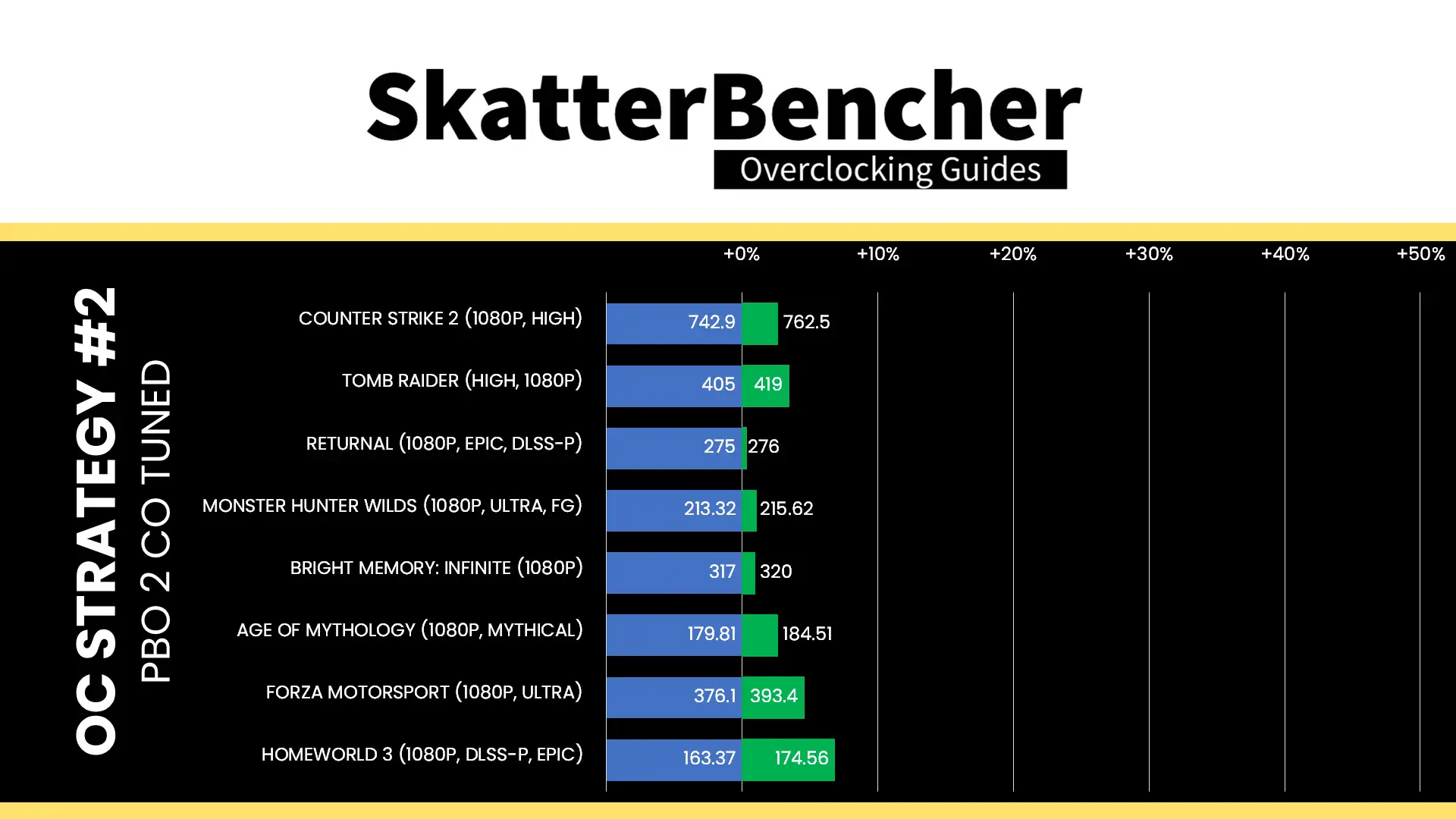
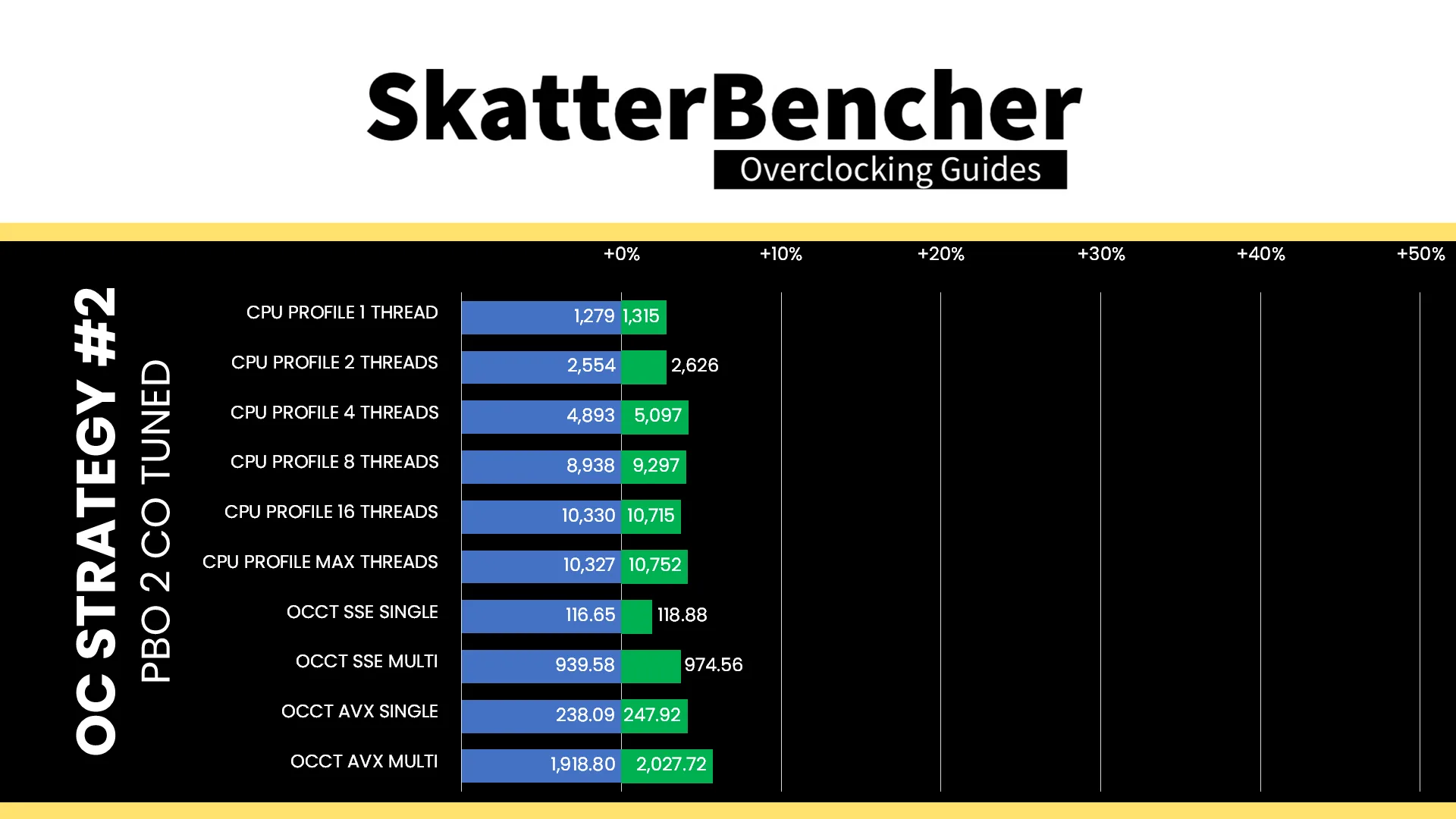
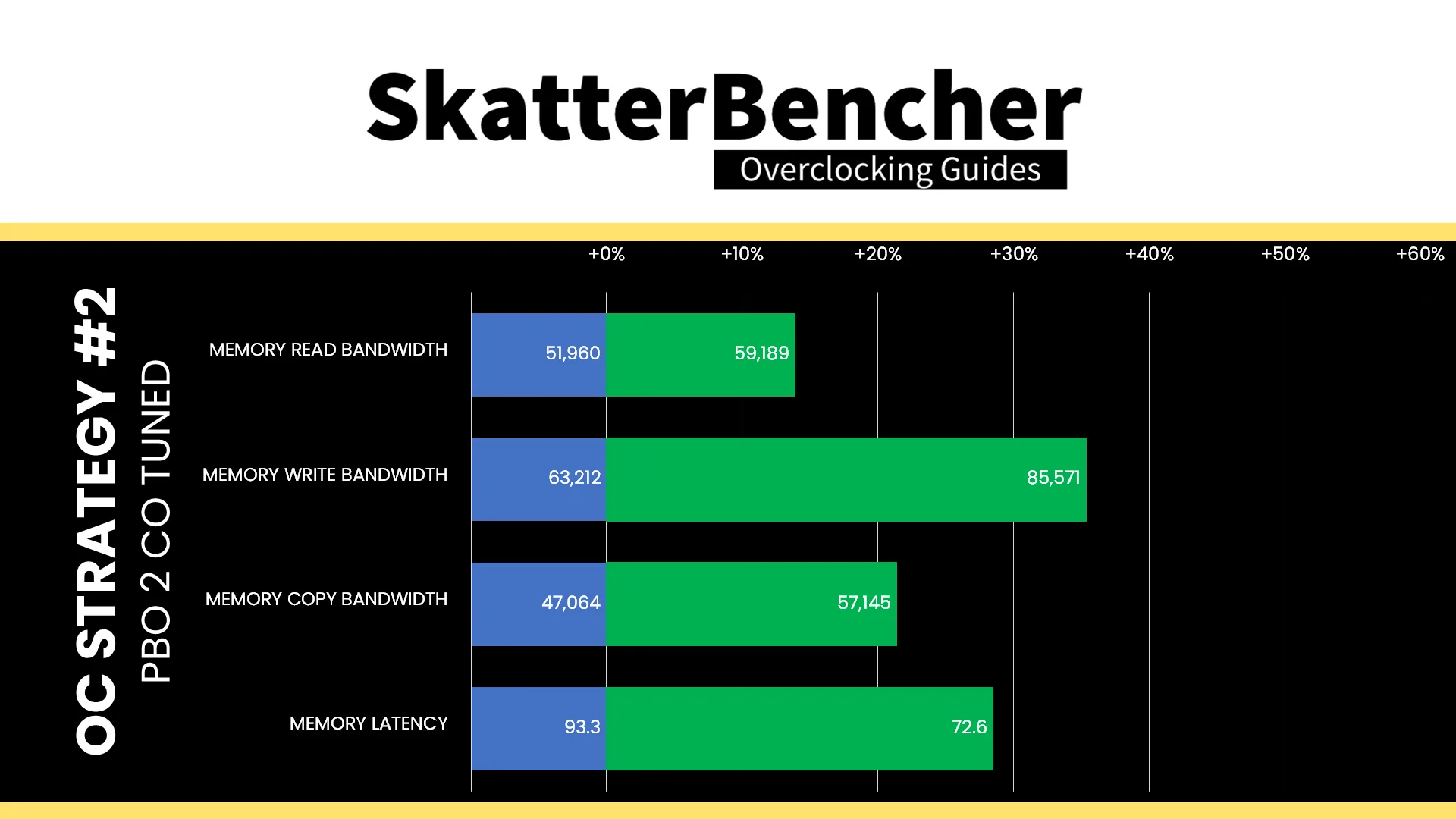
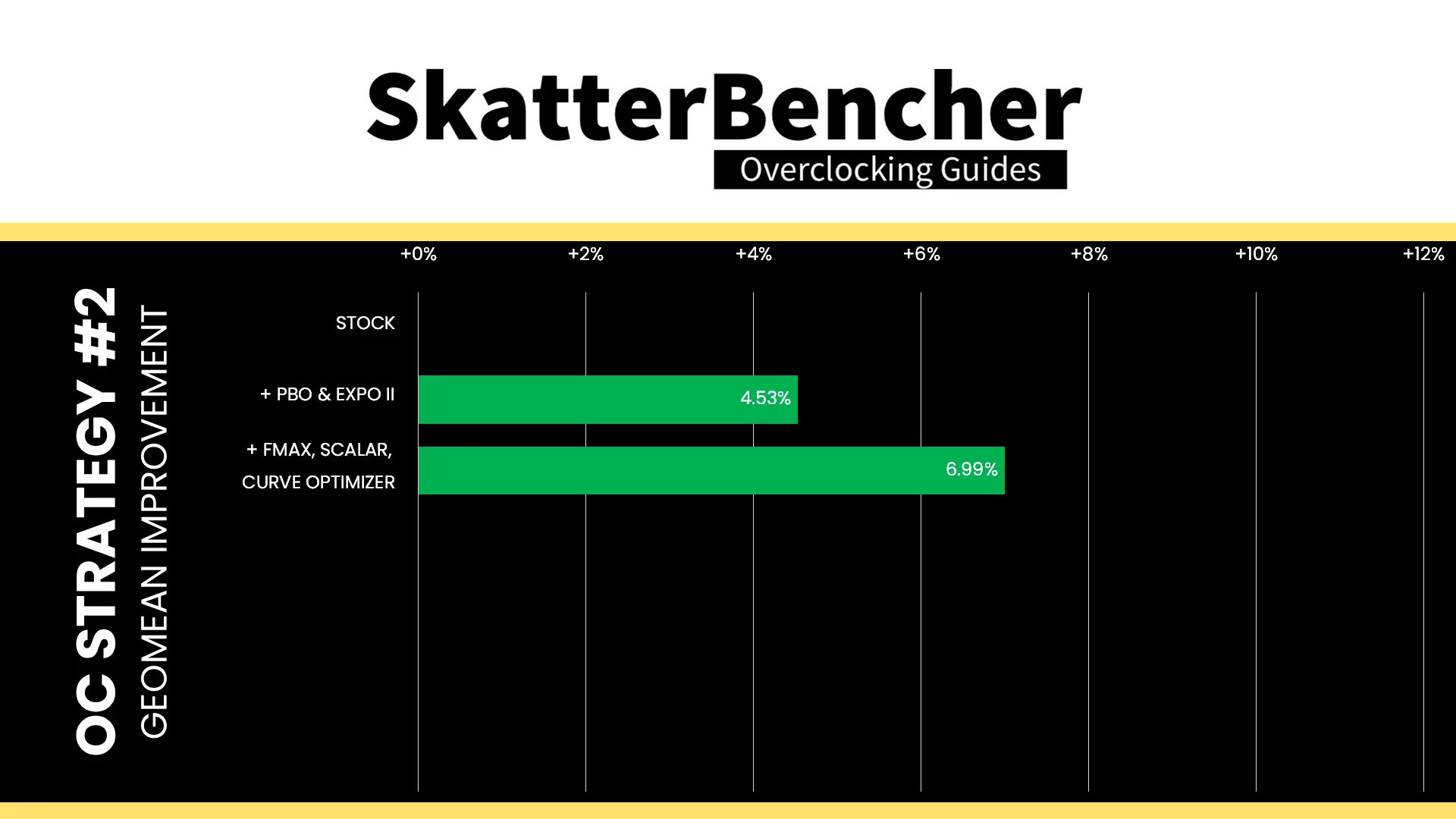
Undervolting with Curve Optimizer is a Ryzen overclocker’s best friend and has been for a long time. It provides this Ryzen 7 9850X3D with a nice frequency and performance bump. The geomean performance speedup improves by two and a half percentage points, and we get a maximum benchmark speedup of +21.71% in PyPrime.
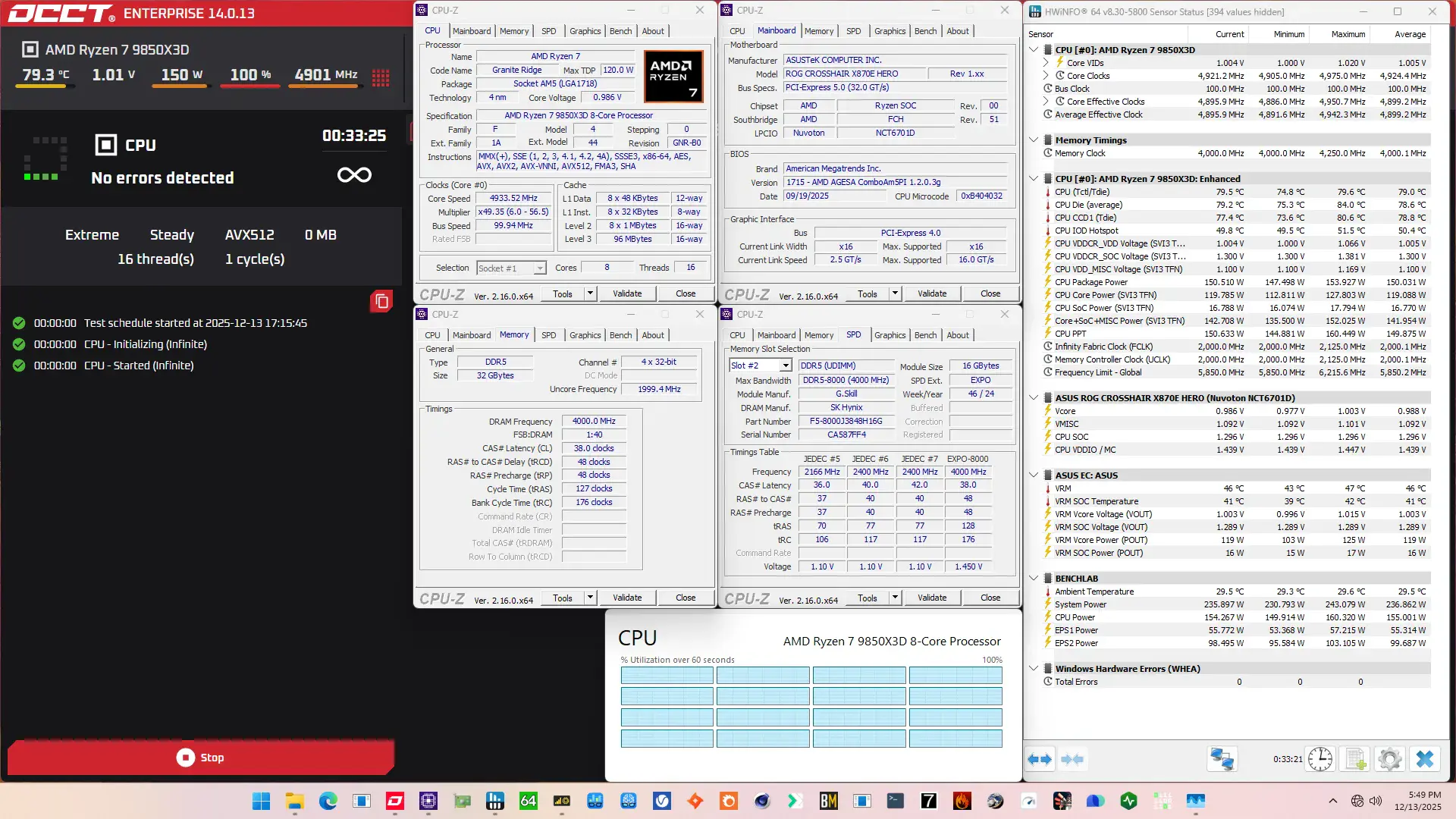
When running the OCCT CPU AVX-512 Stability Test, the average CPU effective clock is 4899 MHz with 1.005 volts. The average CPU temperature is 78.8 degrees Celsius. The average CPU package power is 150.0 watts.
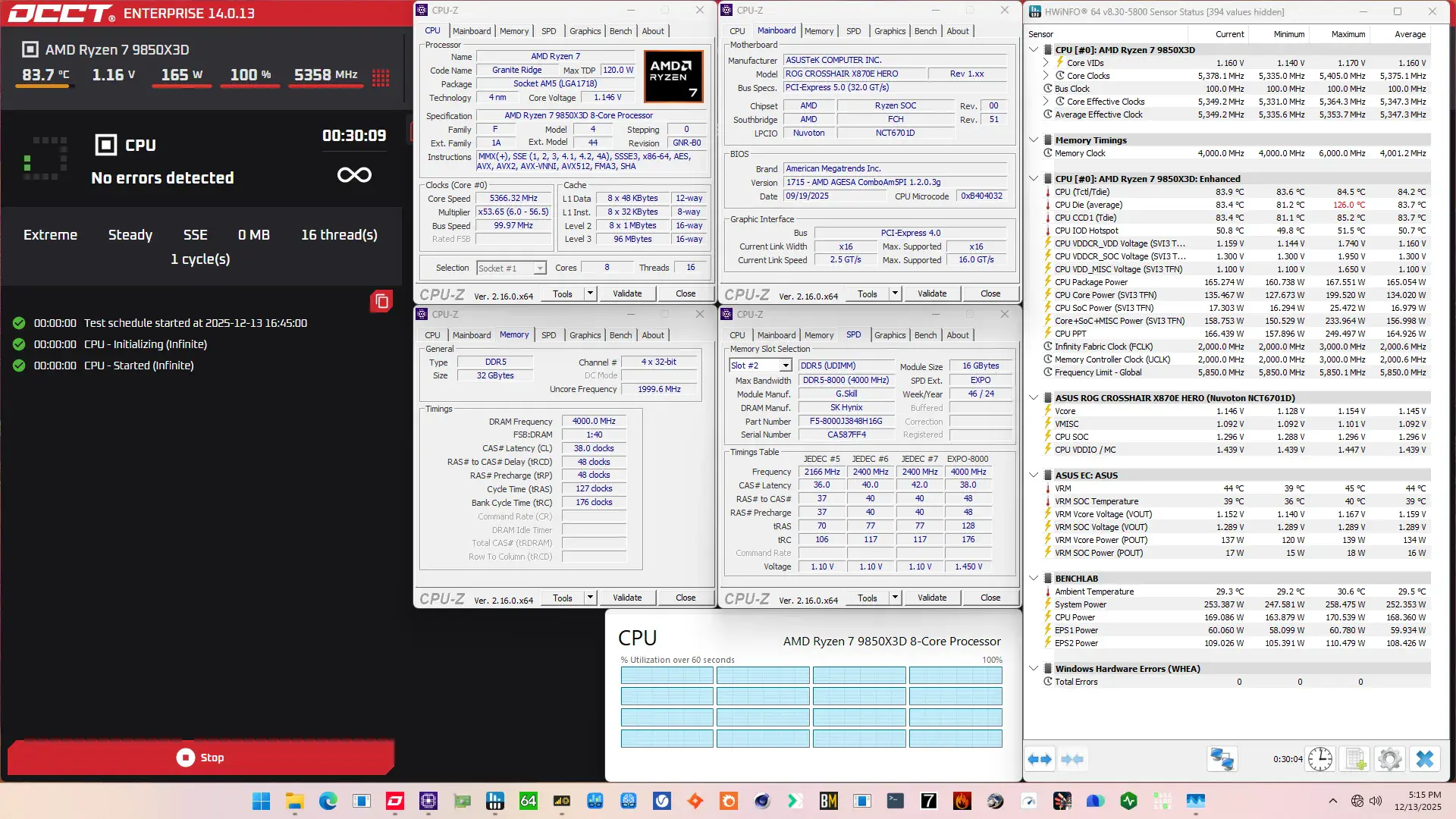
When running the OCCT CPU SSE Stability Test, the average CPU effective clock is 5347 MHz with 1.160 volts. The average CPU temperature is 83.7 degrees Celsius. The average CPU package power is 165.1 watts.
Intermezzo: 9850X3D V/F Curve
Before I jump into the tuning process, I want to spend a couple more minutes talking about the Ryzen 7 9850X3D V/F curve.
As I mentioned earlier on in the post, each core has its own V/F curve. For science, I traced each core’s curve using the same method as I usually do but by disabling all other cores from BIOS.
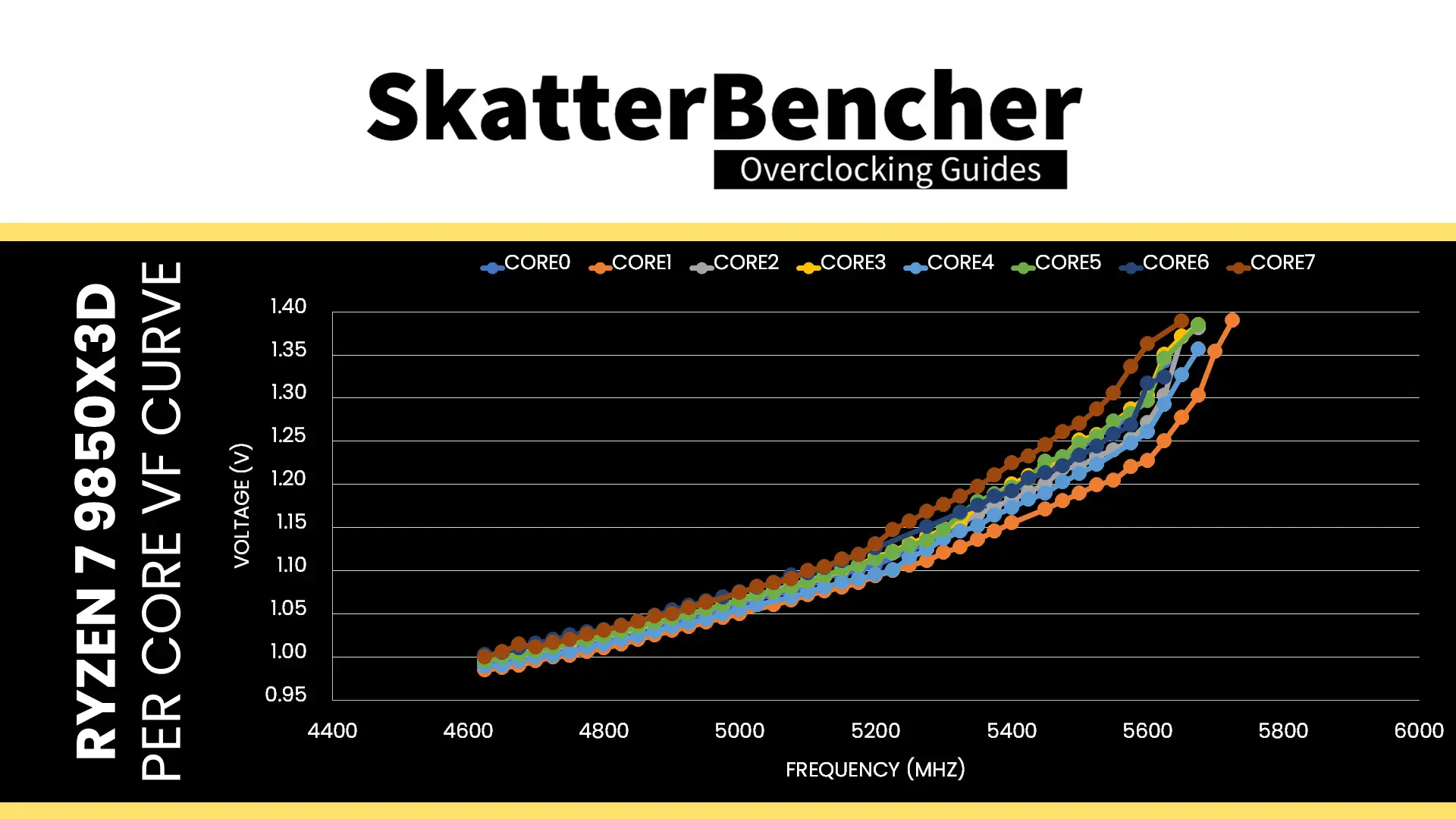
We find there’s a not insignificant difference between the best core, Core 1, and the worst core, Core 7. There’s about 125 MHz difference at 1.3V and the Core 7 needs 139mV more to reach 5.6 GHz.
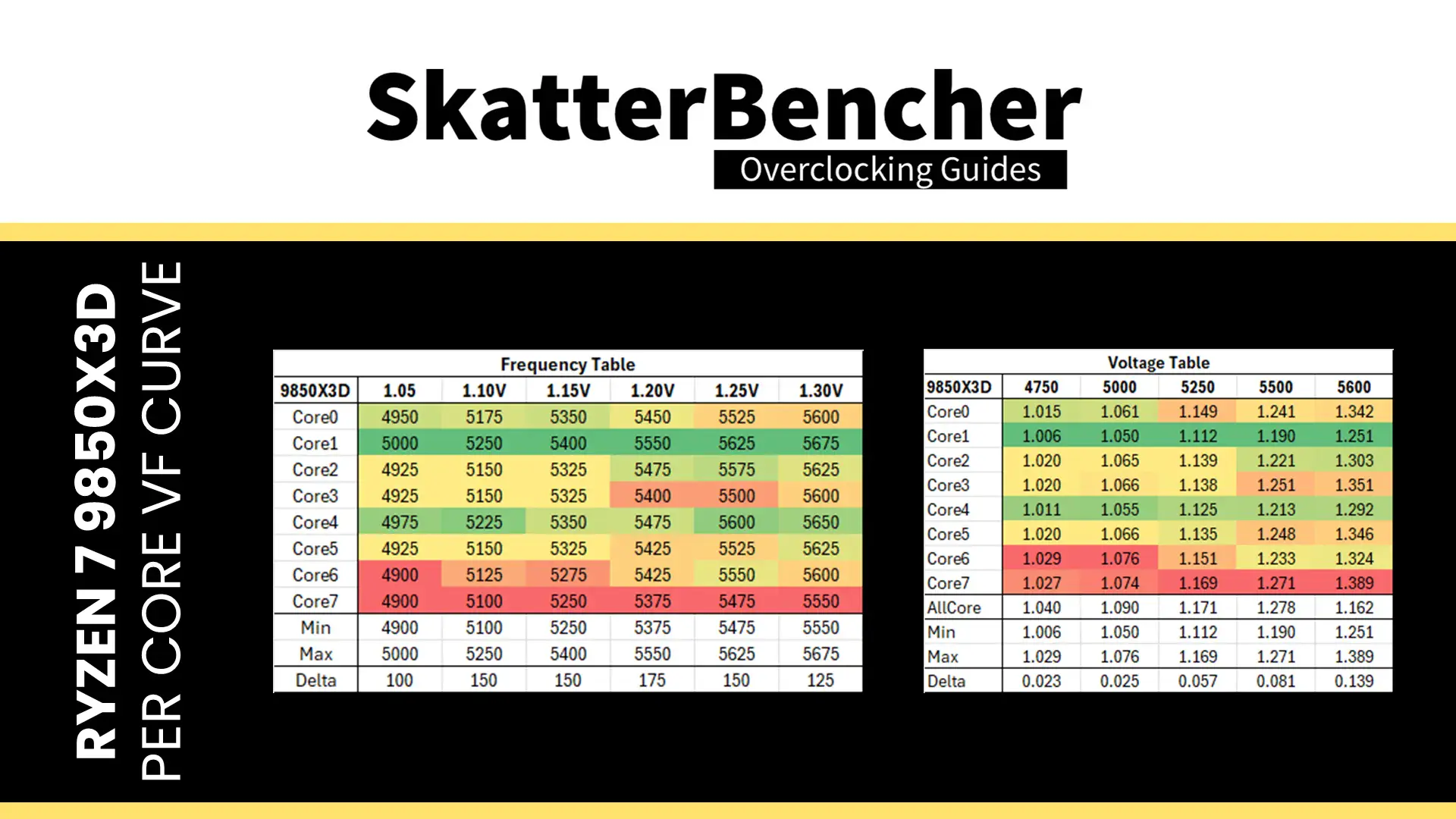
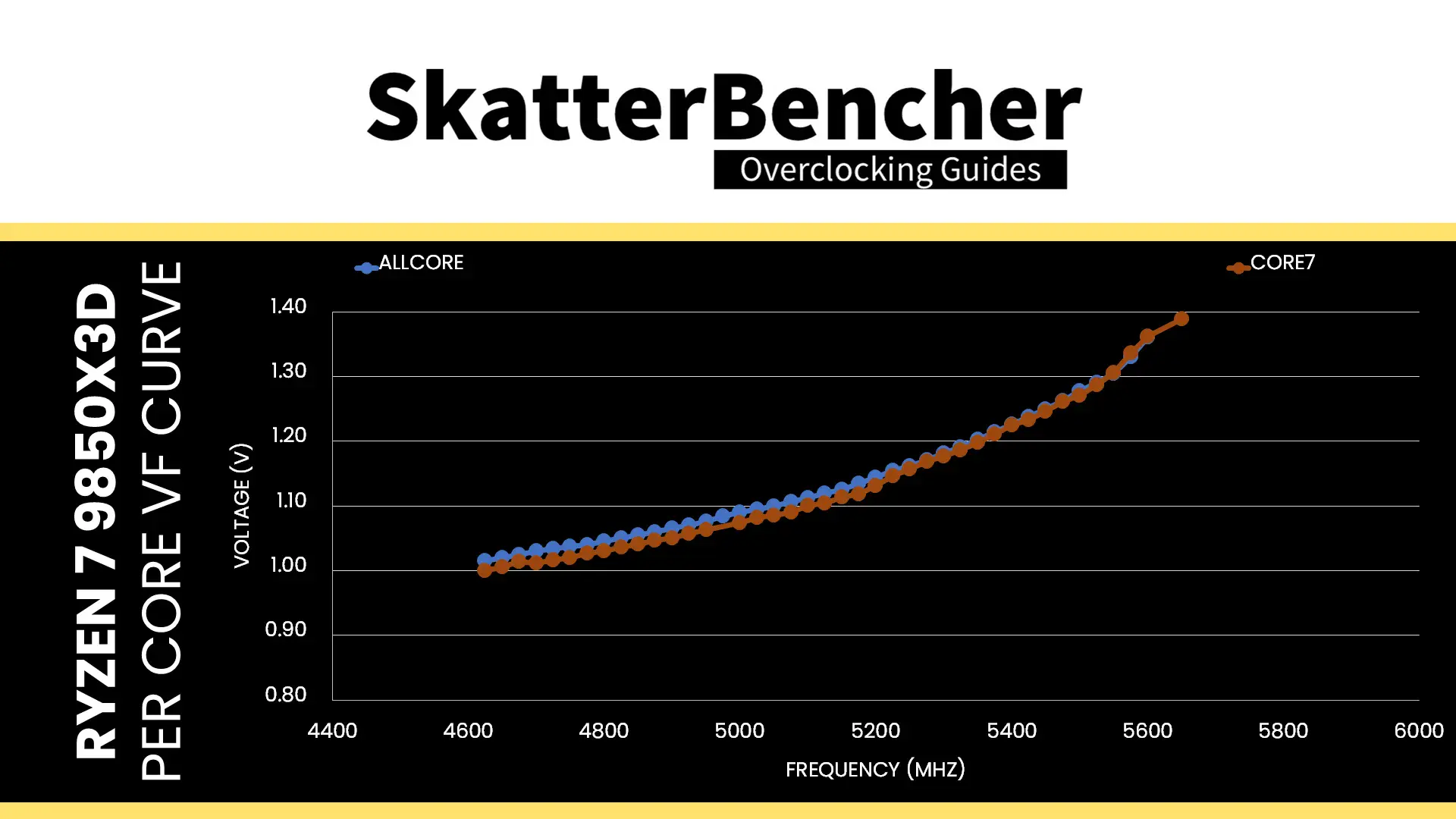
I also want to highlight that the all-core V/F curve I use as basis for my Curve Optimizer process basically follows the worst core’s curve. That makes a lot of sense since there’s a single voltage plane powering all cores. So, when all cores are active and each request their target voltage to the SMU, the SMU picks the highest among all requested voltages such that the worst core gets the voltage it needs.
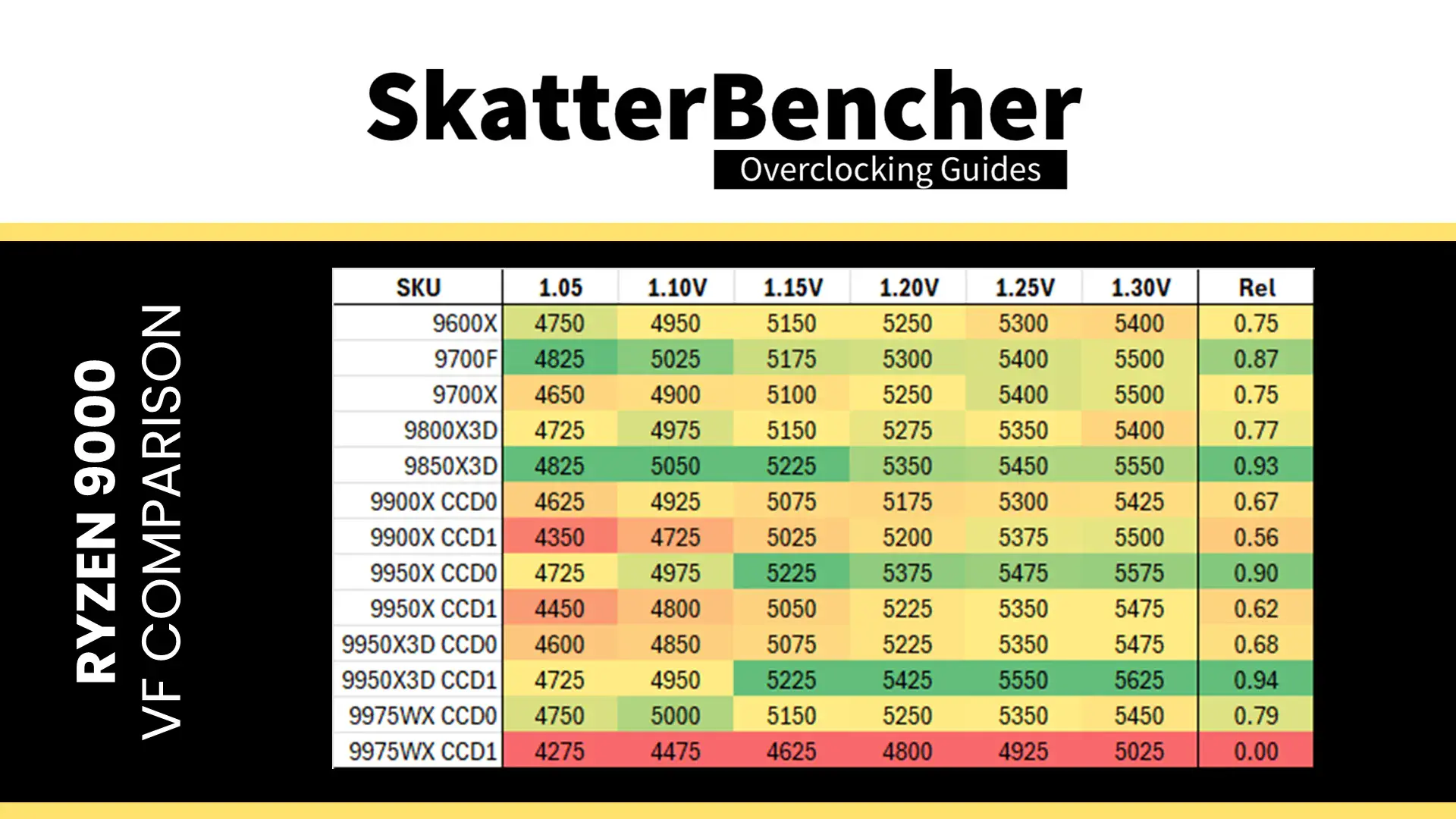
Also noteworthy is that the worst core is actually not that bad. In isolation, the lowest frequency we get at 1.1V is 5100 MHz for Core 7. This becomes 5050 MHz when all cores are active. While that’s significantly lower than the 5250 MHz of Core 1, it’s still the best I’ve seen from all the Zen 5 chips I’ve tested. In fact, the 9850X3D is the best I’ve seen at low voltage, only being matched by The 9950X and 9950X3D from 1.15V onwards.
Lastly, I also want to point your attention to the impact of workload on the effective operating voltage. When I put together the V/F curve, I intentionally use a really light workload because it keeps the temperature and current low. That minimizes the impact of algorithmic adjustments to the voltage.
As you can see here, running different, more intense workloads can impact the operating voltage significantly. If I use OCCT SSE stress test instead of the memory stress test, the voltage at 5.2 GHz is not 1.145V but 1.21V. And we also don’t see the same high boost frequency as with the lighter loads. That impact becomes even greater if we look at AVX2 and AVX-512 workloads.
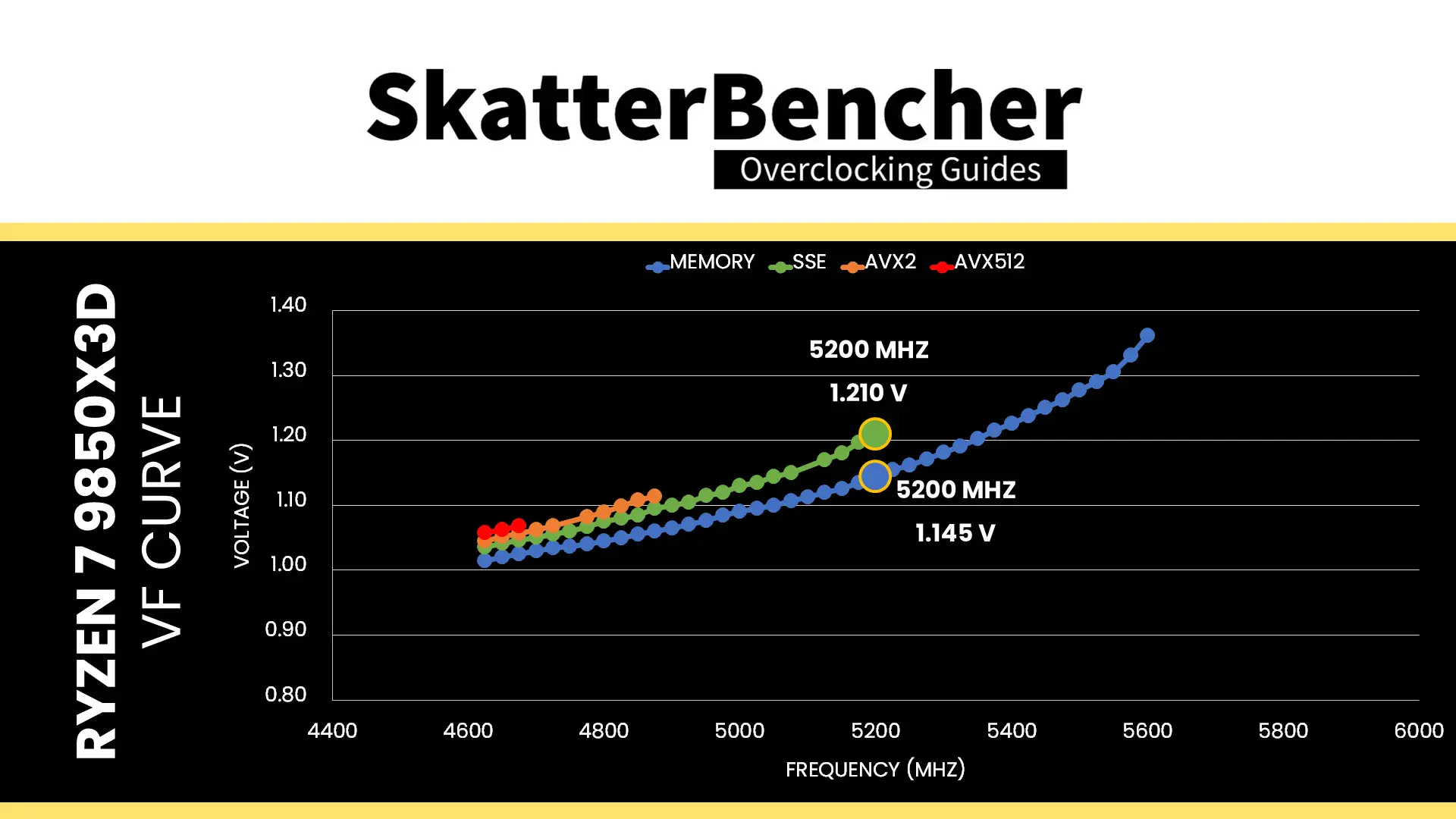
That’s what makes tuning with Curve Optimizer difficult: you have to check stability across different V/F curves for different types of workloads.
OC Strategy #3: Memory Tuned
In our third overclocking strategy, we delve into tuning the memory subsystem performance.
On AMD Granite Ridge processors, the memory subsystem consists of three major parts: the infinity fabric, the unified memory controller, and the system memory. They’re more commonly referred to as FCLK, UCLK, and MCLK.
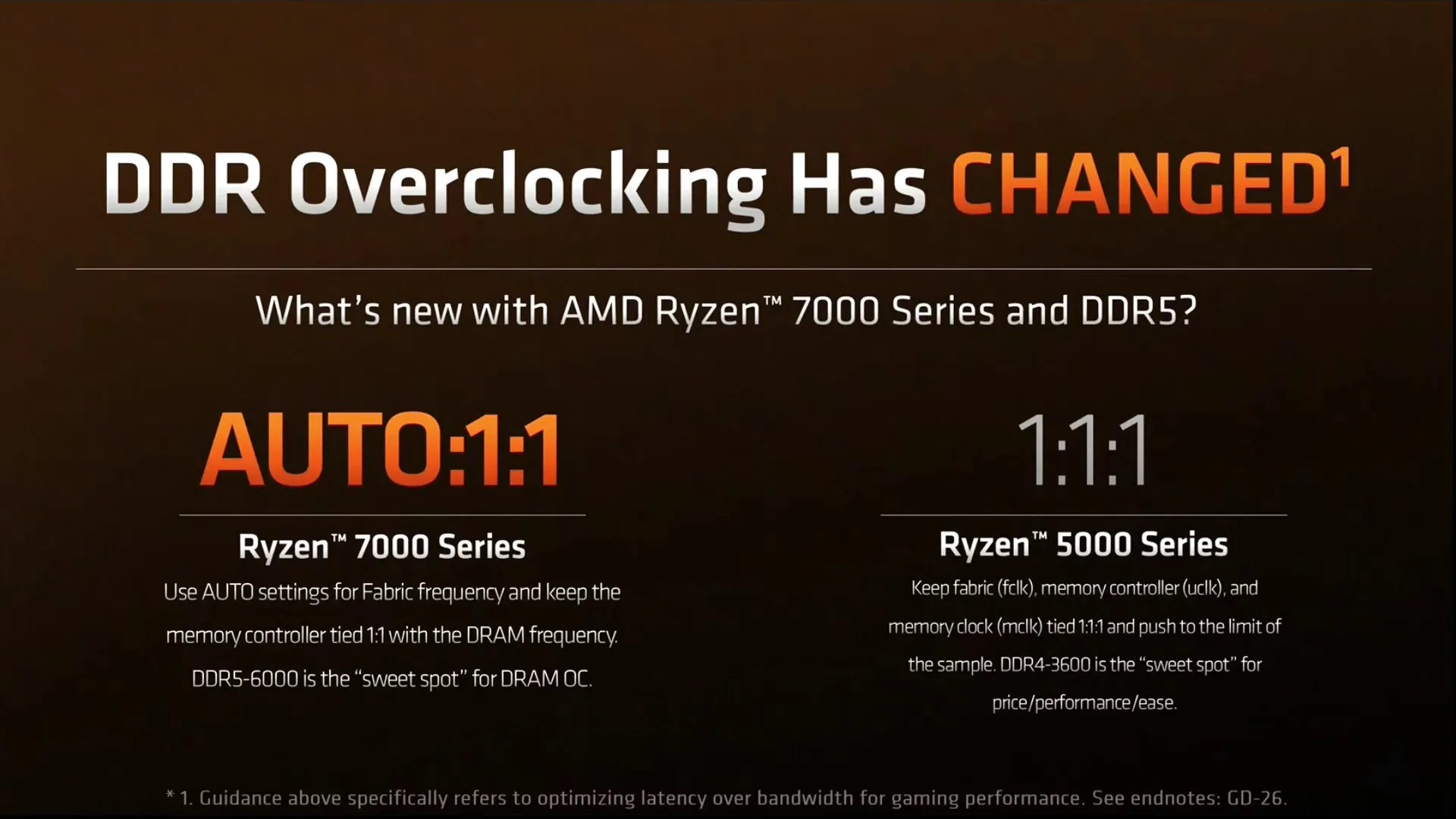
First-generation Ryzen overclockers know that these parts used to be tightly coupled together, but on modern Ryzen processors like the Ryzen 7 9850X3D, we can tune them independently.
Infinity Fabric Tuning
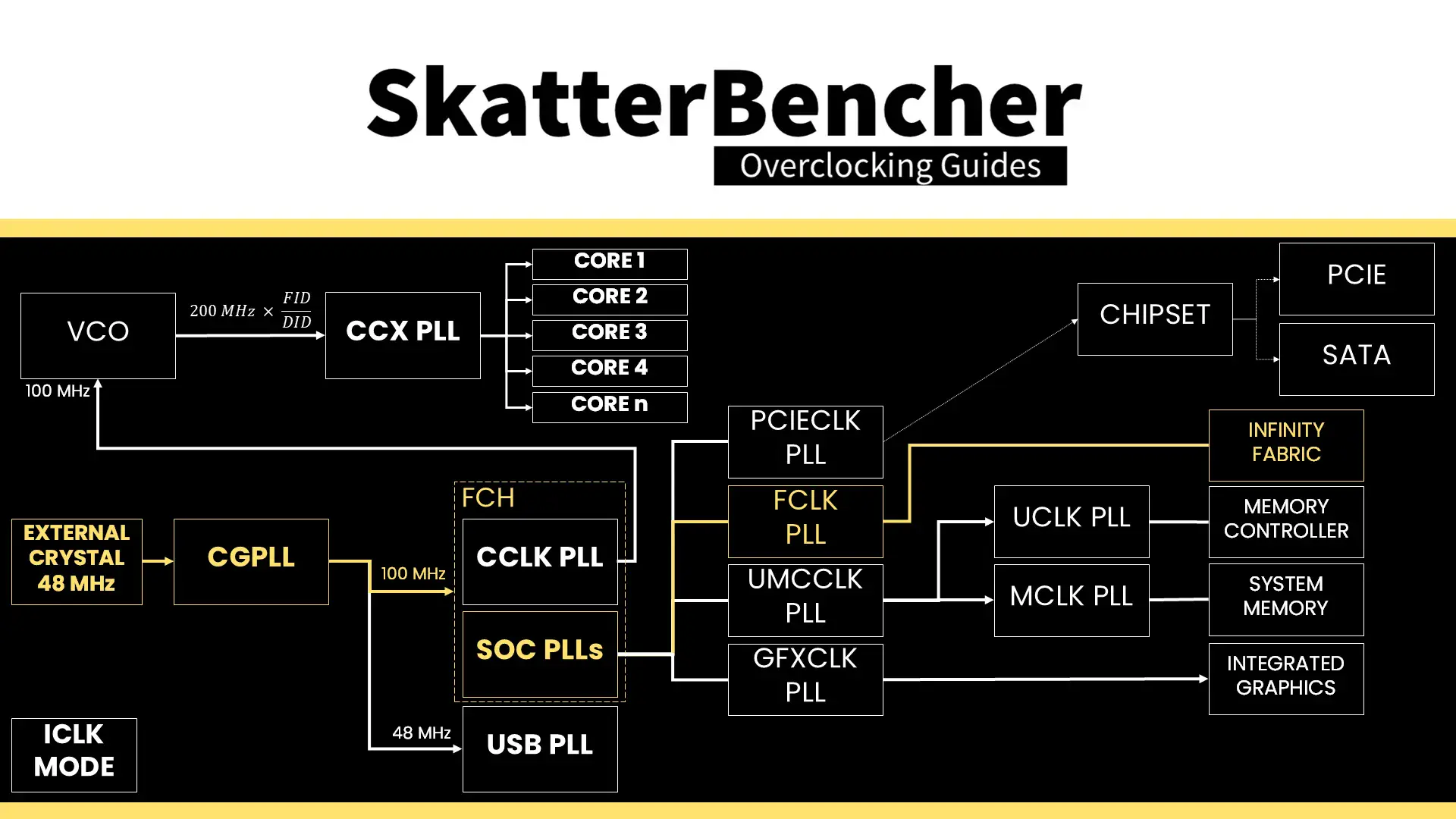
The Fabric frequency, or FCLK, is generated by the SOC PLL, derived from a 100 MHz reference clock input. The reference clock is multiplied by the FCLK ratio, which you can configure in the BIOS.
The standard operating frequency of the infinity fabric is 1800 MHz, but on many boards, you’ll find it runs at 2 GHz when EXPO is enabled. That said, it doesn’t seem there’s much overclocking headroom beyond 2 GHz. I managed to set 2167 MHz for this overclocking strategy, however anything higher couldn’t boot reliably. Not even with voltage adjustments.
Speaking of voltage: the infinity fabric voltage is provided by the VDDG voltage supply, derived via an integrated voltage regulator from the VDDCR_MISC voltage rail. There is a total of two VDDG voltage rails available for manual adjustment:
- CCD0-CCD VDDG: signals sent from CCD0 to IOD are sent at this voltage.
- CCD0-IOD VDDG: signals sent from IOD to CCD0 are sent at this voltage.
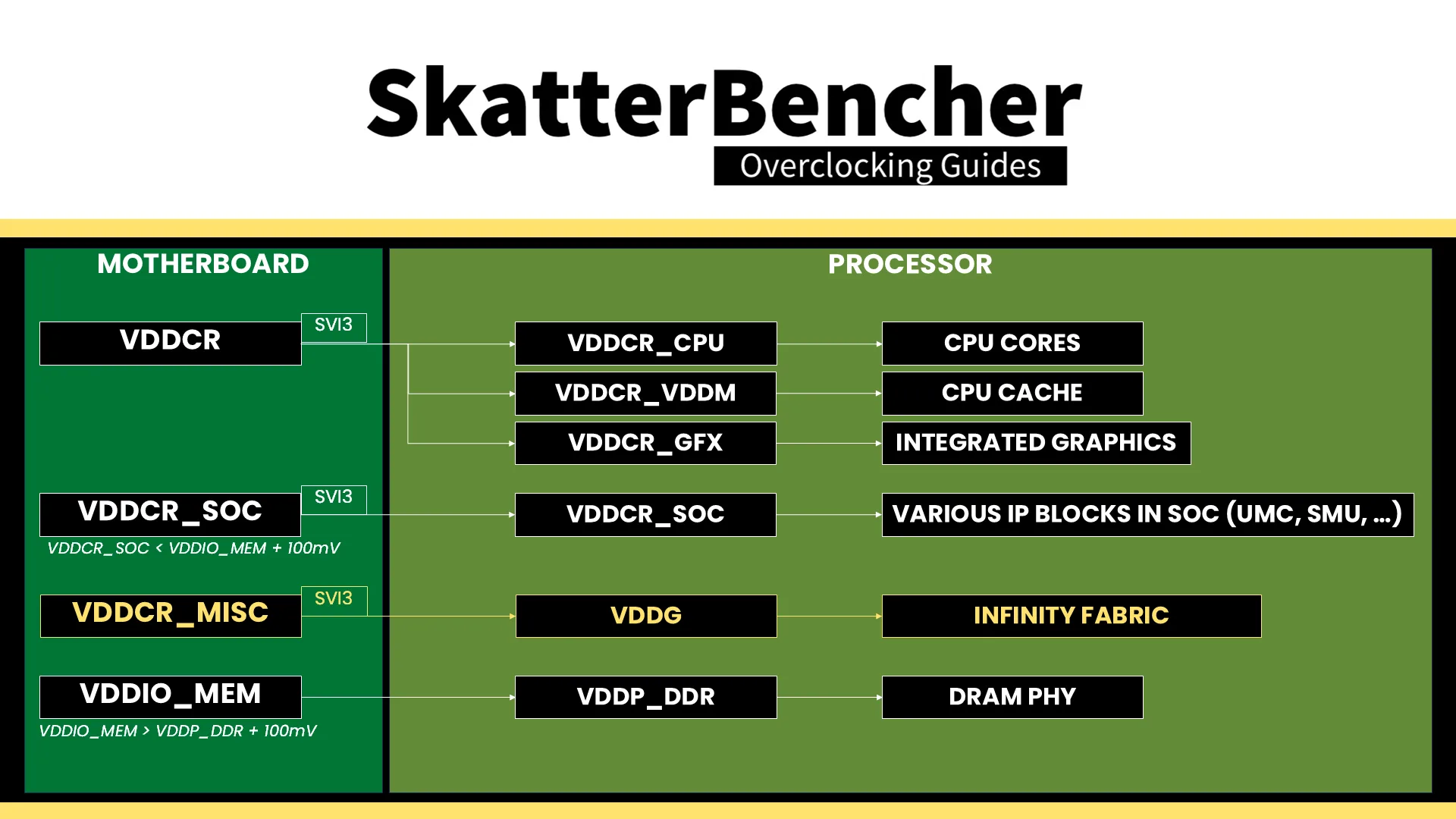
Note that the VDDG voltage does not adjust automatically with VDDCR_MISC. So, if you need to increase VDDG, for example, to support higher memory frequency, you need to change it manually.
Memory Controller Tuning
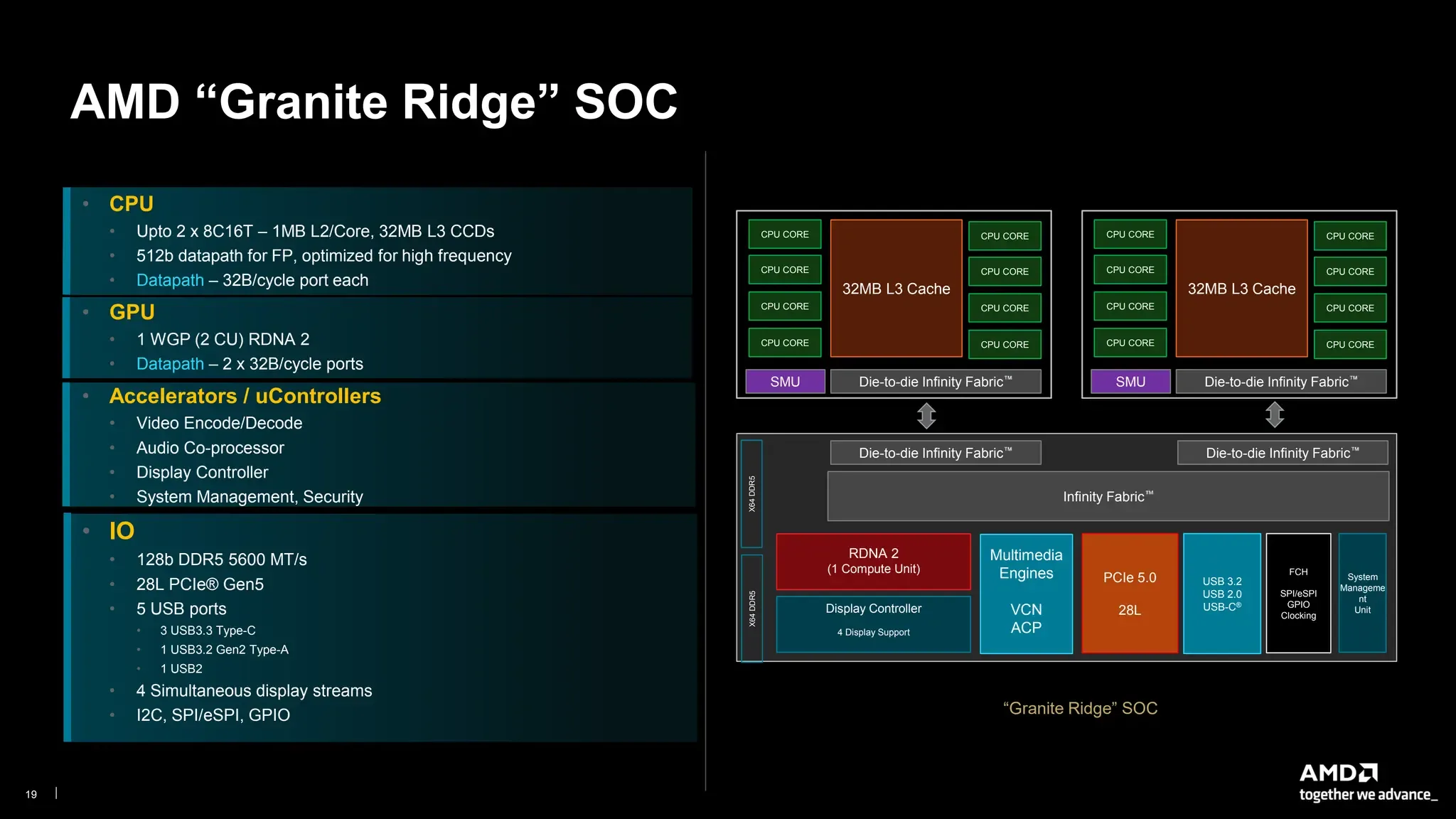
AMD Granite Ridge has two DDR5 Unified Memory Controllers, or UMC in short, and each provides two 32-bit memory channels. The memory controllers are located in the IO die and are identical to the memory controllers on Ryzen 7000 “Raphael” processors.
The Unified Memory Controller frequency, or UCLK, is derived from the UMCCLK, one of the SOC PLLs. The UMCCLK is driven by a 100 MHz reference clock derived from either an internal or external clock generator.
The memory controller frequency is tied directly to the system memory frequency. It can run either at the same or half its frequency. At default, the memory controller runs at the same frequency as the system memory at 2400 MHz. However, we find that when enabling EXPO, the motherboard auto-rules will drop the memory controller frequency to half the memory frequency.
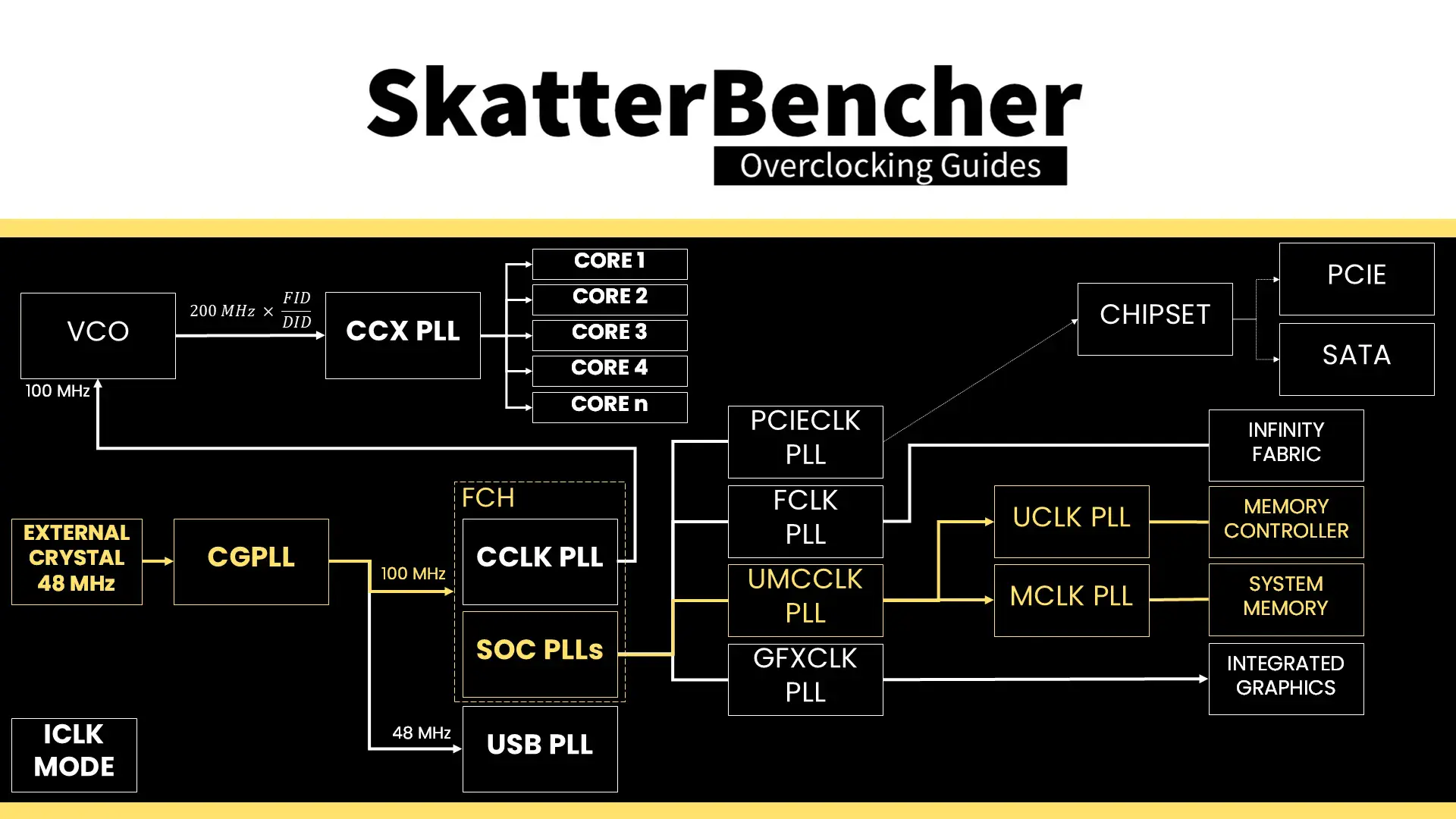
We could easily force the memory controller to run at the same frequency as the system memory by setting UCLK DIV1 Mode to UCLK=MEMCLK. However, that’s only possible if we run the memory at around DDR5-6000. Since our memory is running at DDR5-8000, we’re forced to maintain a UCLK frequency that’s half that of the memory frequency.
The VDDCR_SOC voltage rail provides the external power for multiple internal voltage regulators on SOC for the various IP blocks, including the memory controller. The VDDIO_MEM voltage rail is related as it provides the external power for the VDDP DDR5 bus signaling.
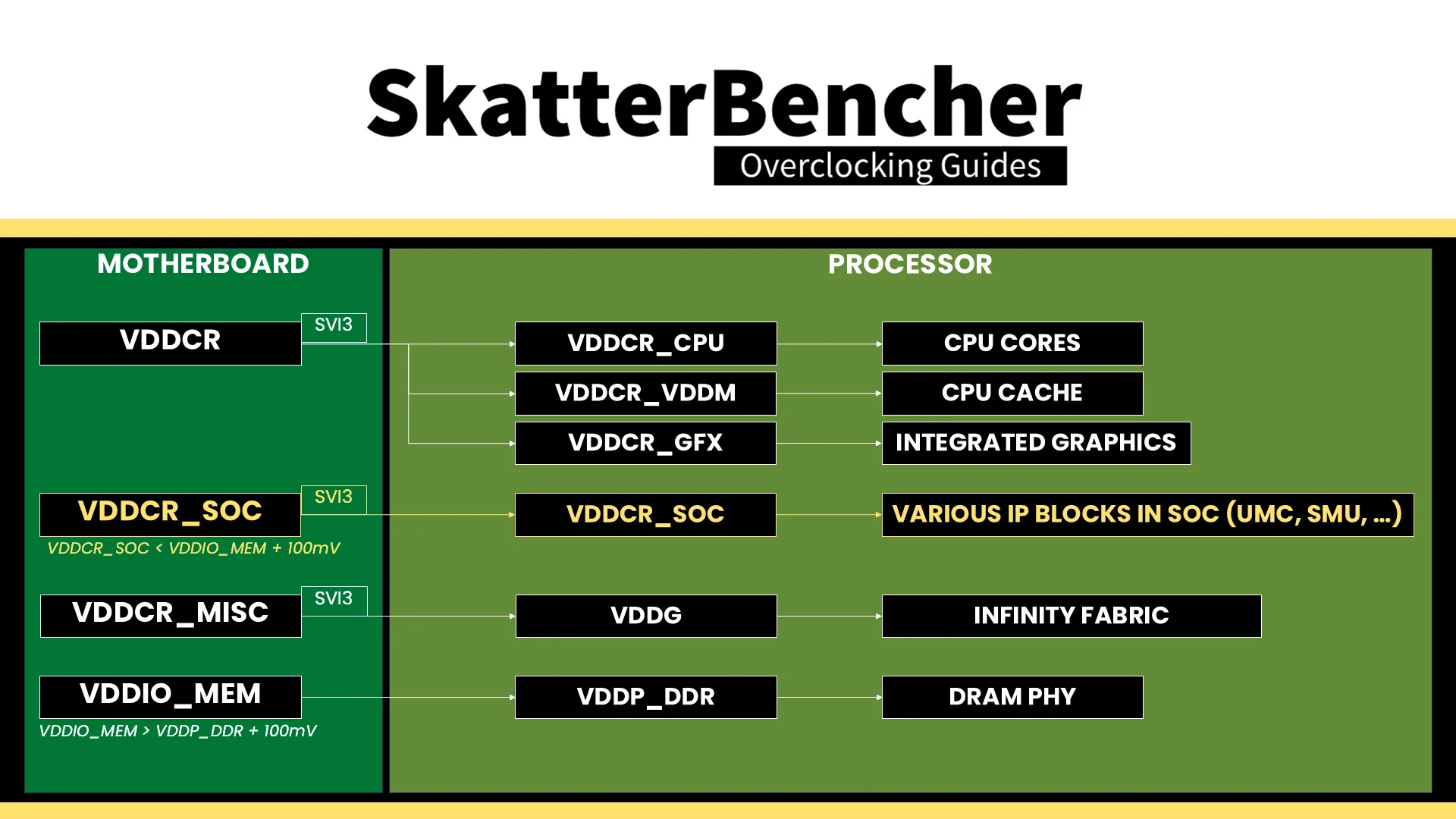
A nice benefit of running DDR5-8000 with the memory controller at half the memory frequency is that we can run the SOC voltage lower as well. The BIOS auto-rules will usually increase the SOC voltage to 1.25V or higher to increase the overclocking headroom, but with DDR5-8000 we don’t need that much voltage. I was planning on lowering it to 1.05V but apparently forgot about it until writing up the guide just now. Oops!
It is essential to know that the VDDCR_SOC voltage must always be lower than VDDIO_MEM_S3 + 100mV. The default VDDCR_SOC voltage is 1.05V and can be set to 1.30V under ambient conditions. That’s typically required for running the memory controller in sync with the memory at DDR5-6400. However, we need LN2 mode enabled for higher voltages.
System Memory Timings Tuning
The last piece of the memory subsystem performance tuning is tuning the memory timings. For this, I rely in part on ASUS’ Memory Presets technology.
ASUS Memory Presets
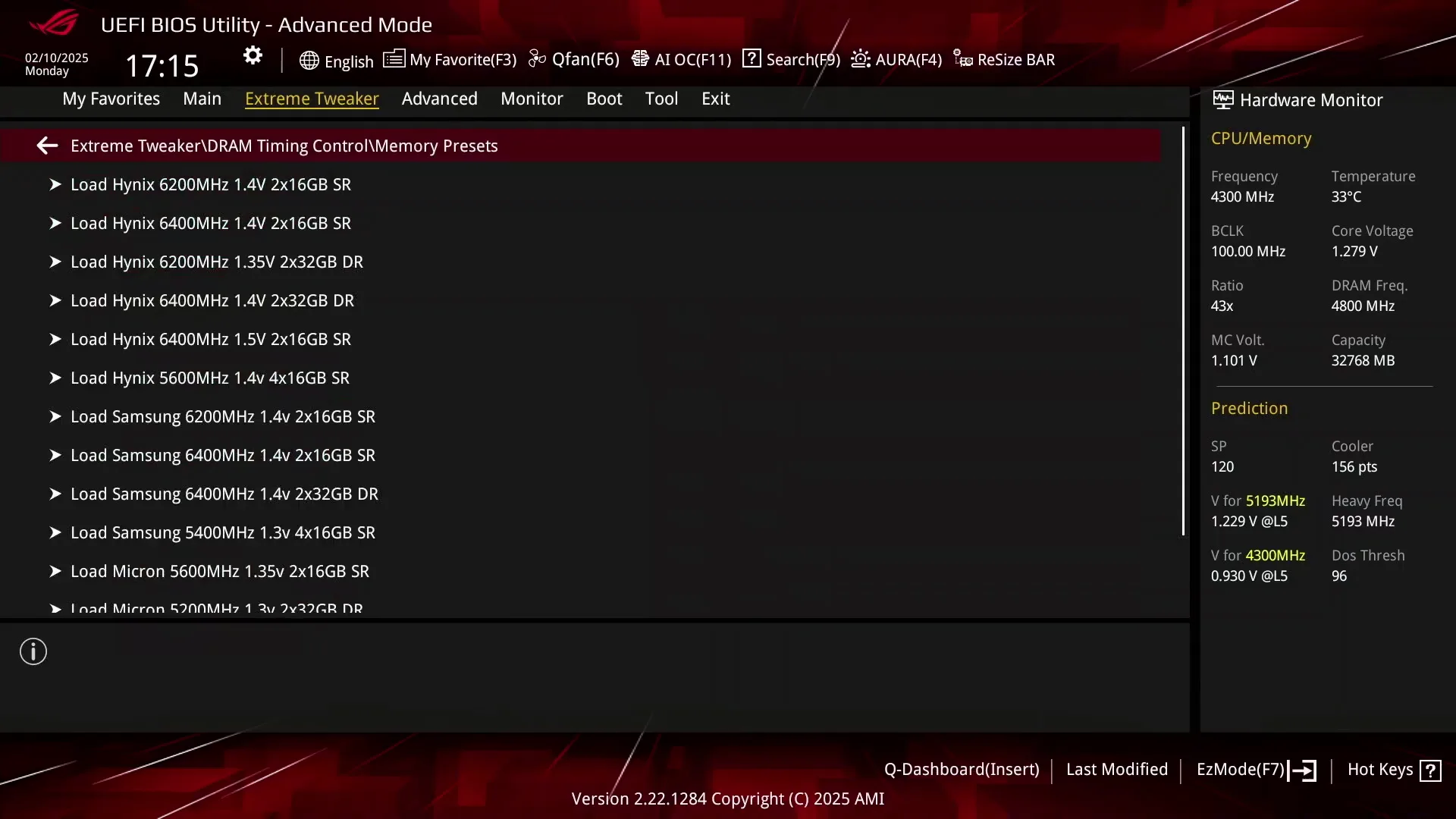
ASUS Memory Presets is an ASUS overclocking technology that provides a selection of memory-tuning presets for specific memory ICs. The presets will adjust the memory timings and voltages.
The ROG Crosshair X870E Hero motherboard sports fourteen memory profiles for a variety of memory ICs and configurations. Since we’re interested in simply adjusting the memory timings, we can try the Hynix 7600MHz 1.45V 2x16GB SR preset.
Memory Timings Tuning
The Hynix 7600 memory preset turned out not to be stable as it would throw errors in the OCCT Memory Stress test almost instantly. But no cause for alarm because we’ve seen this in previous overclocking guides as well.
The first step in looking for stability is always just to reduce the memory frequency by a couple of steps. While that reduces performance, obviously, it’s much faster to fine-tune than digging into individual sub timings. In my case, I found the kit to be stable at DDR5-7800.
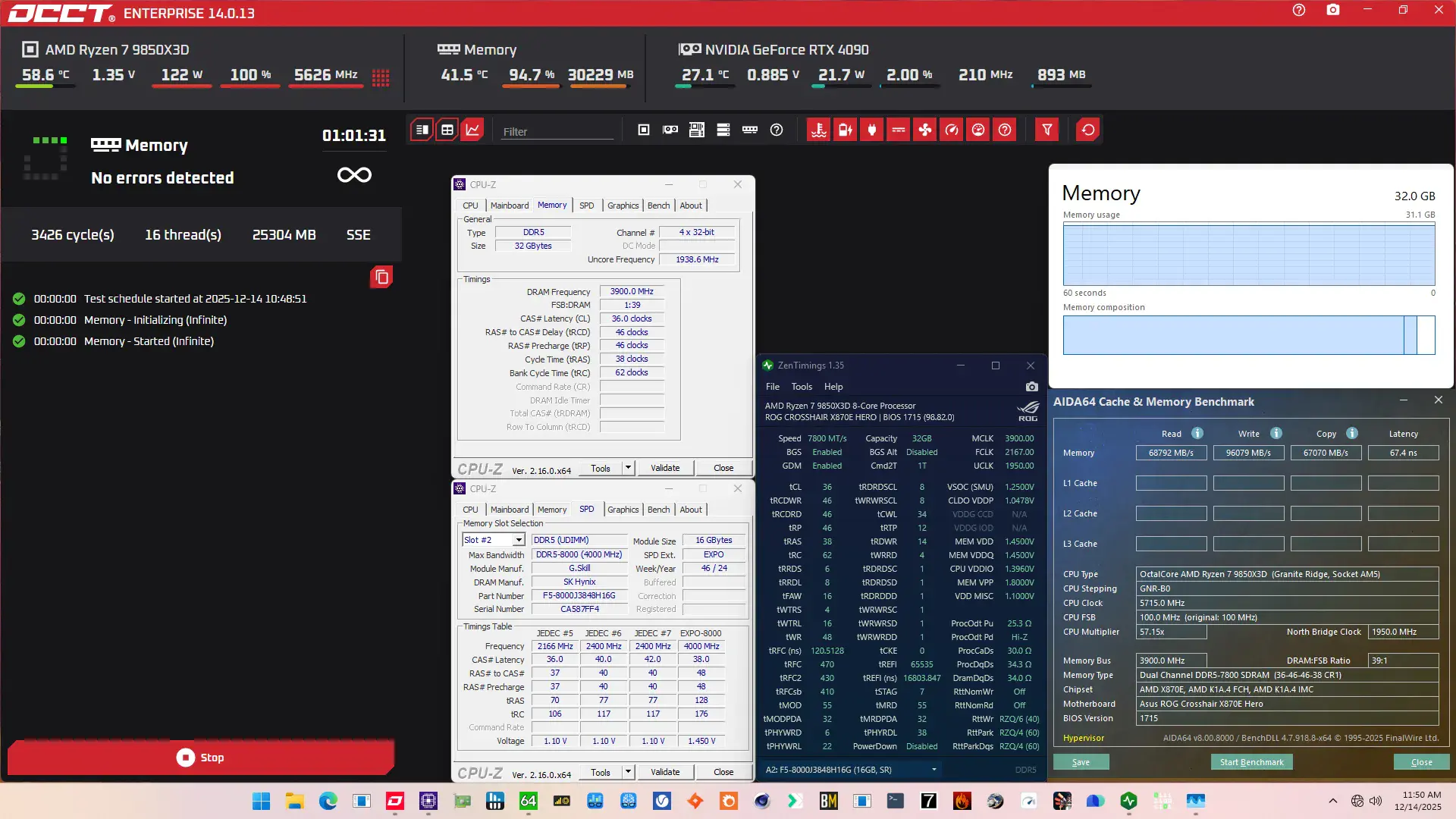
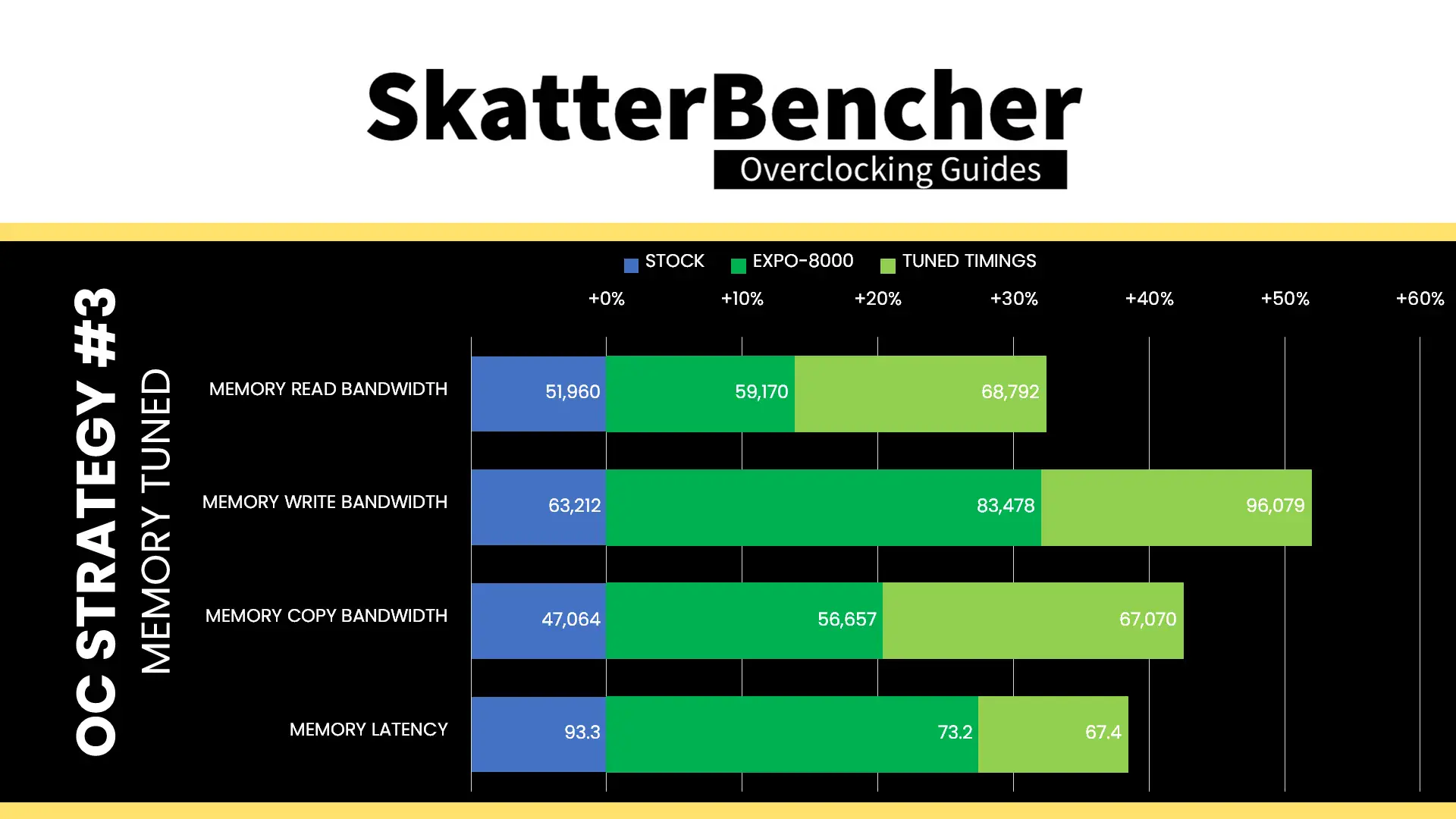
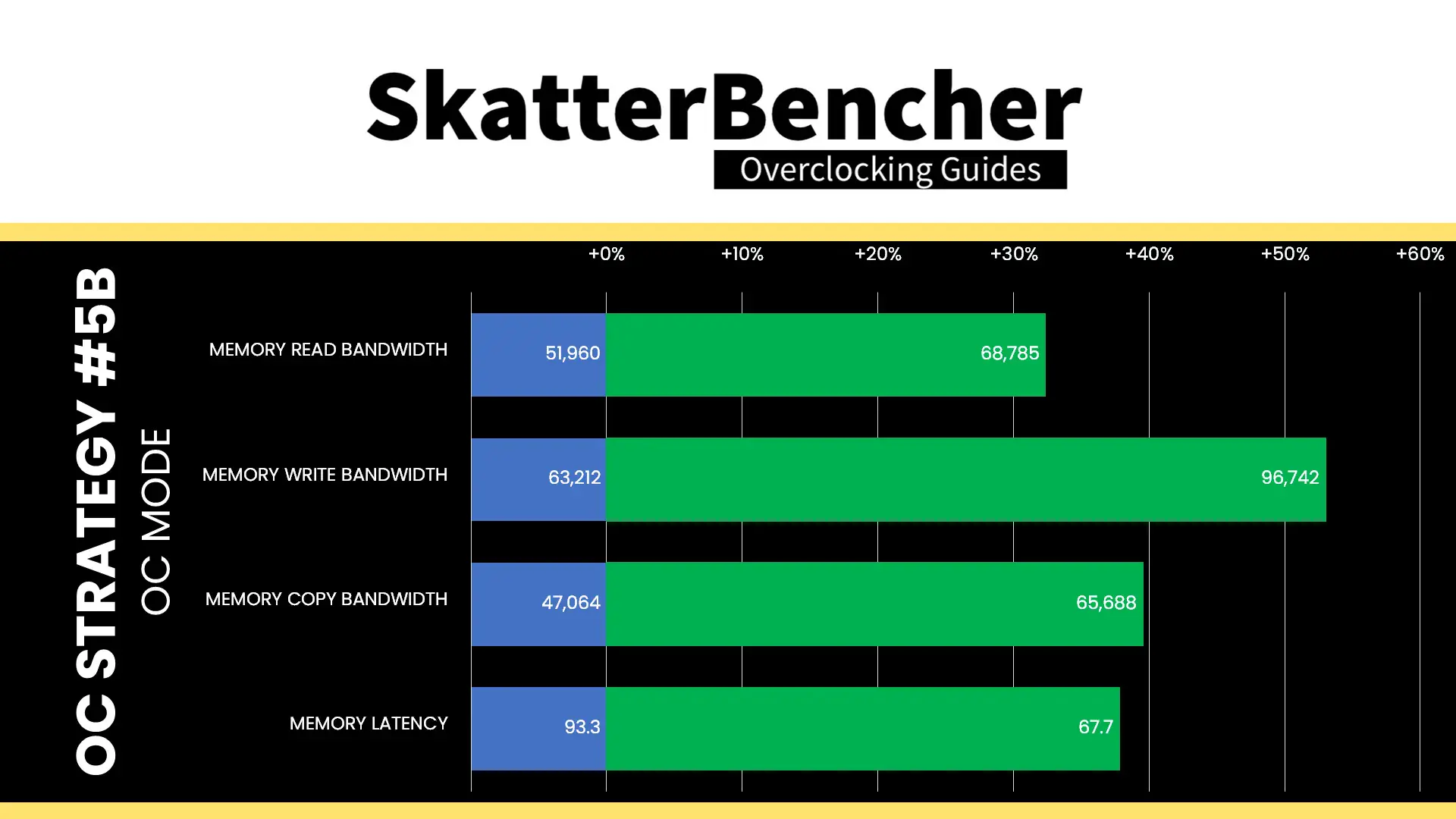
After the tuning, our AIDA64 performance improved quite significantly. We got about +30% extra bandwidth and 30% lower latency by enabling EXPO. The memory tuning then added another 20% improvement on top of that.
BIOS Settings & Benchmark Results
Upon entering the BIOS
- Go to the Extreme Tweaker menu
- Set Ai Overclock Tuner to EXPO I
- Set Memory Frequency to DDR5-7800
- Enter the DRAM Timing Control submenu
- Enter the Memory Presets submenu
- Select Load Hynix 7600MHz 1.45V 2x16GB SR and click OK
- Leave the Memory Presets submenu
- Enter the Memory Presets submenu
- Leave the DRAM Timing Control submenu
- Switch to the Advanced menu
- Enter the AMD Overclocking submenu and click accept
- Enter the DDR and Infinity Fabric Frequency/Timings submenu
- Enter the Infinity Fabric Frequency and Dividers submenu
- Set Infinity Fabric Frequency and Dividers to 2167 MHz
- Leave the Infinity Fabric Frequency and Dividers submenu
- Enter the Infinity Fabric Frequency and Dividers submenu
- Leave the DDR and Infinity Fabric Frequency/Timings submenu
- Enter the Precision Boost Overdrive submenu
- Set Precision Boost Overdrive to Advanced
- Set PBO Limits to Motherboard
- Set Precision Boost Overdrive Scalar Ctrl to Manual
- Set Precision Boost Overdrive Scalar to 10X
- Set CPU Boost Clock Override to Enabled (Positive)
- Set Max CPU Boost Clock Override to 200
- Enter the Curve Optimizer submenu
- Set Curve Optimizer to All Cores
- Set All Core Curve Optimizer Sign to Negative
- Set All Core Curve Optimizer Sign to 25
- Set Curve Optimizer to All Cores
- Leave the Curve Optimizer submenu
- Leave the Precision Boost Overdrive submenu
- Enter the DDR and Infinity Fabric Frequency/Timings submenu
Then save and exit the BIOS.
We re-ran the benchmarks and checked the performance increase compared to the default operation.
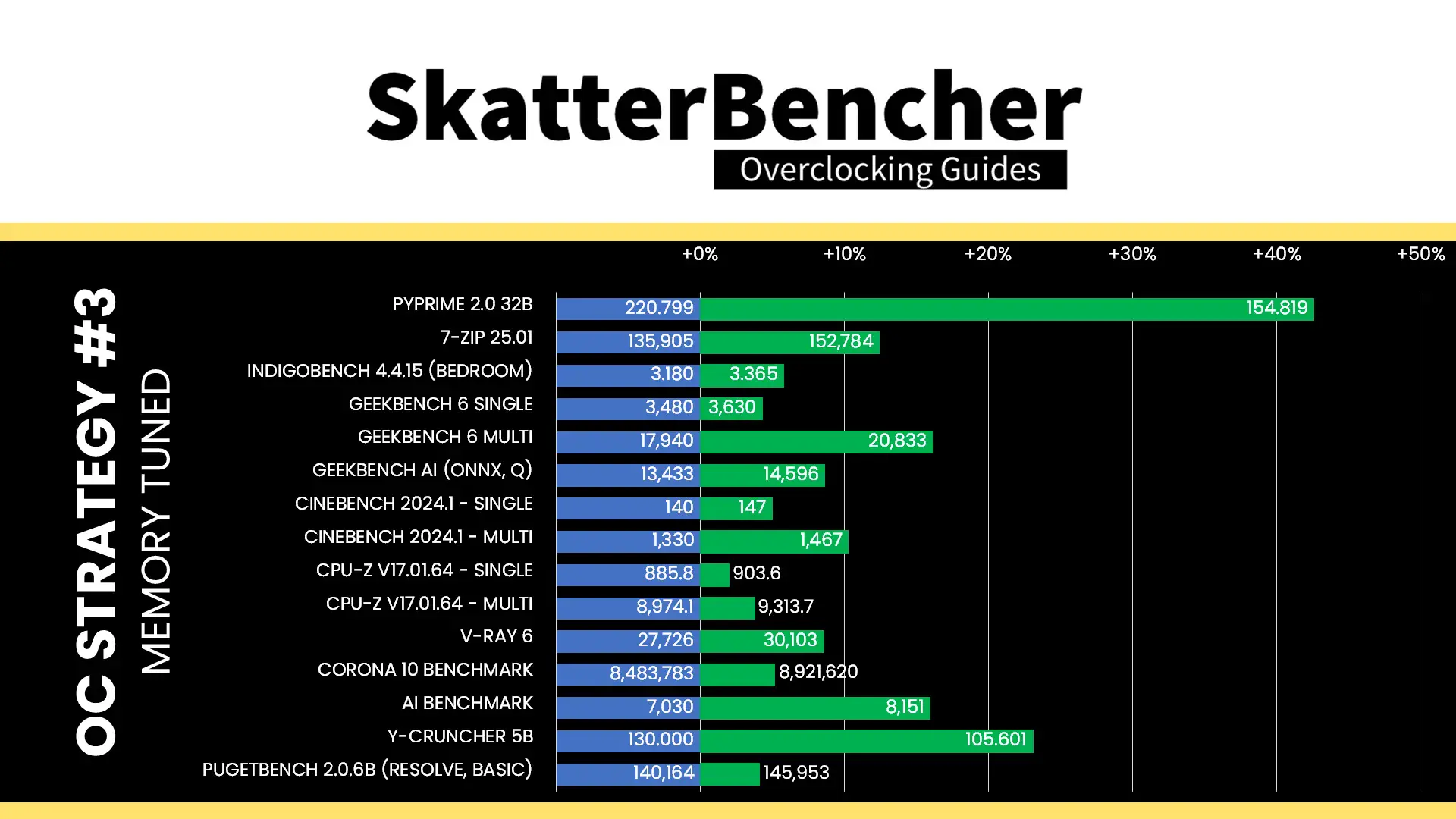
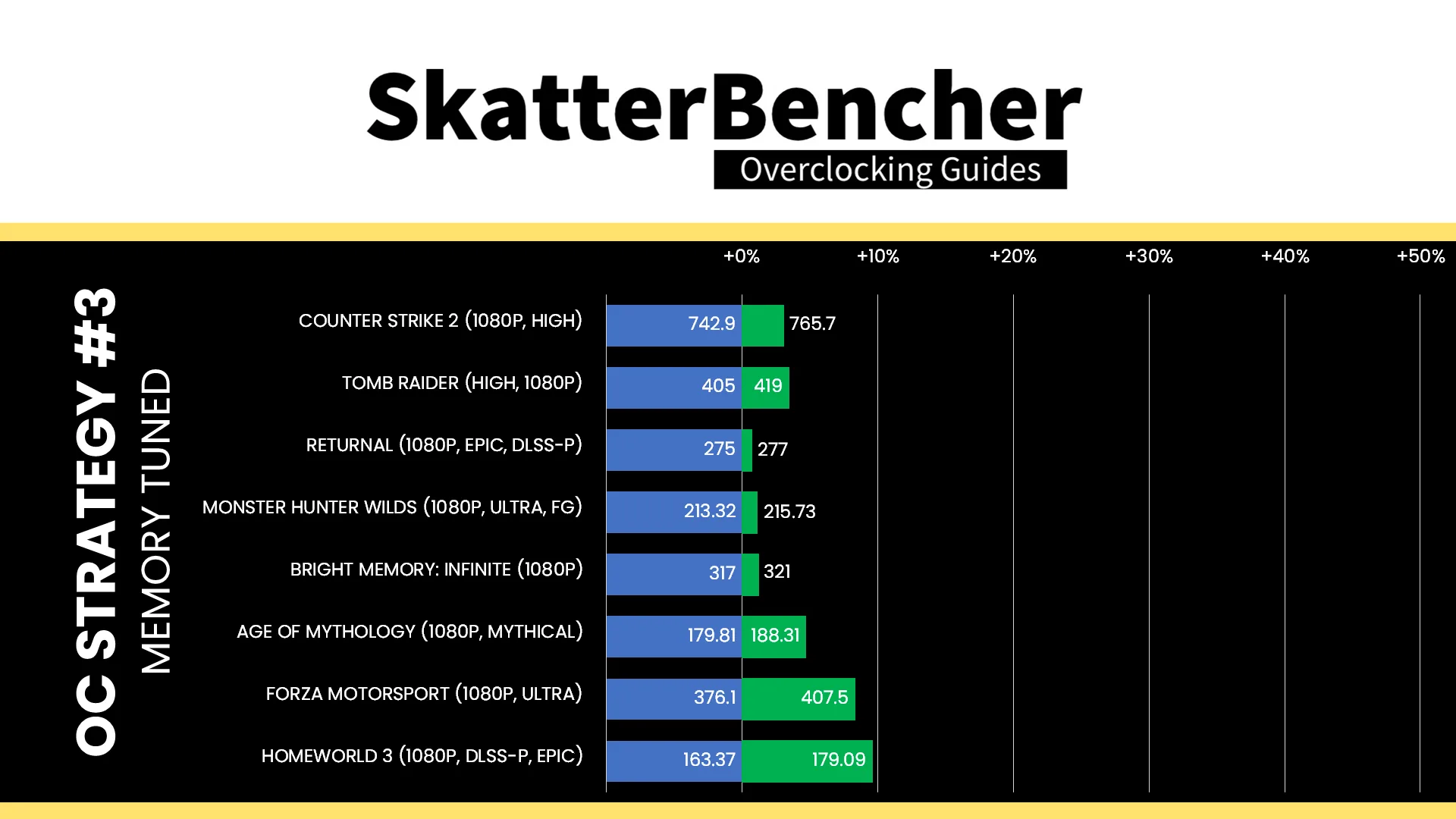
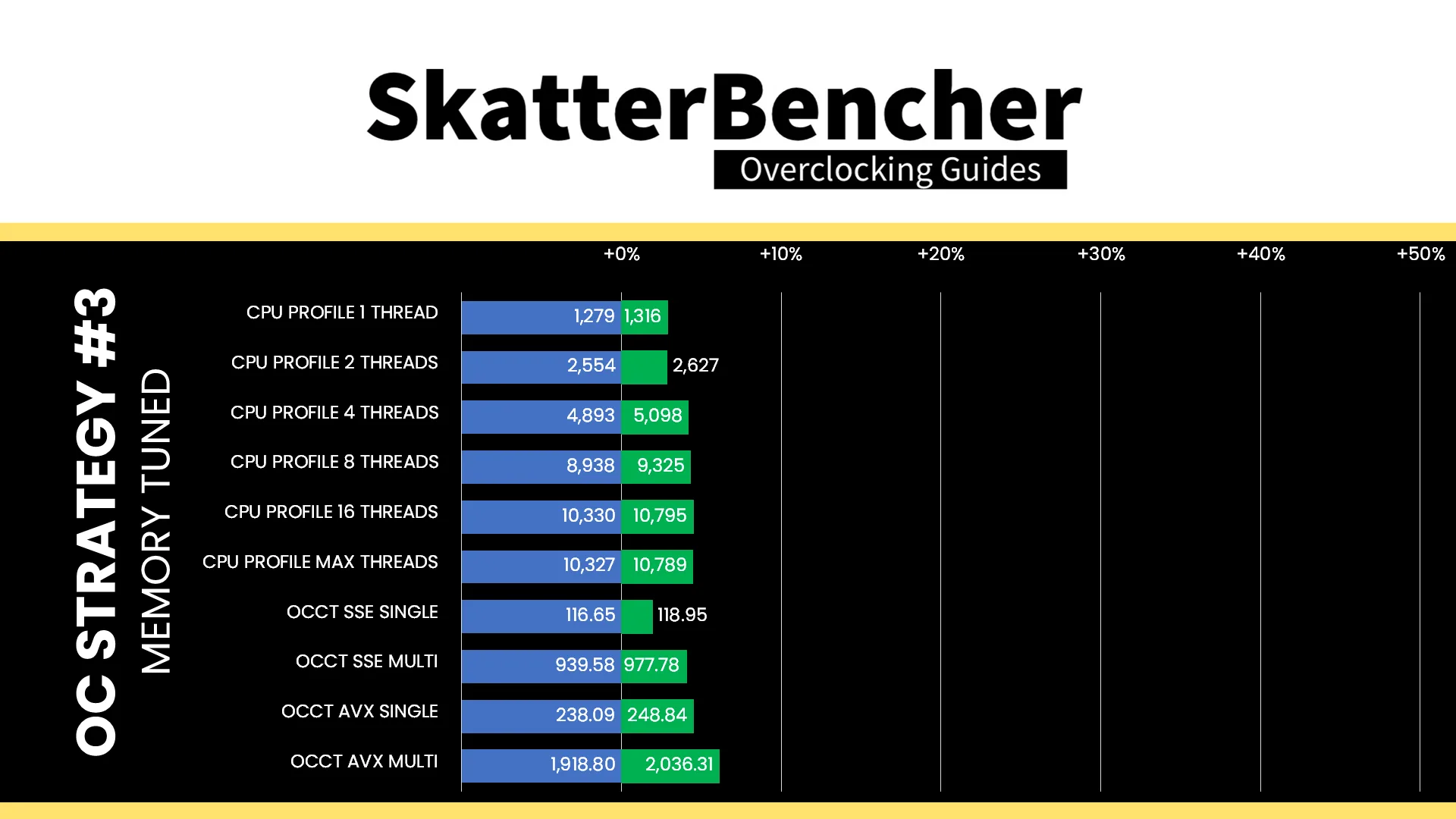
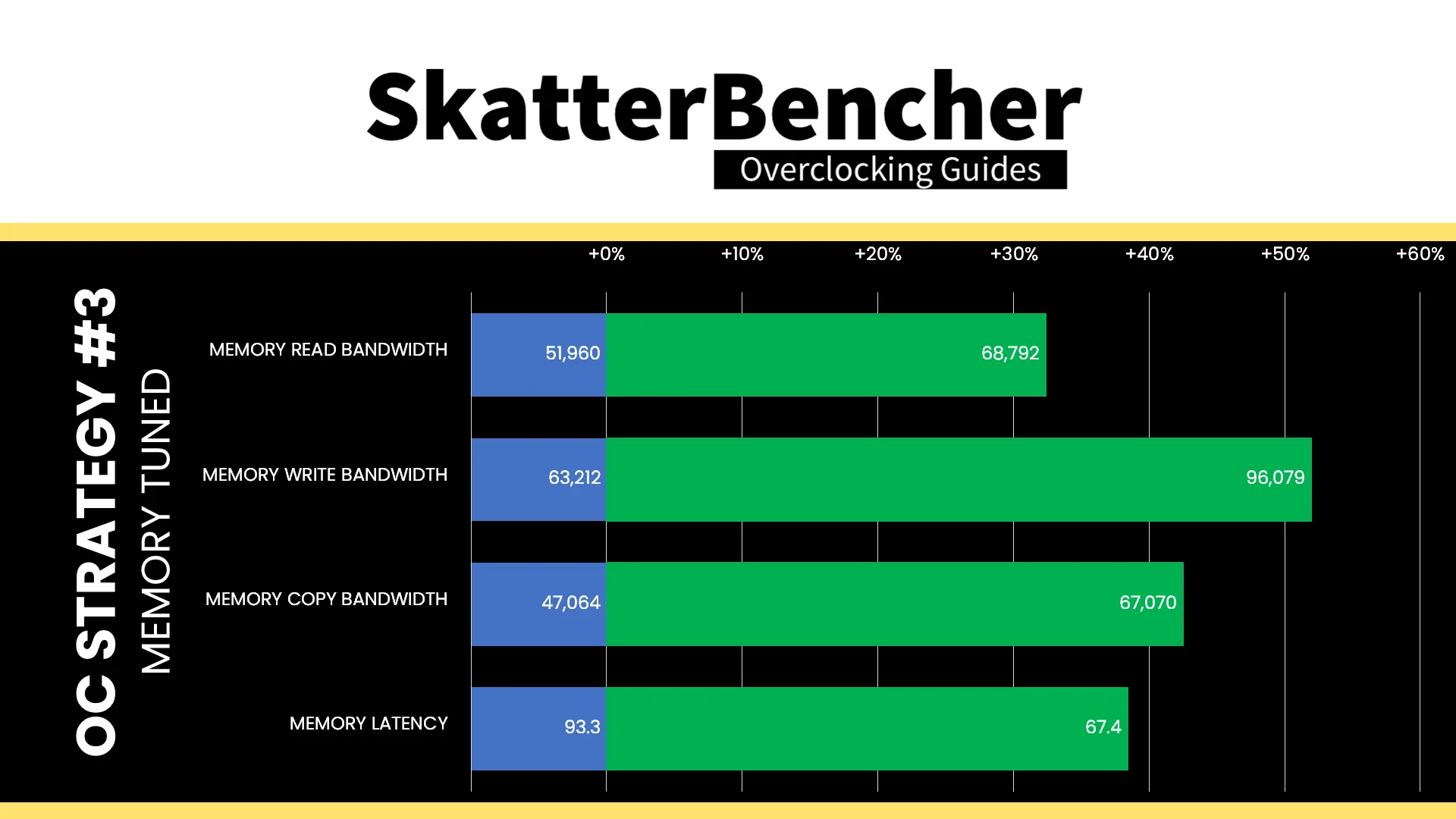
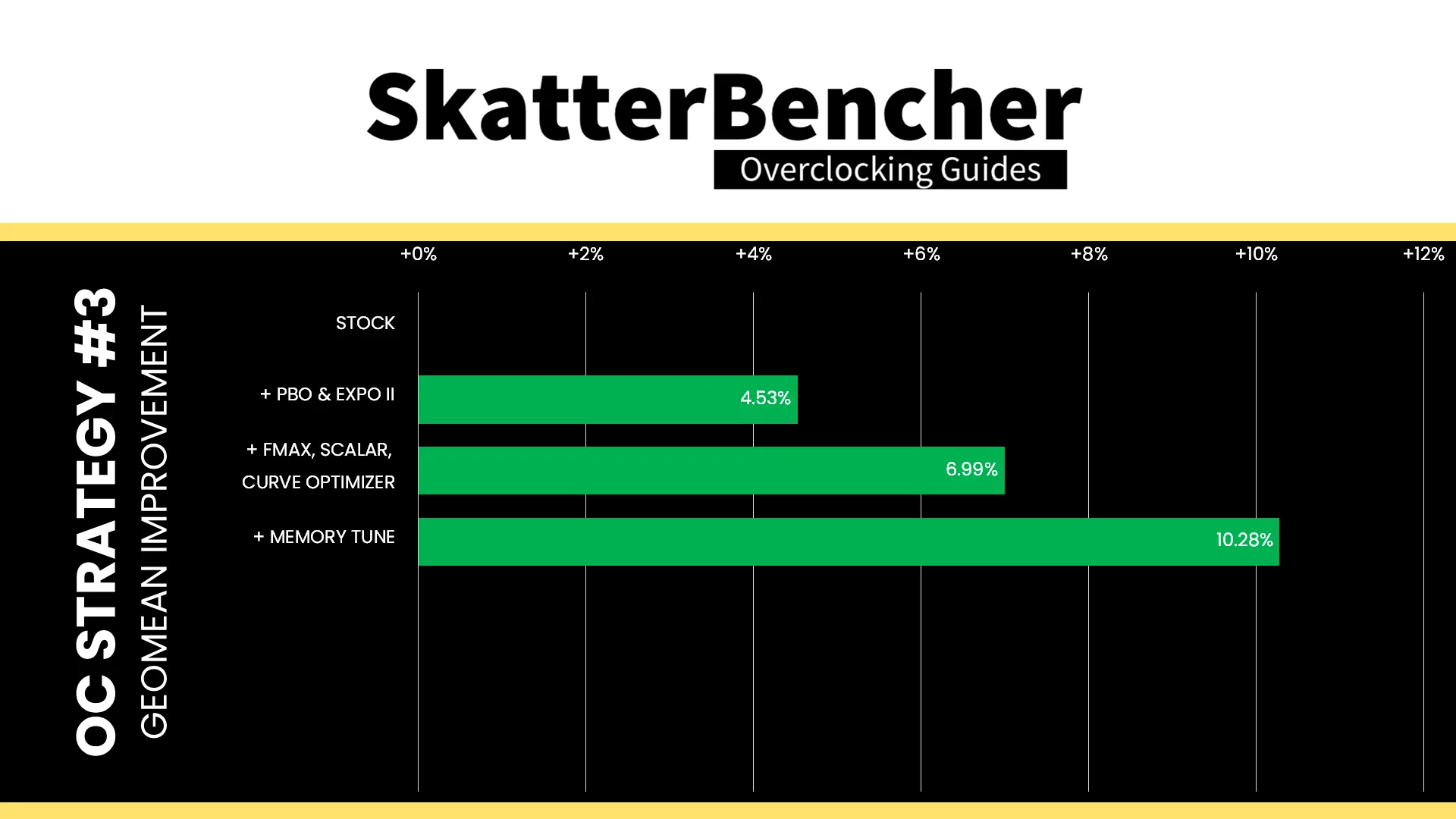
As we’ve seen with other modern platforms, tuning the memory timings can have a not insignificant impact on system performance, especially in workloads which are memory dependent. We see this behavior in specific multi-threaded workloads like Y-Cruncher, AI Benchmark, and Geekbench. Also, we can see a decent impact in certain games like Homeworld 3 and Forza Motorsport. The Geomean performance speedup improves another three percentage points and we get a maximum benchmark performance improvement of +42.79% in PyPrime.
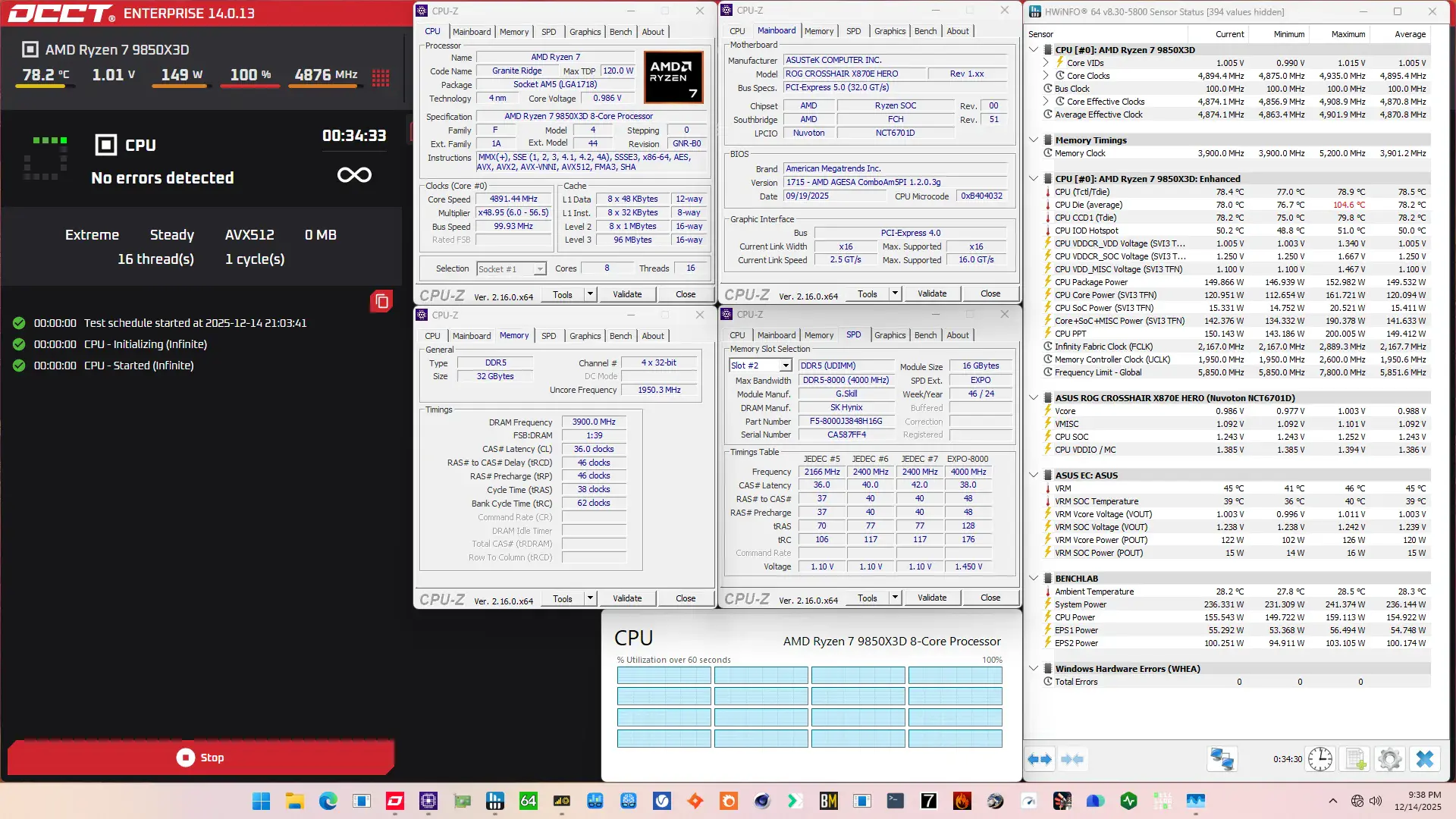
When running the OCCT CPU AVX-512 Stability Test, the average CPU effective clock is 4870 MHz with 1.005 volts. The average CPU temperature is 78.2 degrees Celsius. The average CPU package power is 149.5 watts.
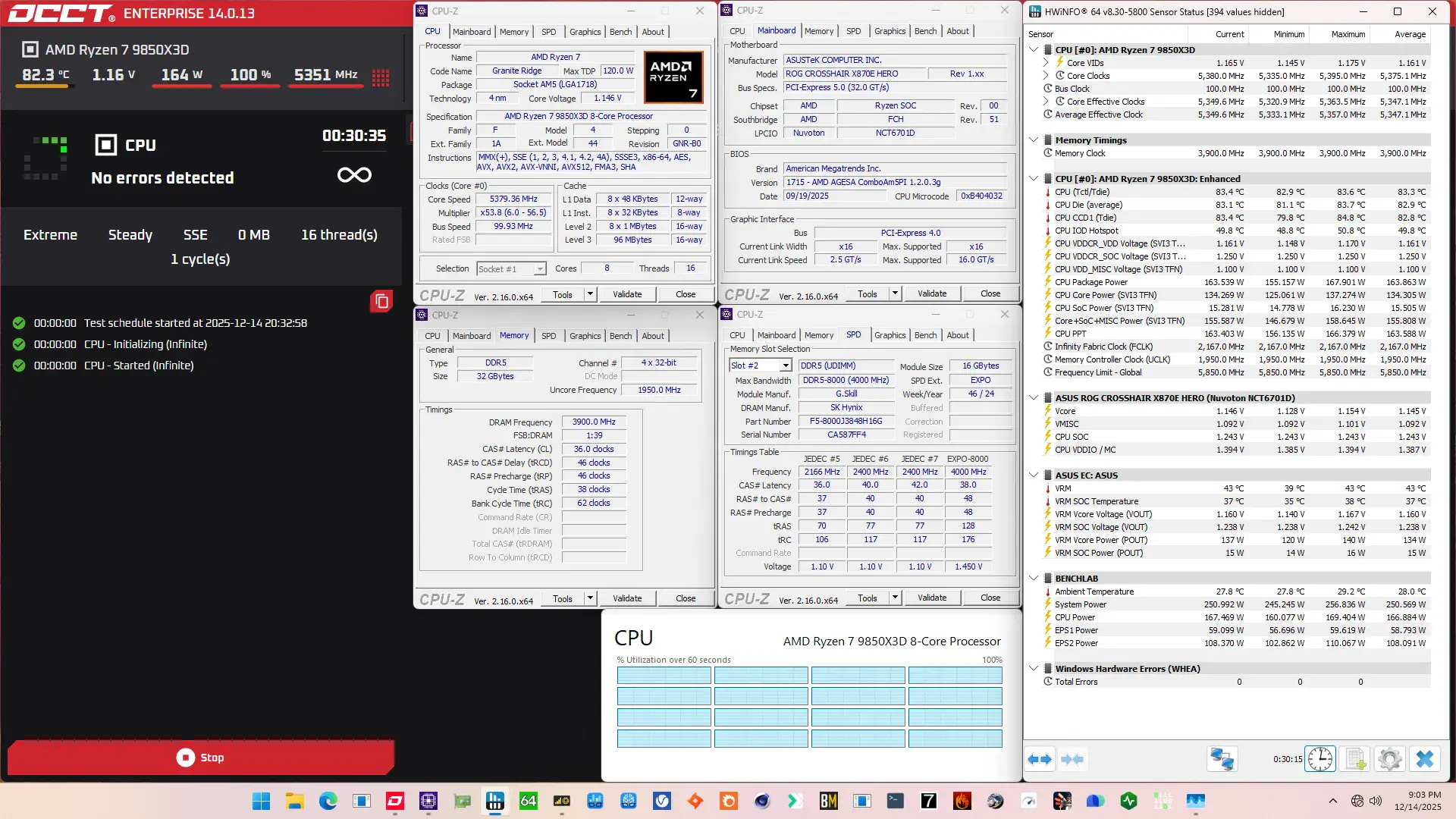
When running the OCCT CPU SSE Stability Test, the average CPU effective clock is 5347 MHz with 1.161 volts. The average CPU temperature is 82.8 degrees Celsius. The average CPU package power is 163.9 watts.
OC Strategy #4: Async ECLK & Curve Shaper
In our fourth overclocking strategy, we take advantage of ECLK mode. ECLK stands for external clock and is precisely what the term suggests: an external clock generator. With the external clock generator, we can warp the Precision Boost V/F curve to achieve higher frequencies.
Granite Ridge ECLK Overview
The standard Granite Ridge platform has a 48 MHz crystal input to the integrated CGPLL clock generator. The CGPLL then generates a 48 MHz clock for the USB PLL and a 100 MHz reference clock for the FCH, which contains the CCLK PLL for the CPU cores and several SOC PLLs.
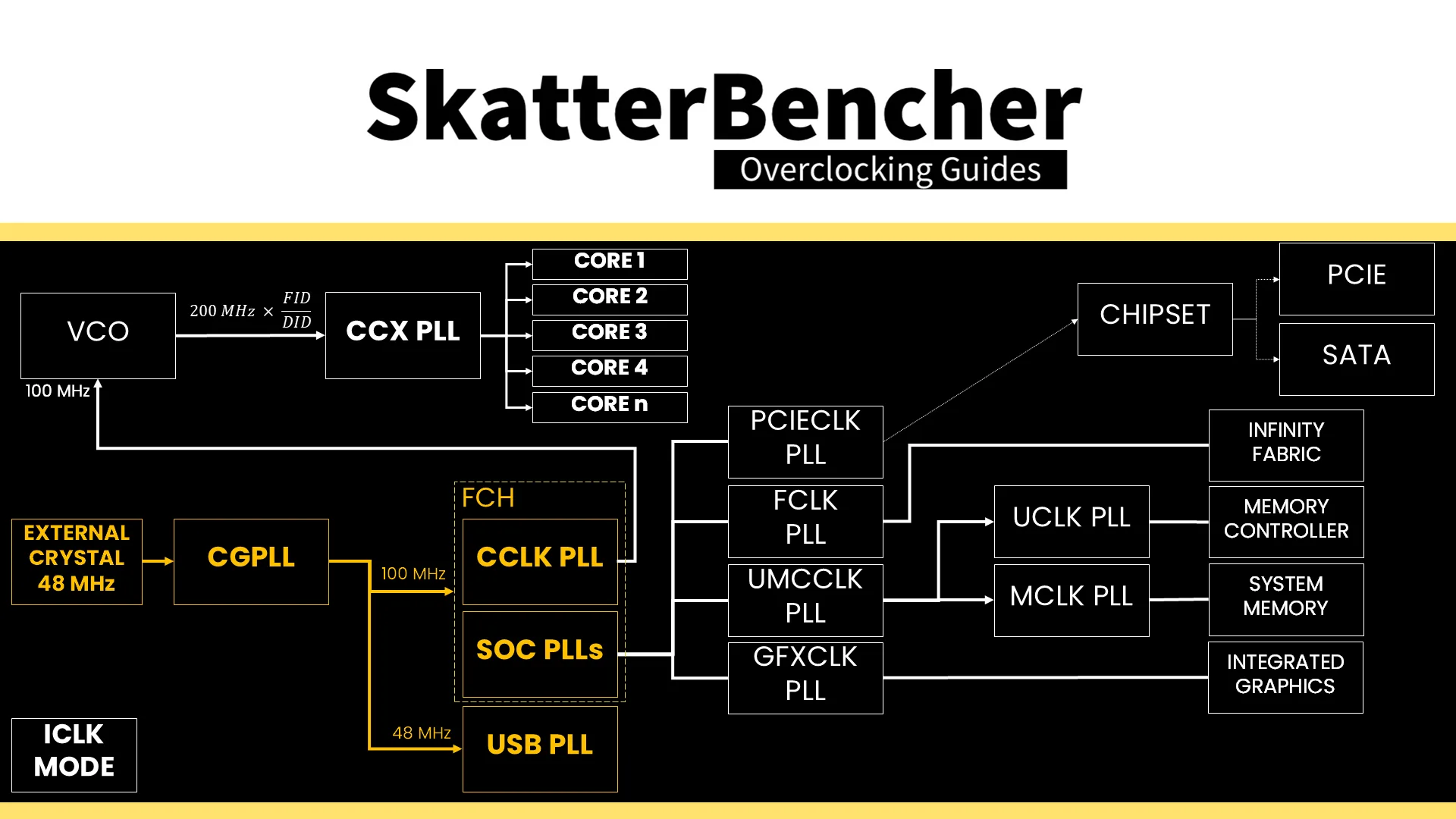
The external clocks are inputs to the FCH. There you can configure how you want to use the external clocks. In addition to the standard internal CGPLL, Granite Ridge supports up to two external clock modes. They’re called eCLK0 Mode and eCLK1 Mode.
- In eCLK0 Mode, an external 100MHz reference clock is used for both the CPU and SOC PLLs. In other words, it’s a reference clock that affects the CPU core clocks and the PCIe and SATA clocks.
- In eCLK1 Mode, there are two distinct external 100MHz reference clocks. One clock provides the 100MHz input for the CPU PLL, and another provides the 100MHz reference clock for the SOC PLLs.
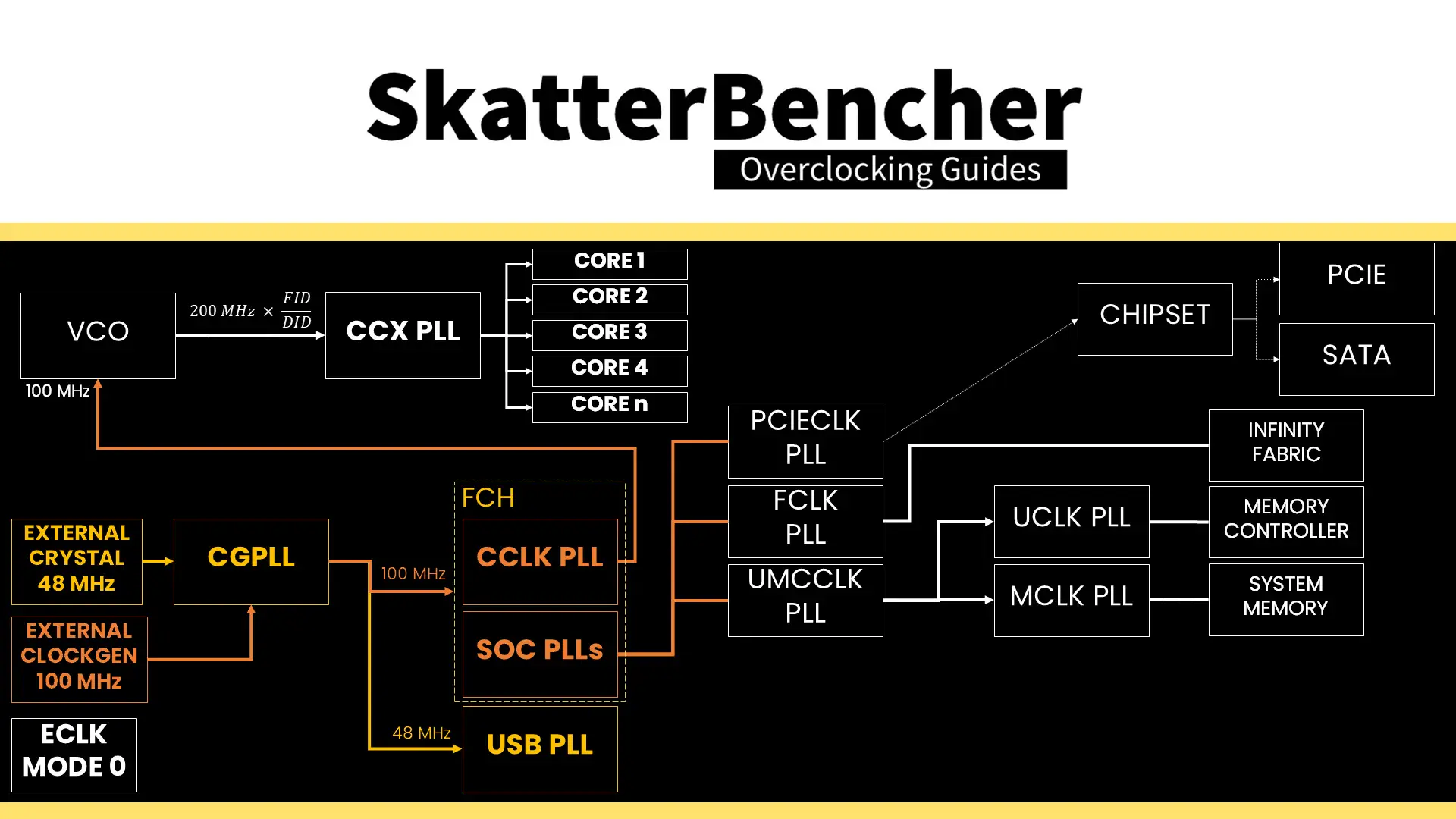
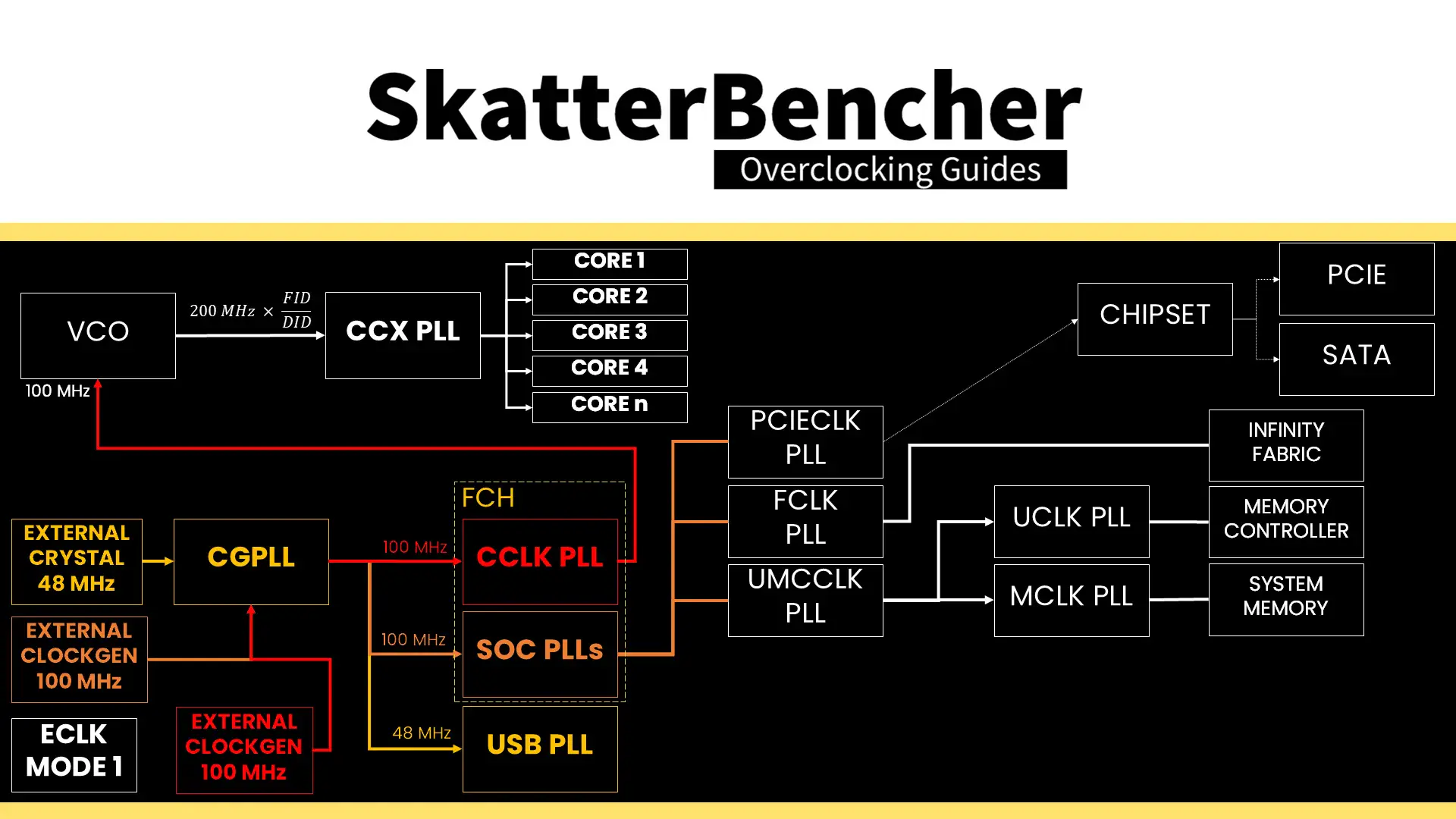
The overclocking strategy with ECLK is the polar opposite of what we’re used to with Ryzen CPUs. OC Strategy #2 shows that Ryzen overclocking is typically done with a negative curve optimizer. That pushes the Precision Boost algorithm to reach higher boost frequencies.
With ECLK, we still build on the factory-fused VFT curve but adjust the frequency by adjusting the reference clock. A key challenge with using ECLK is that we’re applying a linear stretch on a non-linear V/F curve. Let me explain with an example.
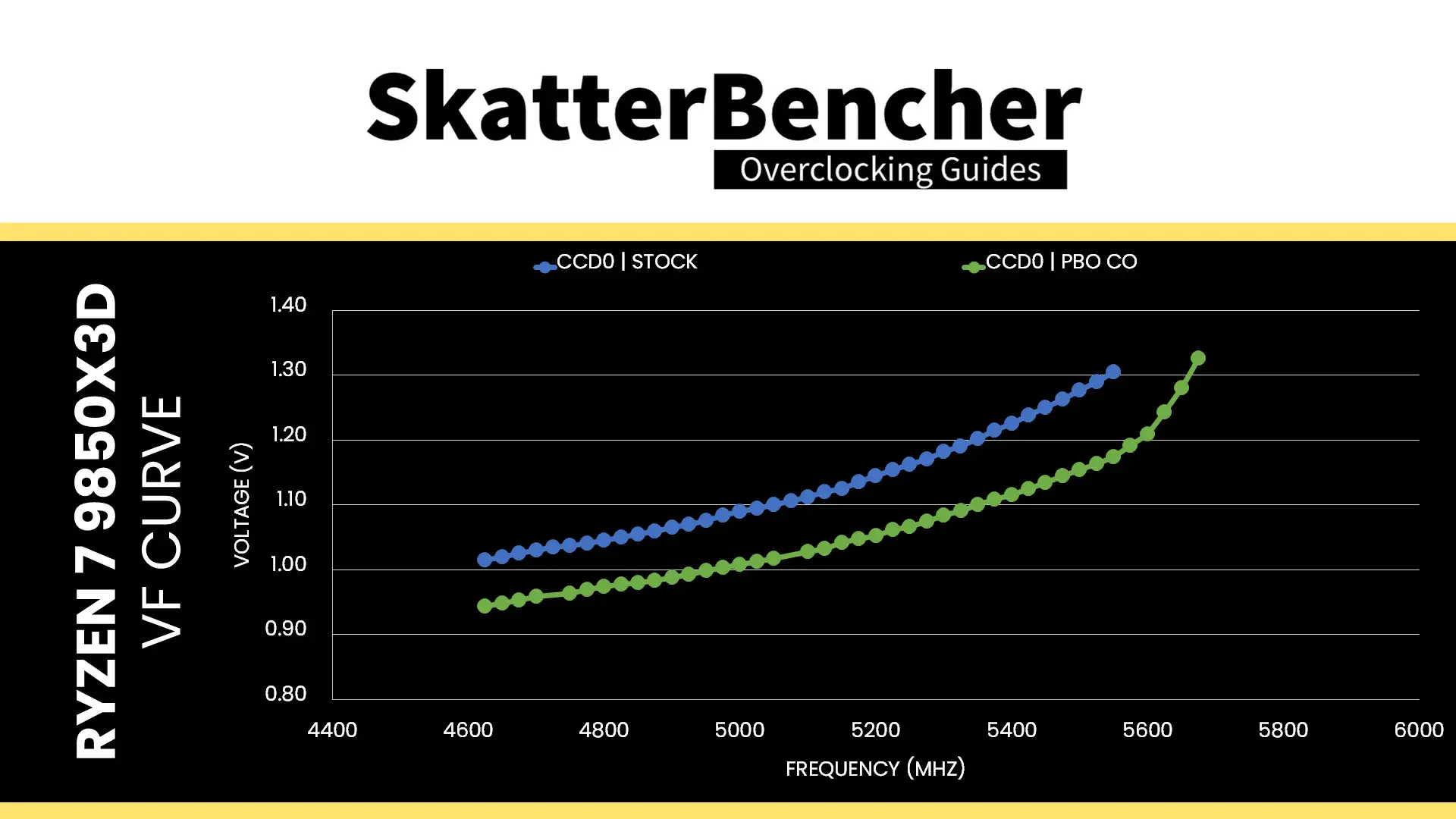
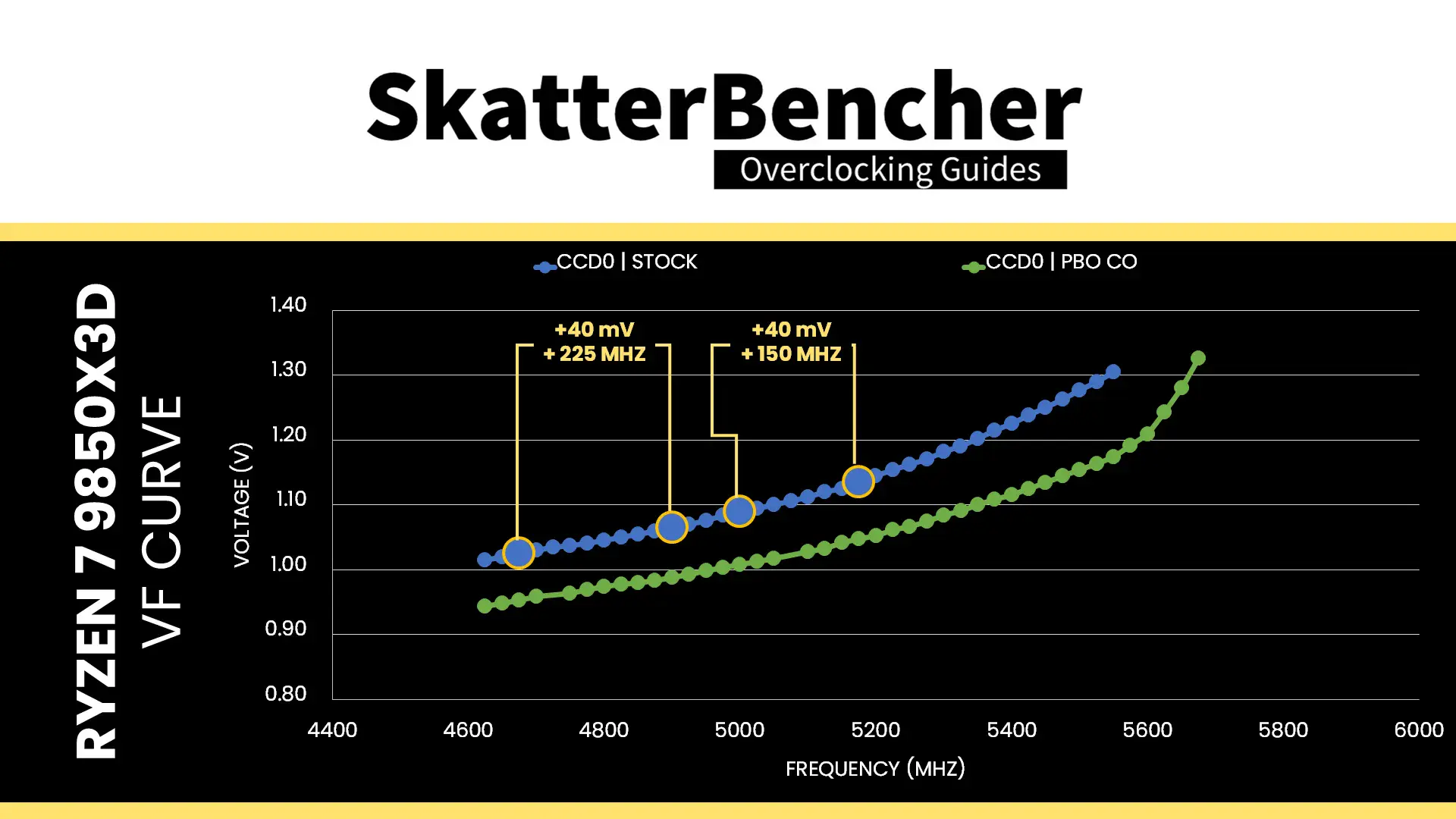
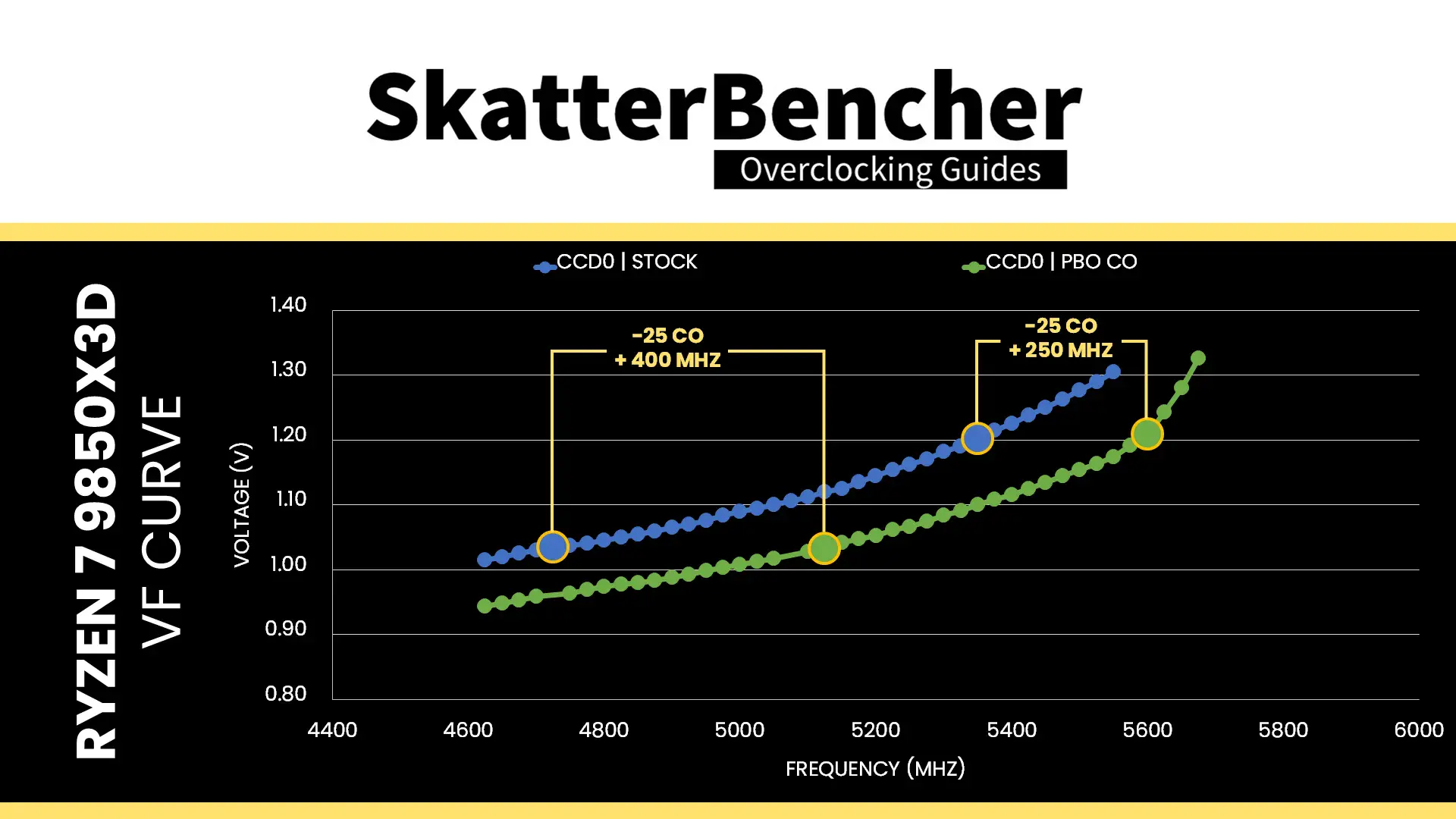
Here you can see two V/F curves of the Ryzen 7 9850X3D: the default curve and the one from OC Strategy #2 with the -25 curve optimizer. We can see the law of diminishing marginal returns: the higher the frequency, the less additional frequency with every step of additional voltage.
For example: on the default curve, increasing the voltage 40mV from 1.025V to 1.065V gives an extra 225 MHz (4900-4675), but increasing from 1.095V to 1.135V (also 40mV) only gives an extra 150 MHz (5175-5025).
The law of diminishing returns also applies to our undervolt. With a -25 curve optimizer we get an extra 400 MHz at 1.035V (5125-4725) but only +250 MHz at 1.2V (5600-5350).
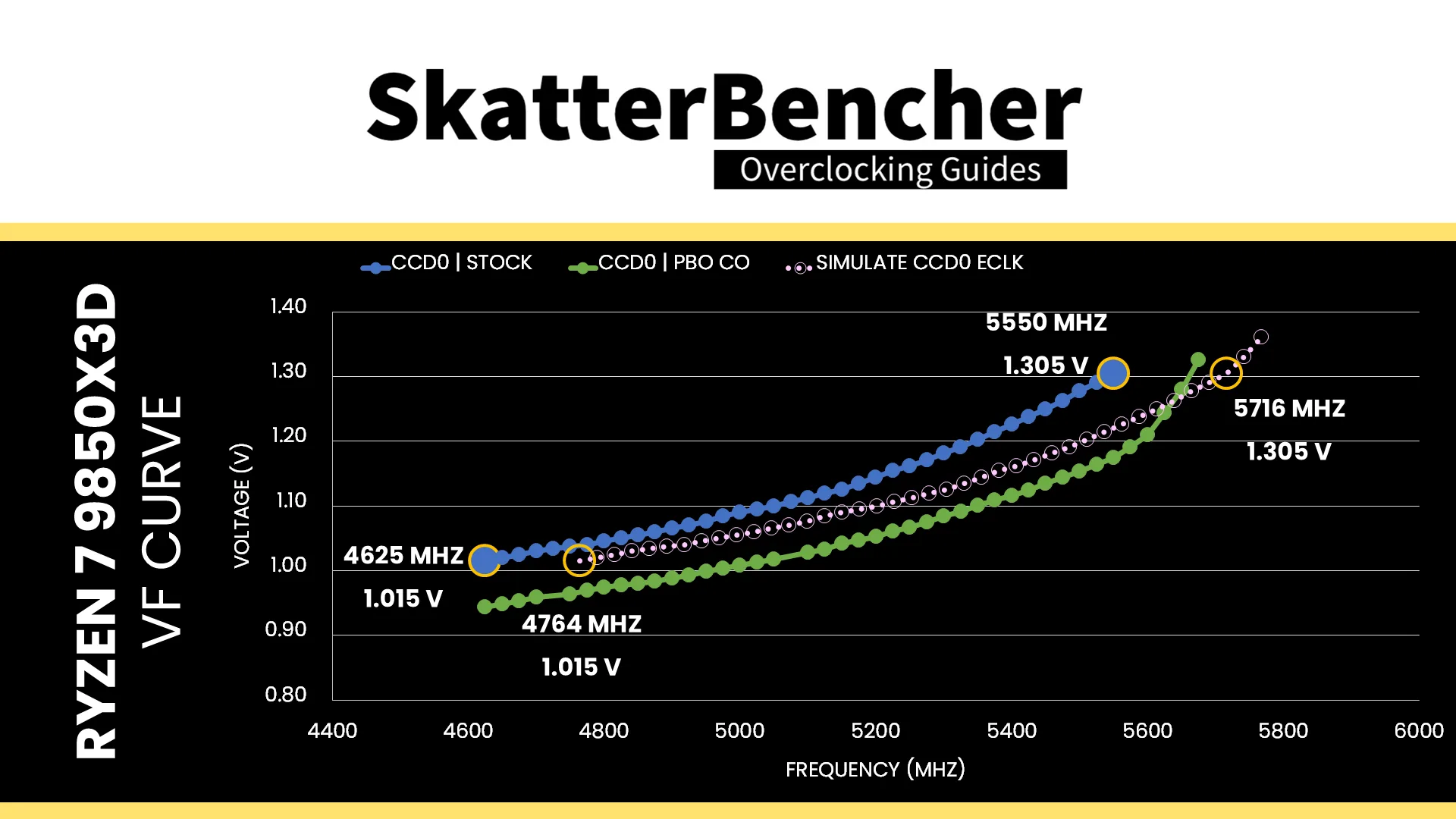
We can simulate the V/F curve with adjusted ECLK by multiplying the stock V/F curve with our target ECLK frequency. For example, if we were to increase the ECLK by 3%, setting it to 103 MHz, then the resulting curve would look as follows. We can make two key observations:
- The frequency increases by 140 to 150 MHz across the entire curve and doesn’t show any diminishing returns.
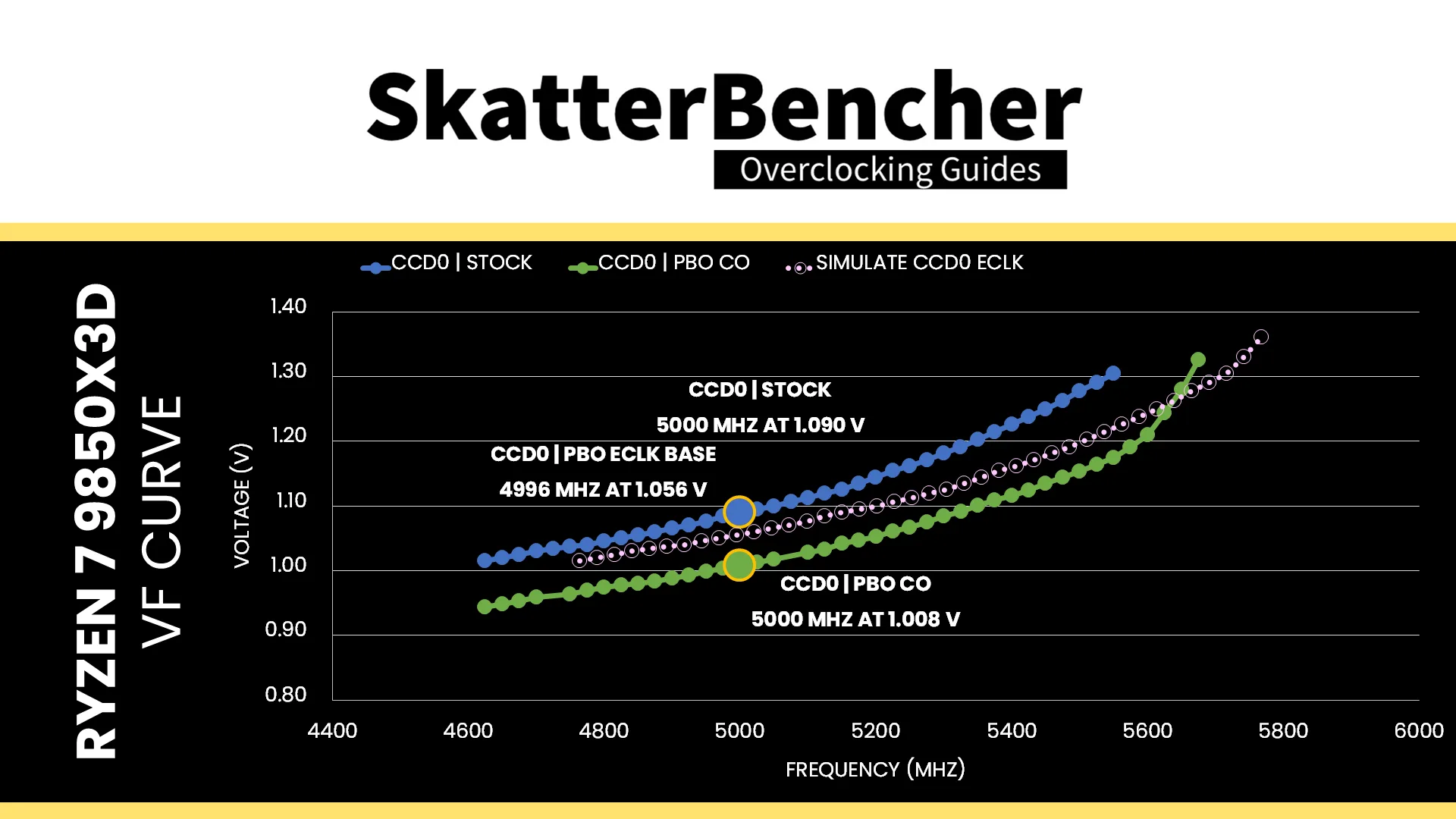
- While the voltage for a given frequency is lower than the default curve, it is higher than with our Curve Optimized curve. For example, for 5 GHz we need 1.090V by default, about 1.055V when using 103 MHz ECLK, but only 1.008V when Curve Optimized.
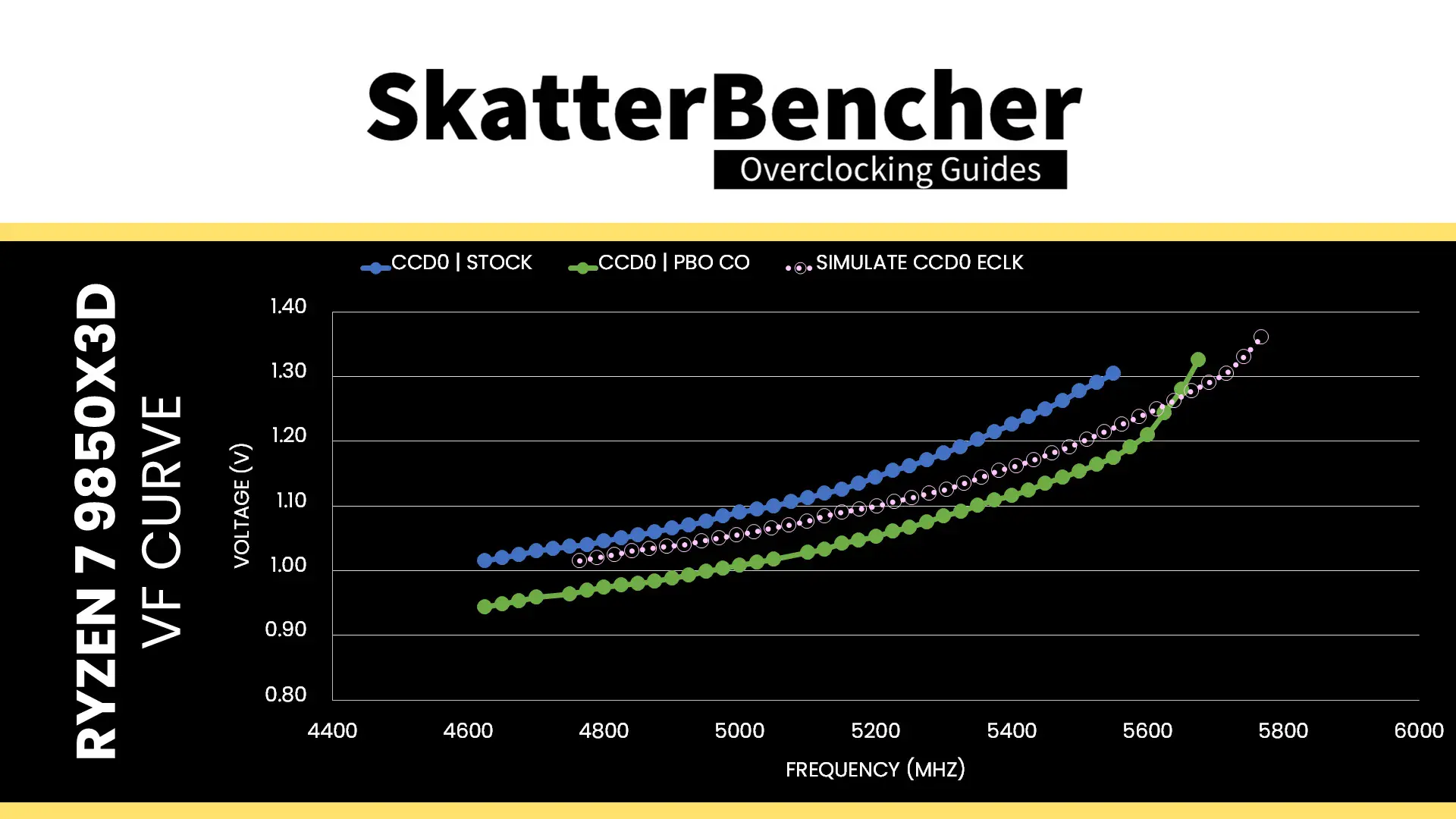
Here’s what the actual V/F curve looks like with 103 MHz ECLK. You can see it’s pretty close to our simulated curve.
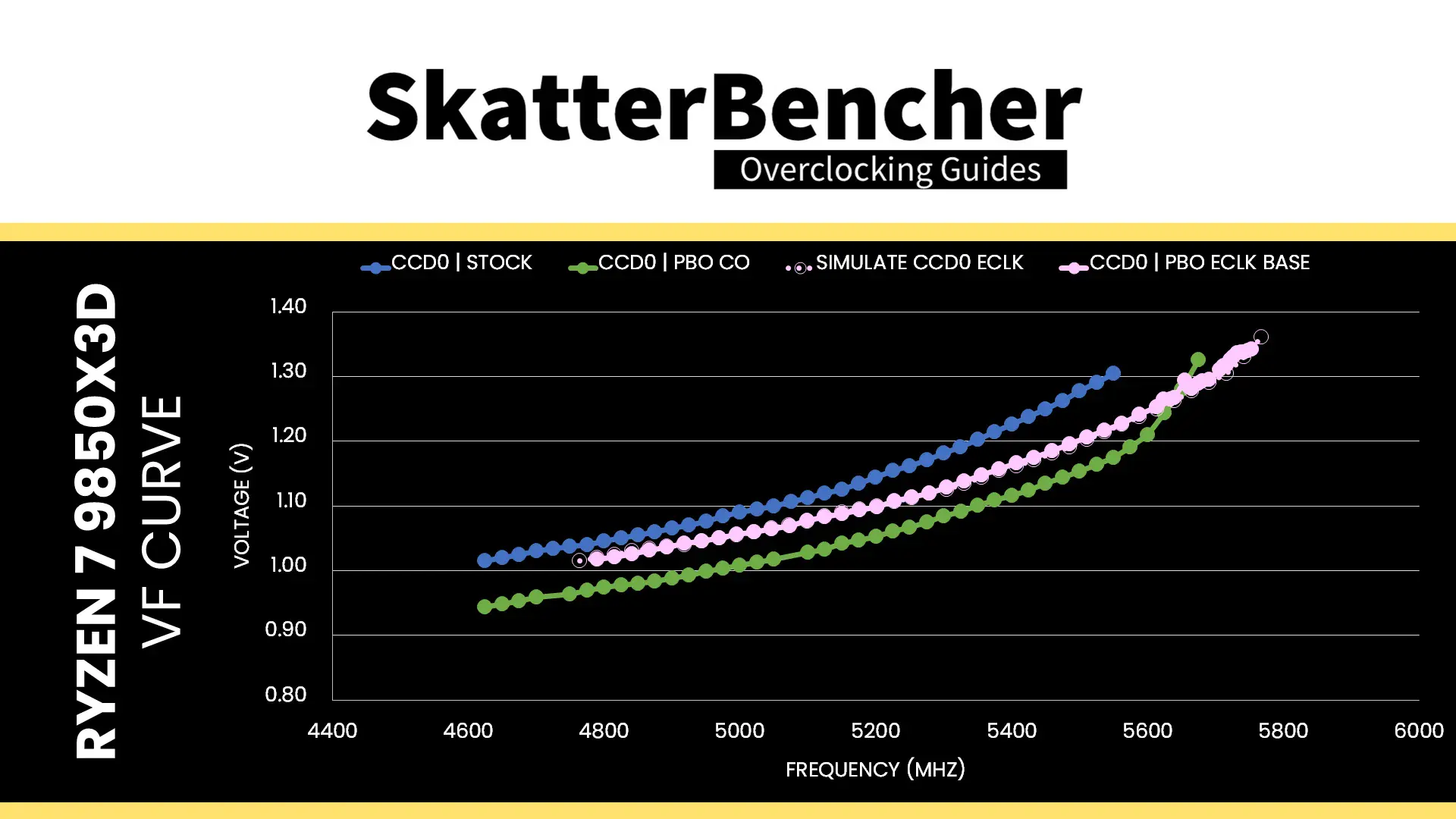
Before Ryzen 9000, we could only rely on Curve Optimizer to tune the curve. That meant we could use a positive Curve Optimizer to squeeze higher frequency at the upper end of the curve by sacrificing frequency (and thus performance) at the lower end of the curve.
However, with Ryzen 9000 CPUs we have a critical new tool in the overclocking toolbox: Curve Shaper.
Curve Shaper
Curve Shaper is the newly introduced tool of the Precision Boost Overdrive 2 toolkit. It was introduced alongside the Zen 5 Ryzen 9000 “Granite Ridge” processors. I had an in-depth look at the tool in a different guide on this blog
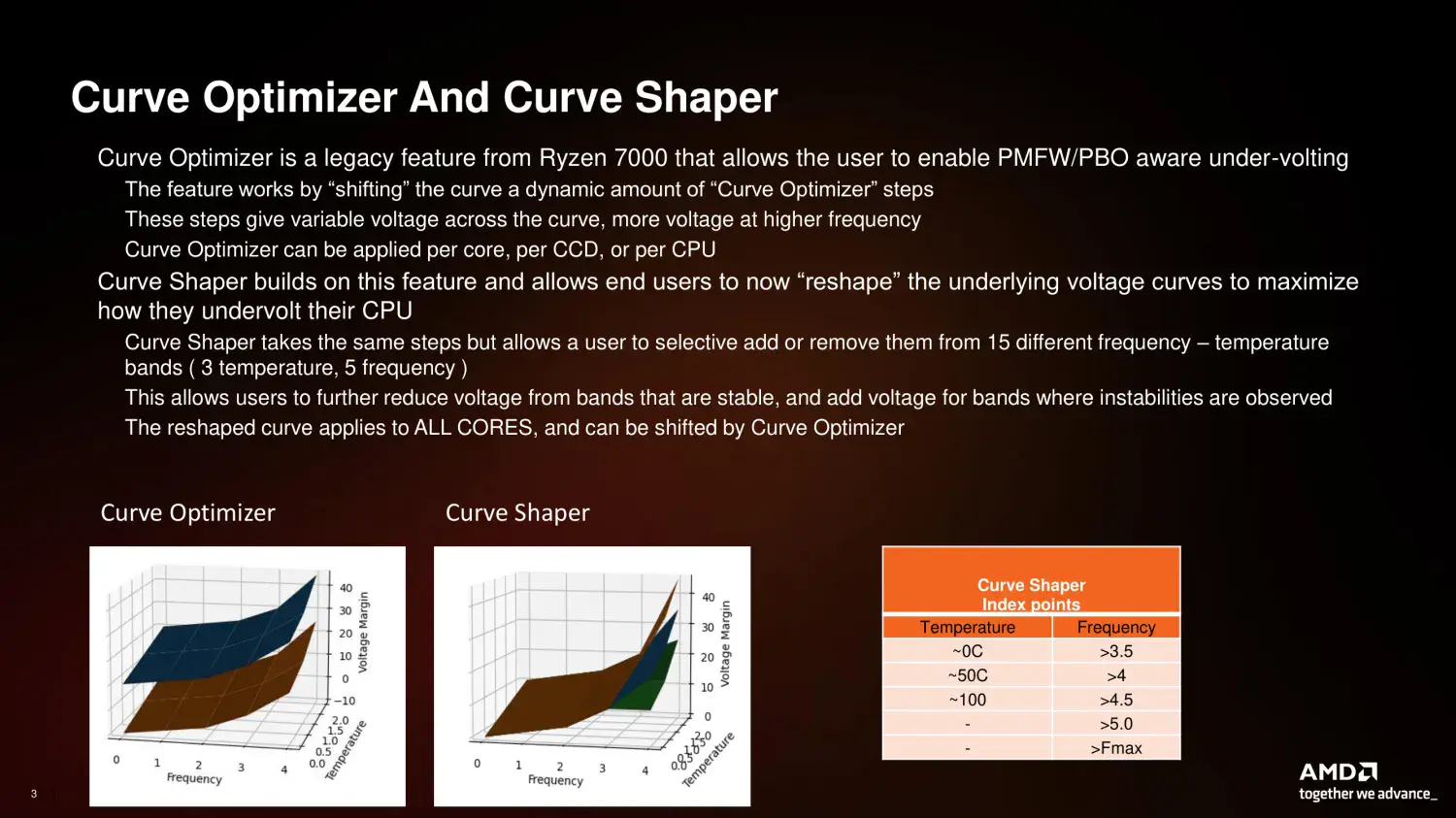
In theory, it seems Curve Shaper is pretty straightforward: you get fifteen additional tunable points across the V/F curve. But the devil is in the details because AMD’s Precision Boost 2 technology doesn’t really work with V/F points. So, instead of getting a list of specific tunable V/F points, we get five frequency regions and three temperatures:
Frequency Regions:
- Minimum frequency (“idle”)
- Low frequency (“background tasks”)
- Medium frequency (“high core count workloads”)
- High frequency (“gaming workloads”)
- Max frequency (“1T workloads”)
Temperatures:
- Low temperature (“idle”) = -5°C
- Medium temperature (“1T gaming workloads”) = 50°C
- High temperature (“stress test workloads”) = 90°C
The regions have a bit of a vague terminology and are not clearly defined. I will get back to that in a minute. The temperature points are more straightforward as they’re defined as -5, 50, and 90 degrees Celsius.
The idea of Curve Shaper is that you can adjust the voltage-frequency curve in more specific areas than with Curve Optimizer. For example, you could say that you only want to undervolt in the High Frequency region for temperatures between 50 to 90 degrees Celsius. That would be a common approach to increase the operating frequency in gaming workloads.
In our case, we want to use Curve Shaper for two reasons:
- Constrain the undervolt in the peak frequency region to stabilize the max frequency targets.
- Explore additional undervolting opportunities for all-core workloads.
For the first objective, we can use Curve Shaper values for high and maximum frequency regions. For the second objective, we can use negative Curve Shaper values for low and medium frequency regions.
Let’s get a bit more practical with the process.
Curve Shaper Tuning Process
Similar to Curve Optimizer, the manual tuning process for Curve Shaper can become quite convoluted since it affects the CPU core stability in all scenarios ranging from very light single-threaded workloads to heavy all-core workloads.
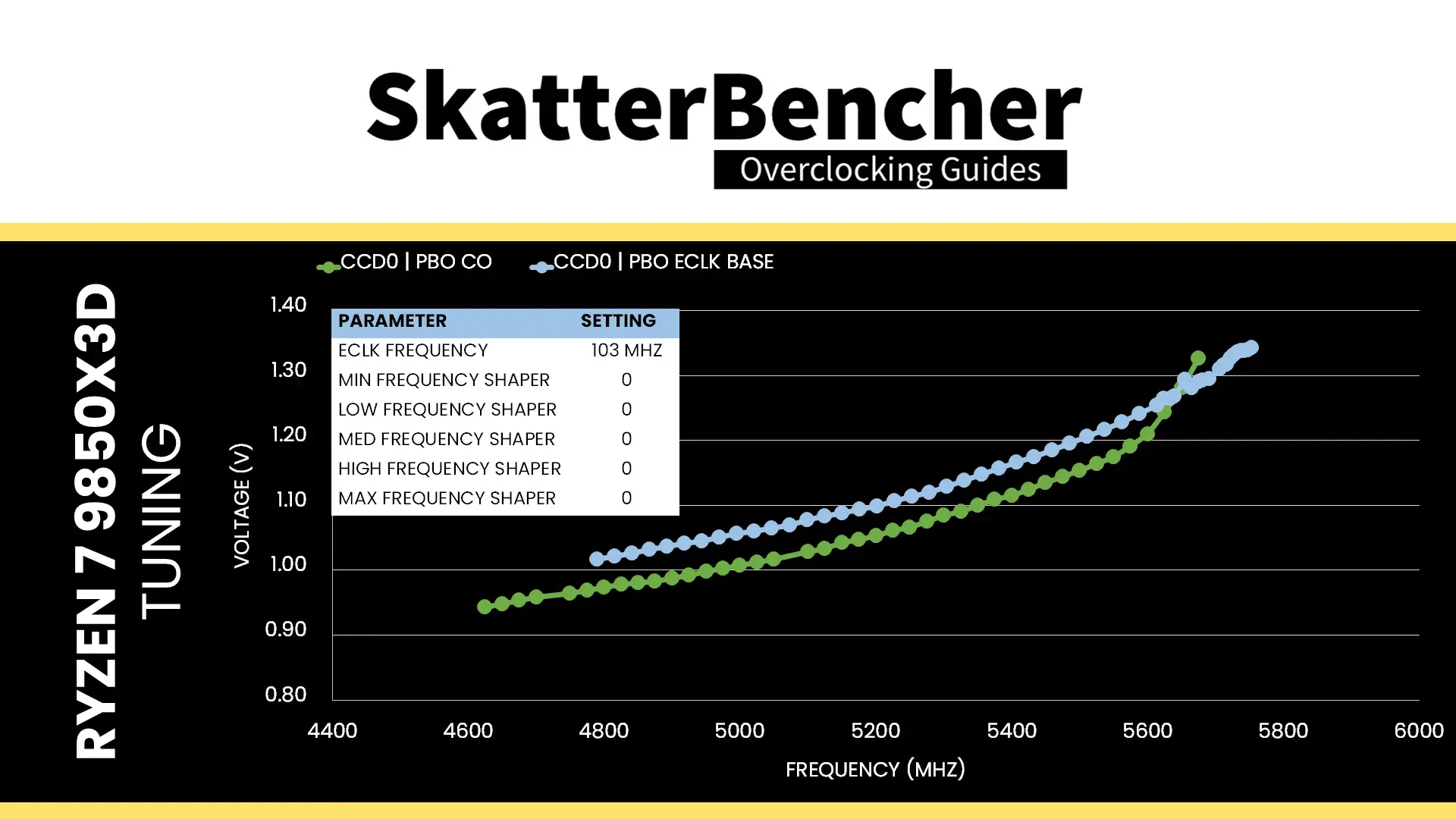
The first goal was to explore any additional undervolt opportunity in heavier all-core workloads. For this purpose, we can use the Low, and Medium Frequency Curve Shaper Points. The typical workloads used for stability checking include OCCT, Y-Cruncher, AI Benchmark, and Cinebench. I found that I could max out the undervolt at -30 Curve Shaper.
The new V/F curve looks very aggressive: it undervolts more than our Curve Optimized curve from OC Strategy #2. And, as it turns out, it wasn’t super stable in either light loads like games or heavy AVX-512 loads like Y-Cruncher
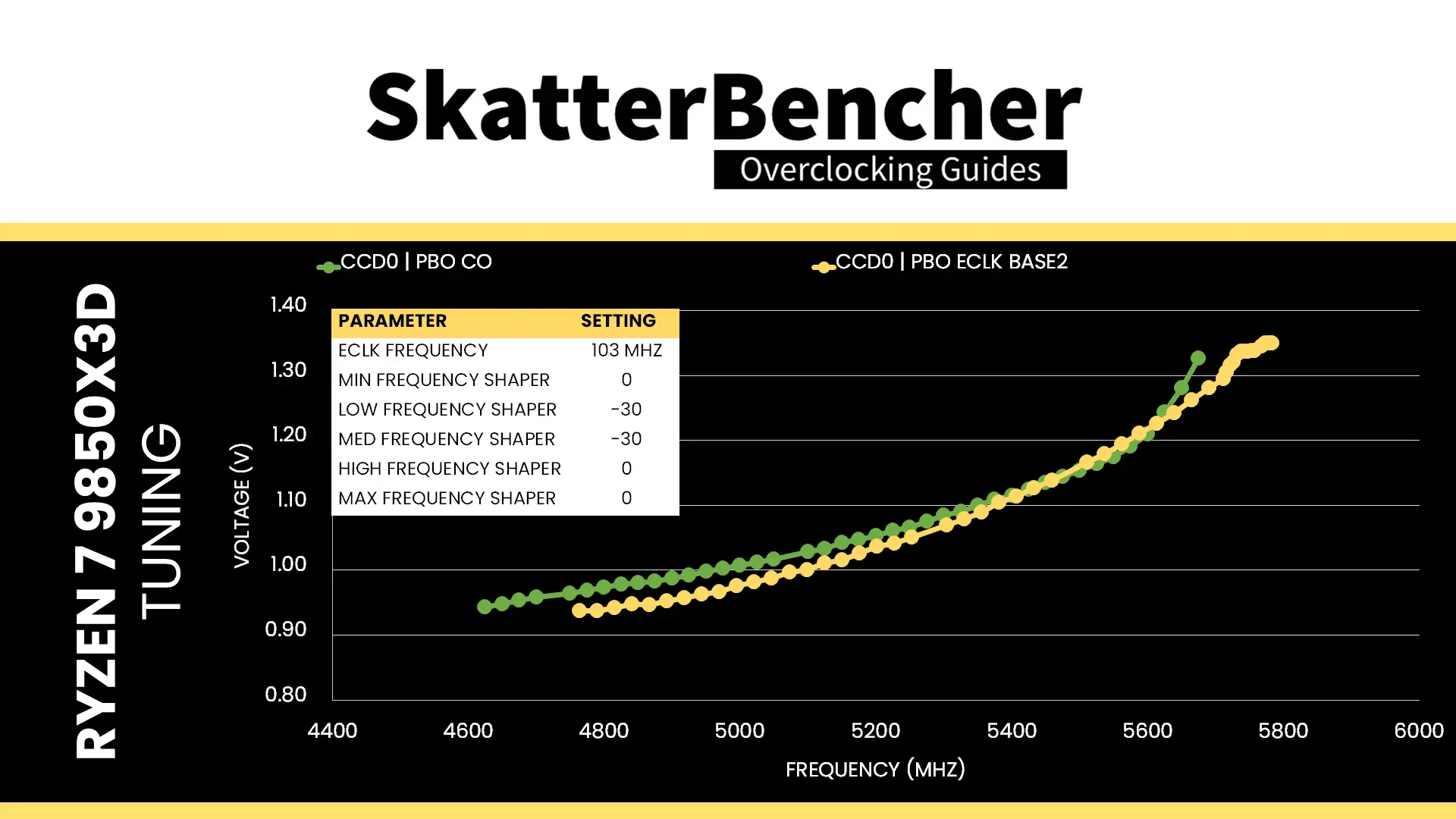
The second goal was to ensure stability at the peak frequencies and during AVX-512 workloads. So, I disable the Fmax boost override and start adjusting the High Frequency and Max Frequency Curve Shaper parameters. As it turns out, for stability in Y-Cruncher I needed a +8 High Frequency Curve Shaper but for peak frequencies I could still use a -10 Curve Shaper.
That’s a bit unusual but it basically comes down to the point that the AVX-512 all-core load is the weakest link in our V/F curve. The heavy loads never boost to the peak frequencies and thus we have more margin in that part of the V/F curve.
Here’s the resulting curve with a Low, and Medium Curve Shaper of -30, a High Frequency Curve Shaper of +8, and a Max Frequency Curve Shaper of -10. We can compare it with the Curve Optimized curve from OC Strategy #2. We can see there’s a little more undervolting at the lower end of the curve then a slight overvolt from 5.3 GHz onwards.
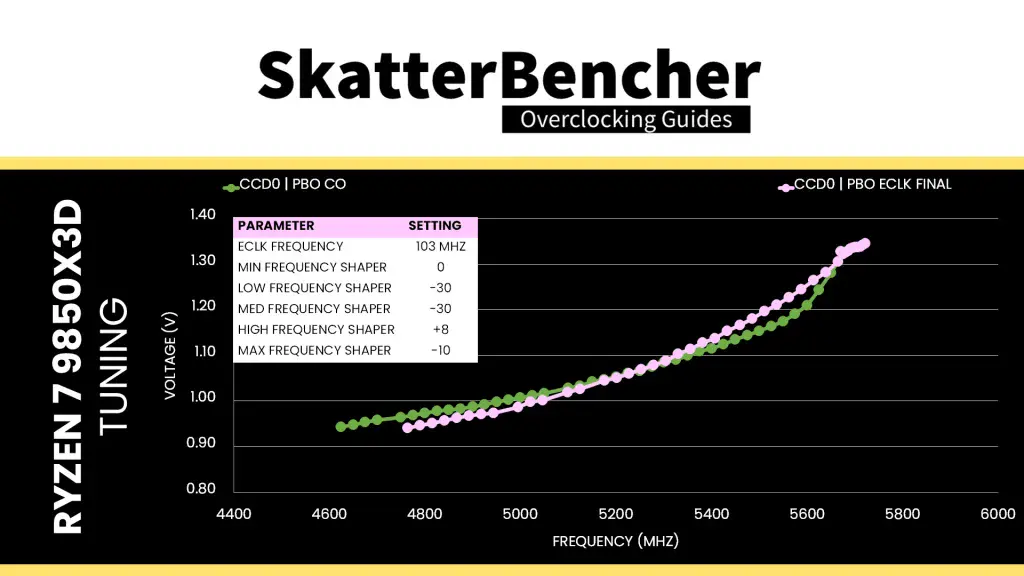
Since the maximum allowed voltage is 1.4V, it doesn’t make much sense to set the Fmax Boost Override much higher than +75. In this case, +75 means a CPU core Fmax of 5700 MHz, which turns into 5871 MHz with 103 MHz ECLK. That’s still higher than the 5825 MHz we’d get with a default eCLK and +200 Fmax Boost override
Curve Shaper is a very powerful tuning tool, and this example perfectly captures its core strength: adjusting the under- and overvolt at different parts of the curve which maximizes the frequency in light and heavy workloads.
BIOS Settings & Benchmark Results
Upon entering the BIOS
- Go to the Extreme Tweaker menu
- Set Ai Overclock Tuner to EXPO I
- Set eCLK Mode to Asynchronous mode
- Set BCLK2 Frequency to 103.00
- Set Memory Frequency to DDR5-7800
- Enter the DRAM Timing Control submenu
- Enter the Memory Presets submenu
- Select Load Hynix 7600MHz 1.45V 2x16GB SR and click OK
- Leave the Memory Presets submenu
- Enter the Memory Presets submenu
- Leave the DRAM Timing Control submenu
- Switch to the Advanced menu
- Enter the AMD Overclocking submenu and click accept
- Enter the DDR and Infinity Fabric Frequency/Timings submenu
- Enter the Infinity Fabric Frequency and Dividers submenu
- Set Infinity Fabric Frequency and Dividers to 2167 MHz
- Leave the Infinity Fabric Frequency and Dividers submenu
- Enter the Infinity Fabric Frequency and Dividers submenu
- Leave the DDR and Infinity Fabric Frequency/Timings submenu
- Enter the DDR and Infinity Fabric Frequency/Timings submenu
- Enter the Precision Boost Overdrive submenu
- Set Precision Boost Overdrive to Advanced
- Set PBO Limits to Motherboard
- Set Precision Boost Overdrive Scalar Ctrl to Manual
- Set Precision Boost Overdrive Scalar to 10X
- Set CPU Boost Clock Override to Enabled (Positive)
- Set Max CPU Boost Clock Override to 75
- Enter the Curve Shaper submenu
- For Low, Medium, High, and Max Frequency, set All Temperature to Enable
- For Low, Medium, and Max Frequency, set Sign to Negative
- For High Frequency set Sign to Positive
- For Low and Medium Frequency, set Magnitude to 30
- For Max Frequency, set Magnitude to 8
- For Max Frequency, set Magnitude to 5
- Set Precision Boost Overdrive to Advanced
Then save and exit the BIOS.
The boost frequency at 1 active thread is about 5691 MHZ and the average boost frequency gradually trails off to 5418 MHz when all cores are active. In light single-threaded workloads, all cores boost to over 5.8 GHz.
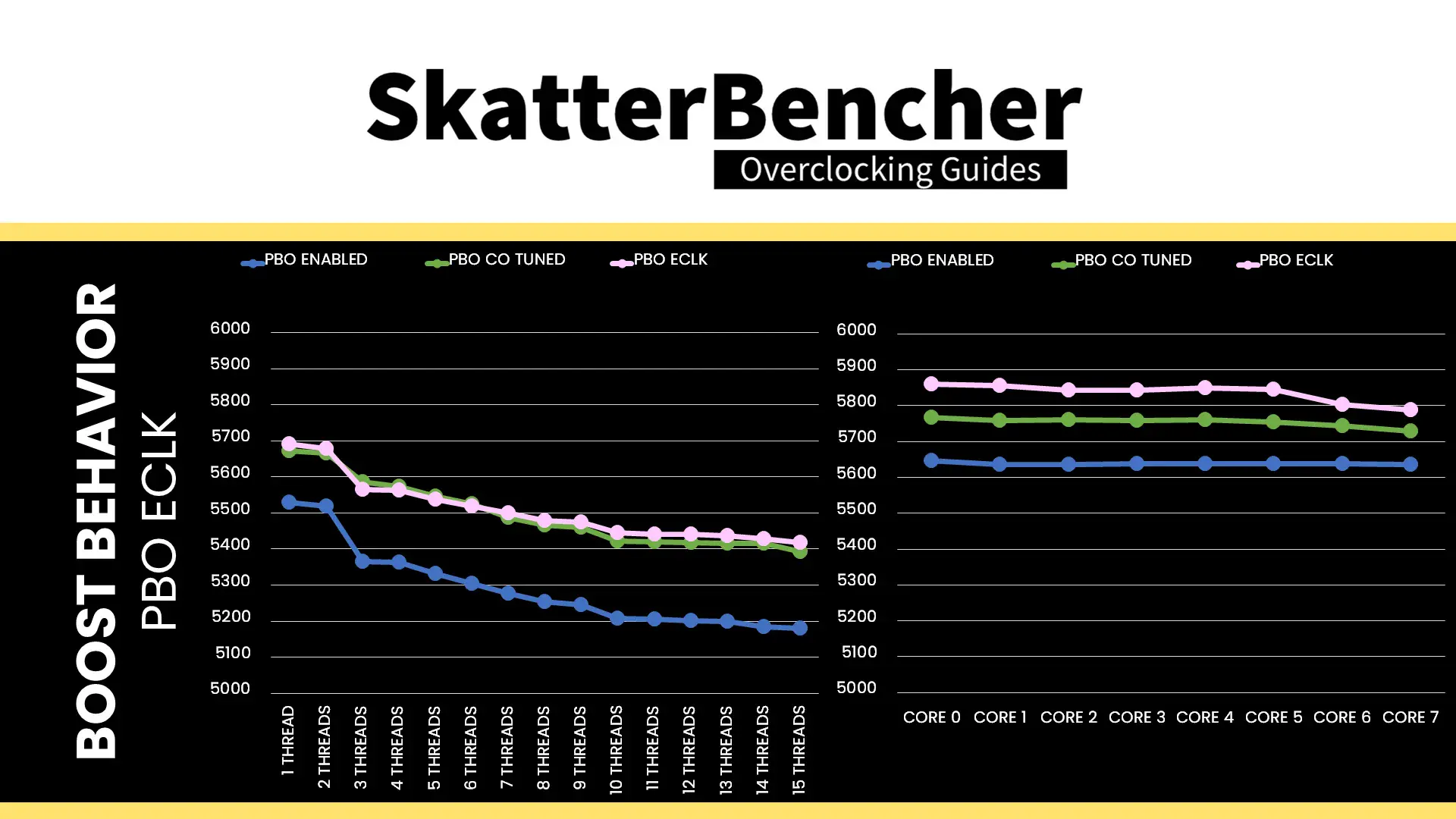
We re-ran the benchmarks and checked the performance increase compared to the default operation.
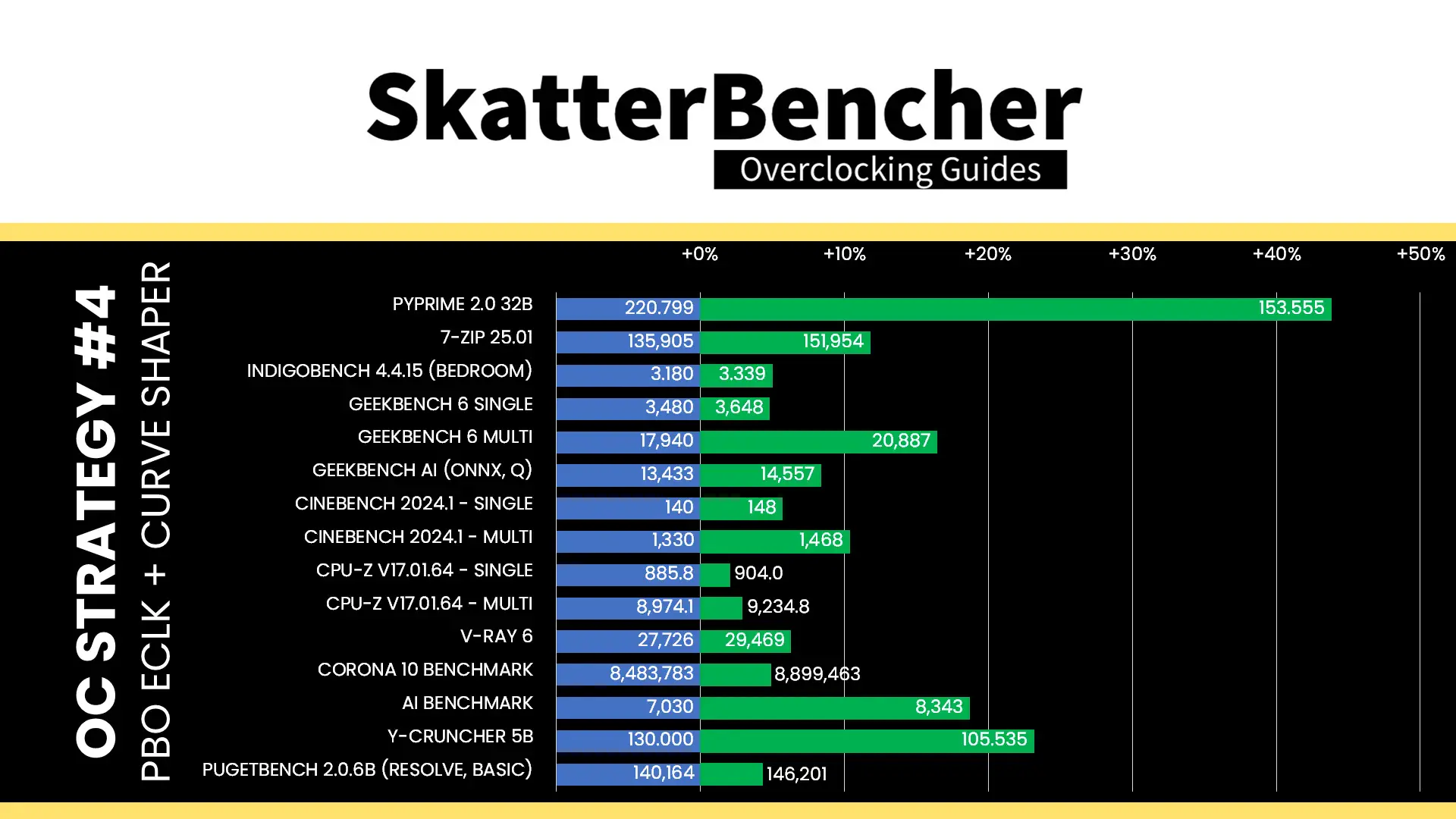
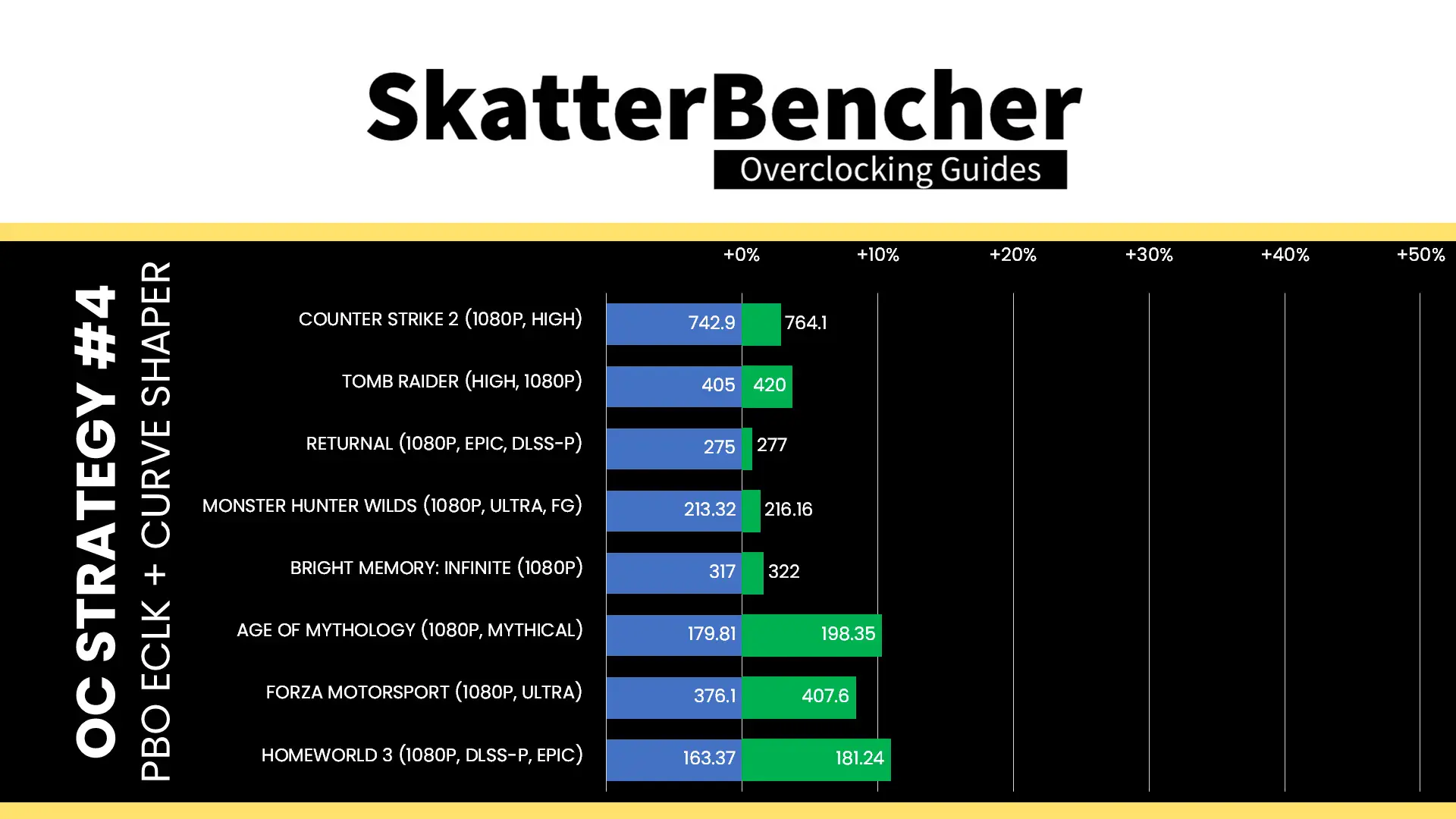
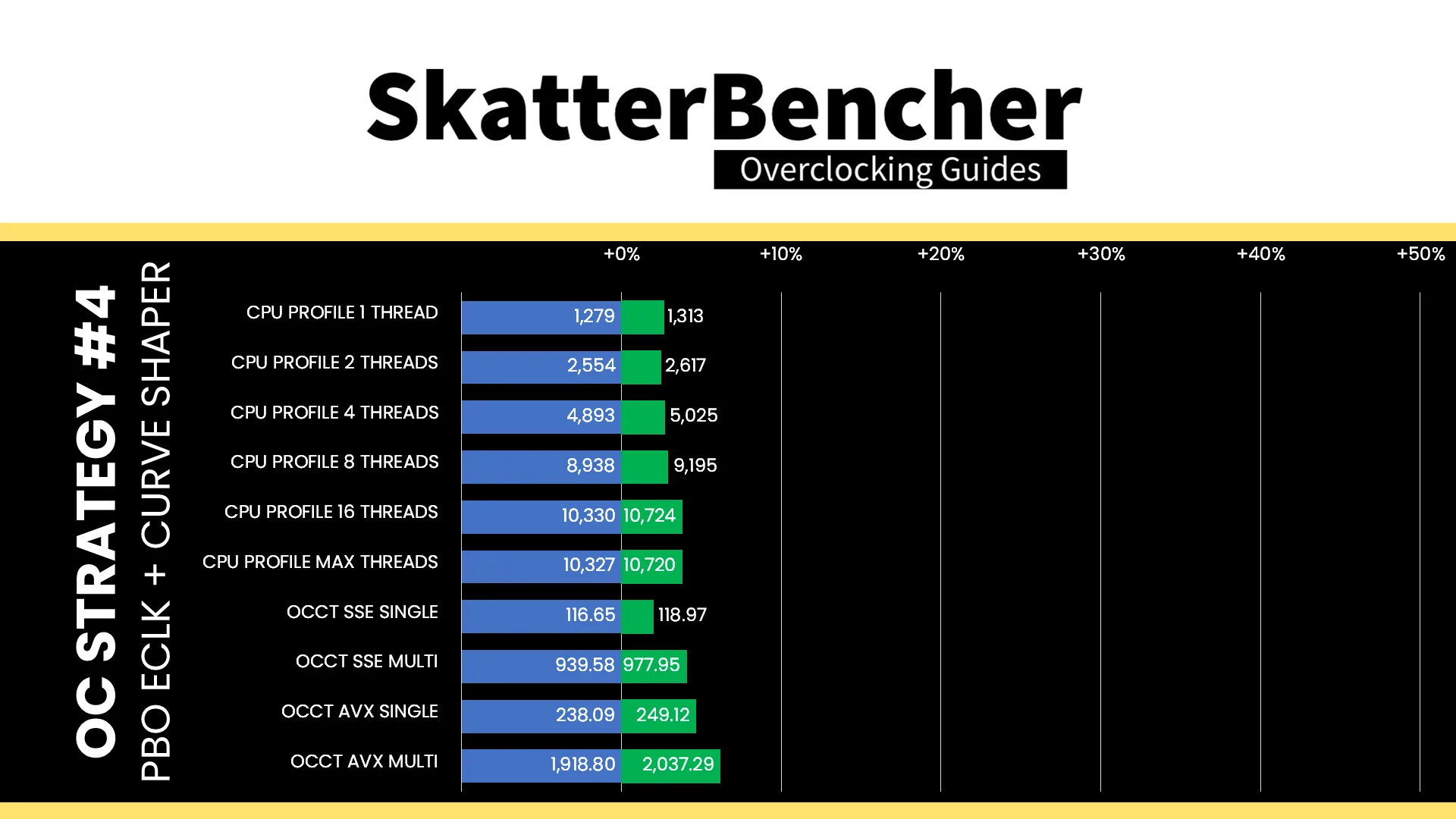
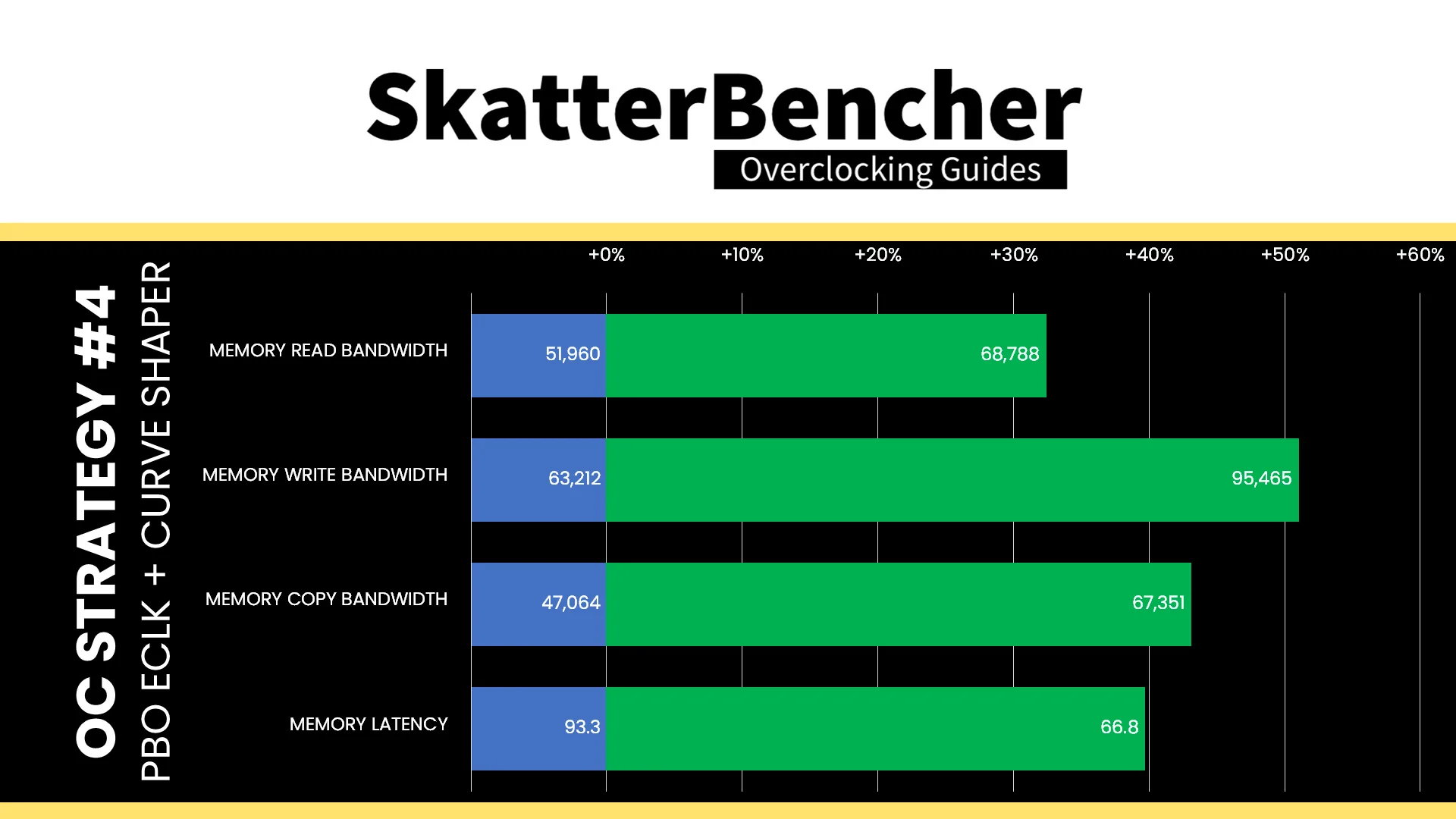
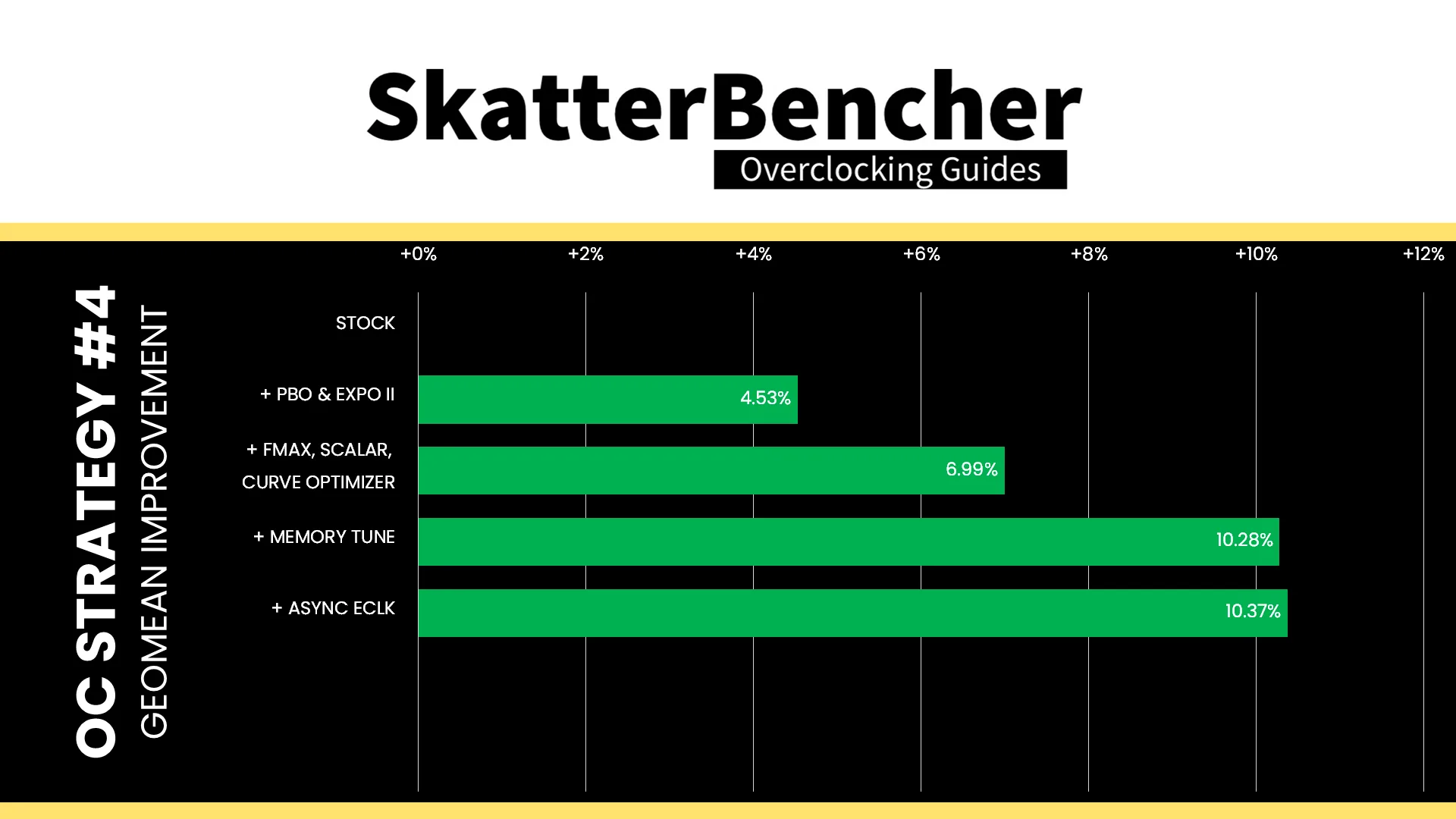
There are situations where asynchronous eCLK can further boost performance, but this is not one of them. While the CPU cores are boosting to a higher frequency than the previous OC Strategy, in any kind of moderate workload the frequency is similar. So, we don’t get much extra performance. The geomean performance speedup improves by 0.1 percentage point, and we get a maximum benchmark speedup of +43.79% in PyPrime.
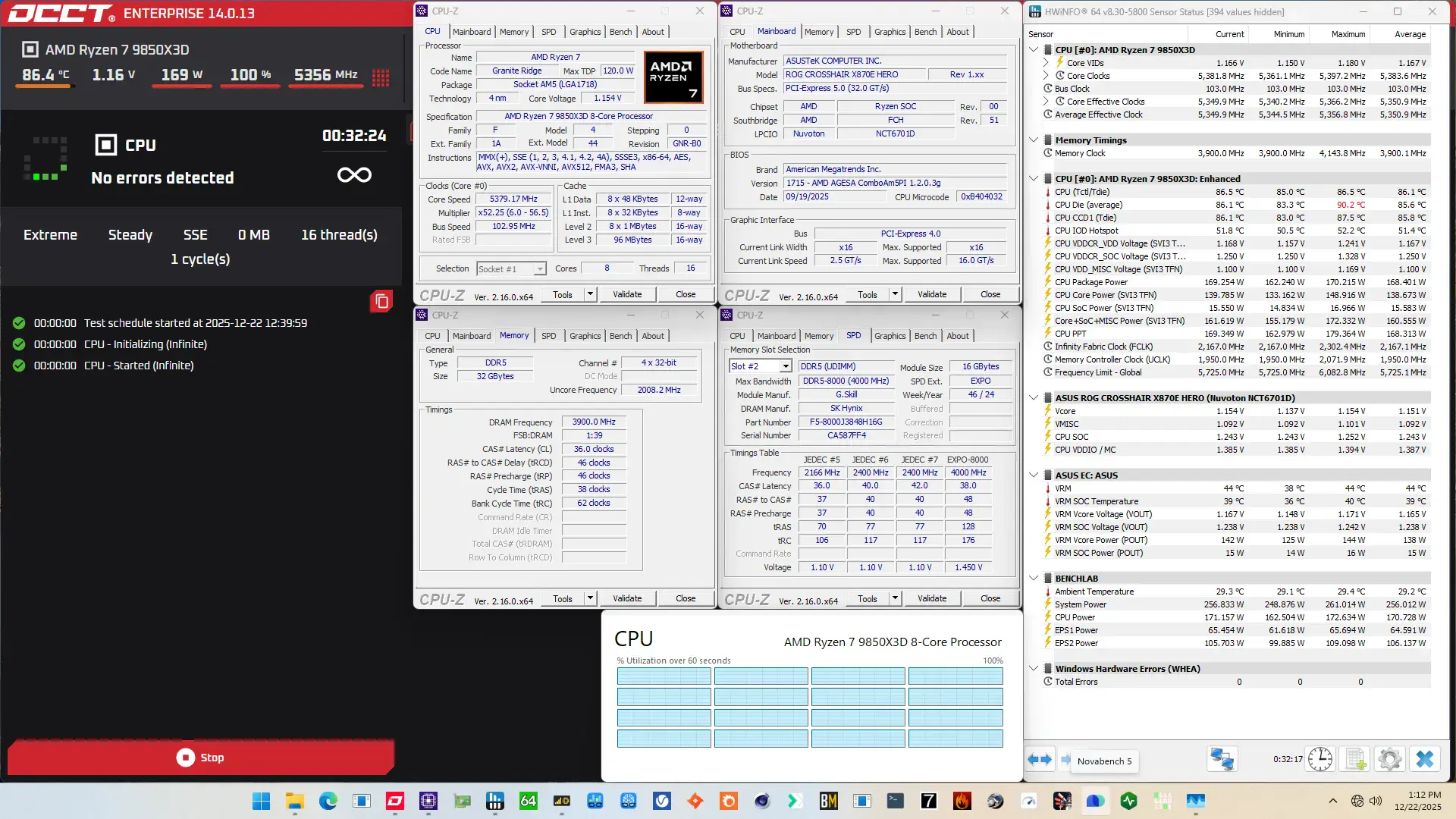
When running the OCCT CPU AVX-512 Stability Test, the average CPU effective clock is 5021 MHz with 1.012 volts. The average CPU temperature is 79.8 degrees Celsius. The average CPU package power is 153.8 watts.
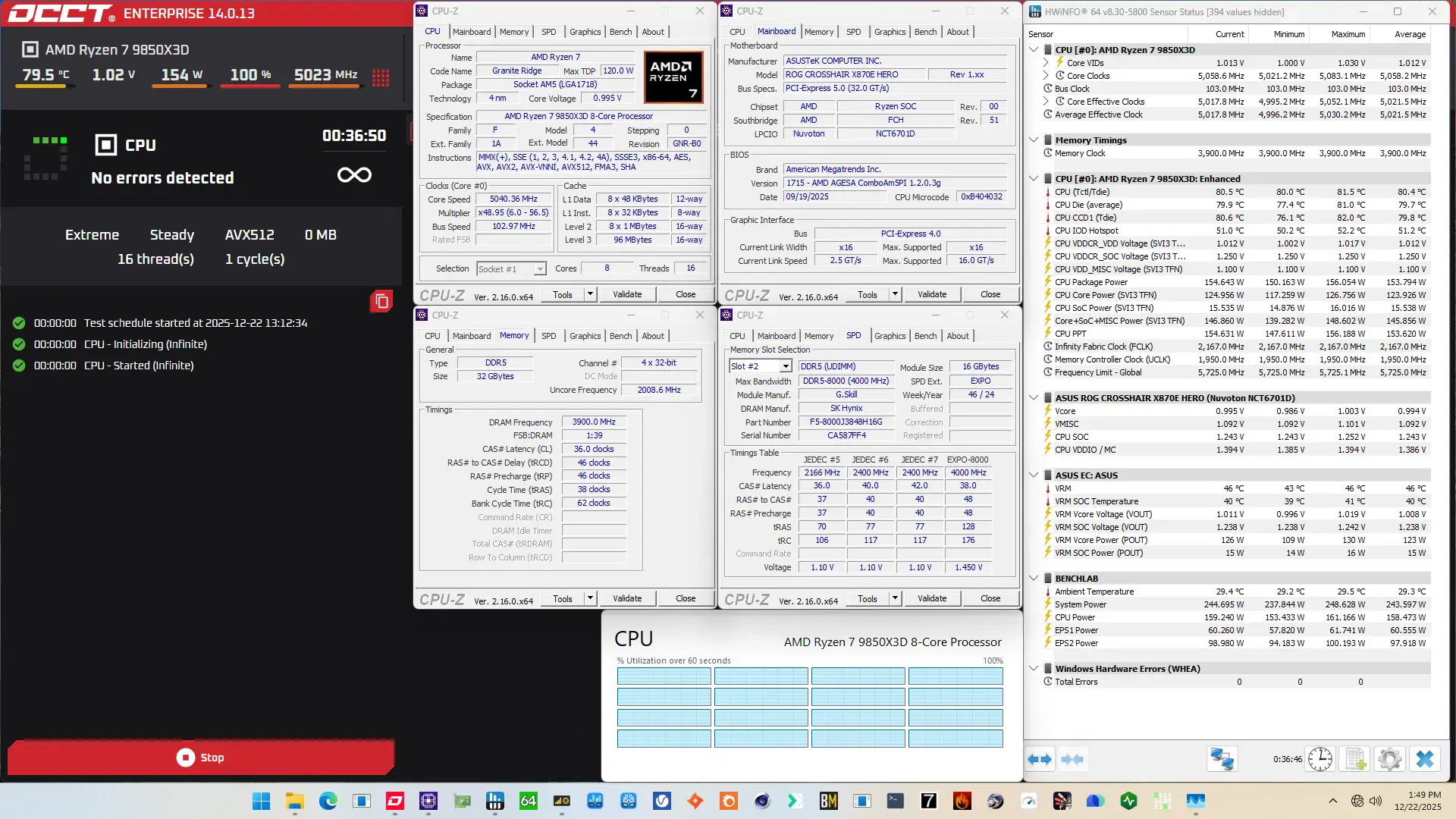
When running the OCCT CPU SSE Stability Test, the average CPU effective clock is 5350 MHz with 1.167 volts. The average CPU temperature is 85.8 degrees Celsius. The average CPU package power is 168.4 watts.
OC Strategy #5A: OC Mode (AVX-512)
In our final overclocking strategy, we will pursue a manual overclock.
One could question the use-case for manual overclocking an AMD Ryzen CPU. Just like with all past Ryzen processors, the major downside of manual overclocking is that you lose the benefits of Precision Boost technology in low-threaded benchmark applications. So, whereas this Ryzen 7 9850X3D can boost up to 5625 MHz with Precision Boost, it will be limited to your set fixed frequency when manually overclocking.
However, manual overclocking is not all negative and even has a couple of benefits.
- First, it’s much simpler and usually faster than tuning with the advanced overclocking tools from the Precision Boost Overdrive 2 toolkit like Curve Optimizer
- Second, automatic overclocking and frequency boosting technologies can leave a little margin on the table. We can exploit this margin and fine-tune it for application stability when manually overclocking with our specific hardware configuration.
- Lastly, sometimes the static voltage and frequency configuration runs cooler than using a dynamic, adaptive clocking technology.
To better understand the performance tuning opportunities embedded in the Ryzen 7 9850X3D processor, let’s look at its clocking and voltage topology in more detail.
Ryzen 9000 CPU Core Clocking Topology
The standard Granite Ridge platform has a 48 MHz crystal input to the integrated CGPLL clock generator. The CGPLL then generates a 48 MHz clock for the USB PLL and a 100 MHz reference clock for the FCH, which contains the CCLK PLL for the CPU cores and several SOC PLLs.
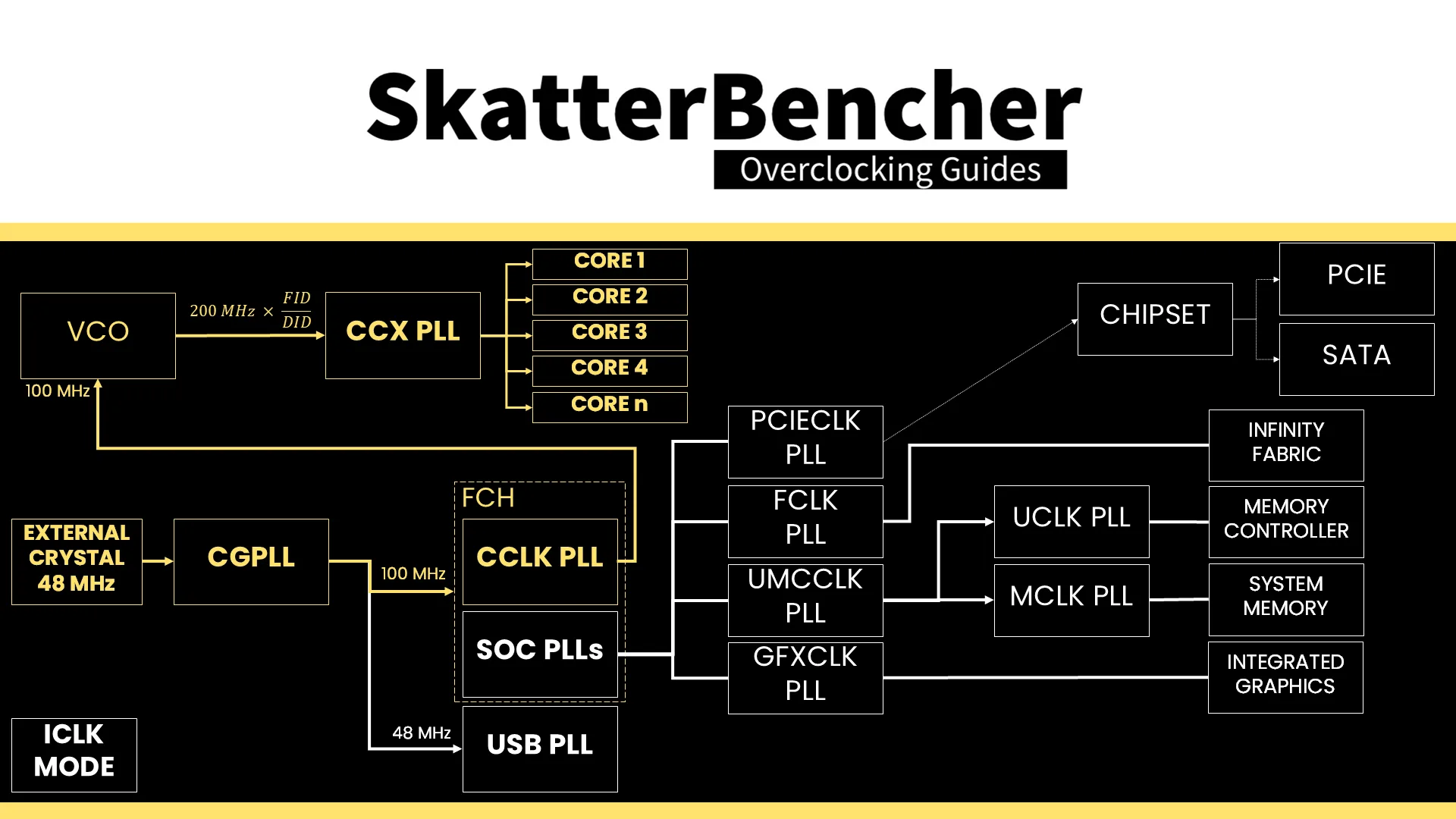
The CCLK PLL 100MHz reference clock drives the 200 MHz VCO, which is then multiplied by an FID and divided by a DID. This used to provide us with a 25 MHz clock granularity, but with Granite Ridge processors we can now set the frequency in steps of 5 MHz or 0.05X!
Each CCX has its own PLL, with the cores within that CCX running at the same frequency. In a typical operation, all cores within a CCX will run at the same frequency. The effective clock will differ if the core is in a different P-state.
When we switch to OC Mode, we disable all automatic Precision Boost frequency boosting technologies and rely solely on the manual frequency and voltage configuration.
Ryzen 9000 CPU Core Voltage Topology
The Ryzen 9000 voltage topology relies on a combination of internal and external power supply to generate the processor voltages.
There are four primary power supplies from the motherboard VRM to the processor: VDDCR, VDDCR_SOC, VDDCR_MISC, and VDDIO_MEM_S3. The VDDCR voltage rail provides external power for three internal voltage regulators: VDDCR_CPU, VDDCR_VDDM, and VDDCR_GFX.
- VDDCR_CPU provides the voltage for the CPU cores in CCX. The voltage rail can work in either regular or bypass mode, but on Granite Ridge, it is always in bypass mode. That means the voltage is always equal to the VDDCR external voltage.
- VDDCR_VDDM provides the voltage for the L2, L3, and, if present, 3D V-Cache on a CCX. This rail cannot work in bypass mode; therefore, it is internally regulated from the VDDCR external voltage rail. The default VDDM voltage is 0.95V
- VDDCR_GFX provides the voltage for the integrated graphics.
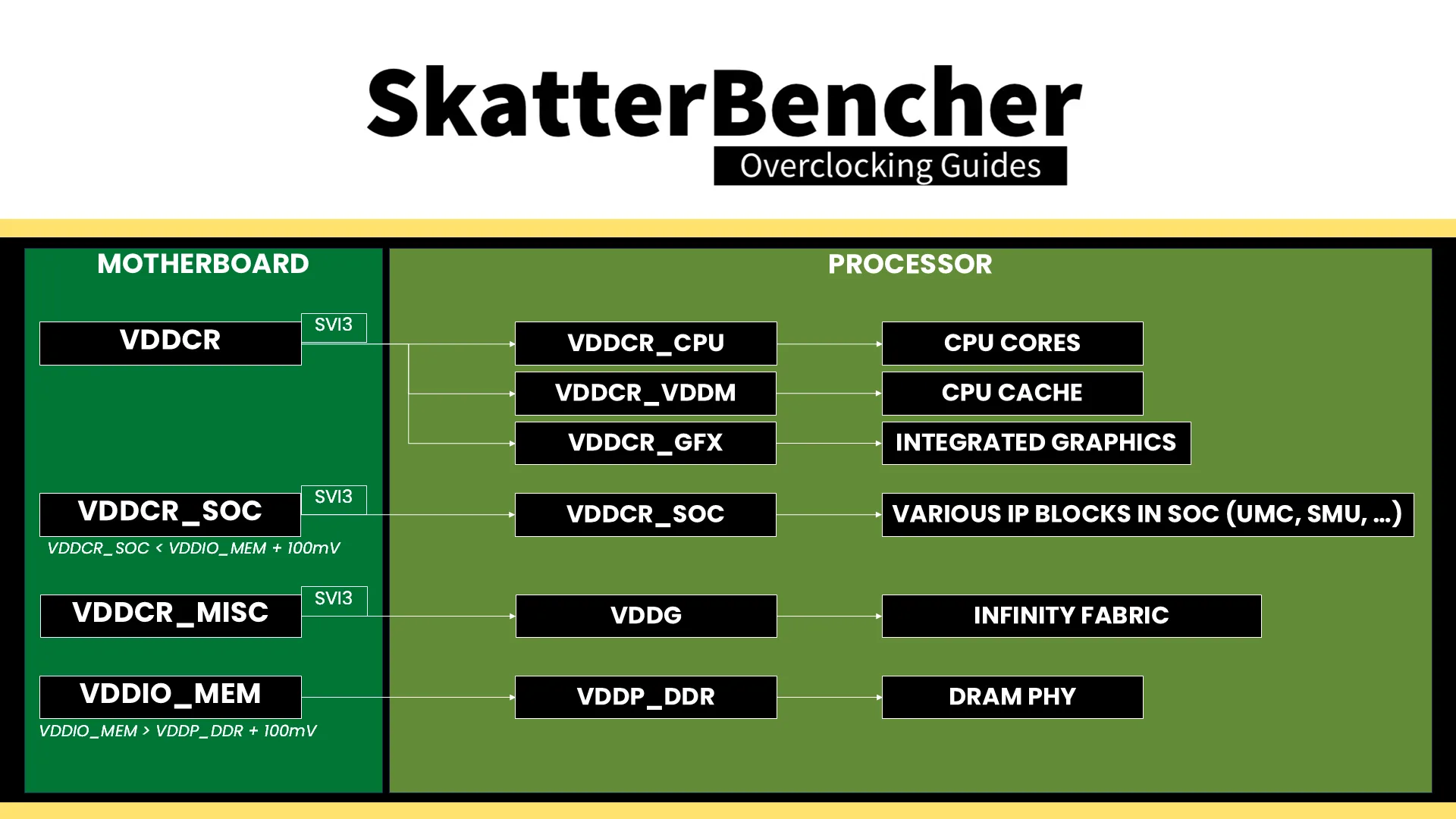
The VDDCR voltage rail is directly controlled by the CPU SMU using an SVI3 interface. On this motherboard, we can configure this voltage regulator in the BIOS. A crucial parameter is the VRM load line setting.
VRM load line
The VRM load line is essential for two reasons: the Vdroop and undershoot.
Vdroop is the decrease in voltage when the CPU goes from idle to load. You want your CPU to be stable in all scenarios, so knowing the lowest voltage the CPU runs at is very important. After all, if the voltage is too low, the overclock won’t be stable.
Undershoot and its counterpart, overshoot, is a brief voltage spike that occurs when the CPU switches from idle to load or from load to idle. These spikes cannot be measured easily and usually require an expensive oscilloscope to detect. I highly recommend the ElmorLabs article titled VRM Load-Line Visualized to see a great picture of undershoot and overshoot in action.
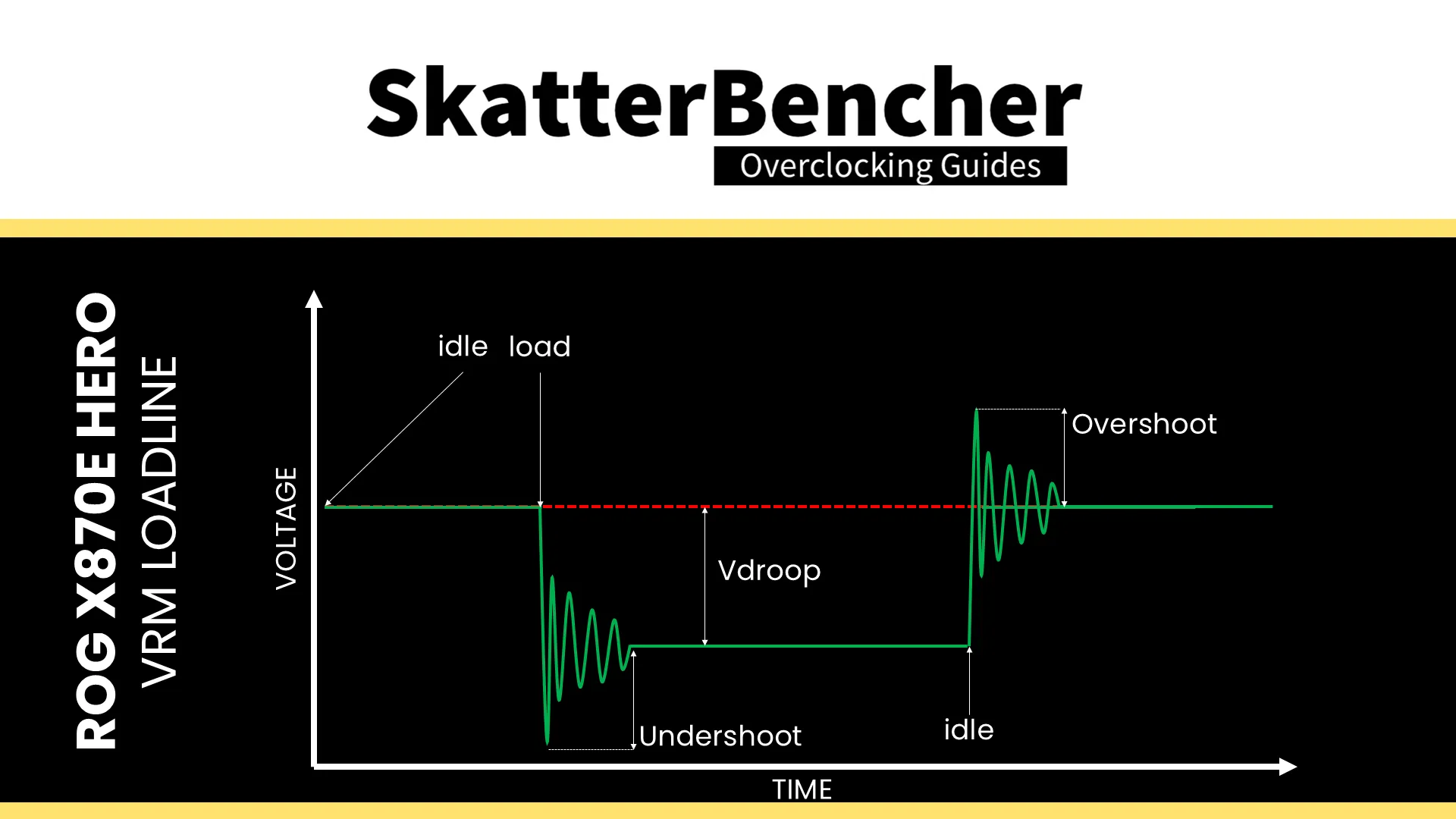
While undershoot and overshoot are temporary spikes, an undershoot that’s too low can cause instability.
The VRM load line setting is relevant to this overclocking strategy because we’re switching from Precision Boost to OC Mode. That means the CPU is no longer regulating the load line itself and instead we have to correctly configure it by ourselves.
9850X3D CCX Frequency Tuning Process
Choosing the proper manual voltage is always a matter of finding a suitable trade-off between increased overclocking potential, the thermal challenges that come with increased voltage, and of course, consideration of CPU lifespan. With that last thought, we kick off our manual overclocking process.
Our limiting factor will ultimately be the cooling solution as power consumption increases exponentially with operating voltage and temperature scales (somewhat) linearly with power consumption.
The maximum voltage will be determined by the application we’re tuning for. So, the first step in our tuning process would be deciding on the stress test representing our worst-case scenario. In this case, I picked the 30 min OCCT AVX-512 CPU Stability Test. The next step is to set a fixed CPU ratio and check the maximum temperature when running our workload. If there’s thermal headroom left, increase the operating voltage.
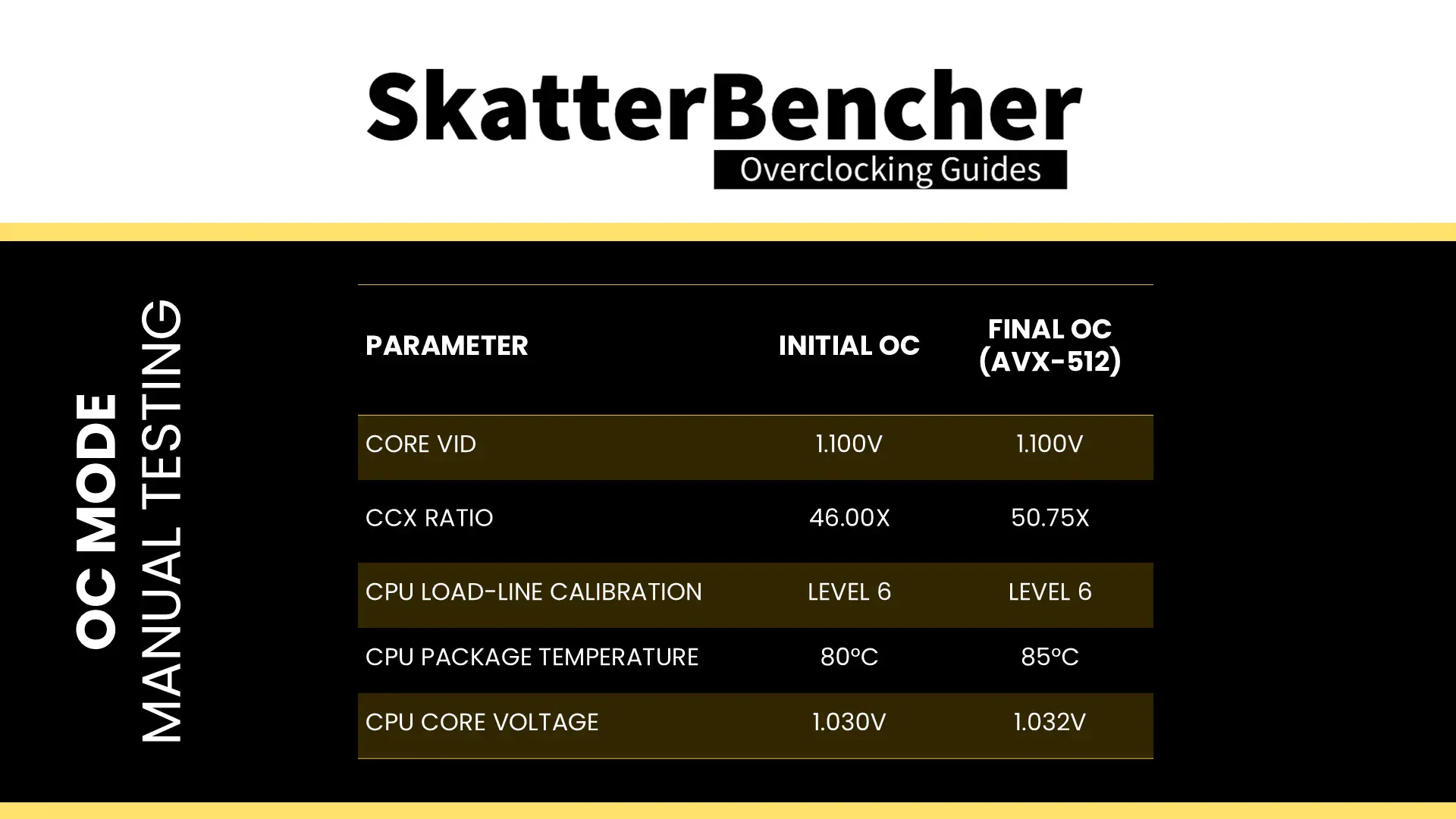
For the baseline settings, I look at the OCCT Stress Test results from OC Strategy #2. Here we find that the AVX-512 workload ran at about 4.6 GHz with 1.06V. So, I started the manual tuning process with a CCX ratio of 46X, a VID of 1.1V, and LLC set to Level 6. We find that this gives a temperature of about 80 degrees Celsius and an effective voltage of 1.03V in OCCT AVX-512.
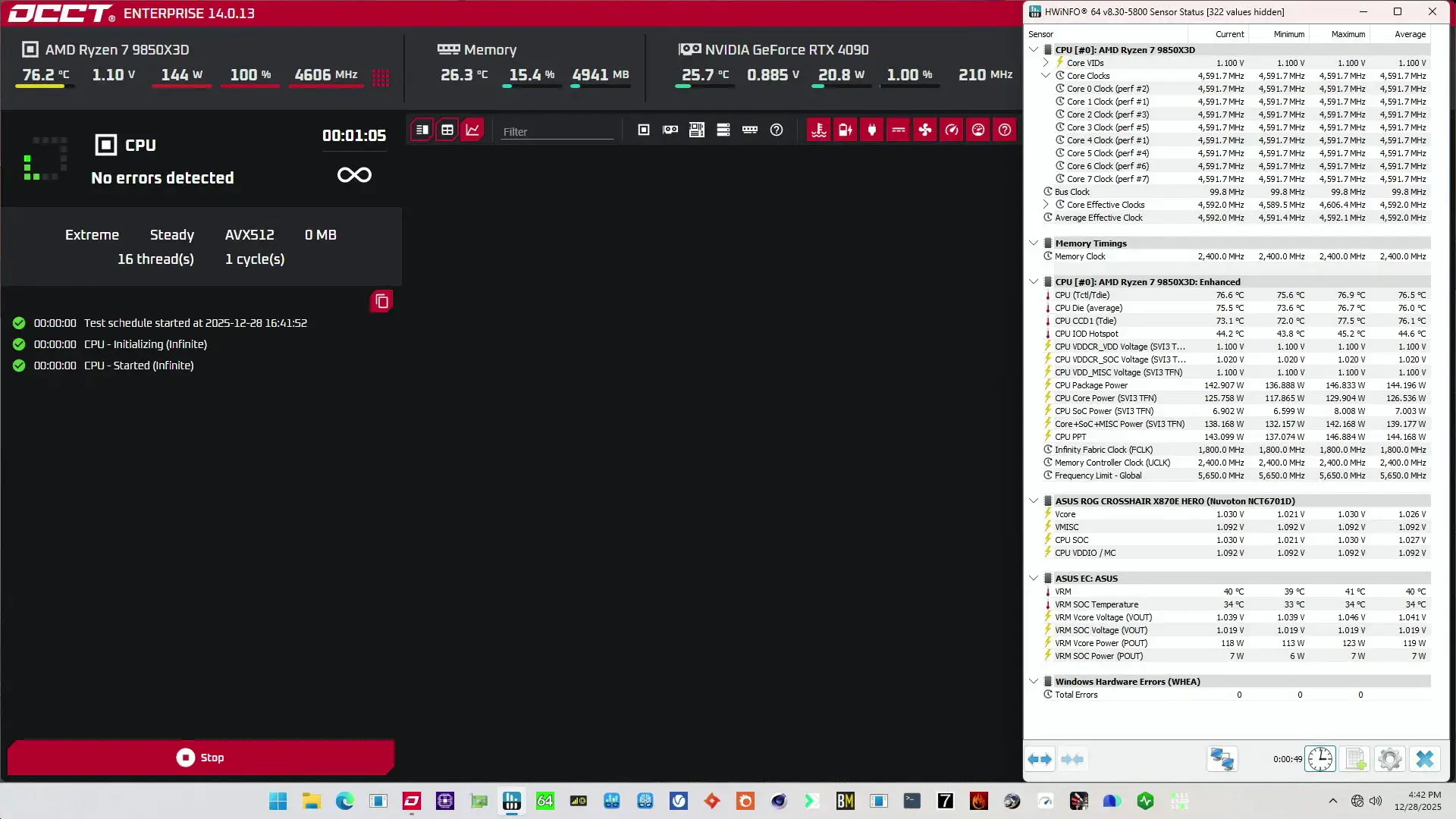
Once we know the maximum voltage, we can tune the CCX ratio. Simply increase the CPU ratio until the application shows instability, then back off.
In our case, we end up with the CPU Ratio at 50.75X and a Core VID of 1.100V which under high load drops to about 1.032V with Load Line Calibration set to Level 6.
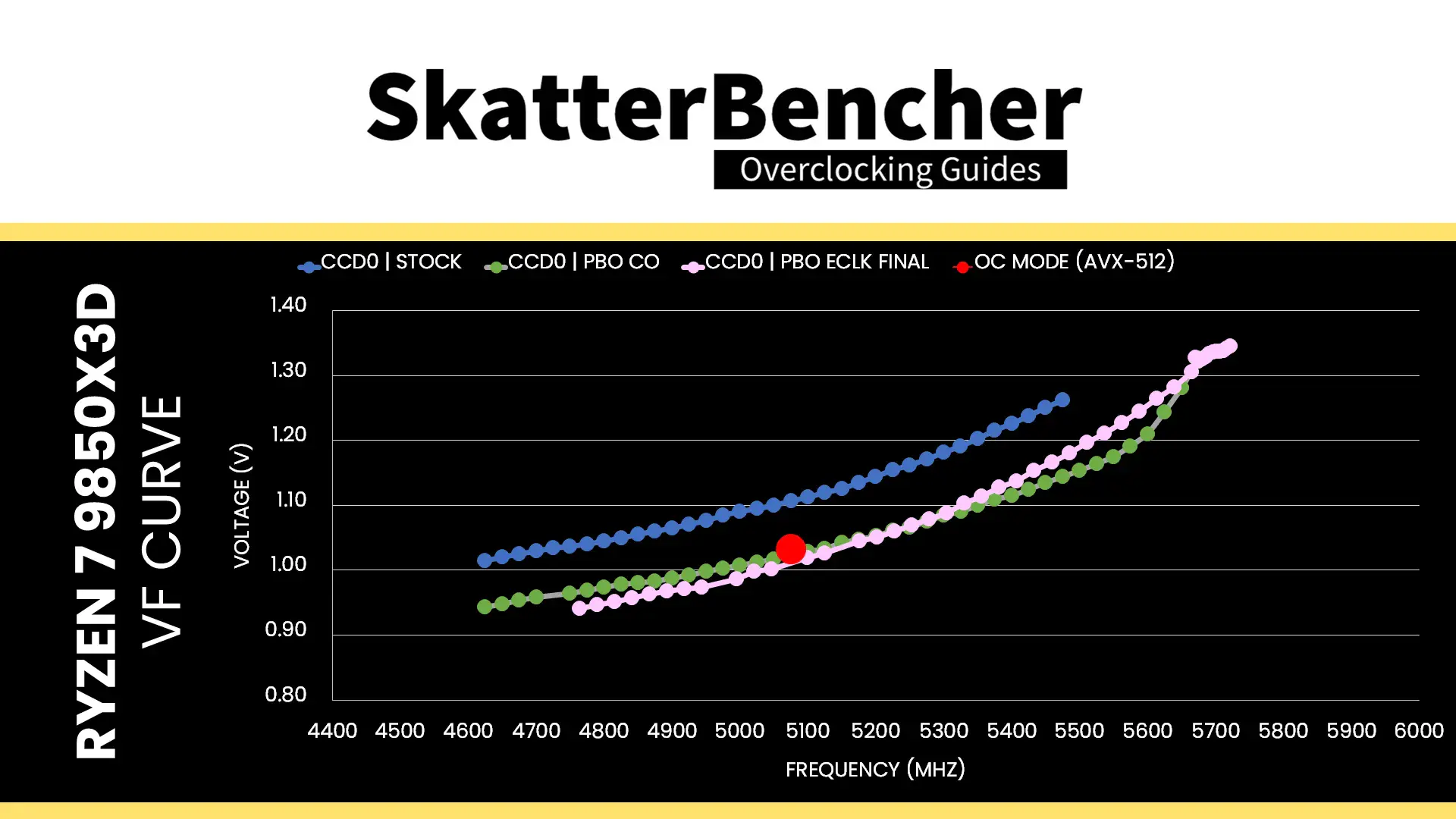
If we’d try to compare the V/F configuration of this OC Strategy with the V/F curve from OC Strategy #2, we can see that we’ve configured a single V/F point on the V/F spectrum as opposed to define a curve that spans a range of voltage-frequency points.
BIOS Settings & Benchmark Results
Upon entering the BIOS
- Go to the Extreme Tweaker menu
- Set Ai Overclock Tuner to EXPO I
- Set Memory Frequency to DDR5-7800
- Set FCLK Frequency to 2167 MHz
- Enter the DRAM Timing Control submenu
- Enter the Memory Presets submenu
- Select Load Hynix 7600MHz 1.45V 2x16GB SR and click OK
- Leave the Memory Presets submenu
- Enter the Memory Presets submenu
- Leave the DRAM Timing Control submenu
- Set CPU Core Ratio to CPU Core Ratio
- Set CPU Core Ratio 50.75
- Enter the DIGI+ VRM submenu
- Set CPU Load-line Calibration to Level 6
- Leave the DIGI+ VRM submenu
- Set Core VID to 1.100
Then save and exit the BIOS.
The boost frequency at 1 active thread is 5075 MHZ and remains there even when all cores are active. In light single-threaded workloads, all cores also run at 5075 MHz. At first glance, it sounds silly to think this would actually perform better at stock, but remember that at stock our OCCT AVX-512 frequency is only 4.6 GHz. So, we will see higher frequencies in heavier workloads.
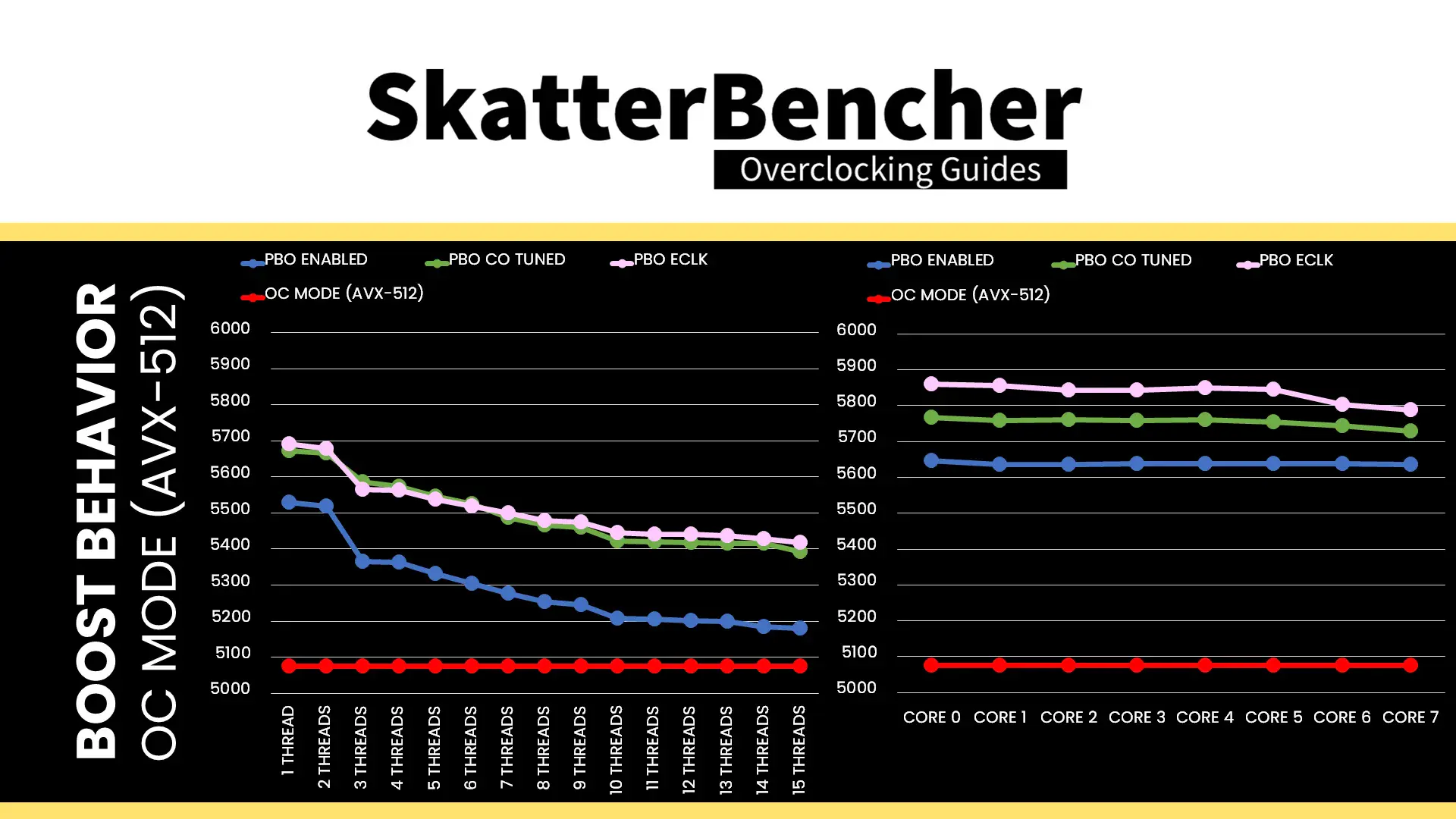
We re-ran the benchmarks and checked the performance increase compared to the default operation.
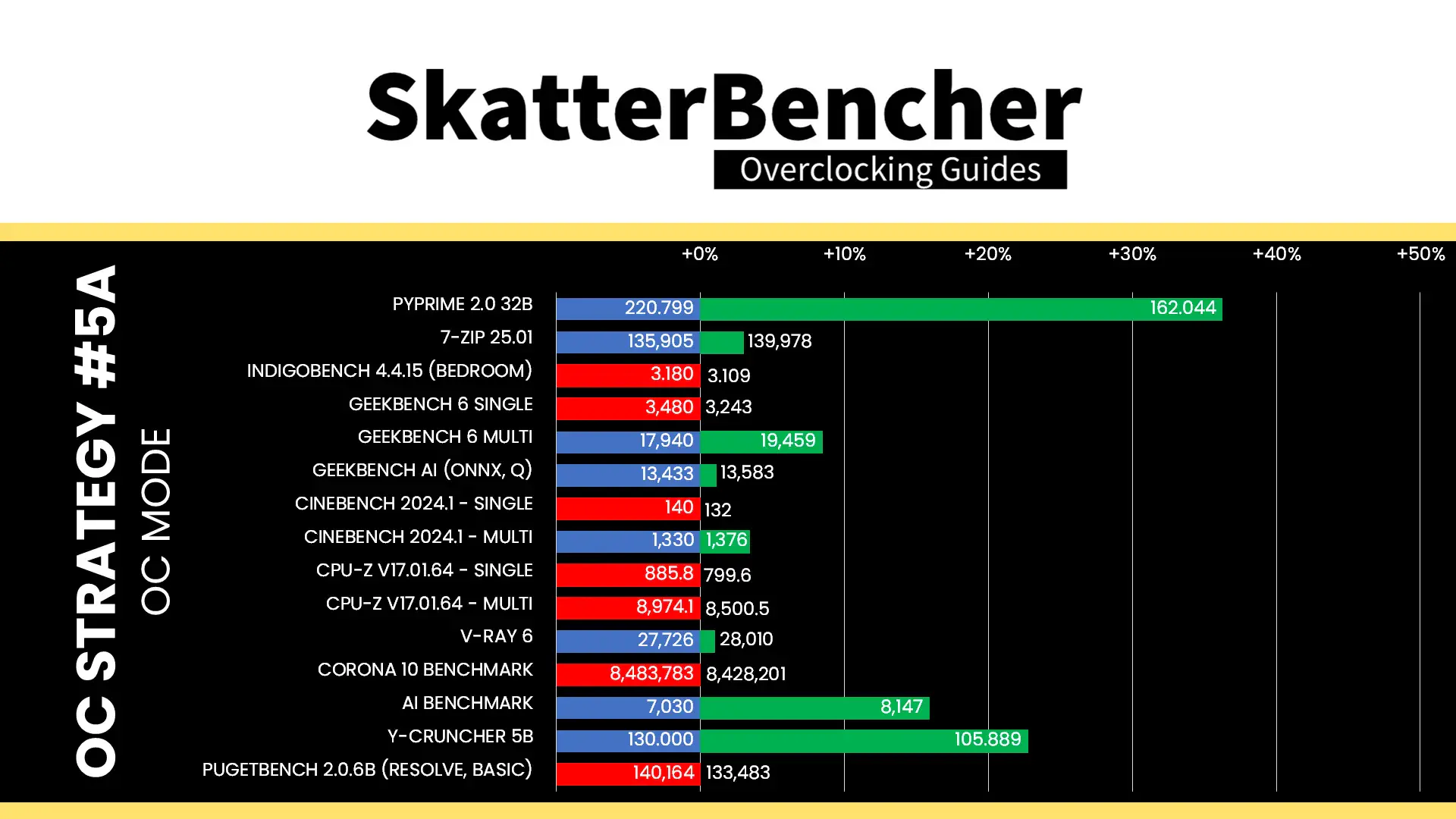
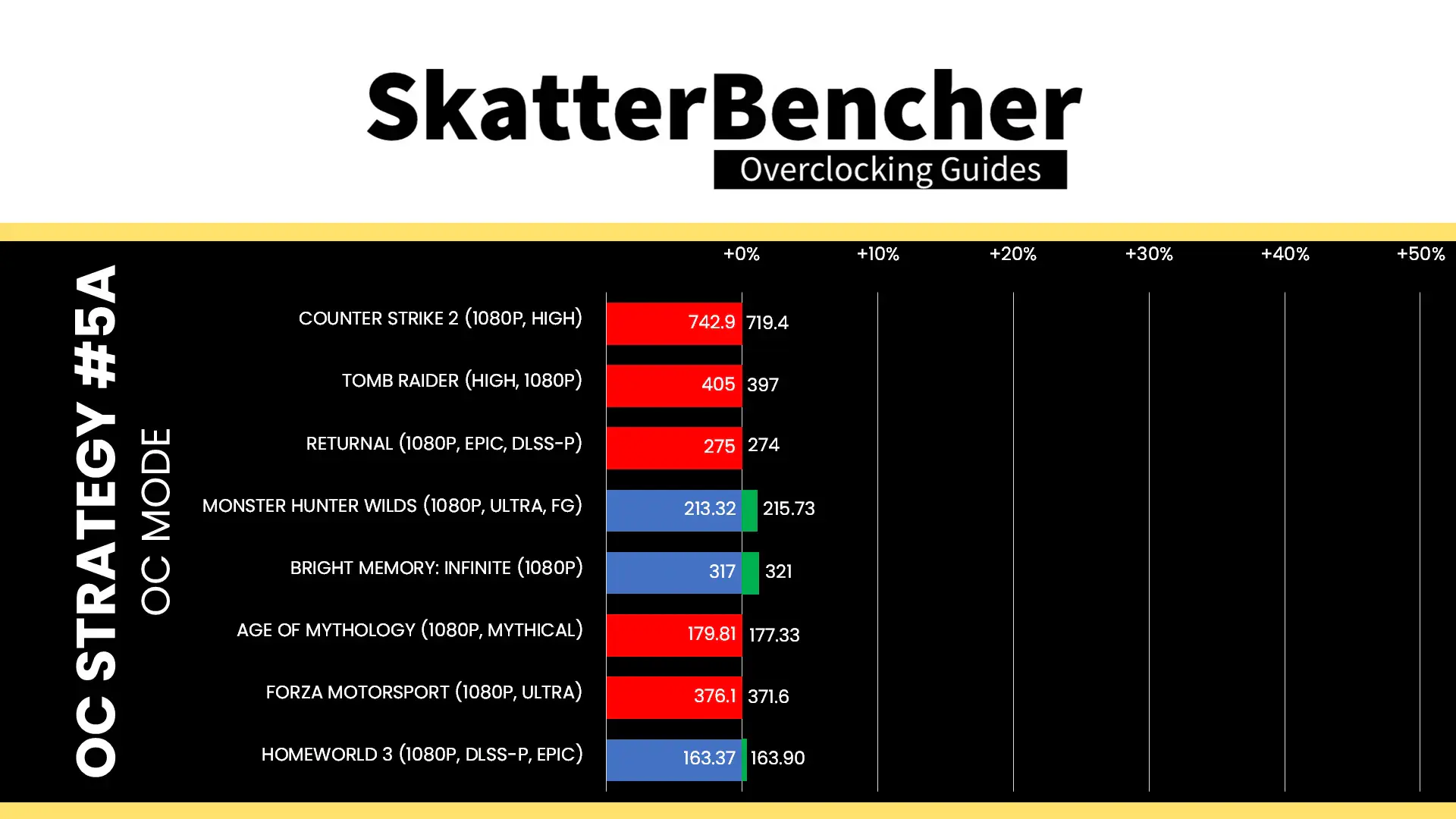
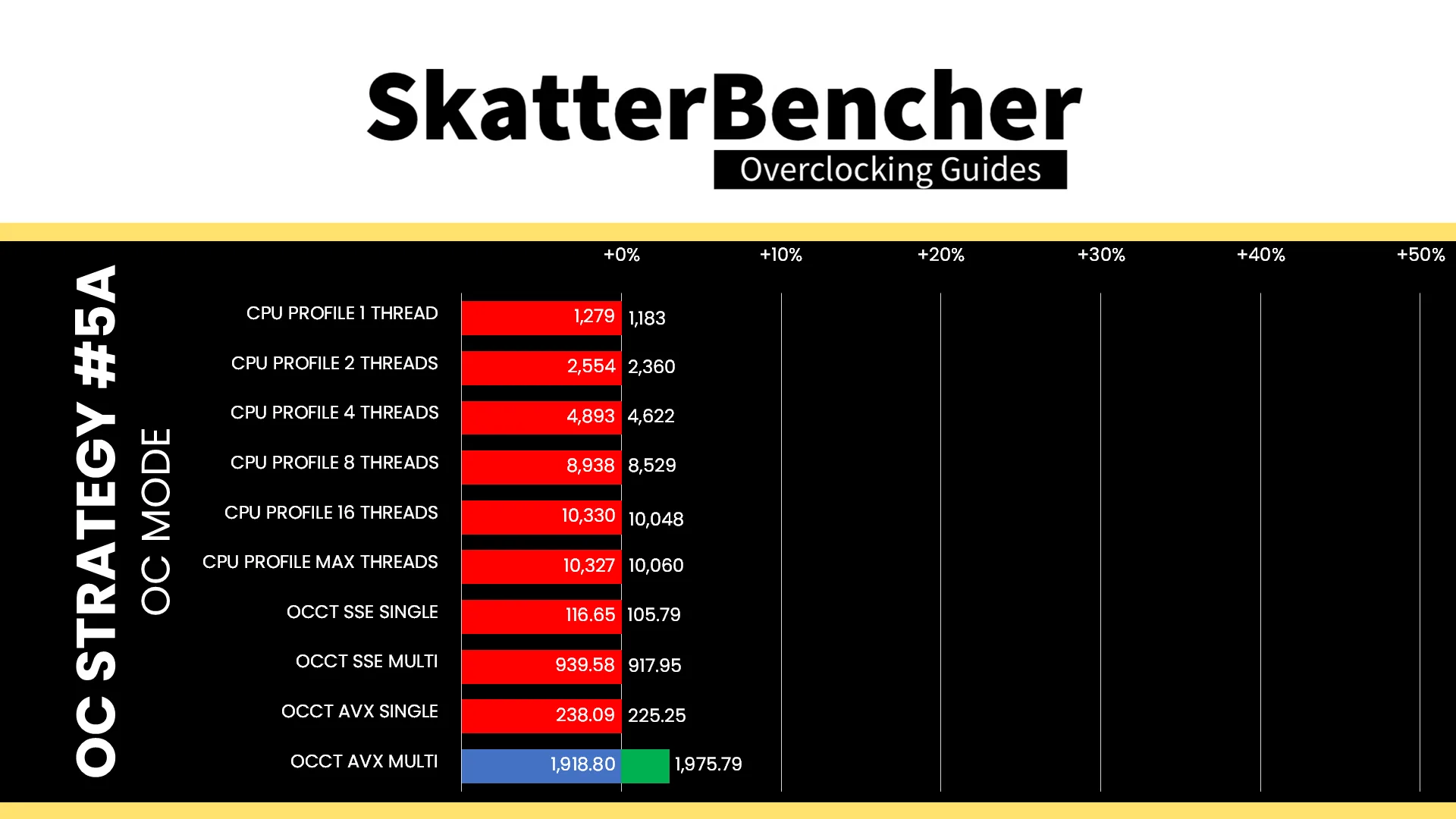
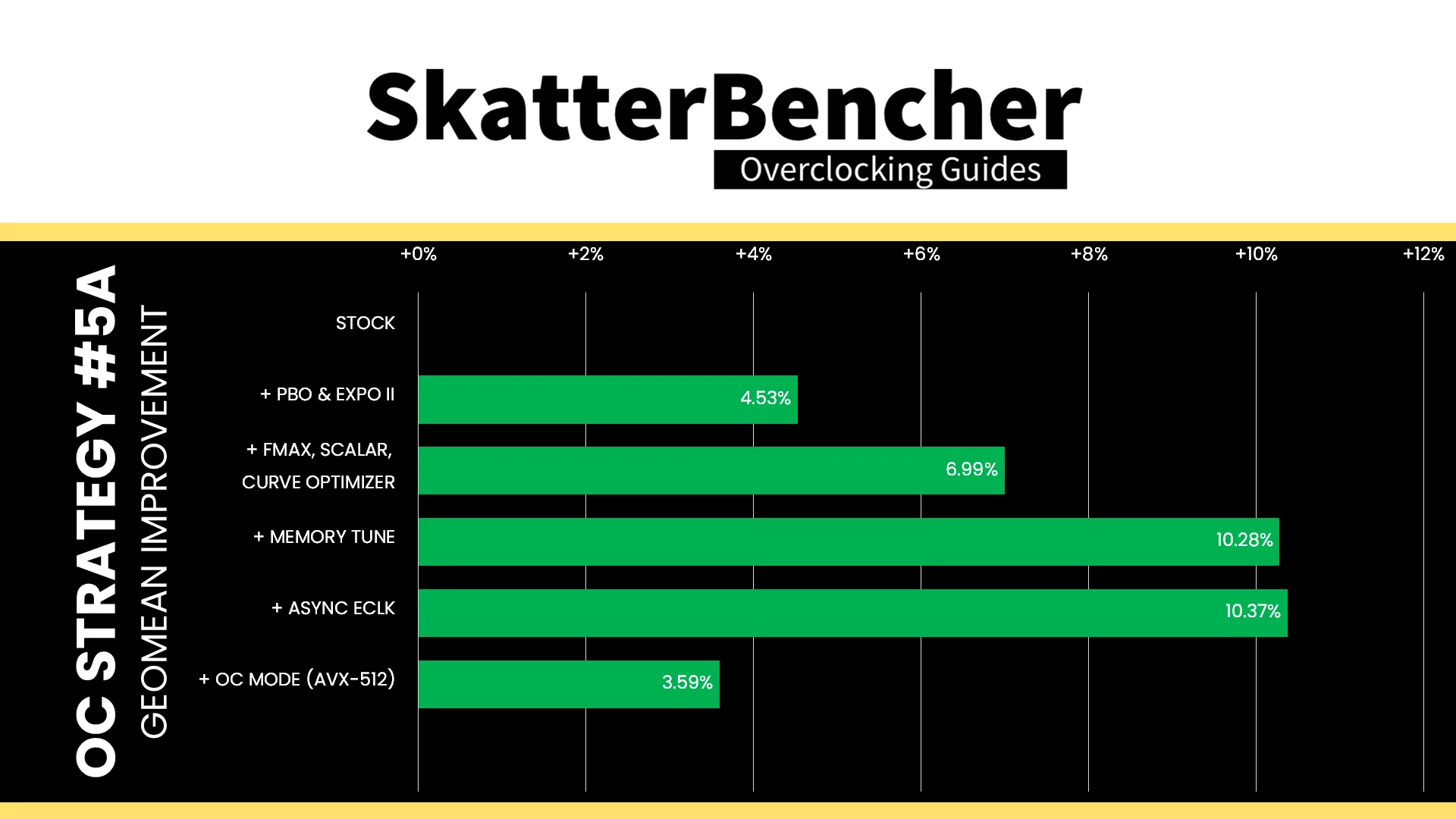
Manually overclocking a Ryzen CPU hasn’t been the path to maximum performance for a while now and the benchmark results show clearly why. Although there are some places where we win over stock configuration, there’s many places where we lose too. The geomean performance speedup over stock is still positive at 3.59%, and we get a maximum benchmark speedup of +36.26% in PyPrime. However, we also see a maximum benchmark slowdown of 9.73% in CPU-Z 1T.
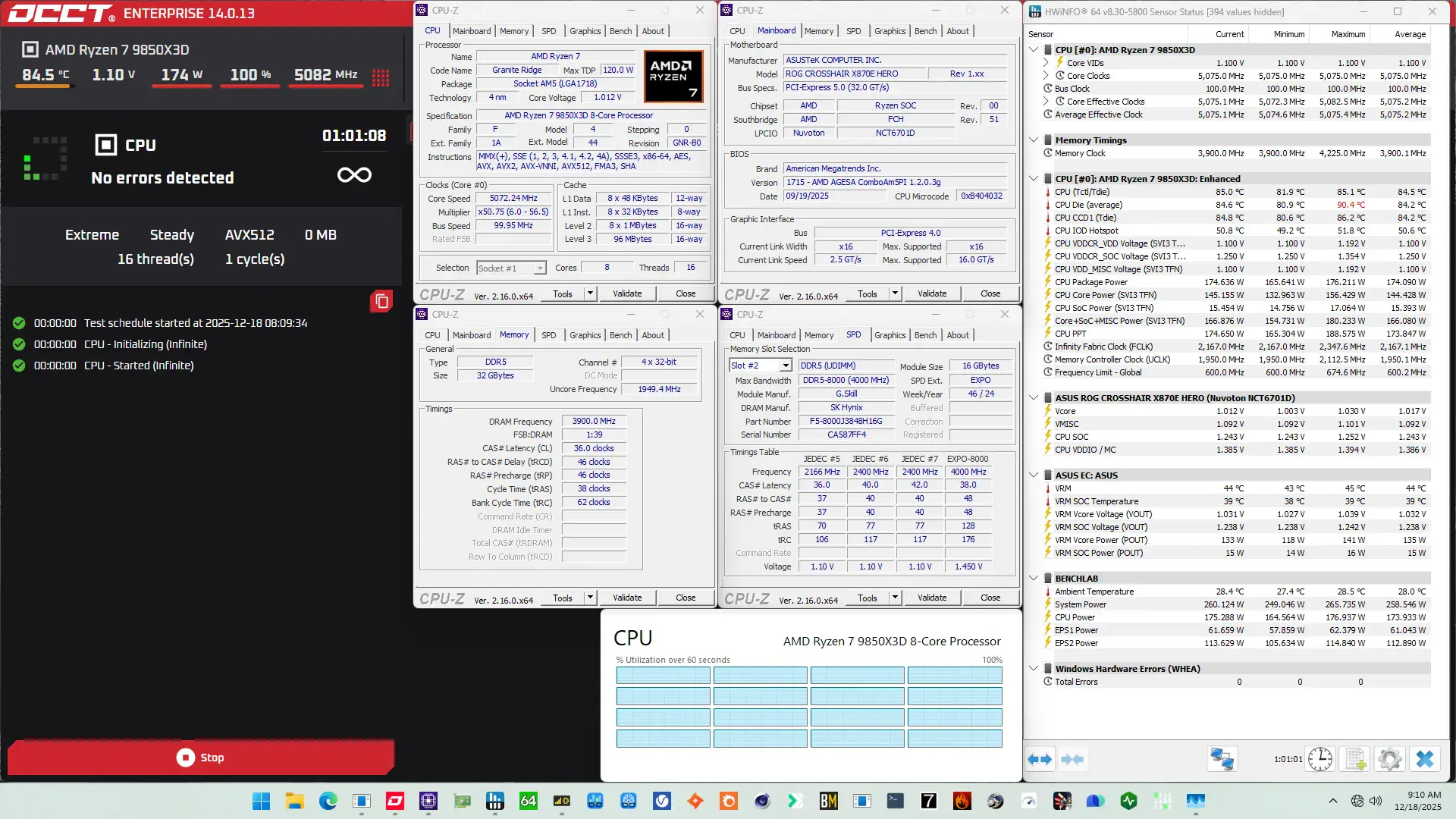
When running the OCCT CPU AVX-512 Stability Test, the average CPU effective clock is 5075 MHz with 1.032 volts. The average CPU temperature is 84.2 degrees Celsius. The average CPU package power is 174.1 watts.
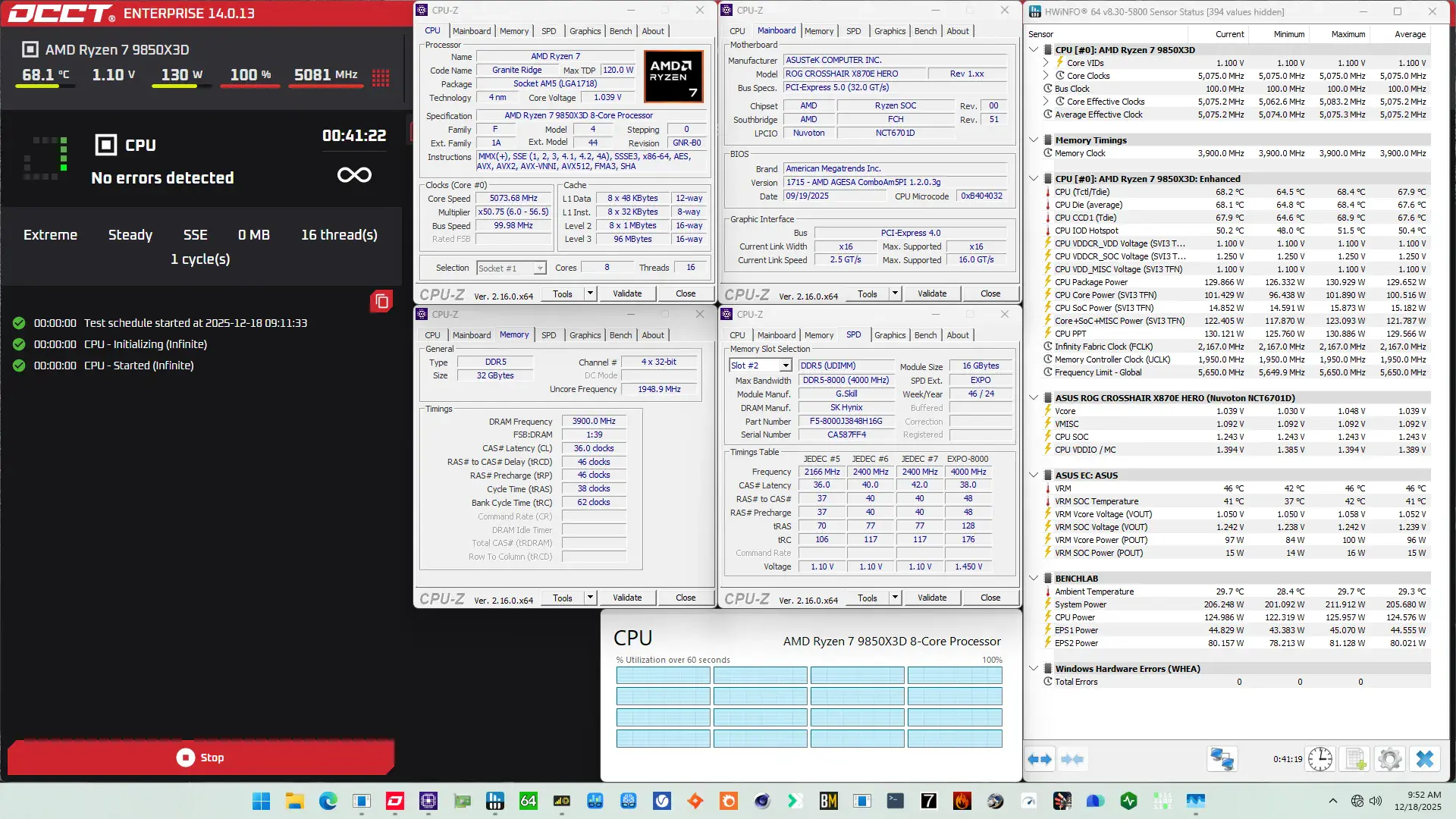
When running the OCCT CPU SSE Stability Test, the average CPU effective clock is 5075 MHz with 1.092 volts. The average CPU temperature is 67.6 degrees Celsius. The average CPU package power is 129.7 watts.
OC Strategy #5B: OC Mode (SSE)
Obviously picking the AVX-512 stress test is a true worst-case scenario that most users wouldn’t encounter, so for science I also tested the maximum frequency with a simple OCCT SSE stress test.
Here I found the maximum operating voltage to be 1.2V, which droops to about 1.1V under load. That gives me a maximum stable frequency of 5450 MHz. Stability is a relative term because not only does it fail the OCCT AVX-512 stress test, but it also fails the Y-Cruncher benchmark. All other benchmarks were fine though, so perhaps it is a somewhat reasonable system for gaming workloads.
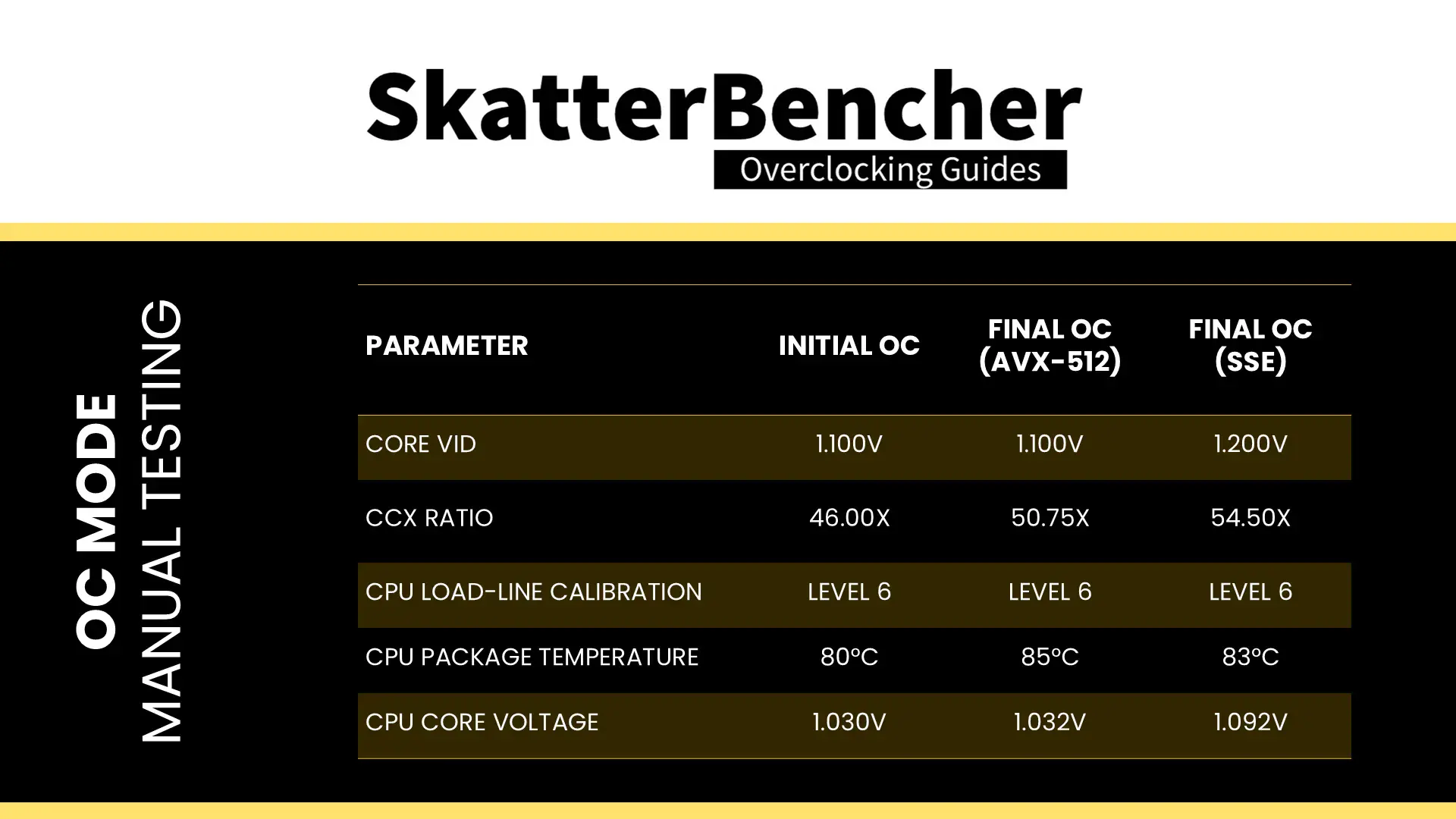
BIOS Settings & Benchmark Results
Upon entering the BIOS
- Go to the Extreme Tweaker menu
- Set Ai Overclock Tuner to EXPO I
- Set Memory Frequency to DDR5-7800
- Set FCLK Frequency to 2167 MHz
- Enter the DRAM Timing Control submenu
- Enter the Memory Presets submenu
- Select Load Hynix 7600MHz 1.45V 2x16GB SR and click OK
- Leave the Memory Presets submenu
- Enter the Memory Presets submenu
- Leave the DRAM Timing Control submenu
- Set CPU Core Ratio to CPU Core Ratio
- Set CPU Core Ratio 54.50
- Enter the DIGI+ VRM submenu
- Set CPU Load-line Calibration to Level 6
- Leave the DIGI+ VRM submenu
- Set Core VID to 1.200
Then save and exit the BIOS.
The boost frequency at 1 active thread is 5450 MHZ and remains there even when all cores are active. In light single-threaded workloads, all cores also run at 5450 MHz. Now we’re ballpark the same frequency as with Precision Boost enabled, at least for the multi-core workloads.
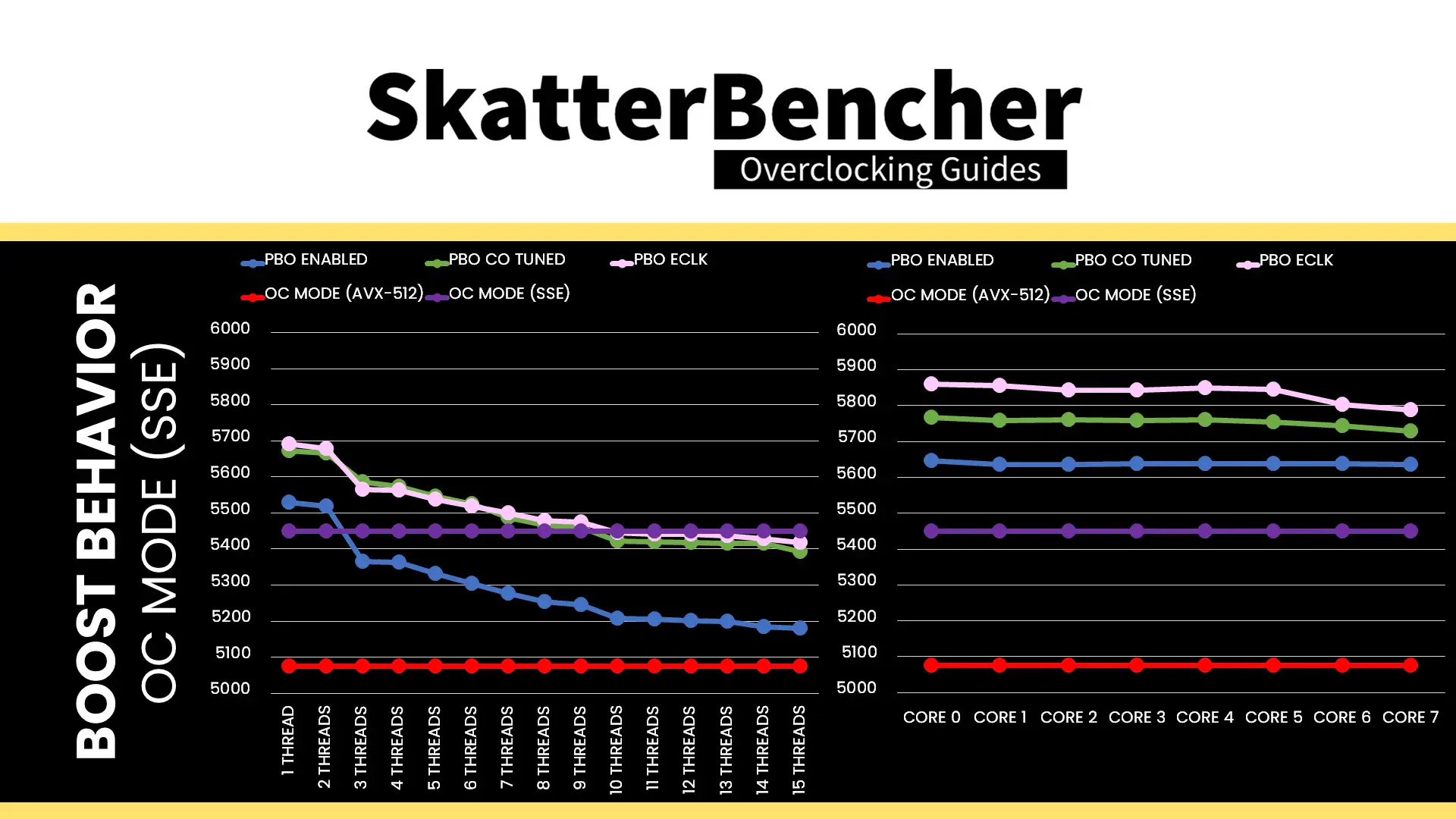
We re-ran the benchmarks and checked the performance increase compared to the default operation.
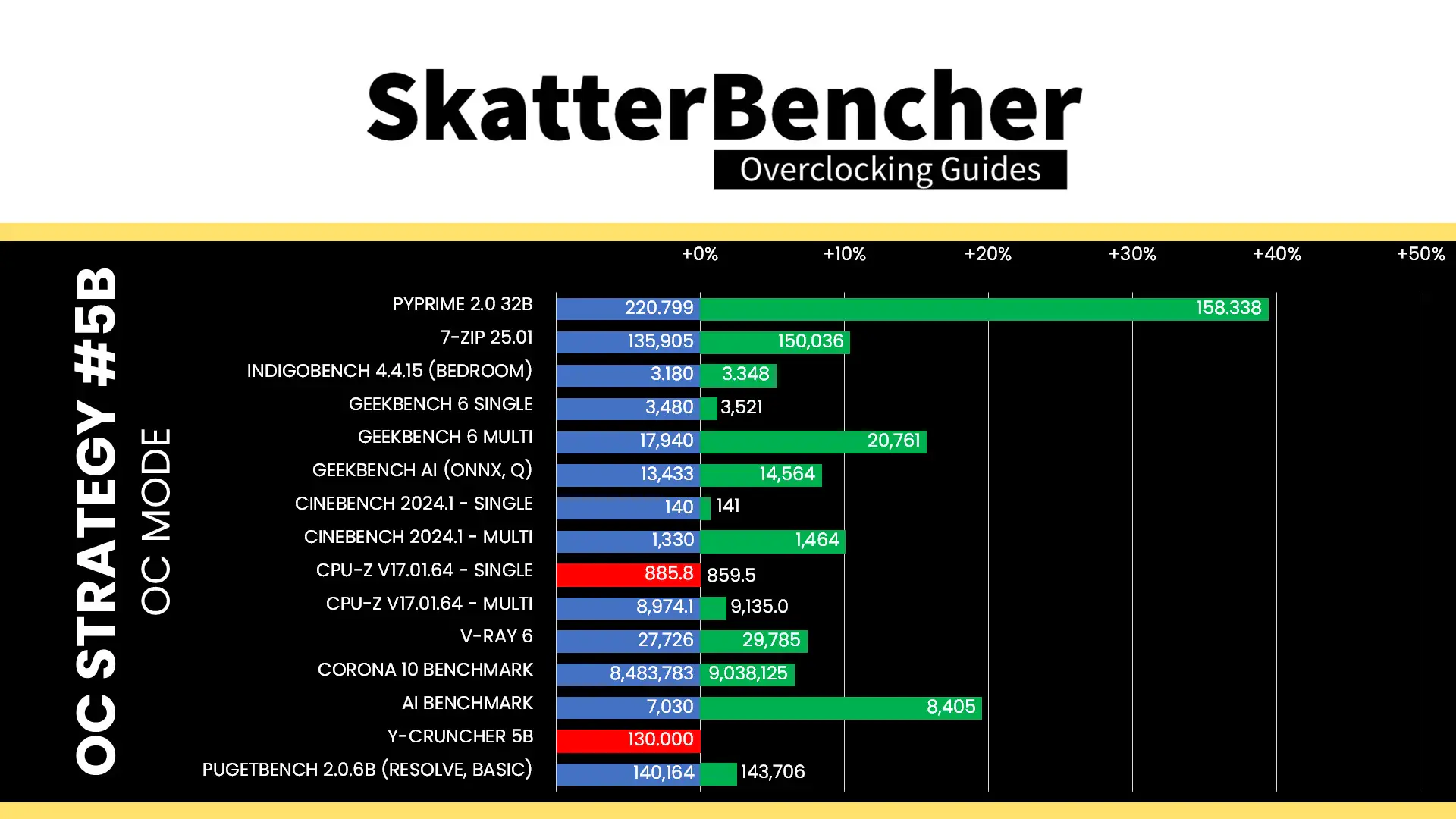
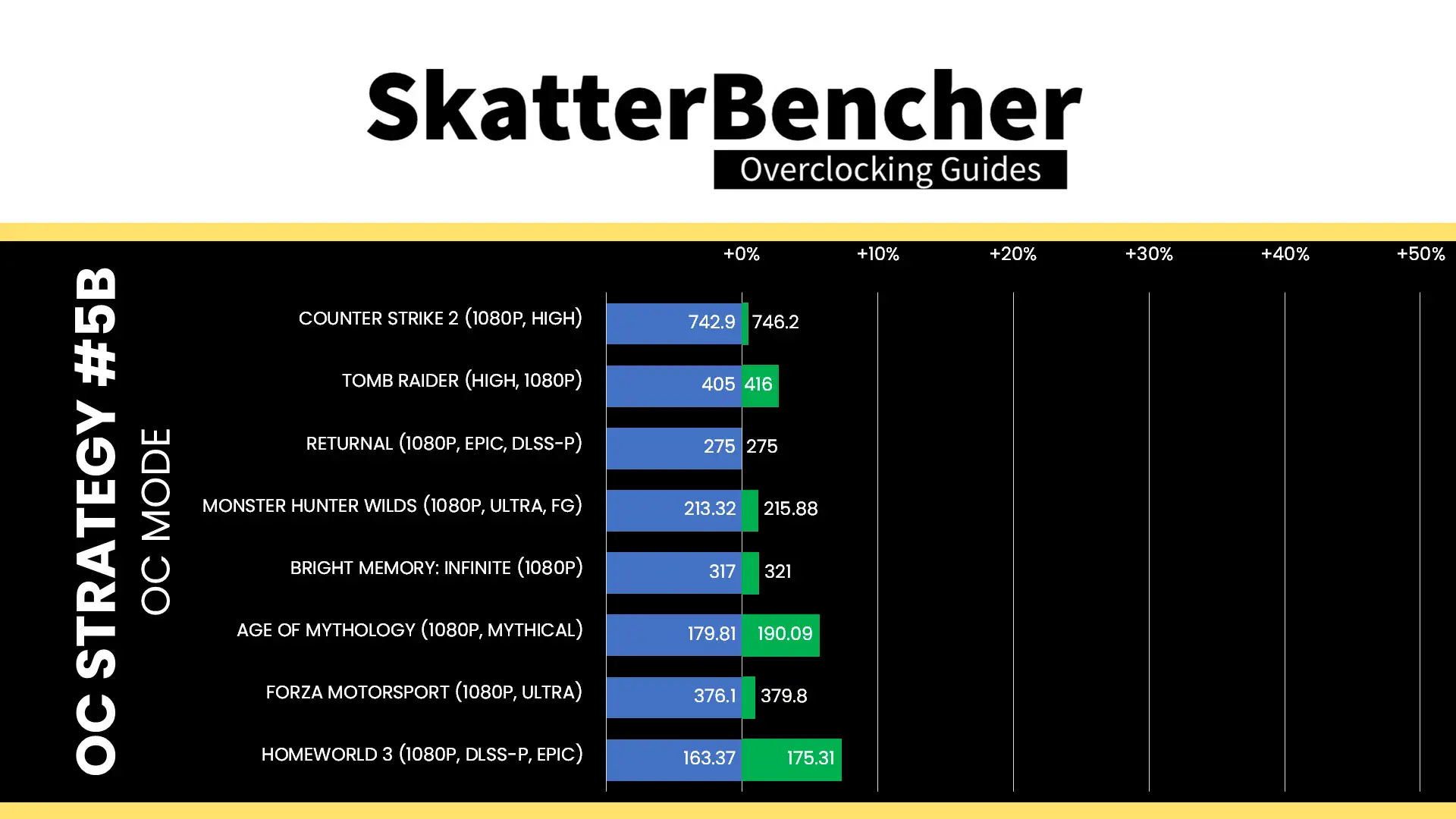
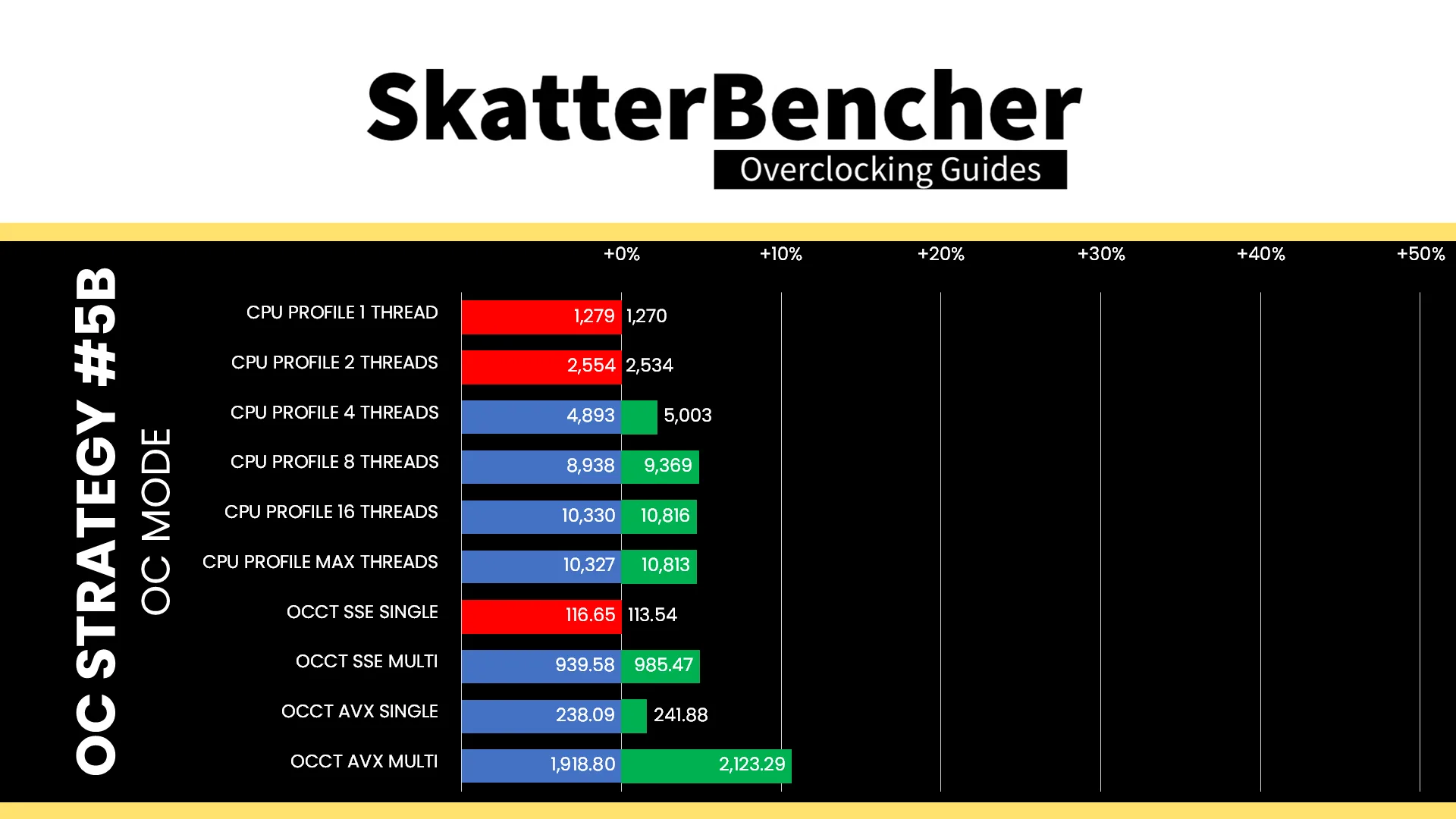
We’re not quite losing out as much as we did in OC Strategy #5A as most benchmarks see a performance bump compared to stock. In fact, we’re only losing to the high Precision Boost frequency on 4 occasions, each being an extremely light workload. The geomean performance speedup over stock is still positive at 8.65%, and we get a maximum benchmark speedup of +39.45% in PyPrime. However, we also see a maximum benchmark slowdown of 2.97% in CPU-Z 1T.
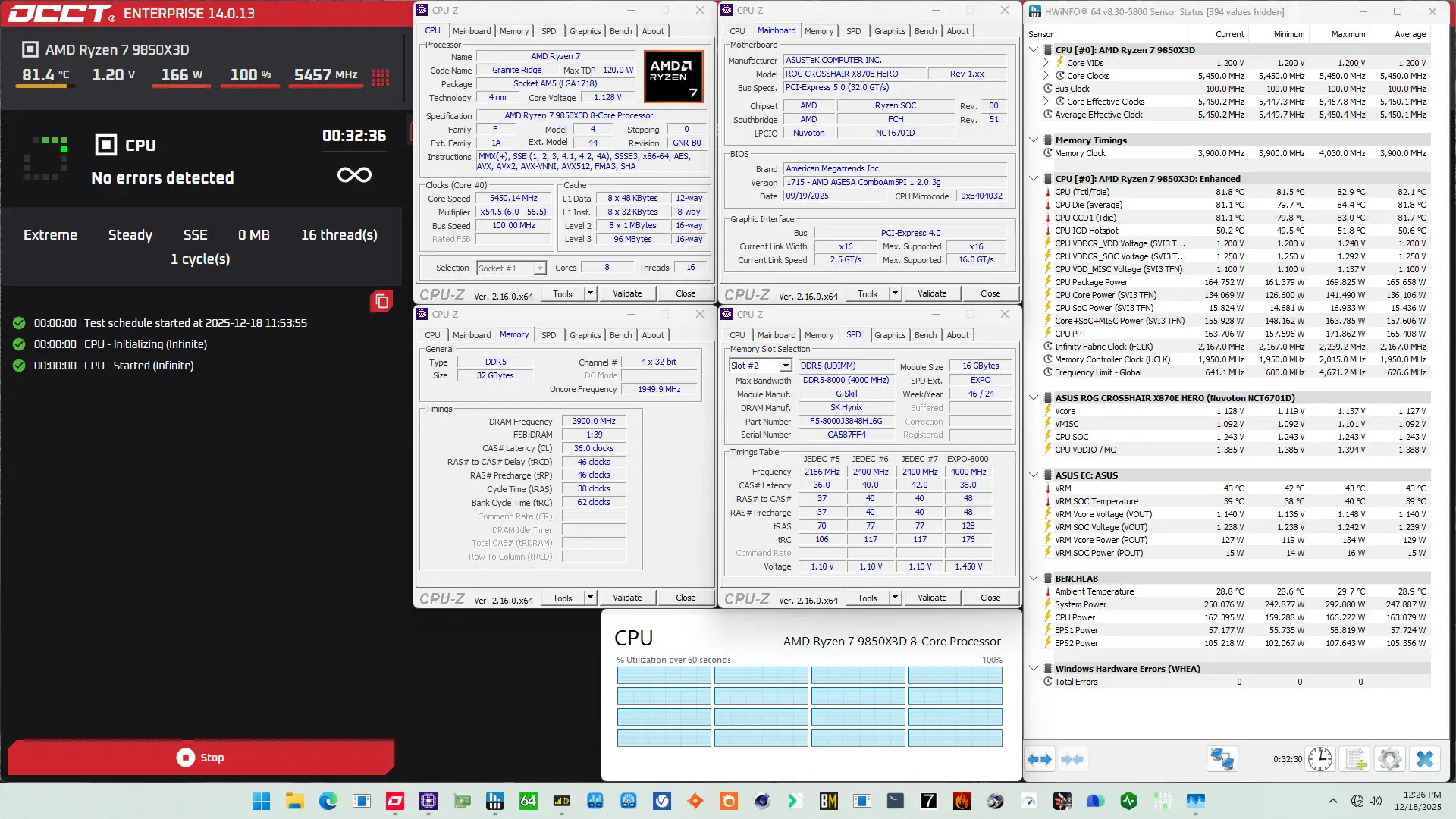
When running the OCCT CPU SSE Stability Test, the average CPU effective clock is 5450 MHz with 1.092 volts. The average CPU temperature is 82.8 degrees Celsius. The average CPU package power is 165.7 watts.
AMD Ryzen 7 9850X3D: Conclusion
Alright, let’s wrap this up.
All things considered, the 9850X3D isn’t that different from the 9800X3D. Sure, it can boost higher at stock and the V/F curve looks to be slightly better, but the effective frequencies under load are similar to the 9800X3D.
With the increased Fmax, there’s less need for asynchronous eCLK to squeeze the most frequency. In fact, since we couldn’t hit the Fmax+200 even with a decent Curve Optimizer undervolt, I found async eCLK to not really help at all on this chip.
Anyway, that’s it for this video.
I want to thank my Patreon supporters and YouTube members for supporting my work. If you have any questions or comments, please drop them in the comment section below.
See you next time!